Snapshots
3 minute read
A snapshot records the state of a server’s disk (but not its virtual memory) at the moment it is taken. Snapshots are useful during development: if something goes wrong, you can revert the server to the saved state.
CMP can create and revert snapshots on the following server types:
- VMware vCenter
- Nutanix Acropolis
- Microsoft Azure
- Amazon Web Services (AWS)
- OpenStack
- SCVMM
- Oracle Linux Virtualization Manager (OLVM)
- H3C CAS
- OpenShift Virtualization (create only)
CMP manages one snapshot per server at a time. You can also install the Scheduled Snapshots extension to take snapshots automatically and retain several. See Schedule snapshots.
CMP ignores snapshots taken outside of CMP. It does not revert to those snapshots and never deletes them.
Create a snapshot
Because CMP keeps one snapshot per server, creating a snapshot on a server that already has one replaces it, and CMP deletes the previous snapshot in a background job. A link to that job appears at the top of the page.
-
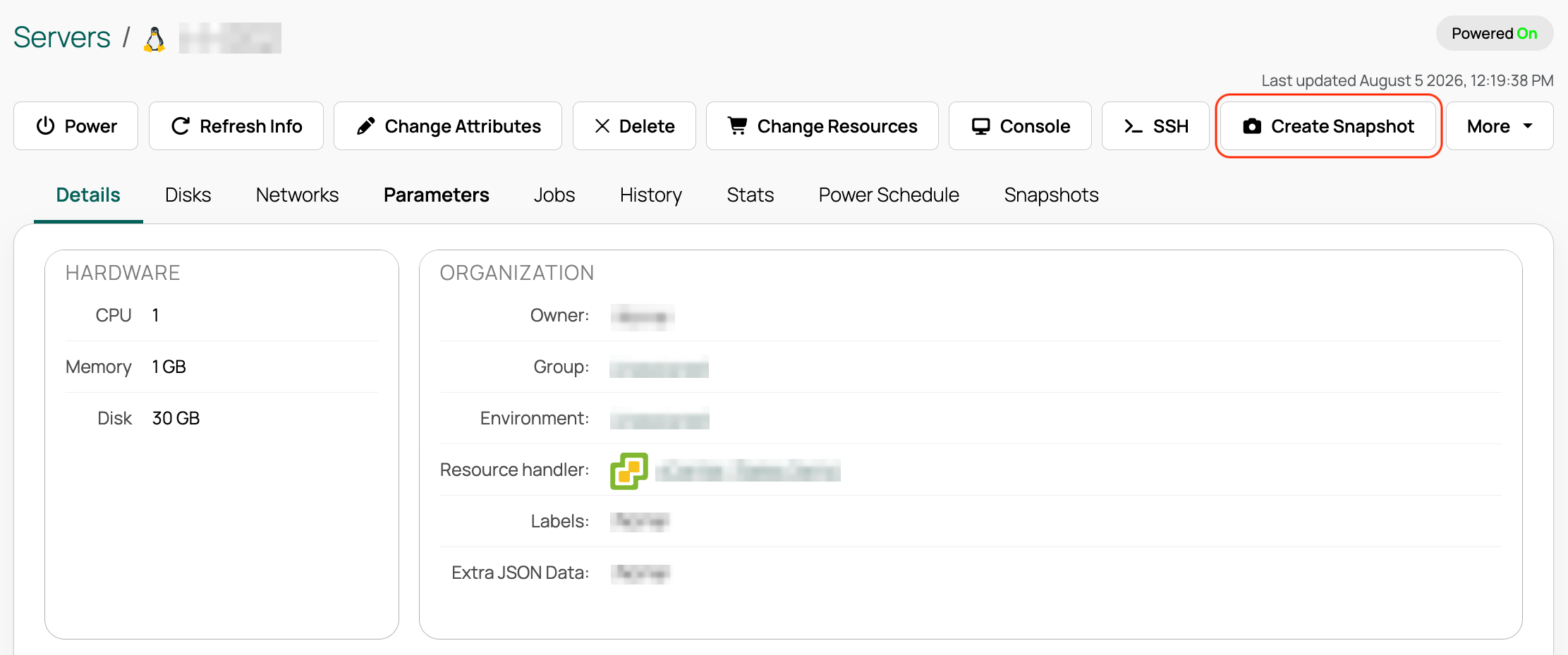
On the server’s details page, select Create Snapshot.
-
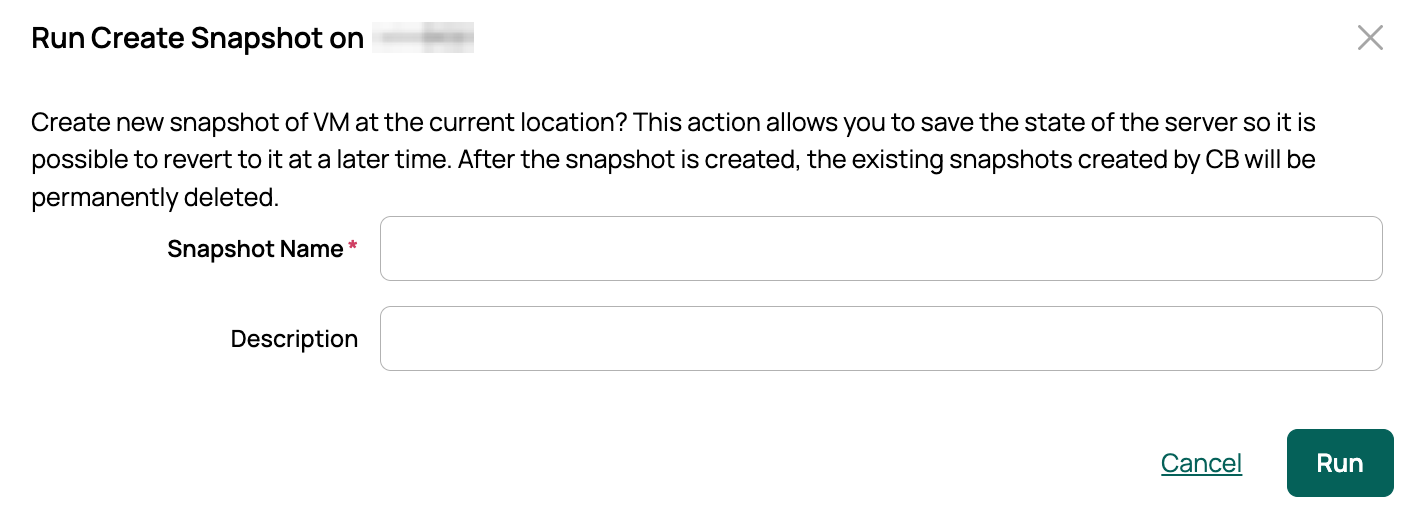
Enter a name and, optionally, a description.
-
Select Run. CMP creates the snapshot.
Revert to a snapshot
Reverting requires a snapshot that CMP created. On the server’s details page, select Revert To Snapshot to restore the most recent snapshot.
Reverting discards the server’s current memory and disk state.
Schedule snapshots
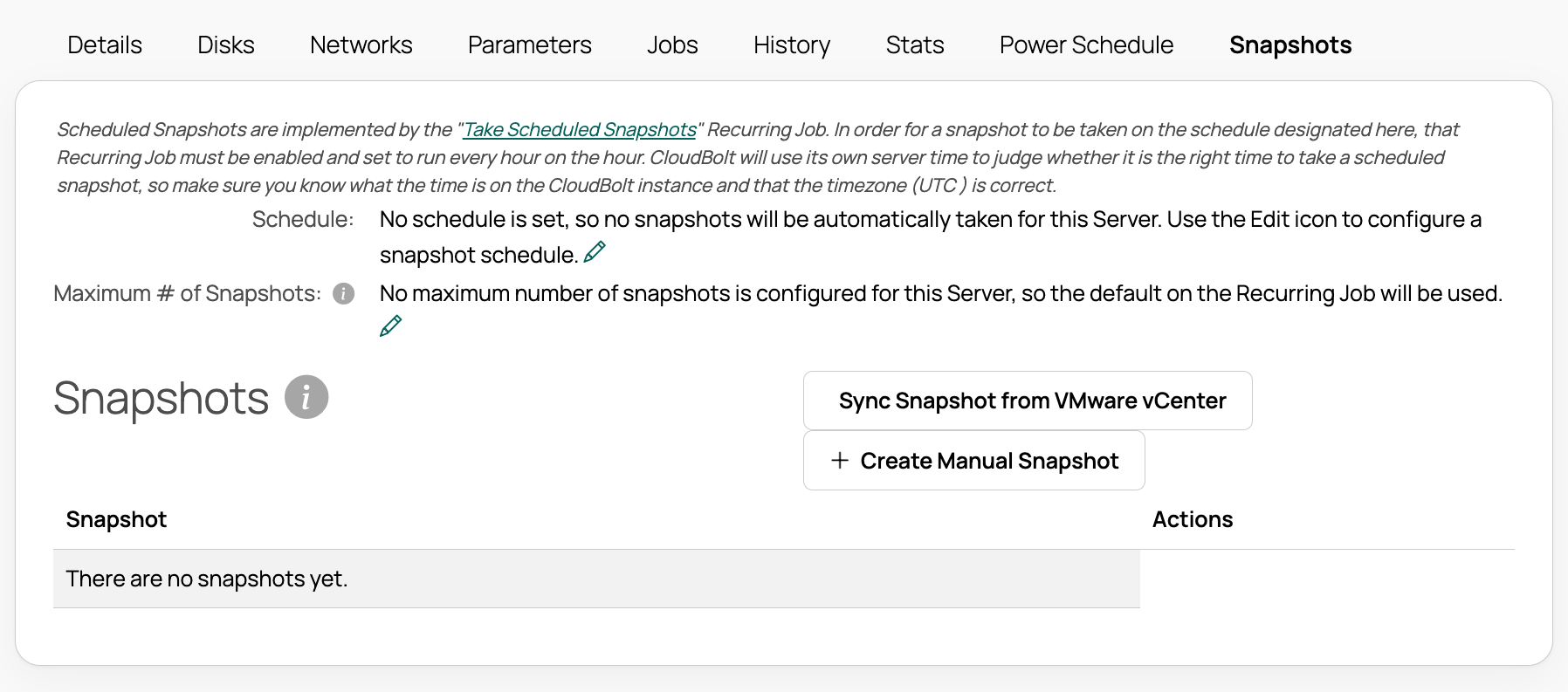
The Scheduled Snapshots UI Extension (XUI) takes snapshots automatically on a cron-style schedule and retains up to a maximum number you set. You can still take a snapshot at any time using Create Manual Snapshot.
 (opens full-size image in a new tab)
Scheduled snapshots require the Take Scheduled Snapshots recurring job, which runs hourly to take due snapshots. Ensure this job is enabled.
Set up scheduled snapshots
- Import the Scheduled Snapshots XUI from the Content Library, or enable it in Admin > Manage UI Extensions.
- Confirm the Take Scheduled Snapshots recurring job is enabled. The XUI includes this job, and scheduled snapshots do not run without it.
Configure scheduled snapshots
- Go to Resources > Servers and open a snapshot-capable server.
- Select the Snapshots tab.
- Select the Edit icon next to Schedule.
- Enter a cron-style schedule. For example,
0 * * * *takes a snapshot every hour. The crontab calculator is a helpful reference. - Select Save.
- Enter a cron-style schedule. For example,
- Select the Edit icon next to Maximum # of Snapshots.
- When the maximum is reached, CMP deletes the oldest snapshot.
- If left blank, the maximum defaults to 3.
- This value overrides the default from the recurring job.