Server views
3 minute read
List view
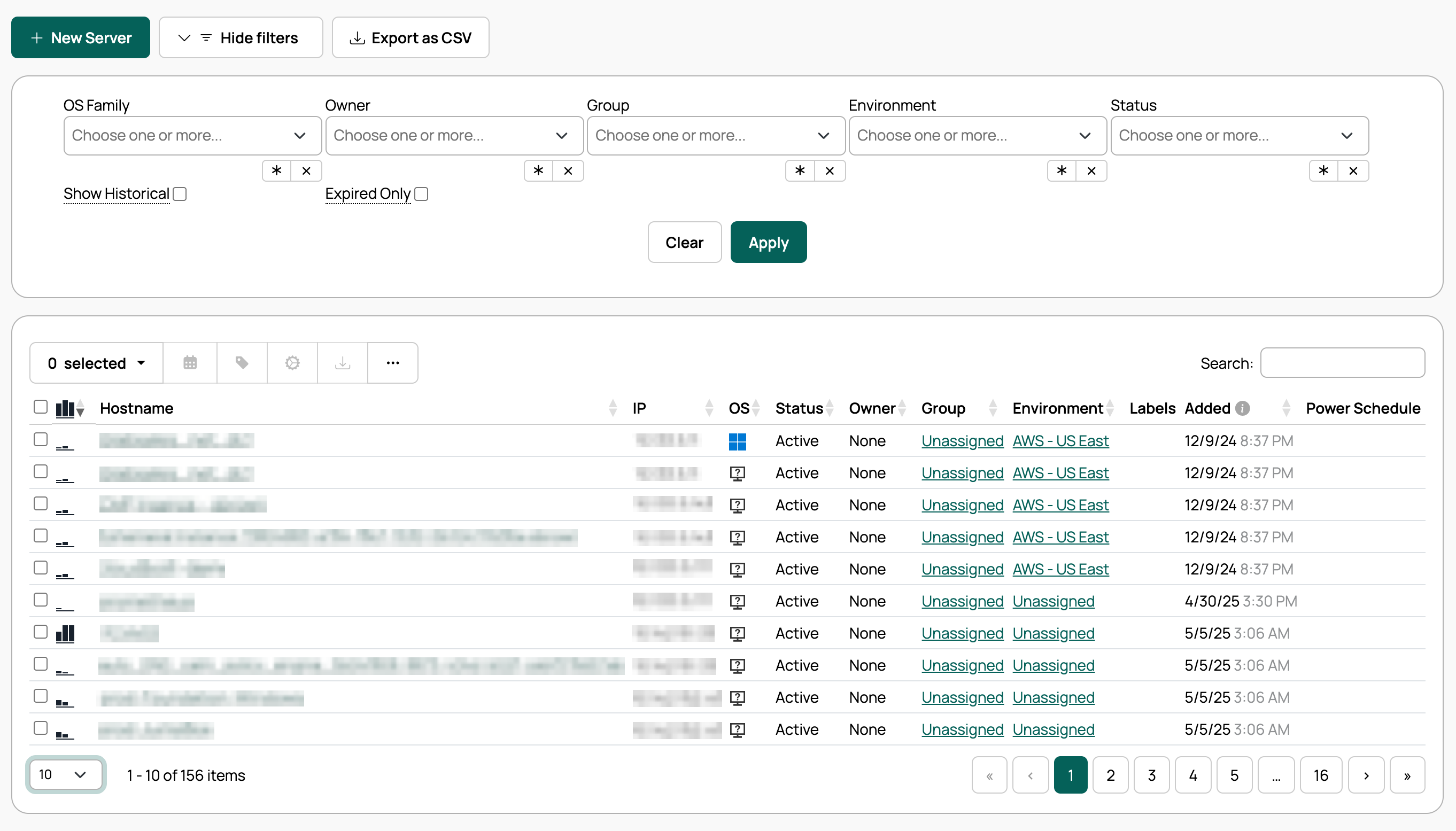
The server list shows all servers for which a user has view permissions, as determined by their group and role memberships. You can filter the list by various facets (select Show Filters) or search it using the table’s search field. If labels are set on any servers, selecting a label filters the table on that label.
Column headers also have a menu to sort and filter that column. Depending on the column, you can pick from a list of values (such as Status, Environment, or Labels), search text in Hostname or Owner, or choose dates in Added. Active filters show as chips above the table. Remove a chip to clear that filter, or select Clear all when more than one is active.
To act on one or more servers, select their rows and use the table toolbar to control the power schedule, manage labels, install applications, or run custom-defined server actions.
 (opens full-size image in a new tab)
Customize server list columns
- To customize the data columns shown in the server list for the logged-in user, select the ellipsis icon.
- Type in the field or browse the dropdown to find and add columns.
- Select Save.
Detail view
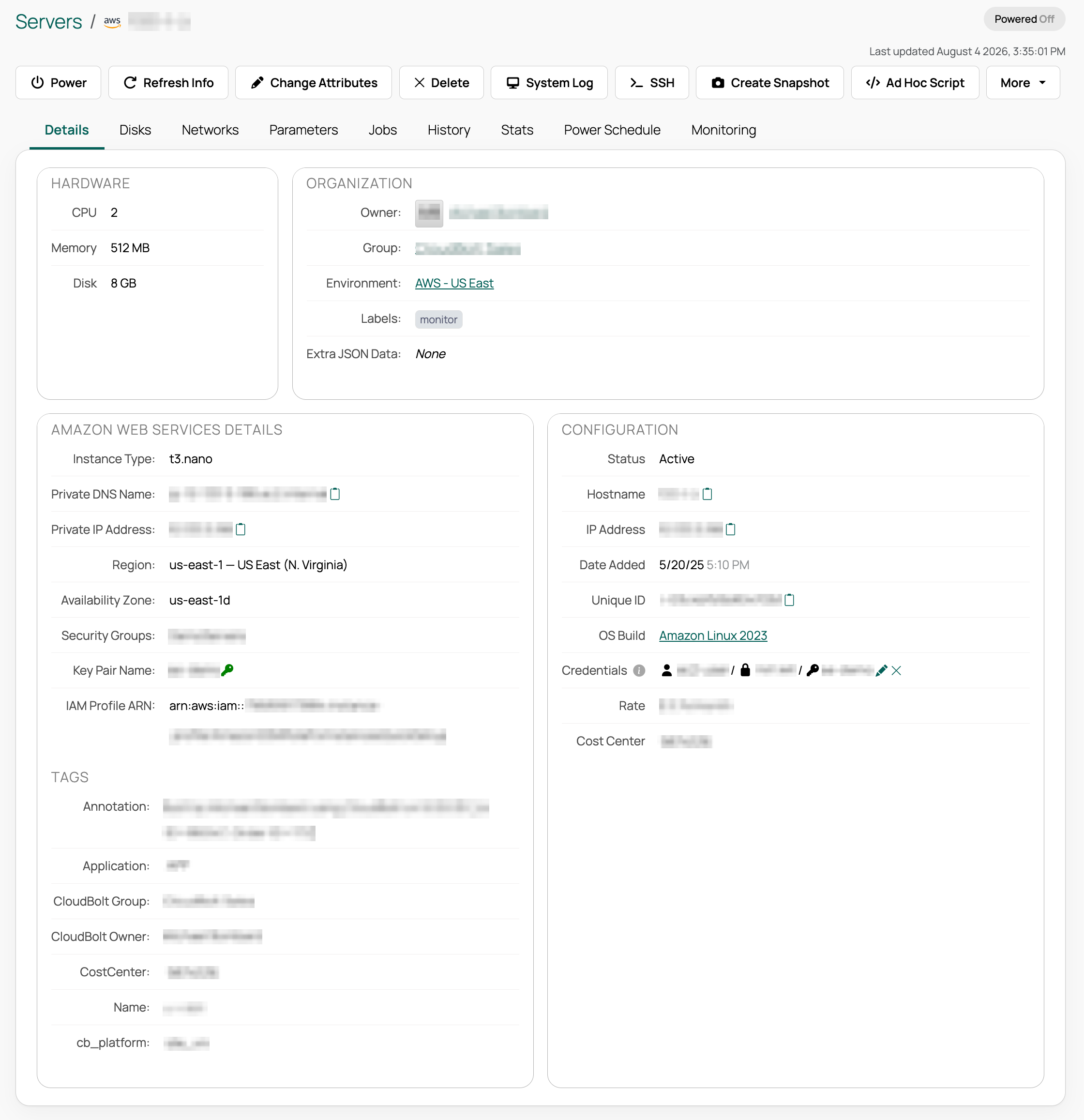
A server’s detail view shows its status, hardware configuration, disks, networking information, history, and more. From this view, users with permissions can manage server ownership, reassign the group and environment, and manage hardware, tags, and parameters.
- From the list view, select the Hostname of a server to open its detail view.
 (opens full-size image in a new tab)
AWS server details
For AWS servers, the Amazon Web Services Details section of the server details displays the IAM Profile ARN when one exists for that server.
Change resources
On some resource handlers, qualified users can change a server’s CPU and memory. This change can optionally be scheduled for a later time; a change scheduled for later remains pending until the scheduled time is reached.
Like the order form, the parameter options and constraints configured on the server’s group and environment limit the values users can enter for CPUs and Mem Size. If one or both of these parameters are part of a preconfiguration, the preconfiguration is displayed in their place.
To allow a role to use this action, grant the role access to the Change Resources Server Action in Admin > Server Actions.
Server actions
Server actions add arbitrary actions to deployed servers as buttons on their detail view. For any action that end users may need to invoke on deployed servers, CMP admins can add a server action that appears on the deployed server’s detail page and, when selected, runs one of several types of CMP actions (such as a plugin, remote script, or webhook).
The server actions dialog box can display a message in either plaintext or HTML. To configure it, go to Admin > Server Actions and edit a server action.