Group and environment parameters
4 minute read
Groups and environments have the same Parameters tab, and parameters work the same way on both. In Cloud Management Platform (CMP), a parameter on a group applies to orders in that group and its subgroups. A parameter on an environment applies to orders that deploy there. When a blueprint sets options for a parameter, the form offers only those options. Otherwise, it offers the options from both the group and the environment. See How option order is determined.
Add a parameter to a group or environment
- Open the group or environment:
- For a group, go to Groups and select the group.
- For an environment, go to Admin > Environments and select the environment.
- Select the Parameters tab, then select Add.
- Locate and select the parameter, then select Add.
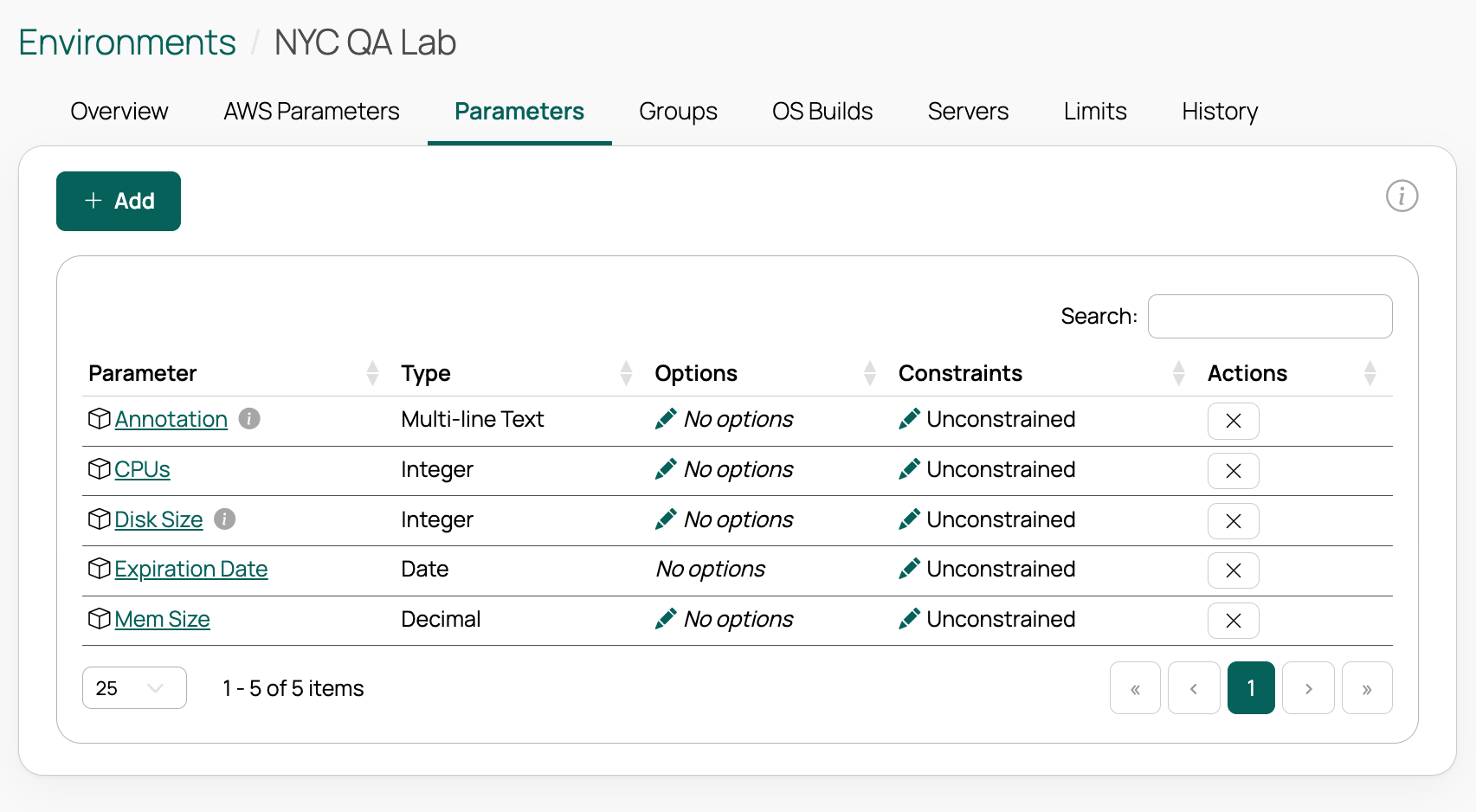 (opens full-size image in a new tab)
The parameter now appears on the order form for that group or environment. To create a new parameter, see Adding and managing parameters. Managing a group’s parameters requires the group.manage_parameters permission.
Example: Add an expiration date to an environment
The San Jose QA Lab environment’s order form needs an Expiration Date parameter, which CMP uses to remind users to decommission their resources.
- Go to Admin > Environments and choose San Jose QA Lab.
- Select the Parameters tab.
- Select Add.
- Locate and select Expiration Date from the global parameter list.
- Select Add.
Set options for a parameter
- On the group’s or environment’s Parameters tab, find the parameter’s row.
- In the Options column, select the edit icon.
- Add the values to offer, then select Save.
The order form now shows a list of those values instead of a free-text field. To set a minimum, maximum, or regular expression instead, see Constraints. For more on fixed lists, see Static options.
Example: Limit VM memory size to specific options
In the Acme group, limit the Mem Size parameter to 512 MB, 1 GB, 2 GB, and 4 GB.
- Go to Groups.
- Select the group.
- Select the Parameters tab.
- Select Add.
- Locate and select Mem Size.
- Select Add.
- In that row’s Options column, select the edit icon.
- In the options dialog, add the values in gigabytes: 0.5, 1, 2, and 4.
- Select Save.
The order form now shows a dropdown for memory size instead of a free-text field.
Set a value without showing the field
If a required parameter has only one option for an order, CMP uses that value and leaves the field off the order form. An optional parameter also offers a blank choice, so it still appears as a list.
- Give the parameter a single option on the group or environment.
- Select the parameter’s name to open its global settings.
- Enable the Required toggle switch.
Required is a global setting, so it applies everywhere the parameter is used.
Let users order several servers at once
To let users order more than one server in a single order, add a hostname template and the Quantity parameter. With a hostname template, the Hostname field becomes a read-only Hostname Preview, and CMP generates a unique name for each server.
- On the Parameters tab, add the Hostname Template and Quantity parameters.
- Give Hostname Template a single option, such as
web-00X. See Hostname specification.
The order form then shows Hostname Preview and Quantity fields.
Generate server annotations
Set the Annotation parameter to a template to record where each new server came from. See Annotations specification for the context variables and supported platforms.
-
On the Parameters tab, add the Annotation parameter.
-
In its Options column, select the edit icon.
-
Enter a template, select Add option, then select Save. For example:
Built by {{ server.owner }} using CMP ({{ portal.site_url }})
on {{ server.add_date|date:"SHORT_DATE_FORMAT" }}
[Job ID={{ job.id }}, Order ID={{ order.id }}]
To keep the field off the order form, make Annotation required. See Set a value without showing the field. To apply the template everywhere, set it as the parameter’s global default instead.
Related
- Parameters: Create parameters and manage inheritance and display order.
- Parameter options: How group, environment, and blueprint options combine.
- Blueprint-level parameters: Set options for a single blueprint.
- Networking: Choose which networks a group or environment offers.
- Order form customization: Every way to customize the order form.