# Snapshots
> Use snapshots in Cloud Management Platform (CMP) to save the state of a server at a point in time and revert to it later
---
Site [llms.txt](/llms.txt)
---
A snapshot records the state of a server's disk (but not its virtual memory) at the moment it is taken. Snapshots are useful during development: if something goes wrong, you can revert the server to the saved state.
CMP can create and revert snapshots on the following server types:
- VMware vCenter
- Nutanix Acropolis
- Microsoft Azure
- Amazon Web Services (AWS)
- OpenStack
- SCVMM
- Oracle Linux Virtualization Manager (OLVM)
- H3C CAS
- OpenShift Virtualization (create only)
CMP manages one snapshot per server at a time. You can also install the Scheduled Snapshots extension to take snapshots automatically and retain several. See [Schedule snapshots](#schedule-snapshots).
CMP ignores snapshots taken outside of CMP. It does not revert to those snapshots and never deletes them.
## Create a snapshot
Because CMP keeps one snapshot per server, creating a snapshot on a server that already has one replaces it, and CMP deletes the previous snapshot in a background job. A link to that job appears at the top of the page.
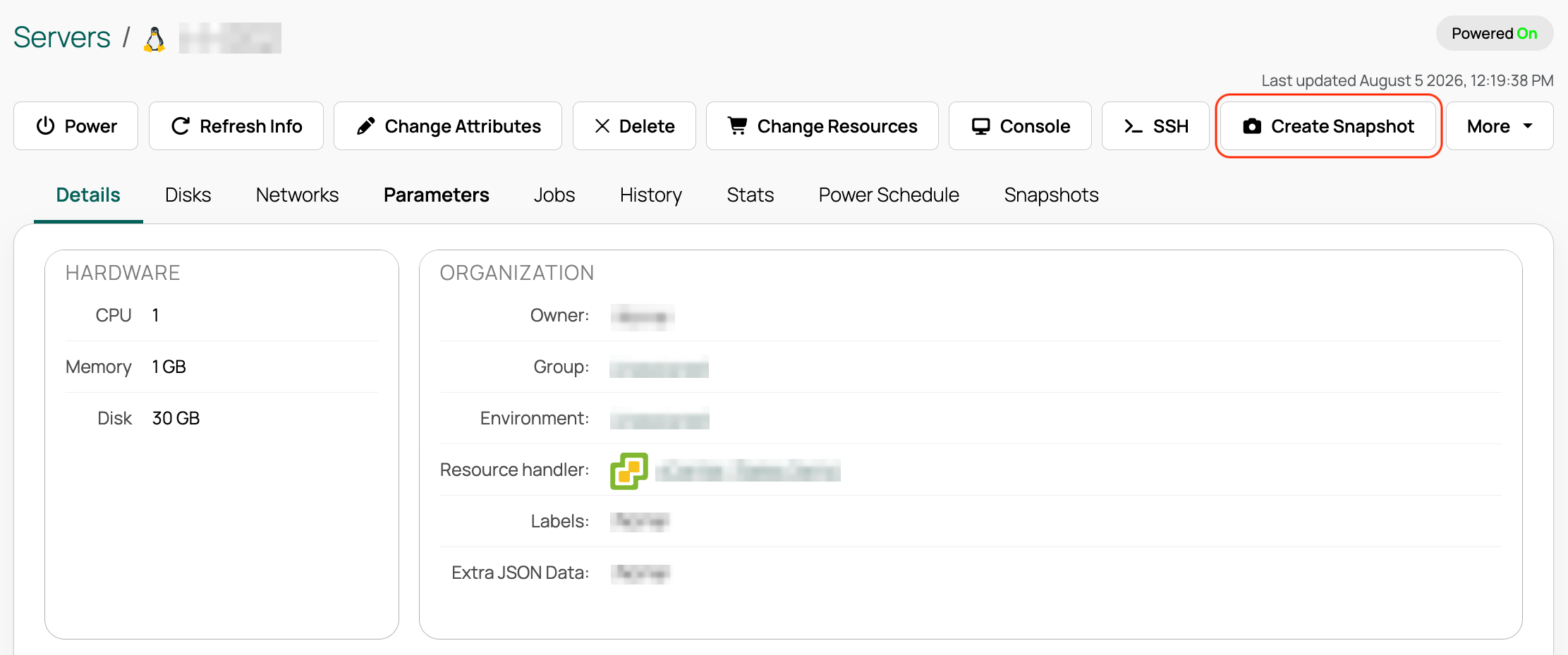
1. On the server's details page, select **Create Snapshot**.
1. Enter a name and, optionally, a description.
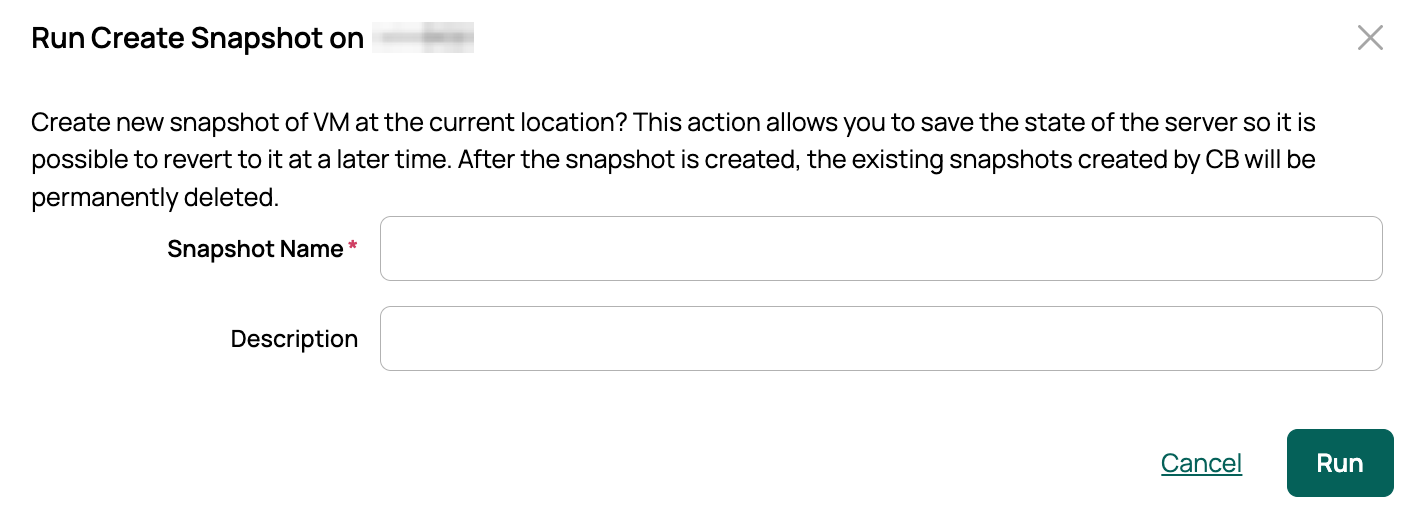
1. Select **Run**. CMP creates the snapshot.
## Revert to a snapshot
Reverting requires a snapshot that CMP created. On the server's details page, select **Revert To Snapshot** to restore the most recent snapshot.
Reverting discards the server's current memory and disk state.
## Schedule snapshots
The Scheduled Snapshots UI Extension (XUI) takes snapshots automatically on a cron-style schedule and retains up to a maximum number you set. You can still take a snapshot at any time using **Create Manual Snapshot**.
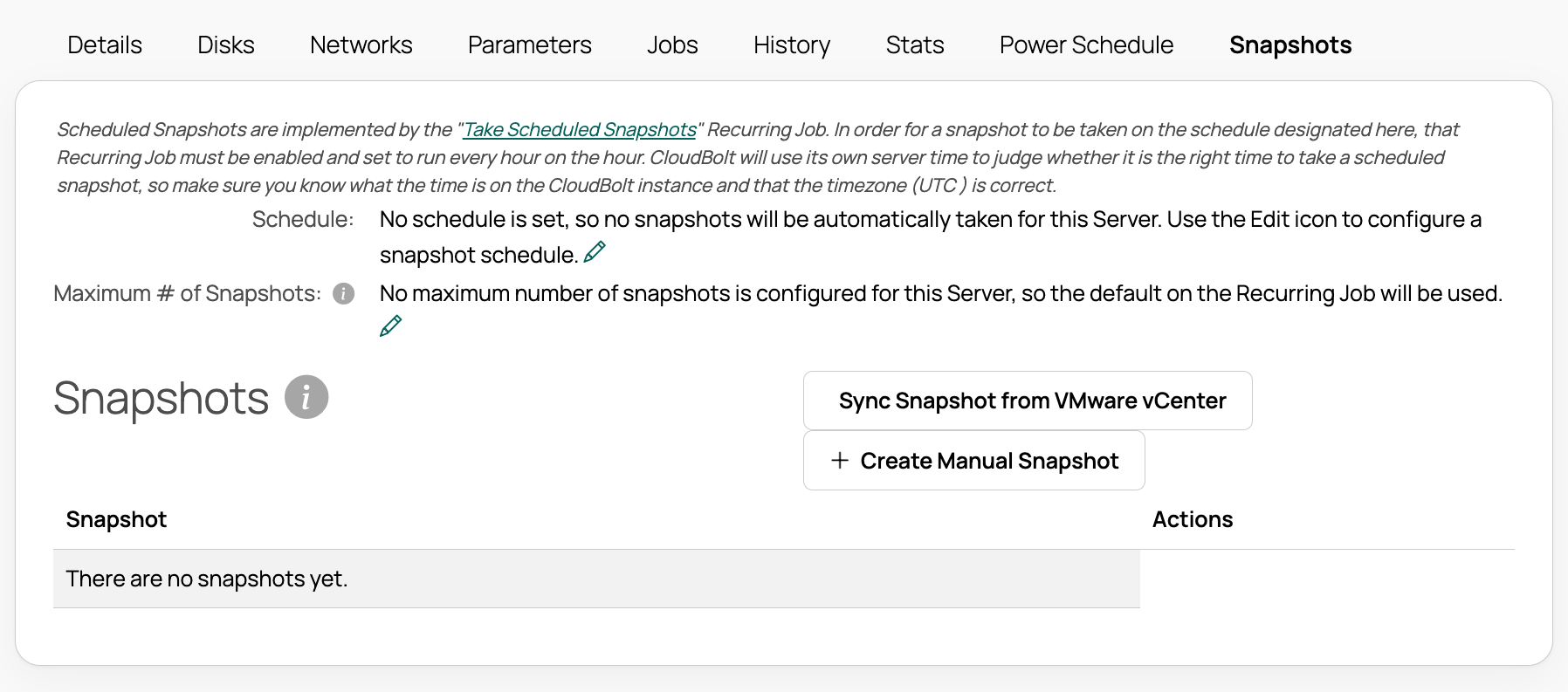
Scheduled snapshots require the *Take Scheduled Snapshots* [recurring job](/docs/cmp/use/orchestration/recurring-jobs/), which runs hourly to take due snapshots. Ensure this job is enabled.
### Set up scheduled snapshots
1. Import the Scheduled Snapshots XUI from the [Content Library](/docs/cmp/use/catalog/content-library/), or enable it in **Admin** > **Manage UI Extensions**.
1. Confirm the *Take Scheduled Snapshots* recurring job is enabled. The XUI includes this job, and scheduled snapshots do not run without it.
### Configure scheduled snapshots
1. Go to **Resources** > **Servers** and open a snapshot-capable server.
1. Select the **Snapshots** tab.
1. Select the **Edit** icon next to **Schedule**.
1. Enter a cron-style schedule. For example, `0 * * * *` takes a snapshot every hour. The [crontab calculator](https://crontab.guru/) is a helpful reference.
1. Select **Save**.
1. Select the **Edit** icon next to **Maximum # of Snapshots**.
- When the maximum is reached, CMP deletes the oldest snapshot.
- If left blank, the maximum defaults to 3.
- This value overrides the default from the recurring job.