Manage recurring jobs
2 minute read
Cloud Management Platform (CMP) ships with a set of built-in recurring jobs. Any that you or another administrator create appear alongside them.
View recurring jobs
-
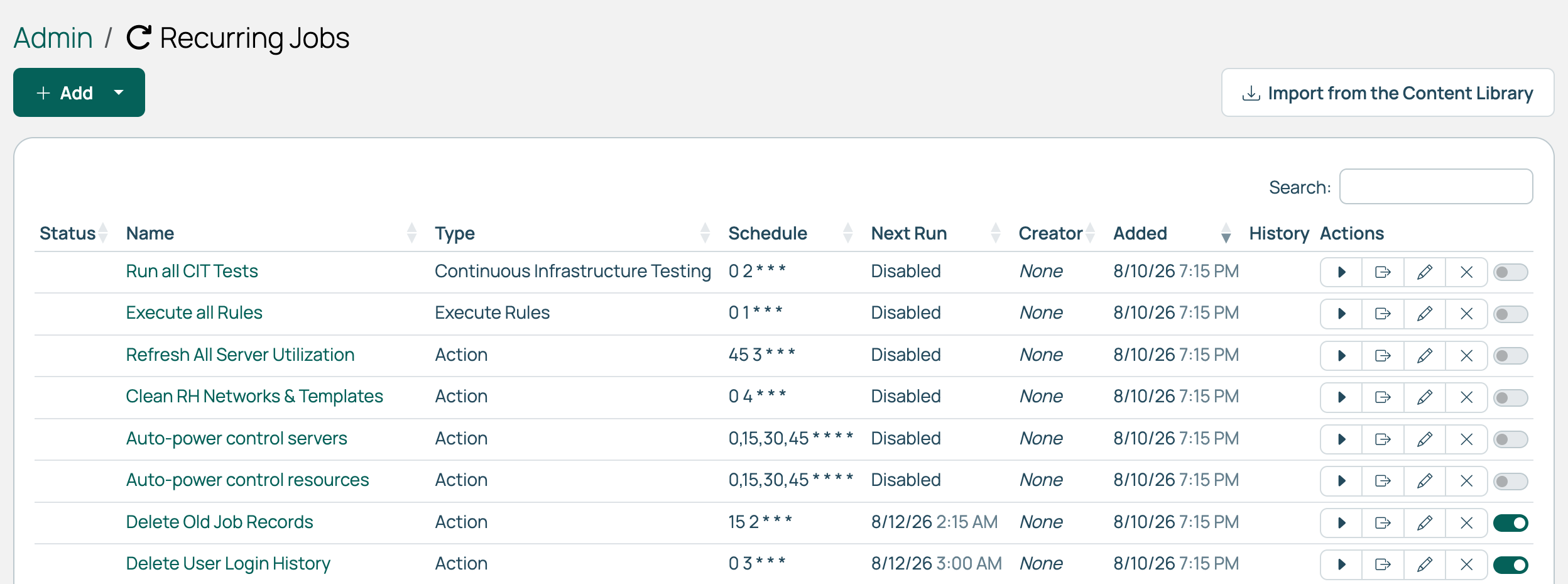
Go to Admin > Recurring Jobs.
 (opens full-size image in a new tab)
The Next Run column shows when each job runs next, or Disabled if the job is switched off. The toggle in the Actions column enables or disables a job.
-
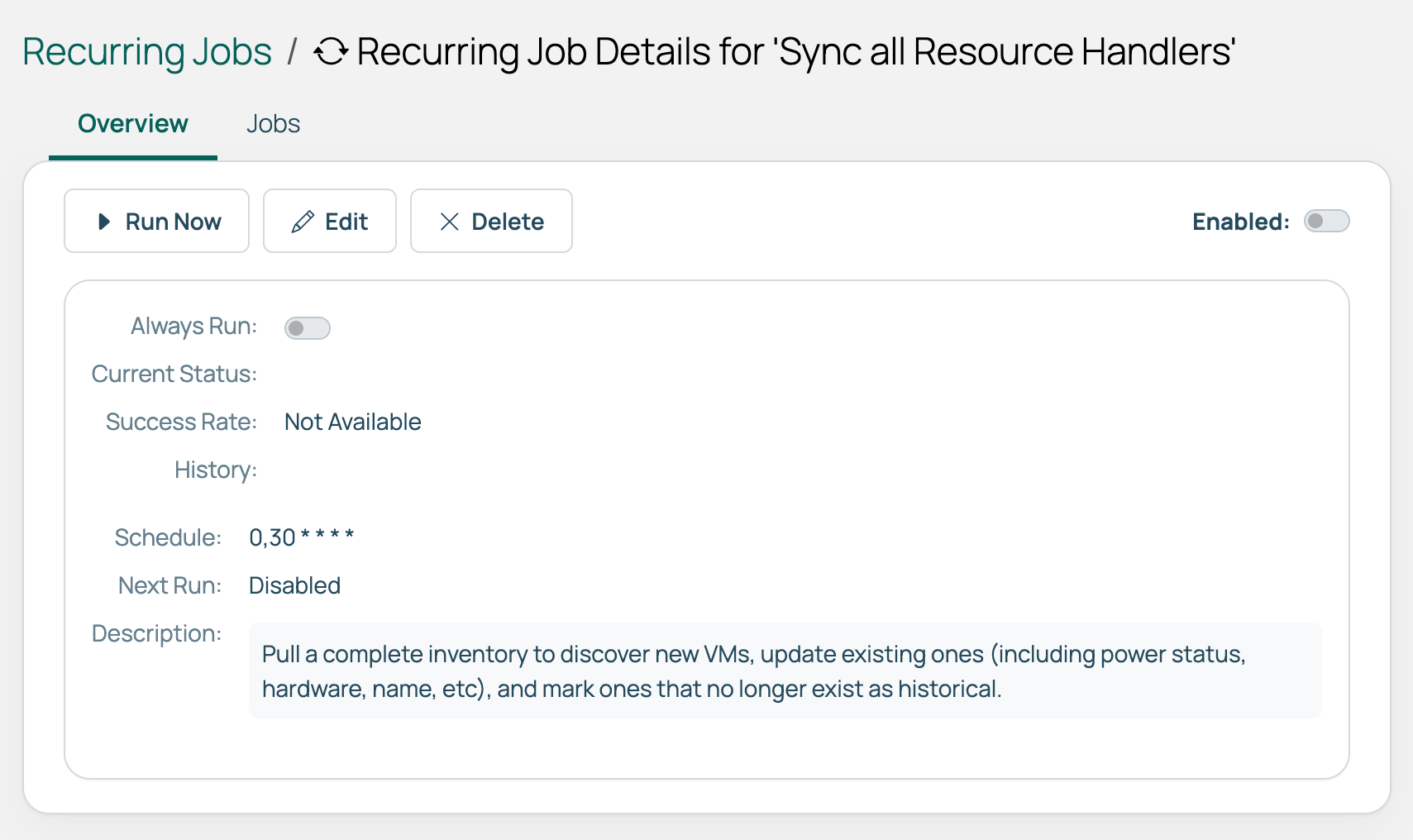
Select a job name to open its details, including its execution history.
Edit a recurring job
-
Go to Admin > Recurring Jobs.
-
Select the Edit icon next to a recurring job.
-
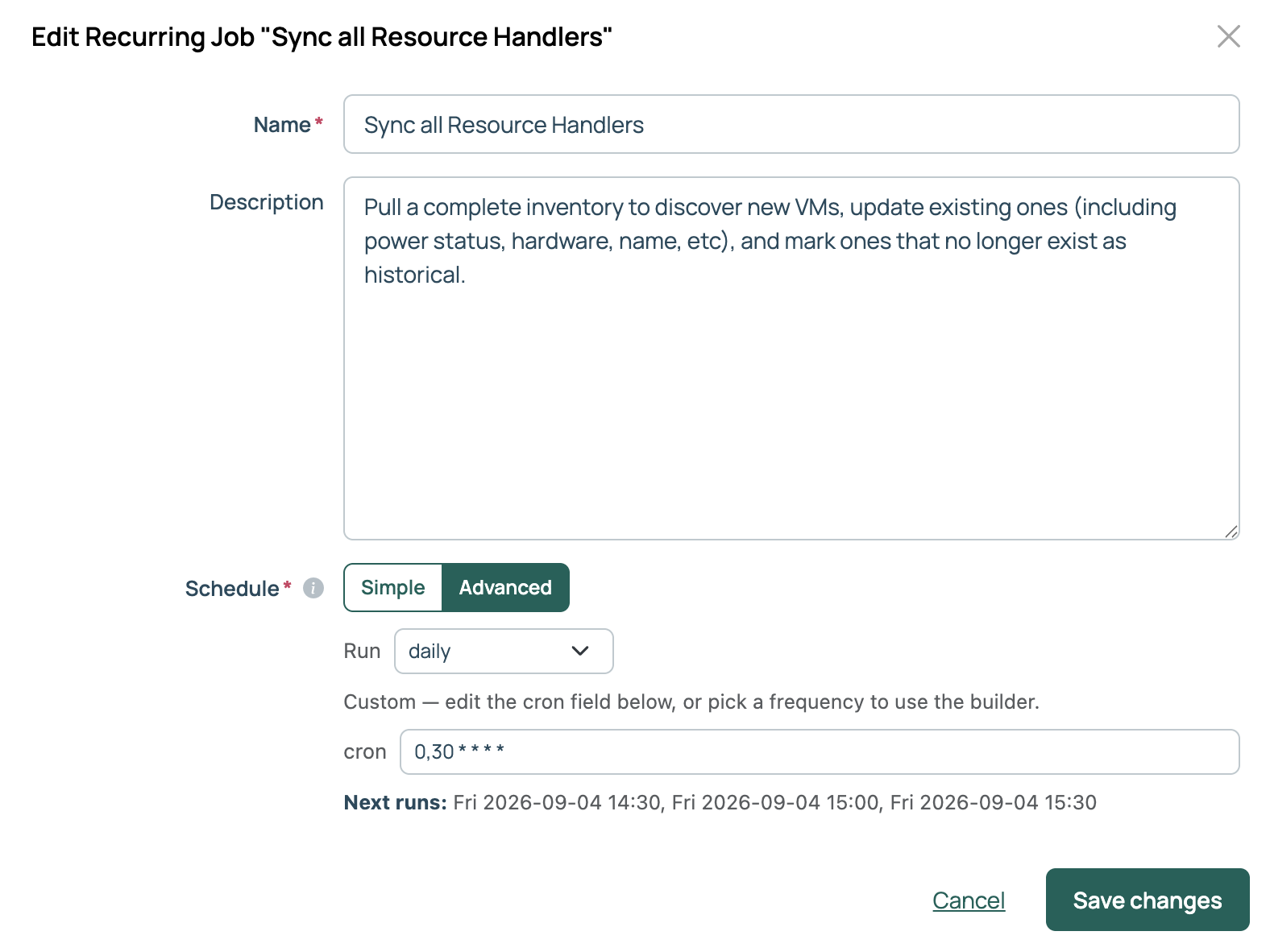
Update the Name, Description, and Schedule as required.
-
Select Save changes.
Schedule format
The Schedule field offers two ways to set a schedule without writing cron. Simple gives you a Frequency list covering the common cases: every 5, 15, or 30 minutes, hourly, every 2, 3, 6, or 12 hours, daily, weekdays, weekly, and monthly, with time and day selectors where they apply. Advanced builds a schedule from every N minutes or hours, or from a daily, weekly, monthly, or yearly pattern. Both write a cron expression into the field, and you can type one there yourself instead.
A job whose current expression cannot be represented in Simple opens in Advanced, and one that neither mode can build is left untouched and marked Custom (see Advanced).
Schedule takes a cron expression of five space-separated fields:
| Position | Field | Values |
|---|---|---|
| 1 | Minute | 0–59 |
| 2 | Hour | 0–23 |
| 3 | Day of month | 1–31 |
| 4 | Month | 1–12 |
| 5 | Day of week | 0–6, beginning Sunday |
These special characters are permitted:
- Asterisk (
*). Every value.*in the third field means every day of the month. - Comma (
,). A list of values.1,5in the second field means 1 AM and 5 AM. - Hyphen (
-). A range.0-2in the fifth field means Sunday through Tuesday. - Slash (
/). A step value.*/5in the first field means every five minutes.
For example, 30 2 * * 1 runs the job at 2:30 AM every Monday.
Schedules are read in the time zone set on the CMP appliance, which is UTC unless it has been changed. The Next Run column uses the same clock, so it always shows the time the job will actually run. See Explore features for how to change the appliance time zone.
Related
- Built-in recurring jobs: what each job that ships with CMP does.
- Create recurring jobs: add a recurring job of your own.