Connection Info
4 minute read
A Connection Info object holds the details needed to reach an external system: an IP address or hostname, a port, a protocol, and credentials such as a username and password, an SSH key, or authentication headers. Cloud Management Platform (CMP) stores the password securely, so any action can use the connection without the credentials appearing in code. There is a standard form, one for Git connections, and another for AWS account profiles.
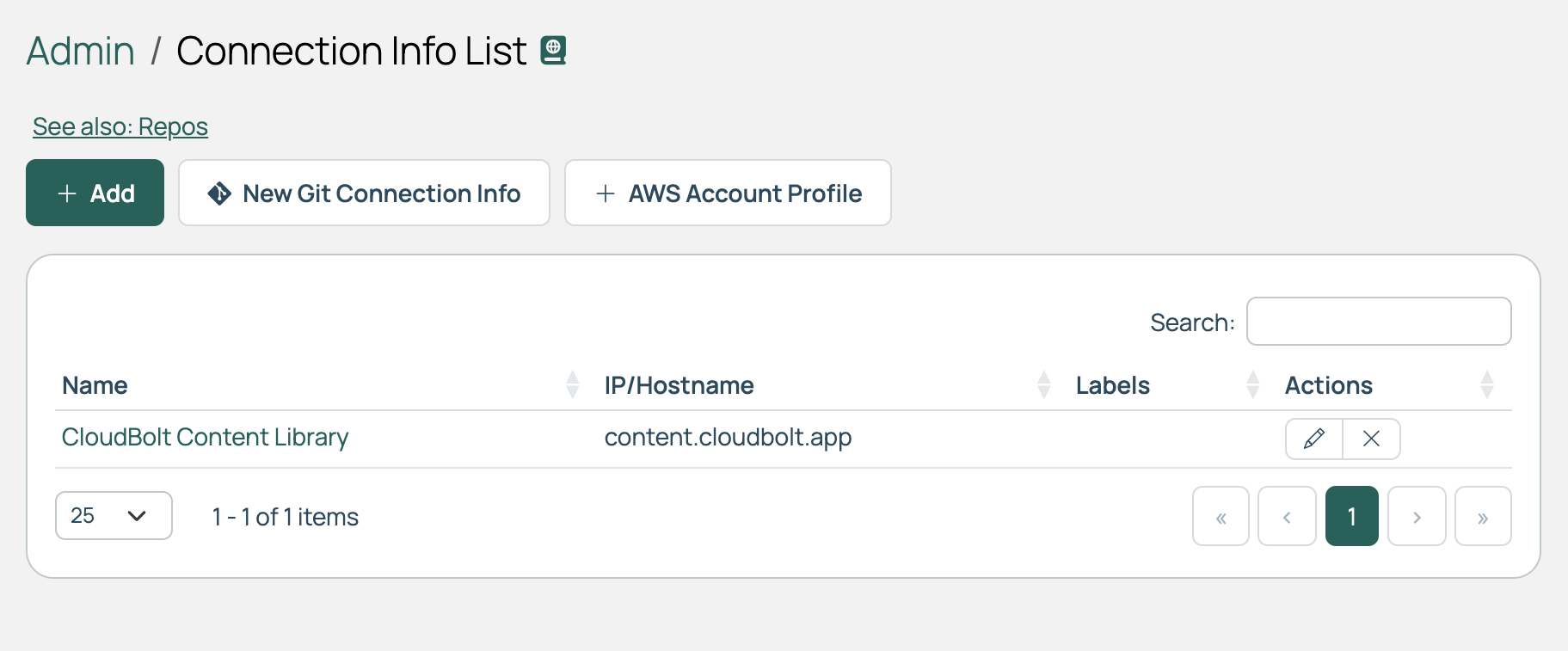 (opens full-size image in a new tab)
Add Connection Info
- Go to Admin > Connection Info.
- Select Add.
- Complete the form.
- Select Create.
| Field | Description |
|---|---|
| Name | A descriptive name for this connection. |
| IP/Hostname | Either the IP address or the hostname for this connection. |
| Port | The port used for this connection. |
| Protocol | HTTP or HTTPS are the standard options. See Development tips for plugins. |
| Username | The username of the account being connected to. |
| Password | The password of the account being connected to. It is stored securely. If the password vault feature is enabled, this field offers Locally Stored or Vault Managed. Select Vault Managed to read the secret from a configured vault provider. See Use password vaults. |
| SSH Key | An SSH key used in place of a password. If a key is selected and a script runs over this SSH connection, the key is used, and any password is ignored. |
| Use Auth Headers | Select this to authenticate with headers rather than a username and password. |
| Headers | Header text in JSON format, used instead of the username and password. |
| Labels | Use labels to organize and filter Connection Info entries. Begin typing in the Labels field to add a new label or choose an existing one. |
| Description | Optional description text for this Connection Info. |
The same page also has an AWS Account Profile button, which stores an Access Key ID and Secret Access Key for use by AWS resource handlers that authenticate with an IAM Role ARN. If the password vault feature is enabled, Secret Access Key offers Locally Stored or Vault Managed.
Add Git Connection Info
The Git form is for HTTP and HTTPS Git URLs, and is used for Terraform plans held in private repositories.
- Go to Admin > Connection Info.
- Select New Git Connection Info.
- Complete the form.
- Select Create.
A Connection Info used for a remote source, such as blueprints and actions, must be named Source Code Repository. CMP looks up the connection by that exact name, so a different name prevents the remote source from authenticating.
| Field | Description |
|---|---|
| Name | Enter Source Code Repository. |
| Host | The host for the source control connection, in domain format, such as github.com. |
| Protocol | HTTPS or HTTP, defaulting to HTTPS. SSH Git sources are not supported. |
| Username | The username of the source control account. |
| Auth Token | A personal access token. Most Git services expect a token rather than a password for third-party apps, and a token is required when two-factor authentication is enabled on the account. See the token documentation for GitHub, GitLab, or Bitbucket. For Azure DevOps, create a personal access token and use it here in place of a password. If the password vault feature is enabled, this field offers Locally Stored or Vault Managed. Select Vault Managed to read the token from a configured vault provider. |
| Labels | For Git-hosted Terraform plans, add the terraform-plan-source label. If several Connection Info entries share a host and carry that label, CMP filters further on the protocol; if more than one still matches, it uses the lowest Connection Info ID. |
| Description | Optional description text for this Connection Info. |
Edit Connection Info
- Go to Admin > Connection Info and find the entry.
- In the Actions column, select the edit icon.
Take care when changing a Name, since some features expect a specific name.
Delete Connection Info
- Go to Admin > Connection Info and find the entry.
- In the Actions column, select the delete icon.
- Select Delete to confirm.
Deleting a Connection Info entry cannot be undone, and anything that authenticates through it stops working.
Advanced configuration
Connection Info objects can be used in plugins to securely store credentials or to run scripts against systems that lack a REST API. For more examples, see Development tips for plugins.
Storing credentials in plugins
-
Create a Connection Info object with a recognizable name.
-
In your plugin, look it up by that name:
from utilities.models import ConnectionInfo
connection_info = ConnectionInfo.objects.get(name='my_connection_info')
ip = connection_info.ip
username = connection_info.username
password = connection_info.password
Related
- Integrate a remote source code repository: link a repository through Source Code Repositories.
- Development tips for plugins: further examples of reading a Connection Info object from plugin code.