Content Library
Import ready-made blueprints, actions, and UI extensions published by CloudBolt into your Cloud Management Platform (CMP) instance
2 minute read
The Catalog is where all your blueprints live. End users browse it to order what they need and only see blueprints they have permission to view. Administrators control what appears there by importing blueprints from the Content Library or creating their own, and by organizing them into categories.
A blueprint is a reusable definition of something users can order, from a one-click single server to a multi-tier application stack, or an action with no server at all, such as ordering a laptop. See Blueprints to build and maintain them, and Resource types (XaaS) to define what a blueprint can produce.
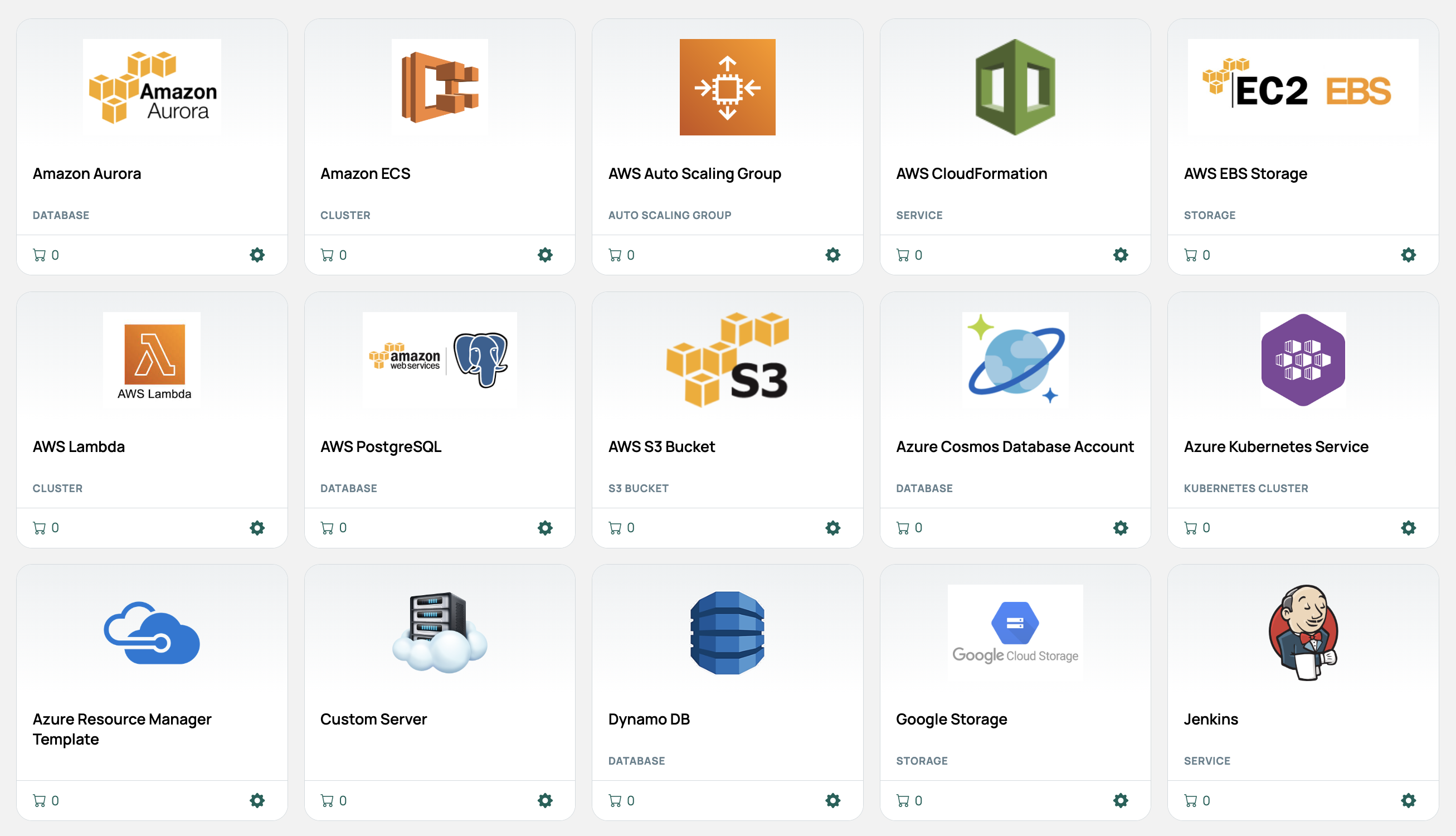 (opens full-size image in a new tab)
If you have permission to create blueprints, a toolbar above the Catalog offers these actions:
 (opens full-size image in a new tab)
CMP admins also see Manage Catalog, which opens Catalog Management.
Import ready-made blueprints, actions, and UI extensions published by CloudBolt into your Cloud Management Platform (CMP) instance
Organize the Cloud Management Platform (CMP) Catalog so users can find and order the right blueprint
Find blueprints in the Cloud Management Platform (CMP) Catalog using the search, sort, and filter options