Configure Slack to use multi-channel alerts
Create a Slack app and connect it to Cloud Management Platform (CMP) so multi-channel alerts post to a Slack channel
Prerequisites
- Create or identify a Slack channel for alerts.
- Ensure you can access your Slack workspace in a browser.
Create a Slack app
-
Log in to https://api.slack.com/apps.
-
Select Create New App > From scratch.
-
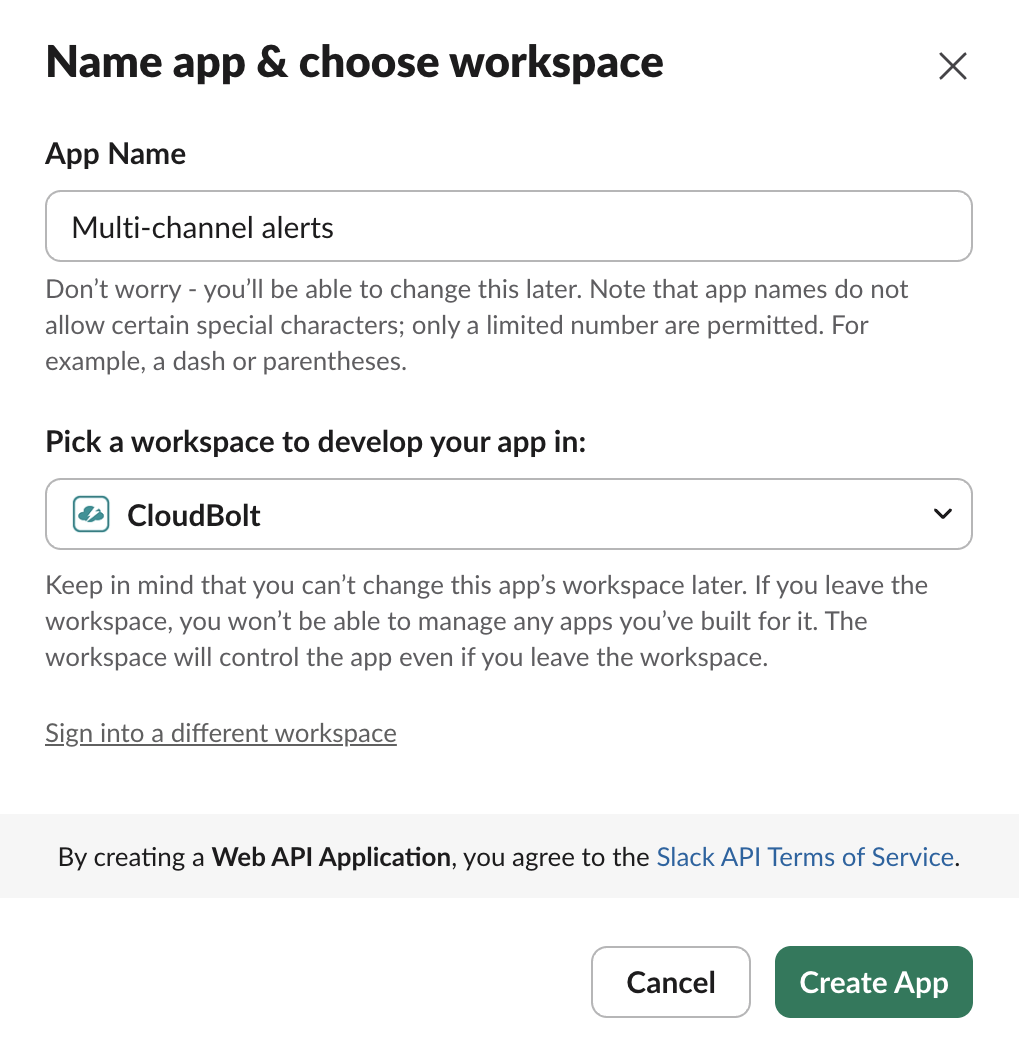
Provide an App Name and select your workspace.
-
Select Create App.
-
Under Features, select OAuth & Permissions.
-
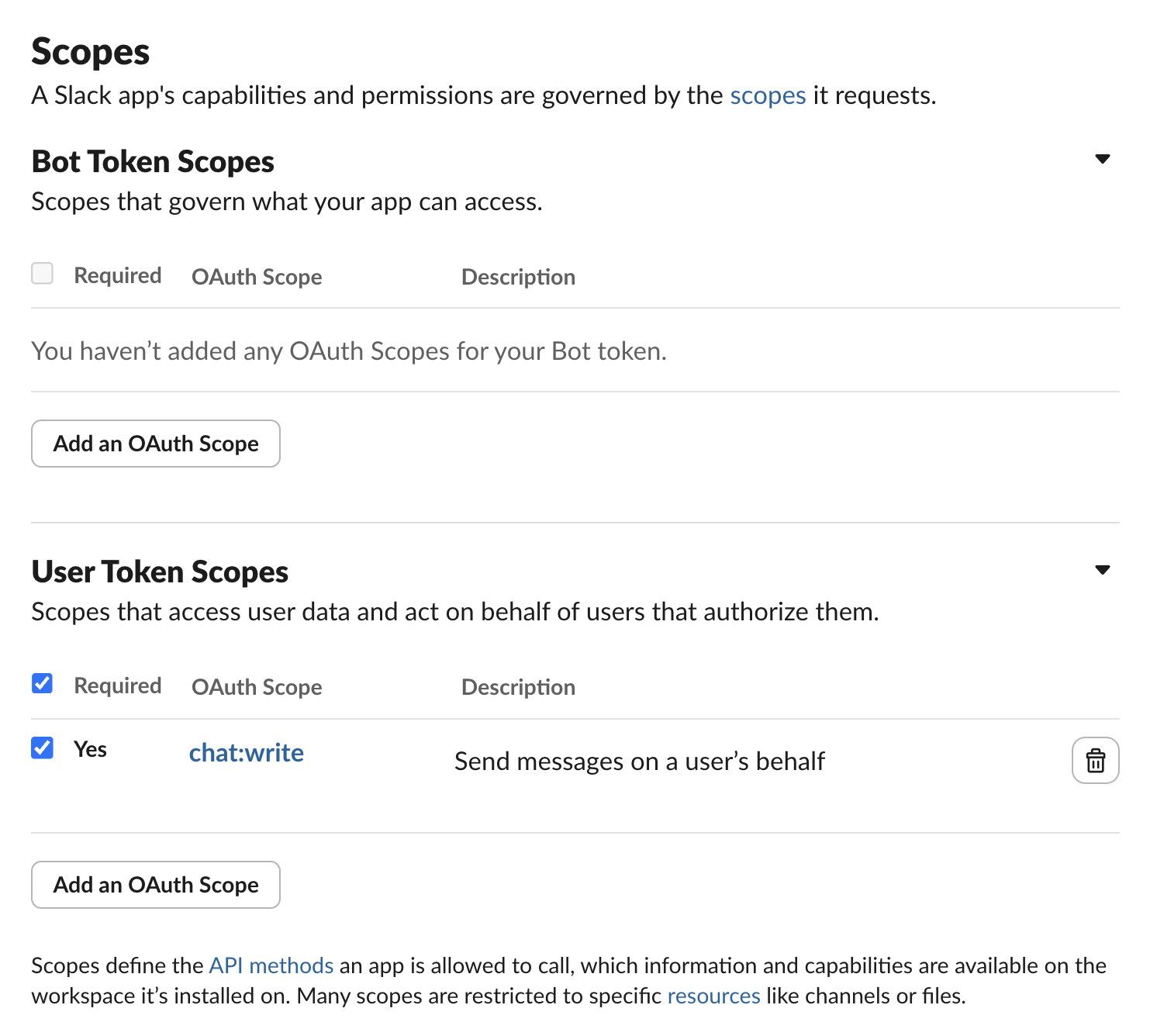
Under Scopes > User Token Scopes, select Add an OAuth Scope.
-
Select chat:write.
Authorize the app and copy the access token
-
Under Settings, select Install App.
-
Select Allow.
-
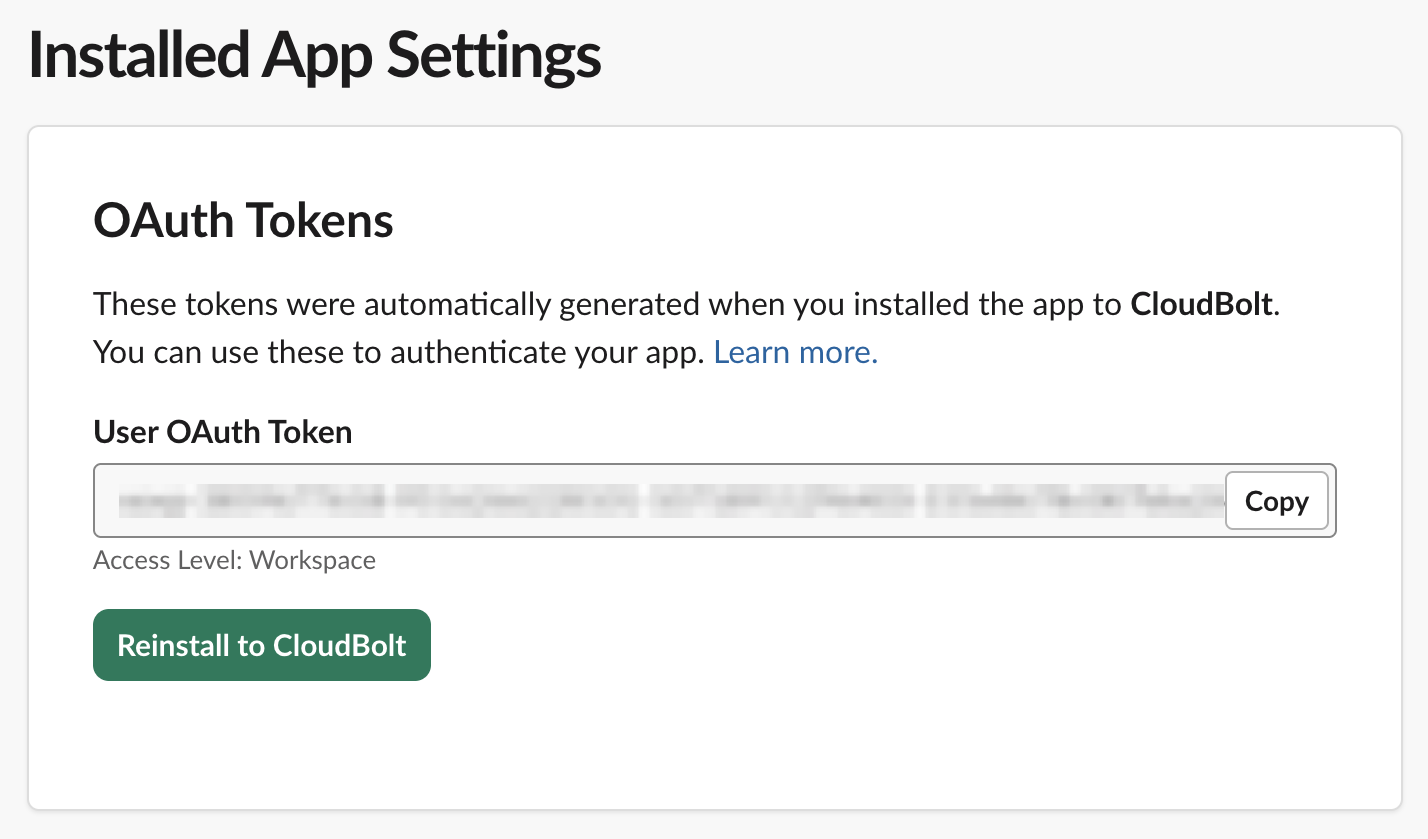
Copy the User OAuth Token.
Create a Slack alert channel in CMP
- In CMP, go to Admin > Multi-Channel Alerts.
- Select Add.
- Select Slack.
- In the New Alert Channel - Slack form, provide the following:
- Name
- Alert Categories. The built-in categories are cloudbolt.admin and cloudbolt.security.
- Slack Channel(s): one or more channel names or IDs, separated by commas. The # is optional.
- Slack API Token: the Slack app’s User OAuth token
- Select Create.
Verification
Log out of CMP, then log back in. You should see an alert in the designated Slack channel notifying you of a successful login.