Shared modules
3 minute read
A shared module is a Python file that CMP stores on the appliance and makes available to all plugins, and to other shared modules. Shared modules live at Admin > Shared Modules, and only CloudBolt admins can manage them. Typical candidates are generated parameter options reused across blueprints and a class that handles connecting to an external API.
Create a shared module
-
Go to Admin > Shared Modules.
-
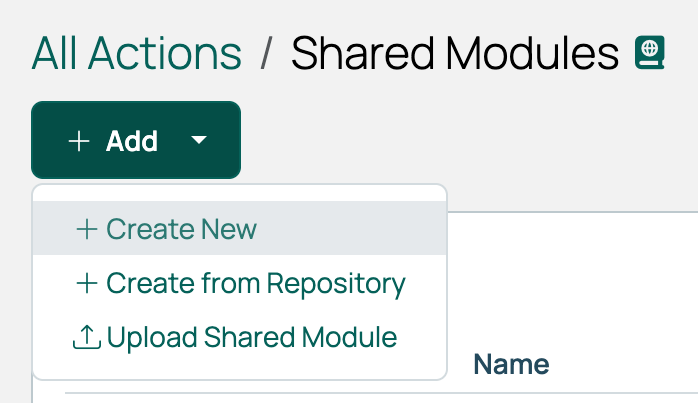
Select Add > Create New. The same menu offers Create from Repository, which pulls the module from a source code repository, and Upload Shared Module for an exported one.
-
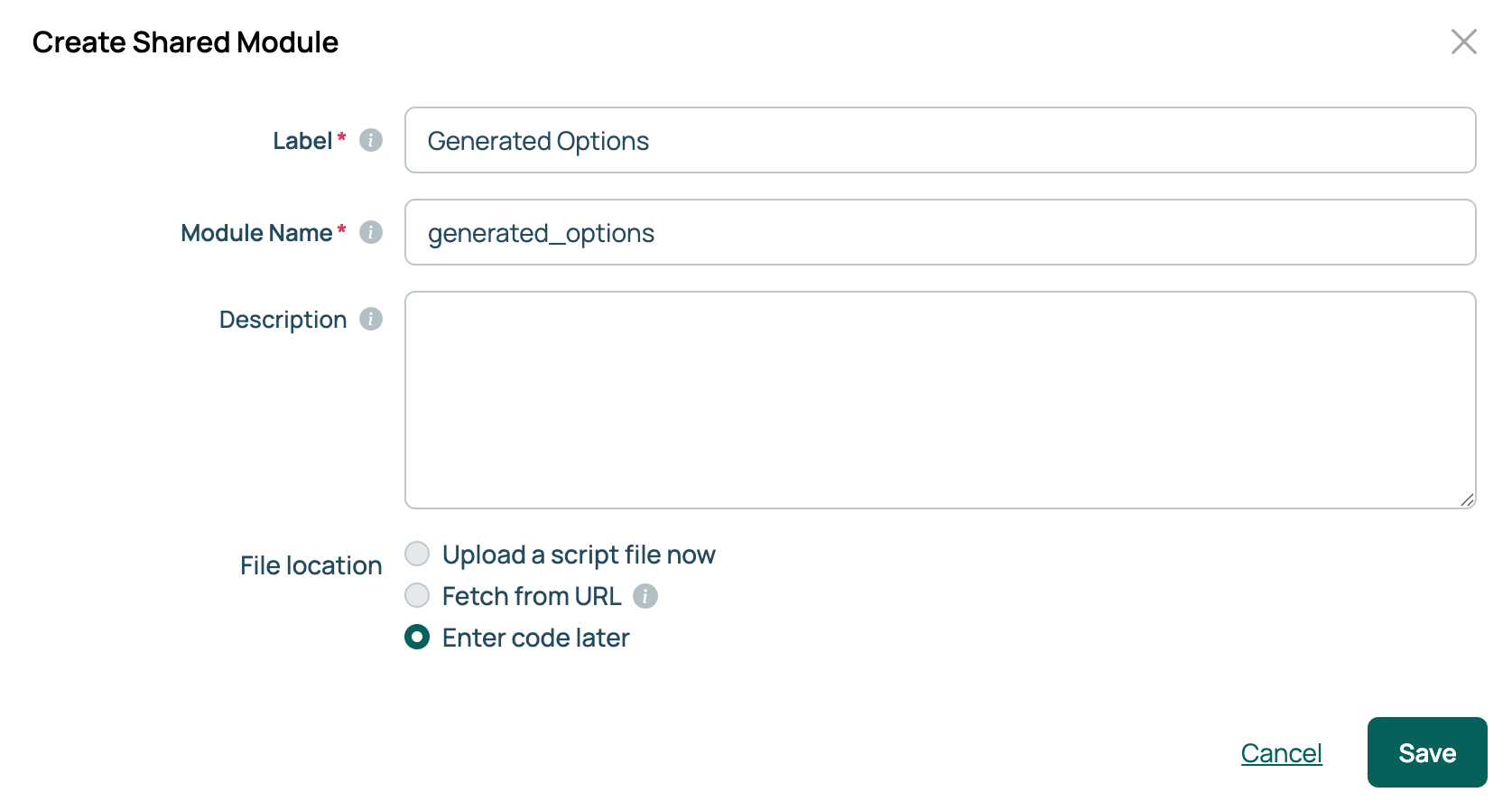
Provide a Label and Module Name. The module name becomes the Python file name and the name you import, so use a valid Python identifier such as
generated_options. -
Select Upload a script file now, or Fetch from URL and provide a file or URL, or select Enter code later.
-
Select Save.
Example: generated options
This module returns the environments a group can deploy to, optionally narrowed to a single resource technology.
from infrastructure.models import Environment
from django.db.models import Q

def generate_options_for_environment (field, rt_name=None, **kwargs):
    """
    Generate a list of environments to choose from. Returns a list of id, name tuples
    """

    group = kwargs.get("group")

    if not group:
        return None

    if rt_name:
        envs = Environment.objects.filter(
            (Q(group__in=[group]) | Q(group=None)) &
            Q(resource_handler__resource_technology__name=rt_name)
        )
    else:
        envs = Environment.objects.filter(
            Q(group__in=[group]) | Q(group=None)
        )


    return [(env.id, env.name) for env in envs if env.is_unassigned == False]
Import and call a module
Import from the shared_modules package, using the provided module name:
from shared_modules.generated_options import generate_options_for_environment
Then call it like any other Python function. To return every environment:
generate_options_for_environment(None, None, **{"group":None})
Or only the AWS environments:
generate_options_for_environment(None, "Amazon Web Services", **{"group":None})
Use a module in a plugin
Add the import to any CloudBolt plugin. On a blueprint’s Build tab, add an action of type CloudBolt Plug-in, then edit its code:
- Declare the import at the top of the plugin, for example
from shared_modules.generated_options import generate_options_for_environment. - In the plugin’s
runmethod, add a parameter that draws on the module, for exampleenv_id = "{{environment}}". The parameter then appears on the dialog. - Select Save Code.
When a user orders the blueprint, the parameter options are sourced from the shared module. See Develop blueprints for creating the blueprint and Generated parameter options for how option-generating code is called.
Edit a module in your IDE
Shared modules are files on the appliance, so you can edit them outside CMP. Connect to the CMP server and open the module in /var/www/html/cloudbolt/static/uploads/shared_modules/, such as generated_options.py.
Python keeps an imported module in memory, so a change made this way may not be picked up until the process that imported it restarts. If the new code does not take effect, restart Apache with systemctl restart httpd.
Related
- Generated parameter options: A common use for a shared module.
- Develop blueprints: Where plugins that import these modules run.
- Use Shared Modules: A video walkthrough in CloudBolt Forge.