Widgets
Complete tasks and view data in the dashboard
2 minute read
Dashboard widgets summarize your IT estate, and you can complete quick actions directly from them. The widgets and actions that appear depend on your permissions. To return to the dashboard at any time, select the CloudBolt logo in the navigation bar.
To send users to a different page after they log in, change Default Redirect in Admin > Miscellaneous Settings, then restart the web server.
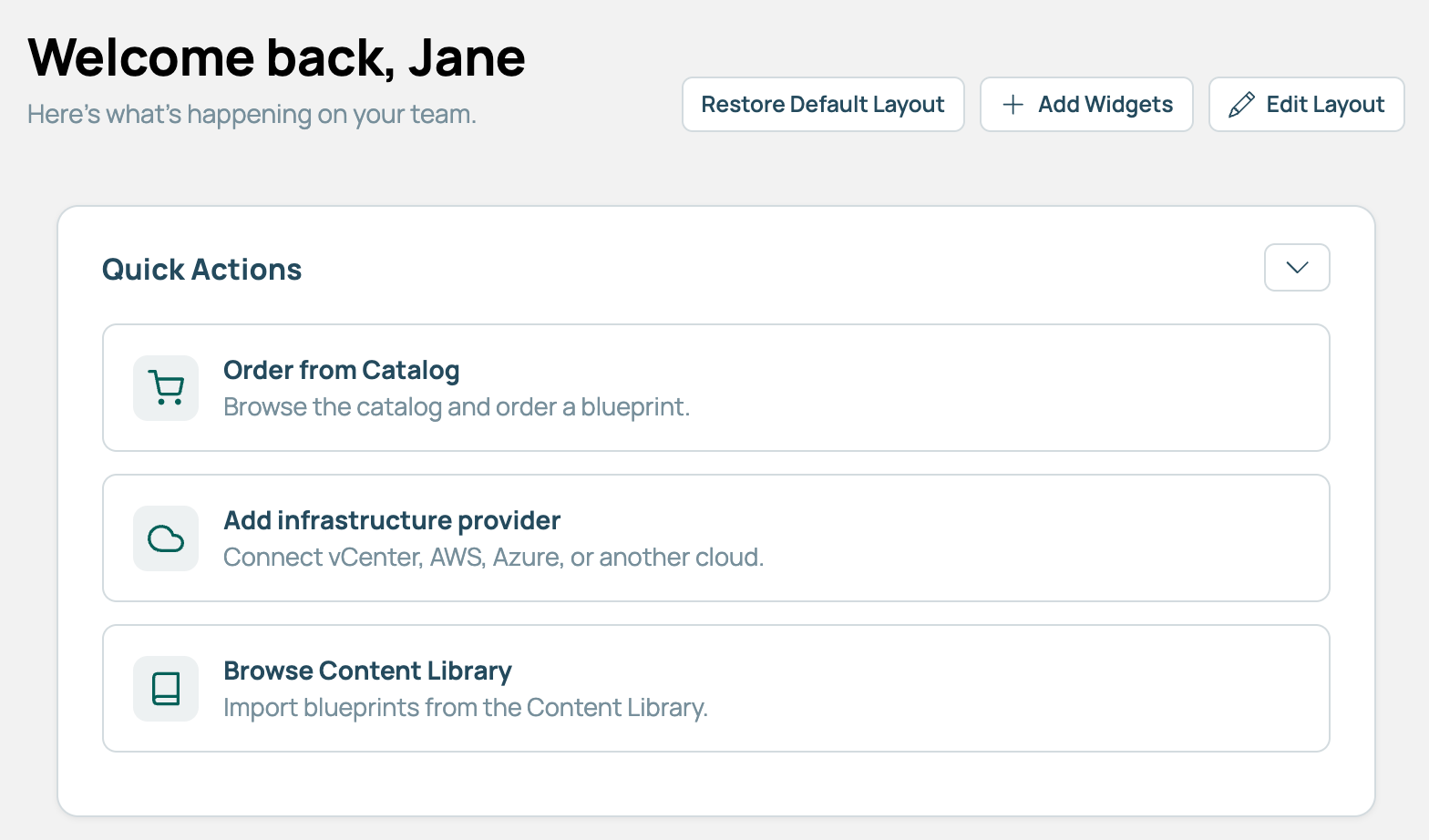 (opens full-size image in a new tab)
Each user has their own dashboard layout. Changes you make affect only your dashboard.
When new UI extension widgets are installed, a number badge appears on Add Widgets.
CloudBolt recommends editing the layout in a browser window at least 992 pixels wide. You can’t move widgets in a narrower window.
Select a widget’s header to collapse or expand it. CMP saves the change automatically.
Select Restore Default Layout, then select Restore. Your dashboard is replaced with the default layout for your role.
Run this task only if you are a Super Admin.
The default layout is what users see the first time they open the dashboard, and what Restore Default Layout returns to. CMP has two default layouts:
The Set as … Default buttons are unavailable when the browser window is narrower than 992 pixels.
Changing a default doesn’t change existing users’ dashboards. Users get the new default the next time they select Restore Default Layout.
Complete tasks and view data in the dashboard
Who can see each dashboard widget, and which widget actions require specific permissions