IBM Cloud
2 minute read
Cloud Management Platform (CMP) connects through the IBM Cloud classic infrastructure API. Import data centers into CMP, and each one becomes an environment that users can order into.
Before you begin
- An IBM Cloud account on at least a Pay-as-you-go plan.
- A classic infrastructure API key, and the account ID it belongs to. For how to create and find one, see Managing user API keys in the IBM Cloud documentation.
- Outbound access to
api.softlayer.com, or toapi.service.usgov.softlayer.comfor IBM Cloud for Government.
Add an IBM Cloud resource handler
-
Go to Admin > Resource Handlers, select Add, then select IBM Cloud under Public Cloud.
-
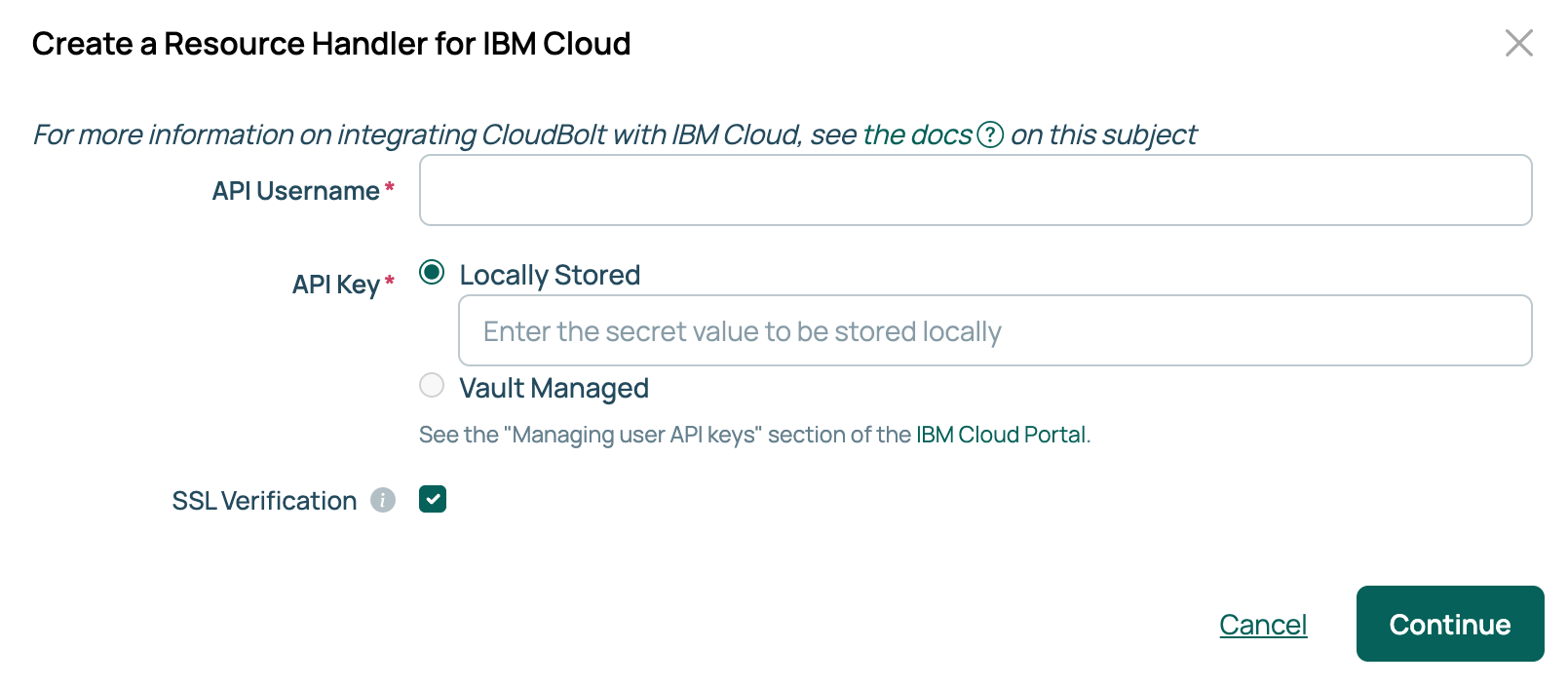
Enter the account ID in API Username.
-
Enter the key in API Key. If the password vault feature is enabled, this field offers Locally Stored or Vault Managed; select Vault Managed to read the key from a configured vault provider. Select Continue.
-
Enter a name for the handler, choose the data centers to bring in under Import IBM Cloud datacenters, then select Done.
Import data centers
Each data center you import becomes a CMP environment, and CMP records the data center on that environment. To add more after the handler exists, open the Datacenters tab and select Import datacenters.
The tab also lets you create an extra environment in an imported data center.
Network configuration
Importing a data center does not attach its networks to the environment. After importing:
- On the Datacenters tab, select an environment.
- Open the Networks tab and select Edit.
- Add the networks for that data center, then select Save. Include at least one PRIVATE network, or provisioning into the environment fails.
IBM Cloud parameters
The following imported parameters appear on the order form for the environment:
| Parameter | Description |
|---|---|
| Domain Name | Required. The domain the new server belongs to in IBM Cloud. |
| IBM Instance type | Required. The instance type to provision, which sets the server’s size. |
IBM Cloud for Government
IBM Cloud for Government is a separate technology in the picker, listed under Gov Cloud rather than Public Cloud.
Add it the same way, with the same classic infrastructure API key fields, then import data centers and attach networks as above.
Related
- Resource handlers: the technologies CMP connects to, and how to add one.
- Environments: what CMP creates for each data center you import.
- Networks: how CMP models the networks you attach here.
- Use password vaults: storing the API key in HashiCorp Vault, CyberArk, Keeper, AWS Secrets Manager, or Azure Key Vault.