Blueprint ordering permissions
2 minute read
A user can order a blueprint if they are in a group assigned to it as a deploy group, and their role in that group includes the required ordering permission: order.submit by default, or a permission configured in the blueprint’s Deployment Permissions field.
Group-based access
A user can order a blueprint if:
- The user is a member of a group assigned to the blueprint as a deploy group.
- The user has a role in that group that includes the
order.submitpermission.
Add group permissions on blueprints
- Go to Catalog and open a blueprint to edit.
- Go to the Groups tab and select Edit.
- Choose the groups that can Deploy or Manage and deploy, and decide whether to enable Any group can deploy.
- Select Save changes.
The “Any group can deploy” permission
To edit the “Any group can deploy” checkbox, you must have the blueprint.any_group_can_deploy permission. On new installations this permission is not included in any role by default, so an administrator must add it to a role. (On instances upgraded from an earlier release, it is granted to any role that already had blueprint.manage.) Assign it with caution: selecting the checkbox allows any group to order the blueprint.
Assign the permission to an existing role:
- Go to Admin > Roles.
- Select the pencil icon to edit a role.
- In the Permissions dropdown, select
blueprint.any_group_can_deploy. - Select Save changes.
Create a new role:
- Go to Admin > Roles.
- Select Add.
- Provide a Label and Name for the role.
- In the Permissions dropdown, select
blueprint.any_group_can_deploy. - Select Create.
Deployment permissions
Users who hold a permission specified in a blueprint’s Deployment Permissions field, via a role in a deploy group assigned to the blueprint, can order it. This is a per-blueprint setting and does not affect other blueprints.
Use case example: An “onboarding” blueprint should be visible only to group administrators with group.manage_members, not to all users with order.submit. Set group.manage_members as the deployment permission. Only users who hold that permission in a relevant deploy group can see it.
See Permissions for a list of available permissions.
Configure deployment permissions
-
Go to Catalog and open a blueprint to edit.
-
In the Deployment Permissions field, select one or more permissions.
-
Select Save changes.
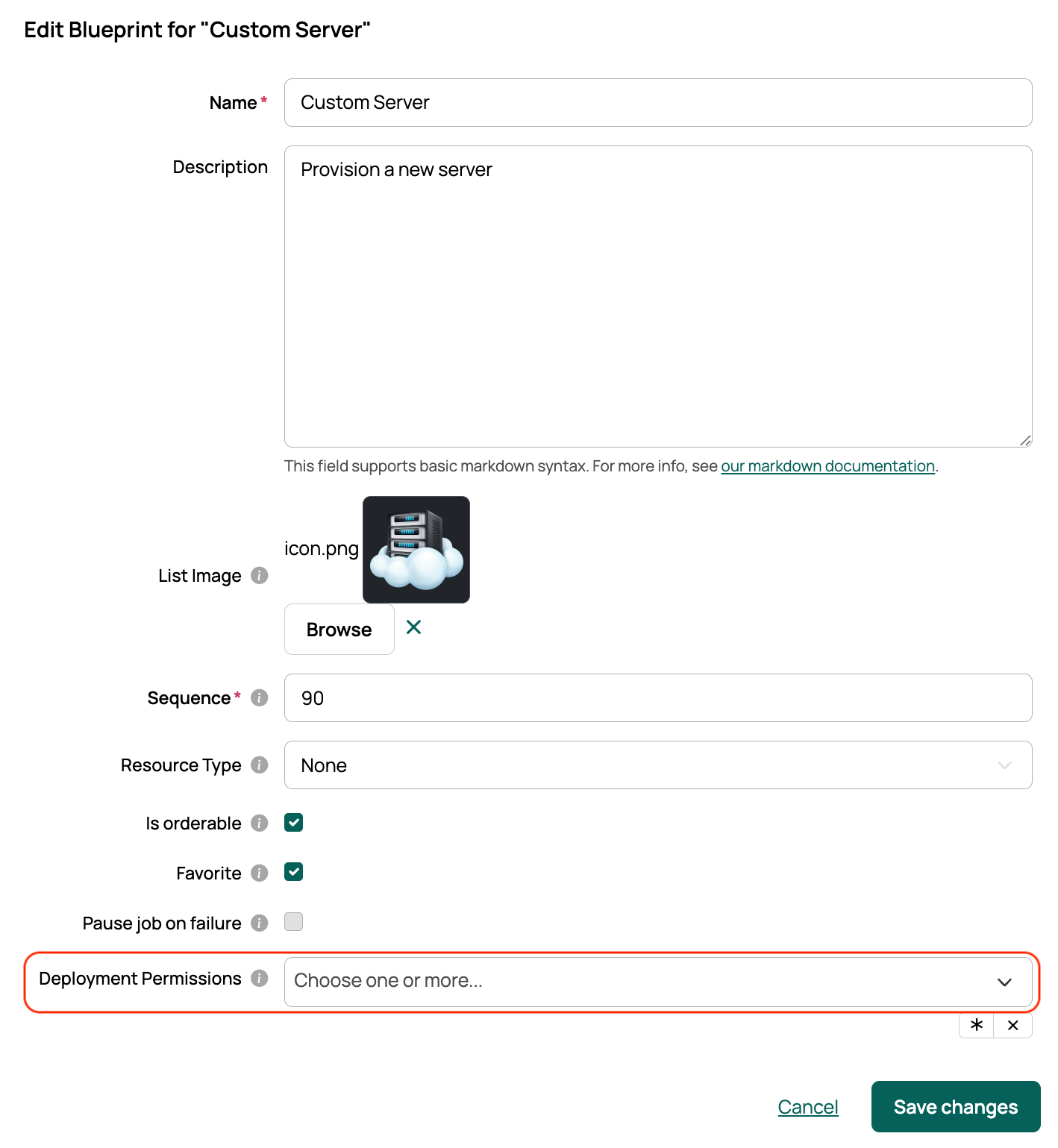
Result: Users who hold any of the selected permissions via a role in a deploy group for that blueprint can order it.