Parameter options
6 minute read
A parameter can be limited to a fixed set of options at the group, environment, blueprint, or parameter level. Its options can also be generated at runtime by an orchestration action. When more than one of these applies to the same parameter, Cloud Management Platform (CMP) resolves them in a set order, described below.
How option order is determined
- A blueprint’s options win outright. If the blueprint defines options for the parameter, that is the list the requestor sees. See Blueprint-level parameters.
- If the blueprint defines none, the list is the union of the options on the group and the options on the environment.
- Generated options are used as they come back, unless the blueprint, group, or environment also define options. In that case, the result is the intersection of the generated list and those options. To bypass that filtering, see Option return formats.
- If none of the above yields any options, CMP falls back to the global options set on the parameter. If none of those apply, the requestor gets a free-form entry field, still subject to any constraints.
Two behaviors follow from this:
- A required parameter that has only one valid option does not appear on the order form.
- A parameter that is not required always includes a blank option, so it never ends up with only one.
For where each of these lists is edited, see Static options.
Where a parameter’s value comes from
Options decide what a requestor can pick. The value itself is resolved separately, from the most general source to the most specific:
Global default → Order → Server or resource
- CMP applies global defaults when a server or resource is provisioned without a value defined for a setting that has a global default.
- A value entered on the order is carried over to the server or resource created by the order, overriding the global default.
- A global default never overwrites a value held on the server or resource.
Global defaults
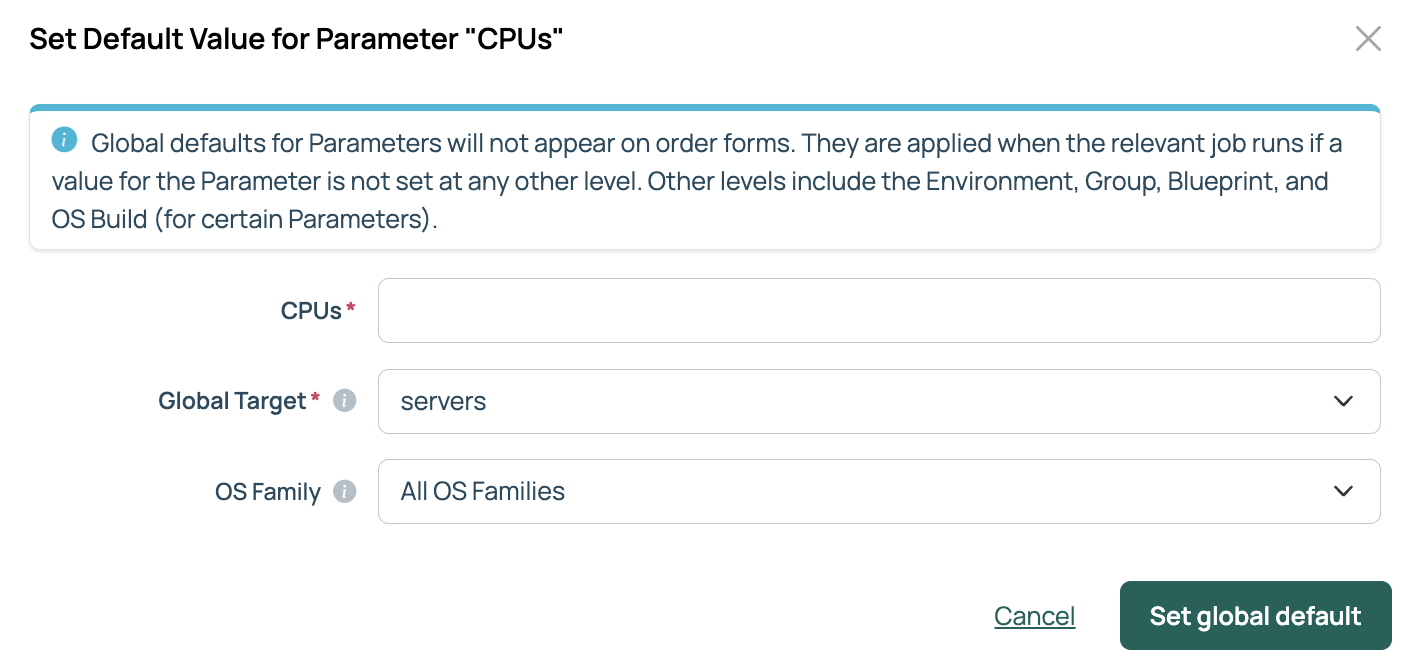
Set a default value on the parameter, and it will apply to orders without you having to configure the same value in every blueprint, environment, and group.
- Go to Admin > Parameters and open the parameter.
- In the Global Defaults section, select the + icon.
- Enter the Value.
- Set the Global Target: servers, resources, or all.
- Optionally set an OS Family. OS family restrictions apply only to servers.
- Select Set global default.
 (opens full-size image in a new tab)
A parameter can hold multiple global defaults, one for each combination of OS family and target, so you can set a default of 4 for CPUs on Windows and 2 on Linux.
Global defaults do not appear on the order form. CMP applies them when the job runs, and only when the parameter has no value set at any other level, such as the environment, group, or blueprint.
Constraints
Constraints enforce rules on what a requestor can enter. Which constraints are available depends on the parameter’s type:
- Minimum and maximum values for numeric types.
- Regular expression matching for string types.
Global constraints are set at Admin > Parameters. Group and environment constraints are set from the Parameters tab of the group or environment.
CMP uses the first constraint it finds, working from the most specific level down:
Blueprint → Environment → Group → Global
For example, consider a parameter named Expiration Date, with no blueprint constraint:
- A global constraint limits it to a maximum of 7 days.
- The Acme group further restricts it to 5 days.
- The San Jose QA Lab environment sets a maximum of 14 days.
In practice:
- Ordering a server that is in neither the Acme group nor the San Jose QA Lab environment, the global constraint applies, so the expiration date can be up to 7 days out.
- Ordering in the Acme group but not the San Jose QA Lab environment, the group constraint applies, so the maximum is 5 days.
- Ordering in the San Jose QA Lab environment, the environment constraint takes precedence over both, so the maximum is 14 days regardless of group membership.
These constraints apply both when ordering a blueprint and when setting parameter values on an existing server.
Sliders on numeric parameters
When a maximum is set on an integer or decimal parameter and Allow Multiple Values is not set on it, the parameter is rendered as a slider rather than a text field.
- If no minimum is set, required parameters use a default minimum of 1 and optional parameters a default minimum of 0.
- The slider increment can be set for each parameter.
- Enabling the Replace slider with input box on order form setting in the Ordering tab of Admin > Miscellaneous Settings renders a number box carrying the same minimum, maximum, and step instead of a slider track.
Dependencies
Dependencies link two parameters so that what a requestor enters in one field changes the other. A controlling parameter can be of any type except Date and Date & Time; a dependent parameter can be of any type. One controlling parameter can drive several dependent parameters, so a single checkbox can reveal several fields at once.
To create one, go to Admin > Parameters, open the parameter you want to make dependent on another, and use the Dependencies section of its detail page.
For a dependent parameter to appear on the order form, it must be added to at least one group, environment, or blueprint.
Types of dependency
- Show and Hide: reveal or conceal the dependent parameter based on specific values of the controlling parameter.
- Regenerate Options: rebuild the dependent parameter’s options when the value of one or more controlling parameters changes. Requires a plugin; see Generated parameter options.
- Show/Hide via Plugin: a plugin decides whether the dependent parameter is shown, based on the values of other parameters. Dependencies of this type come from installed content, such as the OCI shape parameters.
For example, to show fields based on a service level:
- The order form includes a Service Level dropdown with Gold, Silver, and Bronze options.
- Selecting Gold reveals two checkboxes: Enable Monitoring and Enable Backups.
- Checking Enable Backups reveals a further field asking how many days backups should be retained.
For example, to regenerate availability sets from a resource group:
In Microsoft Azure, the list of available Availability Sets depends on the selected Resource Group, so CMP ships a regenerated options dependency between the two. Selecting a resource group on the order form refreshes the availability set options to only those available within it.
Resource Group is the controlling parameter, and Availability Set is the dependent parameter, so requestors can only pick a valid pairing.
OS family dependencies
A parameter can also be made dependent on OS families, so it appears on the order form only when an OS build of a particular family is chosen. You might show a Windows Firewall parameter only when a Windows OS build is selected.
Related
- Static options: where fixed option lists are defined and edited.
- Generated parameter options: generating options from a plugin and setting up a dependency.
- Option return formats: setting labels, an initial value, sort order, or bypassing the filtering.
- Blueprint-level parameters: options set on a blueprint, which take precedence over group and environment.
- Order form customization: every way to customize the order form.