Set up SSO and SAML
Add a single sign-on (SSO) identity provider in Cloud Management Platform (CMP) and exchange SAML metadata with it
3 minute read
Add the SSO provider in CMP
-
Go to Admin > Single Sign-On (SSO).
-
Select Add.
-
Select the IdP type. The type only affects how the IdP appears in the CMP UI and some initial option defaults; any IdP type can be configured to work as any other.
-
Complete the SAML settings as needed. The selected Signing Algorithm must match the IdP.
-
Select Create.
-
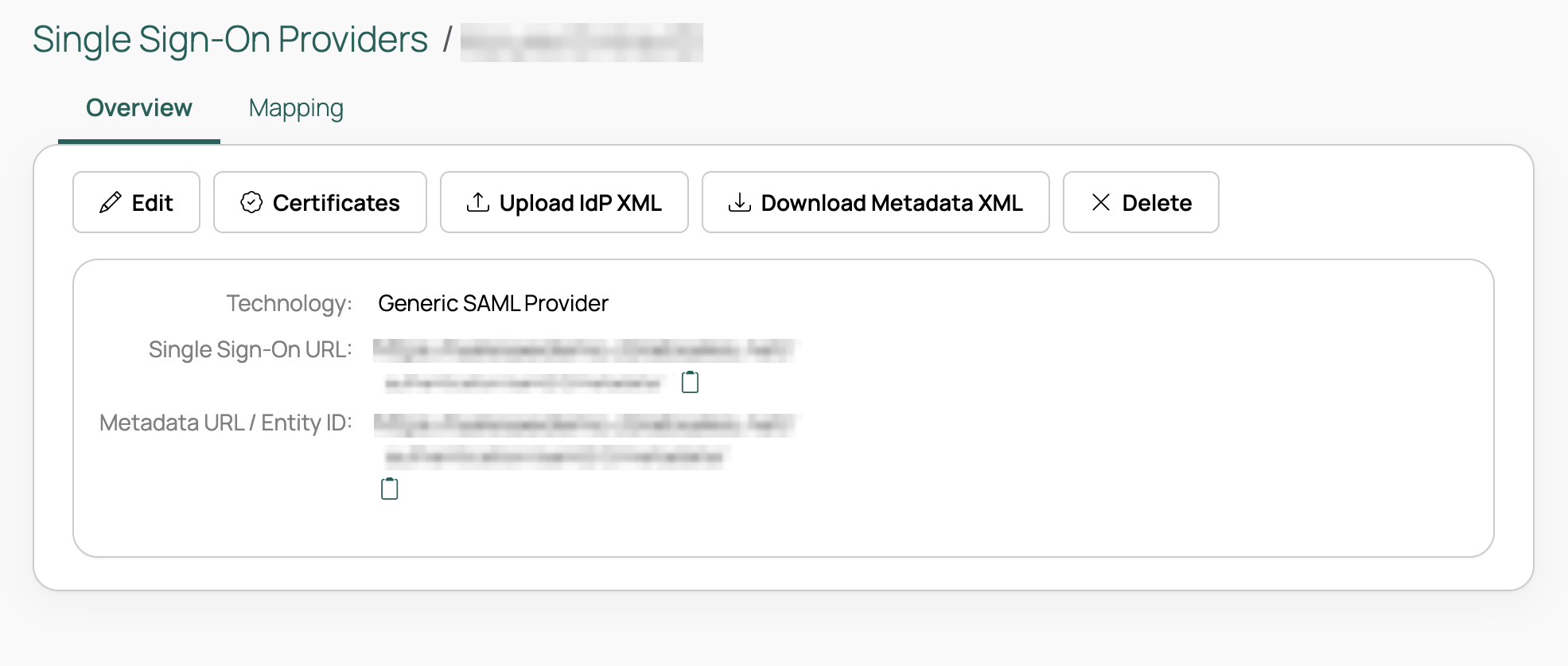
Select Download Metadata XML to download the metadata file. You need it when configuring your IdP for single sign-on.
-
Configure the identity provider (see Configure the identity provider) and obtain its metadata.
-
In CMP, go to Admin > Single Sign-On (SSO), select the IdP, select Upload IdP XML, and upload the IdP metadata.
SAML settings
| Field | Description |
|---|---|
| Name | (Required) A name for this SSO provider, displayed to users. |
| Name ID Format | (Required) The format of the Name ID that CMP sends to and expects from this IdP. Use the format your IdP accepts. |
| Metadata Validity Limit | (Required) The number of hours this configuration is expected to remain accurate. An IdP consuming this SSO provider’s metadata may cache it for this many hours before refreshing. |
| Accepted Time Difference | (Required) The maximum time difference allowed between the SSO provider and the IdP, in seconds. |
| Contact Person | Designate a contact person to administer this SSO configuration. Limited to users with the CloudBolt Admin role. The user must already exist in CMP to appear in the dropdown. |
| Organization Name | Short name of this organization. Used in CMP’s metadata and when generating a certificate. |
| Organization Display Name | Full name of this organization. Used in CMP’s metadata and when generating a certificate. |
| Organization URL | Full URL for this organization. Used in CMP’s metadata and when generating a certificate. |
| Branded Portal | Select a branded portal to associate with this SSO provider. CMP builds the SSO URLs from this portal’s domain, or from the current request’s portal if none is selected. |
| Sign Requests | If checked, CMP cryptographically signs requests sent to this IdP. |
| Signing Algorithm | Algorithm used for the signing value in the SAML request to the IdP. Options are SHA1 (the default), SHA256, SHA384, and SHA512. |
| Digest Algorithm | Algorithm used for the digest value in the SAML request to the IdP. Options are SHA1 (the default), SHA256, SHA384, and SHA512. |
| Force Authentication | If checked, the user must log in to the IdP again, even if they are already logged in. |
| Assertion Signed | If checked, this SSO provider requires the assertions it receives to be signed. |
| Response Signed | If checked, this SSO provider requires authentication responses to be signed. |
| Allow Unknown Attributes | If checked, this SSO provider accepts attributes from the IdP beyond username, email, first_name, and last_name. |
| Create Unknown Users | CloudBolt recommends keeping this checked. When checked, CMP creates a new user if it cannot find one matching a valid assertion from the IdP. If unchecked, you must create users manually. |
| Debug | If checked, the SSO provider logs extra information and produces a verbose error log. |
| Required Attributes | The user attributes the IdP must send in each assertion, in addition to the username. SSO User Update does not overwrite these attributes on existing users. |
| Email Attribute Name, First Name Attribute Name, Last Name Attribute Name, Username Attribute Name | These fields map user attributes in CMP to the expected field names in an incoming IdP request. For example, if Email Attribute Name is “userEmail” here, the IdP attribute that sends users’ emails must also be named “userEmail”. |
| Also Logout SSO | Also log out of SSO when the user logs out of CMP. |