Data protection plan parameters
3 minute read
Add the parameter where your servers are ordered, and Cloud Management Platform offers the imported plans.
The parameter can sit on an environment, a group, or a server. When added to an environment, every server ordered into it can then carry a plan. A blueprint can pin the plan to a value or leave it to be chosen at order time.
Add the parameter to an environment
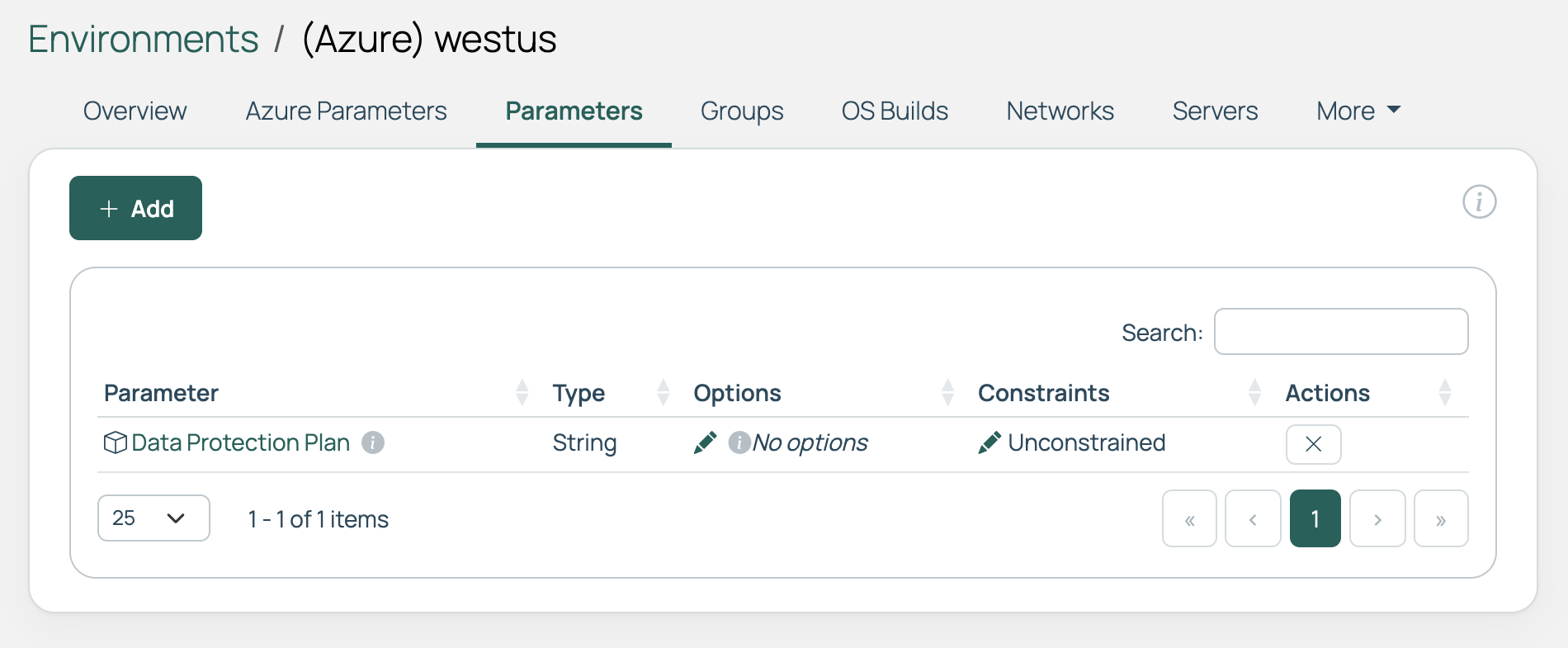
- Go to the environment.
- Open the Parameters tab.
- Select Add.
- Locate and select Data Protection Plan.
- Select Add in the dialog.
The parameter now applies to servers ordered into this environment.
To remove the parameter, select the X in its Actions column.
 (opens full-size image in a new tab)
If the Add button is greyed out, the environment has no resource handler yet. Assign a resource handler to the environment, and the button becomes available.
Narrow the plan options
The Data Protection Plan dropdown offers every plan imported from every connection on the Data Protection page, displayed as connection name: plan name. With multiple connections or many plans, you can narrow the options.
- On the environment’s Parameters tab, find the Data Protection Plan row.
- Select the edit icon in the Options column.
- Select the plans applicable to this environment, and select Save.
Order forms for this environment offer only the options you selected.
Set a plan in advance, or let the user choose
A blueprint determines which of the two occurs using the switch next to the Data Protection Plan field.
- Open the blueprint, select the Build tab, and under Configured Environments, edit the environment.
- In the Blueprint Item Parameters form for that environment, find Data Protection Plan:
- To set the plan, leave the switch enabled and select a plan from the dropdown.
- To leave the decision to the person ordering, disable the switch.
- Select Save.
When the environment supplies only one option for a parameter, the switch is disabled. The order form does not show the field, and the single value is applied when the blueprint is ordered.
Change or remove a plan on a server
A server’s current plan is on its Details tab. To set or change it, use the Parameters tab.
- Open the server. It must be in an environment or group that has the Data Protection Plan parameter.
- Select the Parameters tab.
- To add the parameter, select Add, select Data Protection Plan, select Next, choose a plan, and select Save.
- To change an existing value, select the edit icon in the Value column.
- To remove the plan from this server, select the X in its Actions column.
Related
- Add a data protection plan: Connect to a backup system and import plans.
- Restore from snapshots: Recover a server after it has been protected.
- Permissions: The full list of permissions and the associated roles.