AWS tech-specific script execution
4 minute read
Tech-specific script execution lets Cloud Management Platform (CMP) run remote scripts on an EC2 instance it cannot reach directly over SSH or WinRM. CMP instead uses the AWS Systems Manager (SSM) Run Command feature, which delivers the script to the instance and reports the result back.
Prerequisites
Set these up in AWS before configuring anything in CMP.
- Instances must have the SSM Agent installed. See Images with the SSM Agent pre-installed.
- Linux instances need port 443 reachable, or a correctly configured VPC endpoint for SSM.
- Windows instances need port 3389 open. The default launch-wizard security groups do not work. Use an instance type of t2.small or larger for acceptable performance, and allow a few minutes longer than Linux for SSM to finish installing: an instance can report Running before SSM is ready. The instance system log in AWS helps here.
- If the deployment has no internet access over port 443, configure VPC endpoints. See the AWS guidance on creating VPC endpoints.
Roles and policies
Roles are what SSM support in CMP rests on. Create an IAM role in AWS for SSM, for example EnablesEC2ToAccessSystemsManagerRole. CMP uses it to enable SSM on supported operating systems. See Supported operating systems in the AWS documentation.
Give each EC2 instance exactly one IAM role.
The AmazonSSMManagedInstanceCore policy must be attached to that role:
- In the AWS console, open IAM.
- Under Access management, select Policies.
- Search for
AmazonSSMManagedInstanceCoreand open it. - Select Policy usage and check that your SSM role is attached. If it is not, attach it.
Set up Systems Manager in CMP
Setup has three parts: add the SSM role, add the parameters, then provision a server and test.
Add the SSM role
- Go to Admin > Resource Handlers.
- Select an existing AWS resource handler, or create one.
- On the Overview tab, select Edit Settings.
- In SSM ARN, enter the ARN of the role from Roles and policies, for example
arn:aws:iam::123456789012:role/EnablesEC2ToAccessSystemsManagerRole. - Select Save.
The Overview tab shows the value as SSM Role ARN. You need the same role ARN when you set up the blueprint.
Add the parameter to a group or environment
-
Open the group or environment associated with the AWS resource handler.
-
On the Parameters tab, select Add.
-
Find Use Tech-Specific Script Execution and add it.
-
Select the parameter you just added.
-
Ensure that Show on Objects and Available to all servers are enabled.
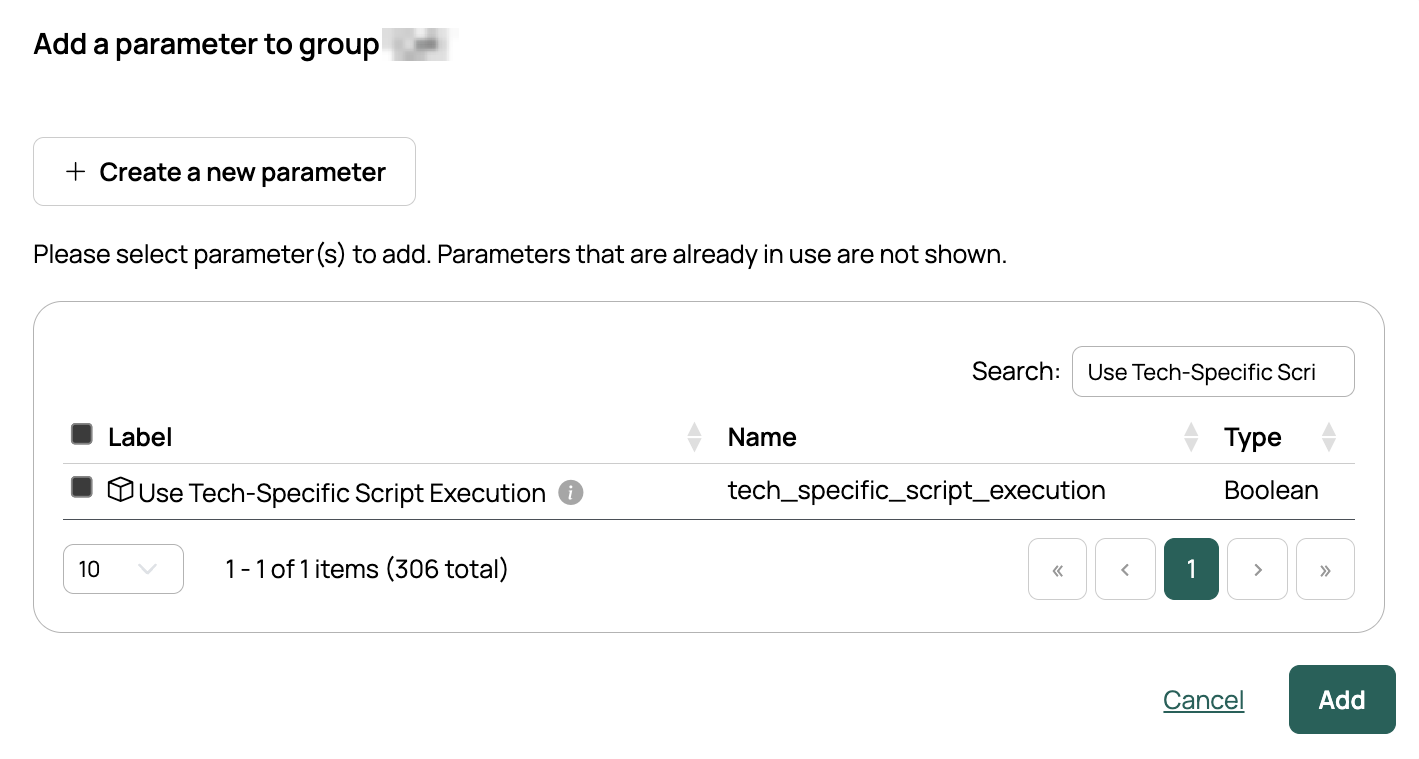
You can add the parameter to individual servers, but the above steps are required to enable SSM for remote scripts. When the parameter is set, it takes precedence on any resource handler. The global setting applies only to VMware servers that do not have the parameter.
Set up a blueprint
A server built from this blueprint gets the SSM role associated with it.
- Open Catalog and select the blueprint.
- Open the Parameters tab.
- Add AWS IAM Role ARN and Use Tech-Specific Script Execution.
- On AWS IAM Role ARN, edit the Options column and add the role ARN from Add the SSM role as an option.
AWS IAM Role ARN must be added to the blueprint, environment, or group so that it appears on the order form, and its value must be the ARN of the SSM role on the resource handler. SSM does not work otherwise.
Provision and test
- Provision a server from that blueprint.
- On the provisioned server, run an ad hoc script. It should run without asking for a username and password.
Images with the SSM Agent pre-installed
AWS ships the SSM Agent pre-installed on several of its images, including the current Amazon Linux, Ubuntu Server, Windows Server, and ECS-optimized images. Names vary by region and release, and the list changes, so check the AWS list of images with the agent pre-installed for what applies to the image you plan to use. On any other image, install the agent.
Troubleshooting
Remote scripts over SSM behave differently from ordinary remote scripts. AWS runs the script on the instance and reports back, rather than CMP running commands itself, so a failed script can still appear to have succeeded.
- Check that the script is correct, as errors may not be returned in a verbose manner.
- Handle exceptions in the script, and check the return code for errors.
For what AWS reports back, see Understanding command statuses.
Related
- Configure remote script method: how the parameter and global setting interact.
- AWS: setting up the resource handler itself.