Product license
2 minute read
Licensing options
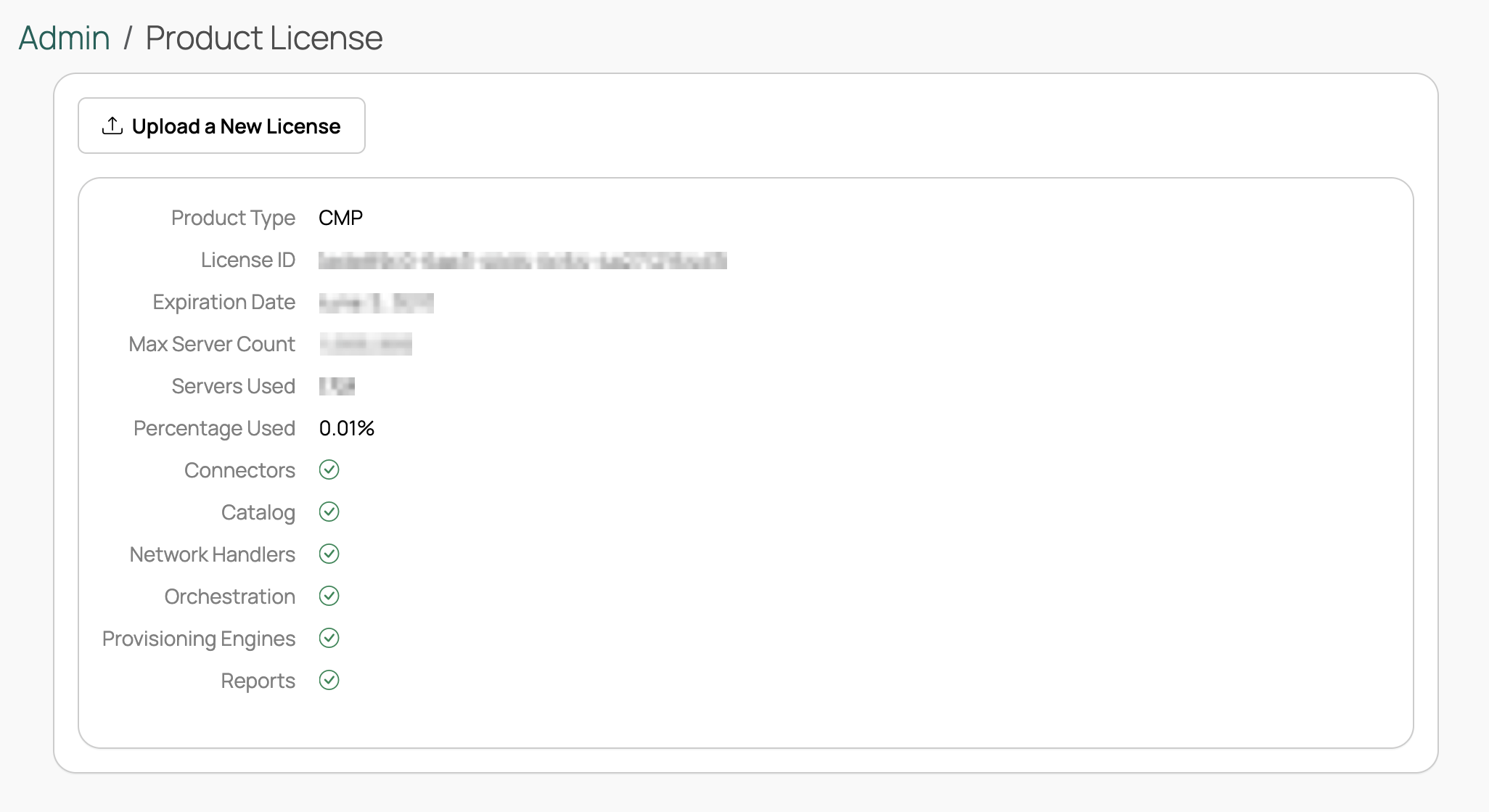
CMP’s product license sets how many resources you can provision and when your license expires. CMP offers two options:
- Free tier. Applied automatically when you install CMP. It is full-featured, supports up to 100 resources, and is valid for up to one year. No action is required to start using this license.
- Paid license. Obtain a license from your account manager to provision more resources and extend your license period. Apply it as described in Apply a license.
If your license expires: CMP locks the appliance and directs administrators to the Product License page. Apply a current license to restore access; your configuration and data are preserved.
Apply a license
-
Request a new license from your account manager.
-
Download the license key.
-
Go to Admin > CloudBolt Product License.
-
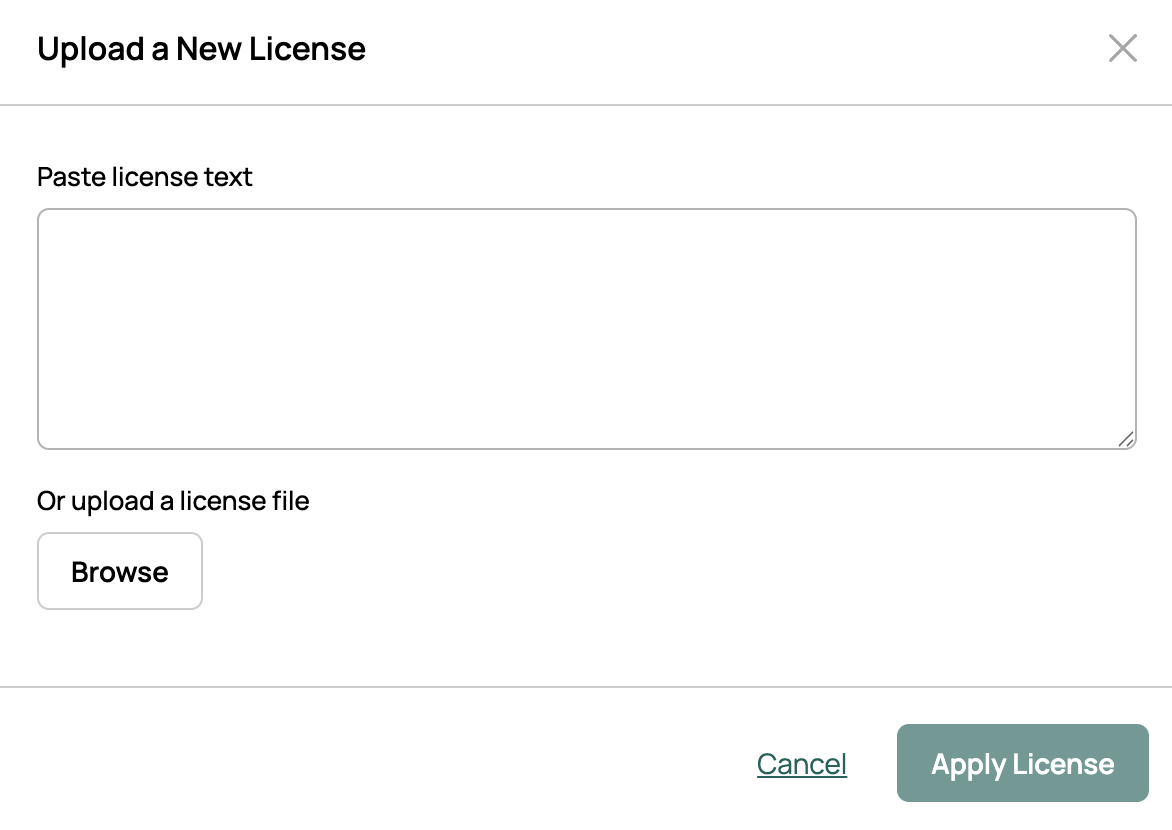
Select Upload a New License.
-
Paste the license text or select Browse and upload a license file.
-
Select Apply License.
Run CMP and OneFuse simultaneously
If you have both CMP and OneFuse licenses, you can run them in a single application. Obtain a OneFuse license from your account manager, then apply it the same way as a CMP license (see Apply a license). With both licenses applied, you can switch between the two.
Switch between appliances
With both licenses applied, you can switch between CMP and OneFuse. To let users switch, first grant them access to OneFuse.
Switch from CMP to OneFuse
- In CMP, go to My profile.
- Select Switch to OneFuse.
- Log in with your CMP credentials.
Switch from OneFuse to CMP
- In OneFuse, select the CloudBolt logo in the navigation bar.