Custom forms
8 minute read
Drag inputs onto pages and panels in the Cloud Management Platform (CMP) form builder, add logic to show, hide, and validate them as the user types, and fill dropdowns from a REST endpoint when the form opens. A form is stored as JSON, which you can read and edit in the builder’s JSON editor. The builder is SurveyJS.
Build a custom form
When you edit a blueprint, a resource action, or a server action, the Custom Form tab holds the builder for that object.
 (opens full-size image in a new tab)
Until a form exists, the tab offers Generate Default Form and Save Form. Once one is saved, these actions are available:
- Save Form stores your changes. Nothing reaches the order form until you save.
- Presentation Options sets the languages and styling described below.
- Regenerate Default Form rebuilds the default form, replacing the existing one.
- Delete Form removes the form, and the object reverts to its default order form or dialog.
Presentation options
Presentation Options opens a dialog with two settings that apply to this form:
- Choose the languages this form offers. Leave it empty for a single-language form.
- Upload a CSS file to override the default form styles.
Generate a form automatically
You can generate a form from an object’s current configuration and then edit it. Select Generate Default Form on the Custom Form tab.
 (opens full-size image in a new tab)
For a blueprint, CMP builds the form from the build items:
- Each build step becomes a page, titled with the step’s title, holding that step’s inputs.
- Each input becomes a form input whose type matches the data type of the build step’s field, named according to the Map form inputs to fields convention.
- A field that generates its options becomes a dropdown whose options are fetched when the form opens. The dropdown is configured with the correct endpoint and passes the necessary context, including the value of a controlling field that the options depend on.
For a resource or server action, the generated form includes a field for each configured input.
The change cannot be undone. To keep the current version, open the JSON editor, copy the JSON, and save it somewhere before you regenerate.
You can generate a form for an existing blueprint. Check that the blueprint’s plugin code handles the data the custom form sends, as defined by the input names listed below.
CMP-managed fields
Every form contains fields managed by CMP, without which the form cannot be submitted.
On a blueprint form
- Blueprint ID, hidden, identifying what is being ordered.
- Group, a dropdown rebuilt each time the form opens, listing only the groups the blueprint can be deployed to that the person ordering can also order for. When exactly one qualifies, the field is hidden and set to that group, unless Miscellaneous Settings is configured to show the group input for a single choice.
- Recipient, present only when Miscellaneous Settings shows a recipient on order forms, and offering the recipients allowed for the selected group. See Order on behalf of a recipient user.
- A parameter that uses a preconfiguration is displayed as either a radio group or a dropdown, depending on the setting in Miscellaneous Settings.
The form automatically displays the Rate and Cost Preview when the Show “Rates” when ordering and Show “Cost Preview” on Order forms settings are enabled.
On an action form
An action form contains two hidden fields that specify the type of object the action runs against and the specific object.
Scheduling fields
When an action allows scheduling and does not run synchronously, CMP adds three fields to the last page of the form when a user opens it: a required choice between As soon as the order is approved and At a later scheduled time, a date and time picker, and a time zone dropdown. The picker and the dropdown appear once a later time is chosen, and no configuration is needed. If the form already defines its own scheduled-time field, CMP uses that.
Map form inputs to fields
A form input is matched to the field it fills by its name. Three naming conventions cover the three kinds of fields.
Blueprint build item inputs
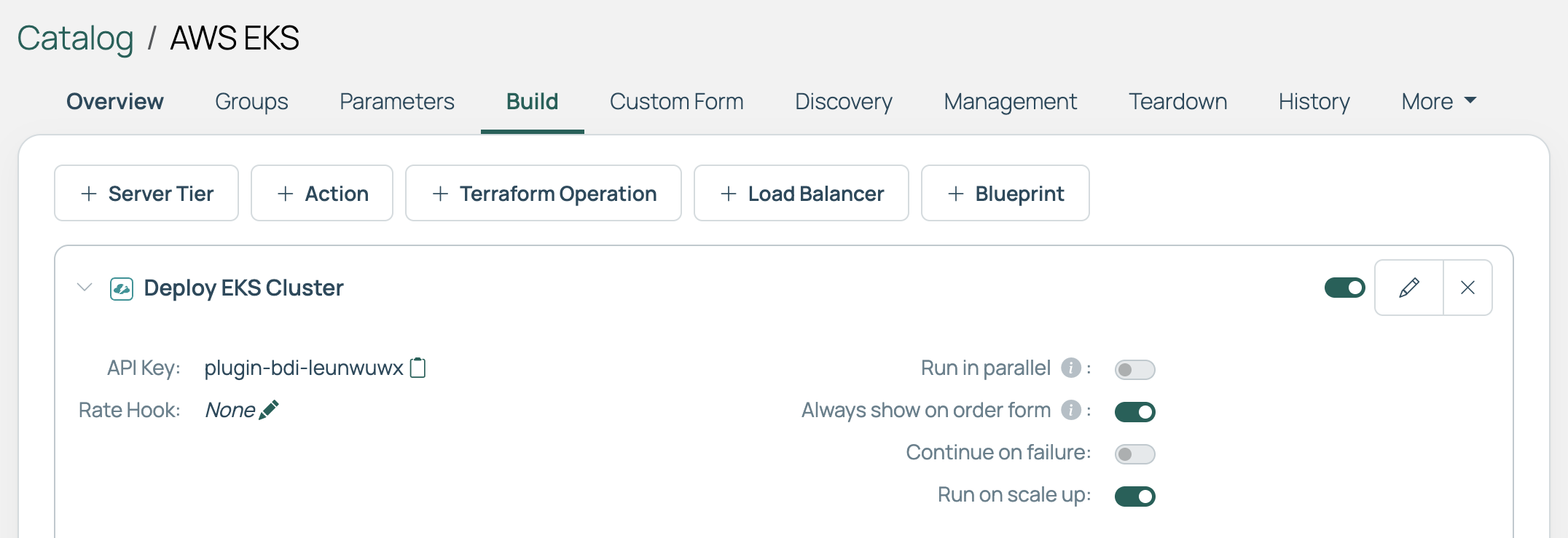
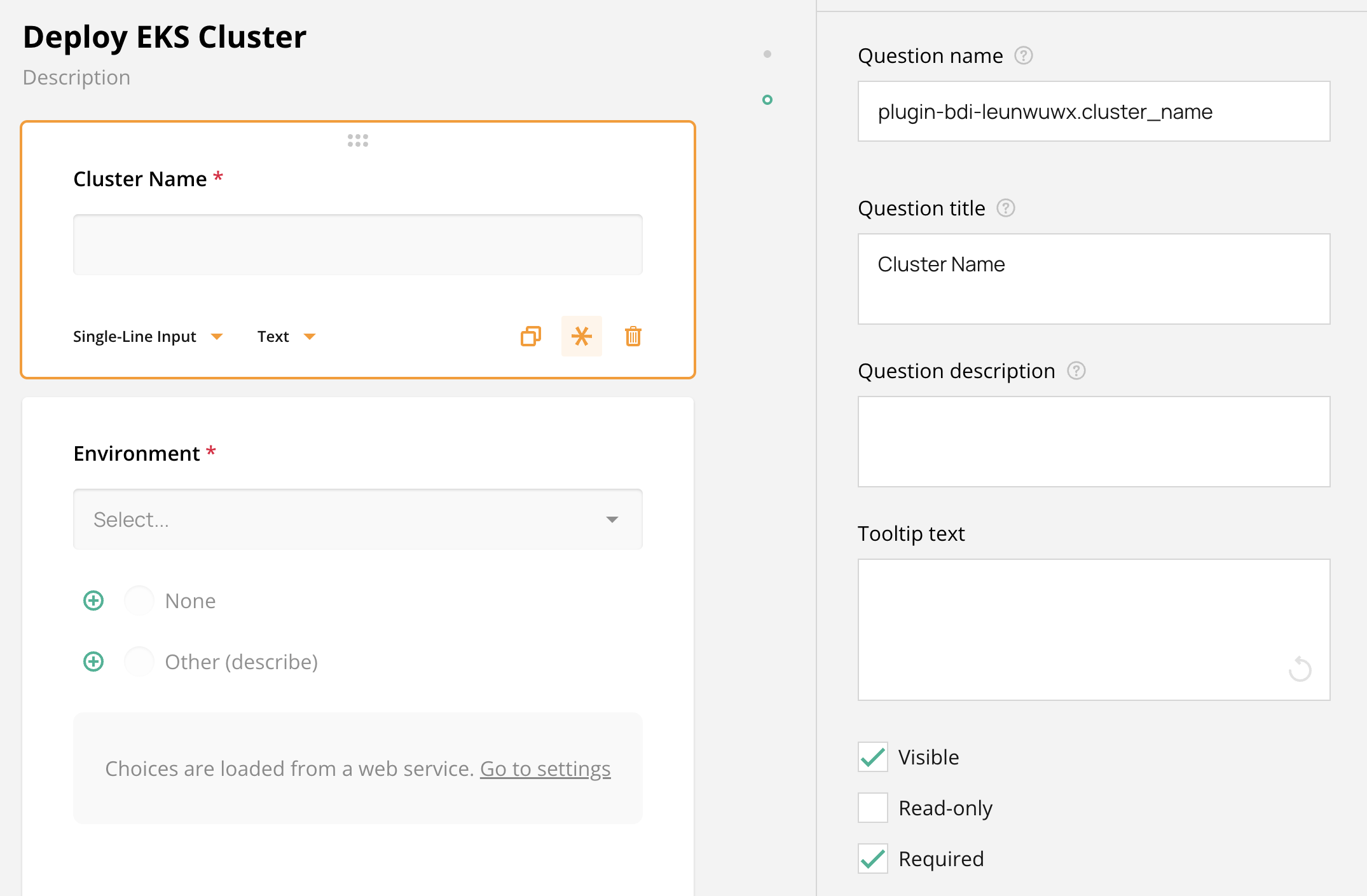
Name the input {build-step-id}.{input-name}. This blueprint has a plugin build item that creates an EKS cluster in AWS, and the build step’s ID is its API key.
 (opens full-size image in a new tab)
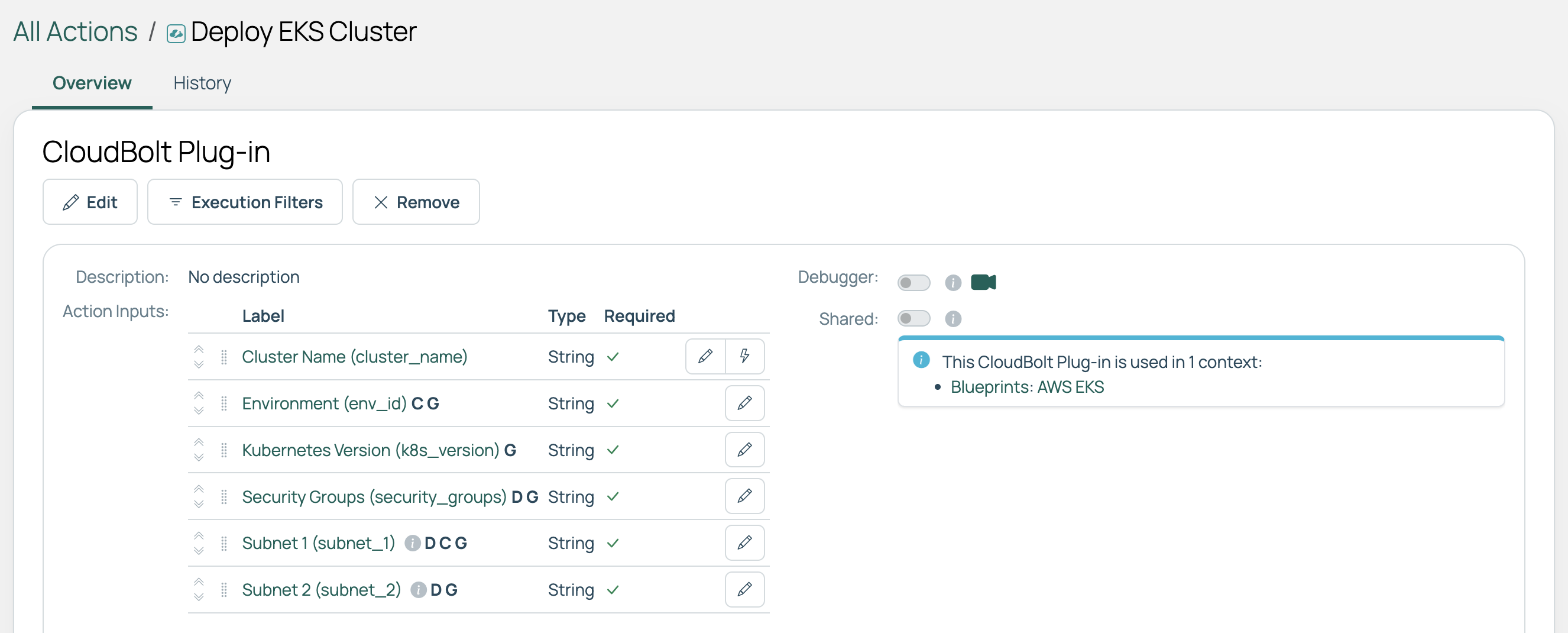
The plugin takes several inputs.
 (opens full-size image in a new tab)
In the builder, name each form control for the build item input it fills. The Title field is what the person ordering sees, so the name can stay technical.
 (opens full-size image in a new tab)
Blueprint-level parameters
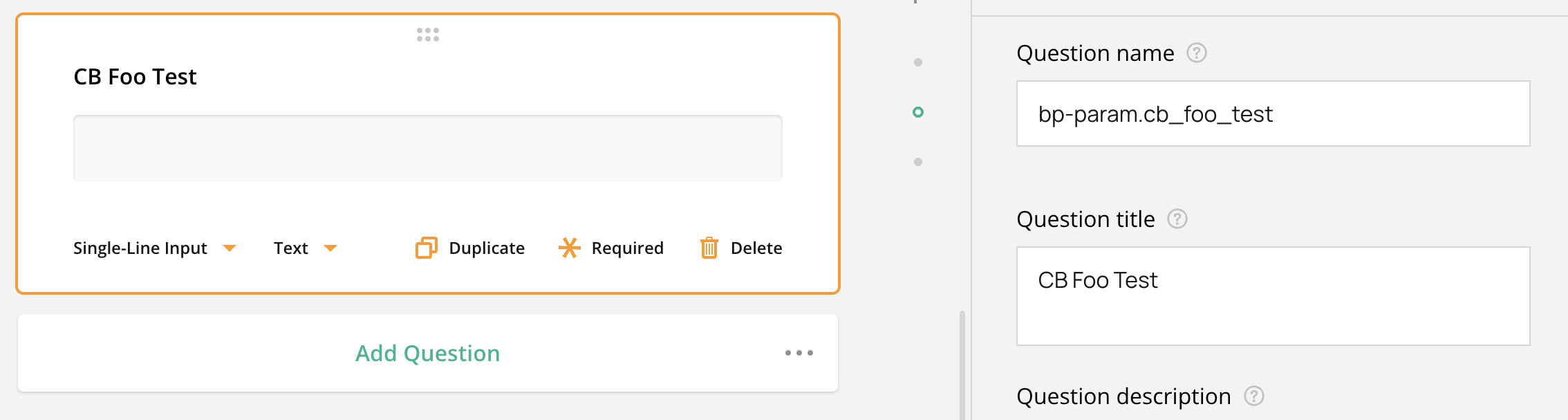
For a parameter set on the blueprint rather than on a build item, use bp-param in place of the build step ID, followed by the parameter’s name.
 (opens full-size image in a new tab)
Action inputs
For a resource or server action, prefix each input name with action-input:
{
  "type": "text",
  "name": "action-input.new_disk_size",
  "title": "Disk Size (GB)",
  "isRequired": true
}
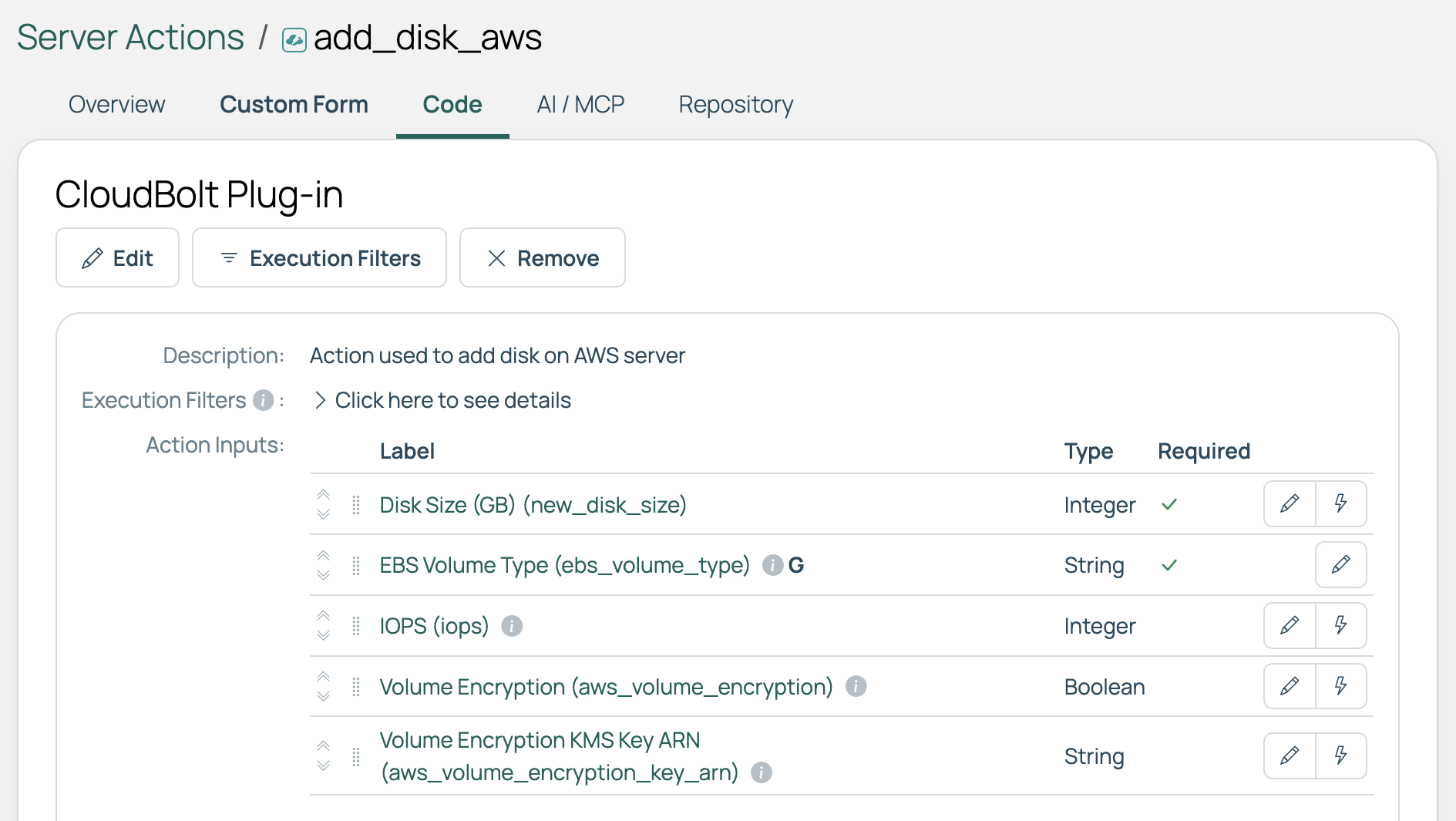
An action’s input names are in parentheses after each title, on the Code tab. Opened from All Actions instead, the same plugin shows them on Overview. The Disk Size (GB) input of the Add Disk AWS server action is named new_disk_size, so its form input is action-input.new_disk_size.
 (opens full-size image in a new tab)
Fill a dropdown from an endpoint
Options for a dropdown, checkbox group, or radio group can be typed into the builder, with logic to determine which are shown. They can also be fetched when the form is opened, from any endpoint that answers a GET request, by giving the input a choicesByUrl setting.
Reference other inputs in the query string with curly brackets, so their values are substituted at run time. An input named group is written {group}.
On a generated form
Where CMP generates the form, every dropdown backed by generated options already points to the custom form’s own options endpoint, with the context that endpoint needs. The same URL can be written by hand:
"choicesByUrl": {
  "url": "/api/v3/cmp/customForms/{custom_form_id}/parameterOptions/action-input.{action_input_name}/?object_id={object_id}&action={action_id}",
  "path": "options",
  "allowEmptyResponse": true
}
Use object_id to refer to the resource or server the action is running against. The action is identified for you.
From the Parameters API
A custom form can call the parameter options endpoint instead, which runs the parameter’s get_options_list function and returns what it produces:
/api/v3/cmp/parameters/GLOBALID/options/?group={group}
Replace GLOBALID with the parameter’s Global ID, shown on the parameter’s page. Pass any context the function needs as query-string parameters.
Pass extra data to the function
To send values the endpoint does not otherwise accept, put them in the inputs query-string parameter as JSON:
/api/v3/cmp/parameters/GLOBALID/options/?group={group}&blueprint={blueprint_id}&inputs={"my_input": {my_input}}
That request passes a referenced form input as group, another as blueprint, and a JSON object of anything else as inputs. In your plugin code, what you sent in inputs arrives in the api_si_data keyword argument.
From an inbound webhook
An inbound webhook is another way to generate options and lets you write the code that produces them. Pass what it needs in the query string:
"choicesByUrl": {
  "url": "/api/v3/cmp/inboundWebHooks/IWH-8v317fpd/run/?token=xxxxxx&server_id={object_id}",
  "valueName": "email",
  "titleName": "full_name"
}
Validate what users enter
The builder’s logic engine handles client-side validation and shows and hides inputs, panels, and options. See the SurveyJS logic documentation.
For checks that must run on the server when the order is submitted, add a blueprint validation orchestration action, as you would for a standard order form.
Custom form functions
A custom form function is a JavaScript function you write once and call from expressions in one or more forms when the logic you need goes beyond what the builder’s logic tab offers. They are managed under Admin > Custom Form Functions.
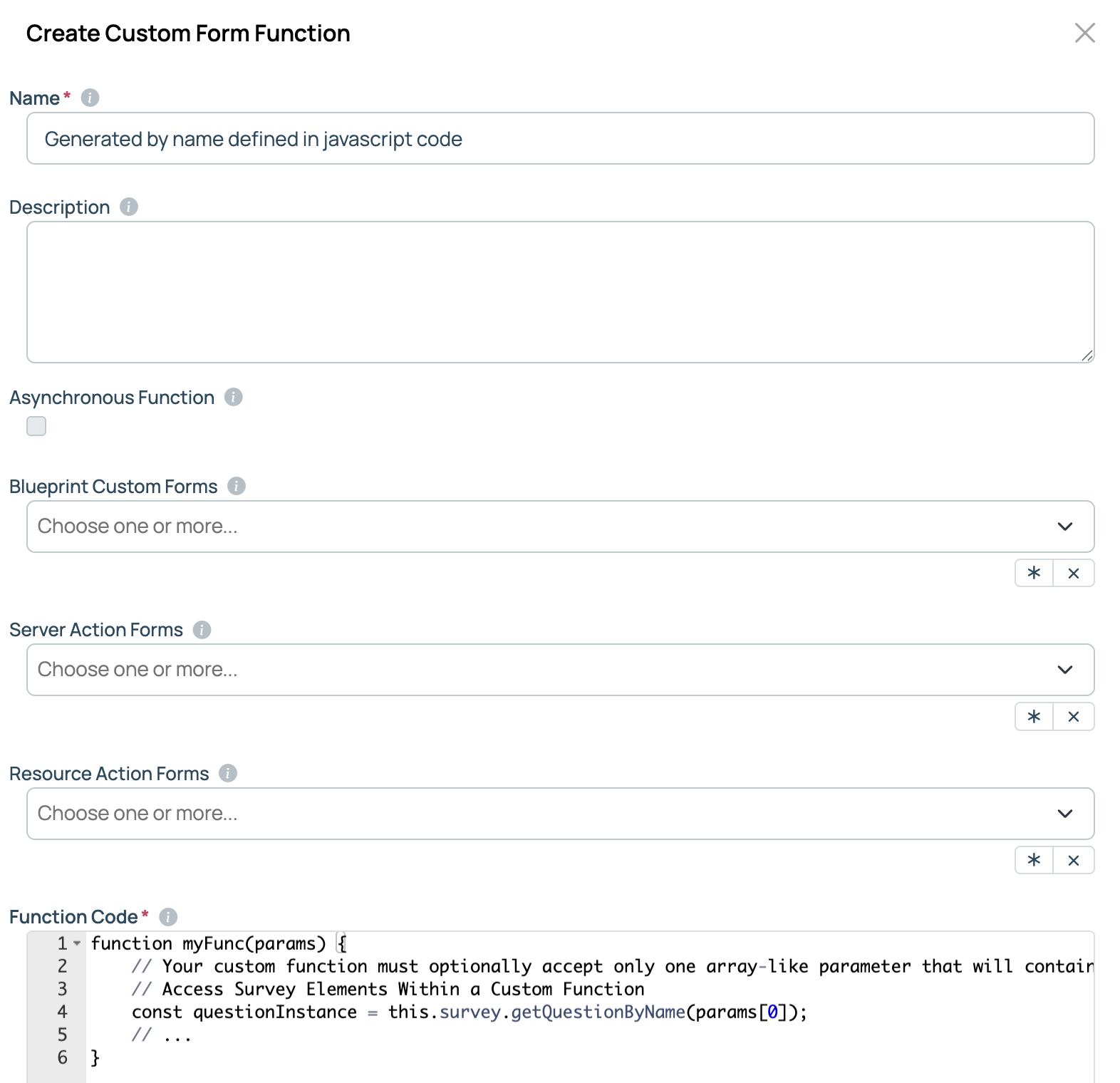
Adding one opens a dialog with these fields:
| Field | Description |
|---|---|
| Name | Generated from the function name in your code and cannot be typed. |
| Description | Records what the function is for. |
| Asynchronous Function | Marks a function that returns its result later rather than immediately. |
| Blueprint Custom Forms, Server Action Forms, and Resource Action Forms | Attach the function to existing forms. |
| Function Code | Holds the function in an editor that opens with a skeleton to work from. |
 (opens full-size image in a new tab)
The code has to be a complete named function: it must start with function, and the name must be a valid JavaScript identifier that is not a reserved word. The function takes a single parameter that holds all the arguments the expression passes to it. Call it from a form by that name, in any expression the builder accepts.
Which form CMP displays
A blueprint can be ordered through three different forms, and CMP picks one:
- The standard order form, built from the blueprint’s configuration. This is the default.
- A form UI extension, if installed for that blueprint. Use this to supply a form of your own, built outside the form builder.
- The custom form, if one is saved on the Custom Form tab. It takes precedence over both of the others.
Resource and server actions have two forms: a default dialog and a custom form when one is saved. Deleting the custom form reverts to the built-in dialog.
Related
- Order form customization: The standard order form and every way to customize it.
- Blueprints: Build items, blueprint parameters, and the standard order form.
- Generated parameter options: Writing a field’s generated options.
- Inbound webhooks: Endpoints of your own that a form can call.
- Blueprint-level parameters: Parameters set on a blueprint.