Manage and organize the Catalog
2 minute read
A Catalog can hold many blueprints. Three choices keep it navigable: the categories you define, the order you put them in, and which filters you expose to end users.
Create and organize categories
Administrators manage the Catalog at Admin > Catalog Management. The page covers the display options that determine which filters end users see, as well as the category tree.
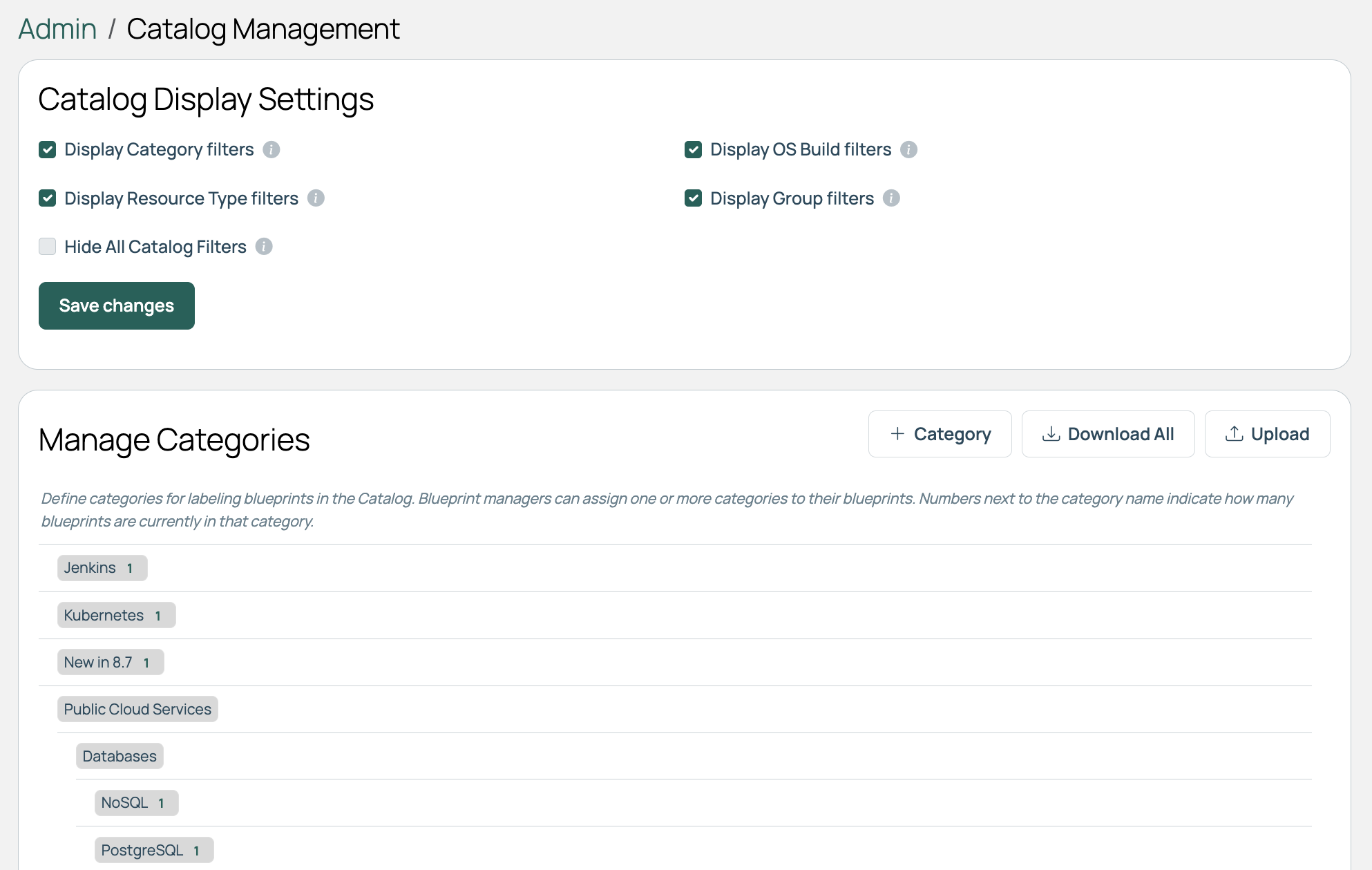 (opens full-size image in a new tab)
In the Manage Categories section, you can:
- Create categories and create subcategories under them to build a tree.
- Edit a category to change its name, parent, sequence, color, and image.
- Delete a category you no longer need.
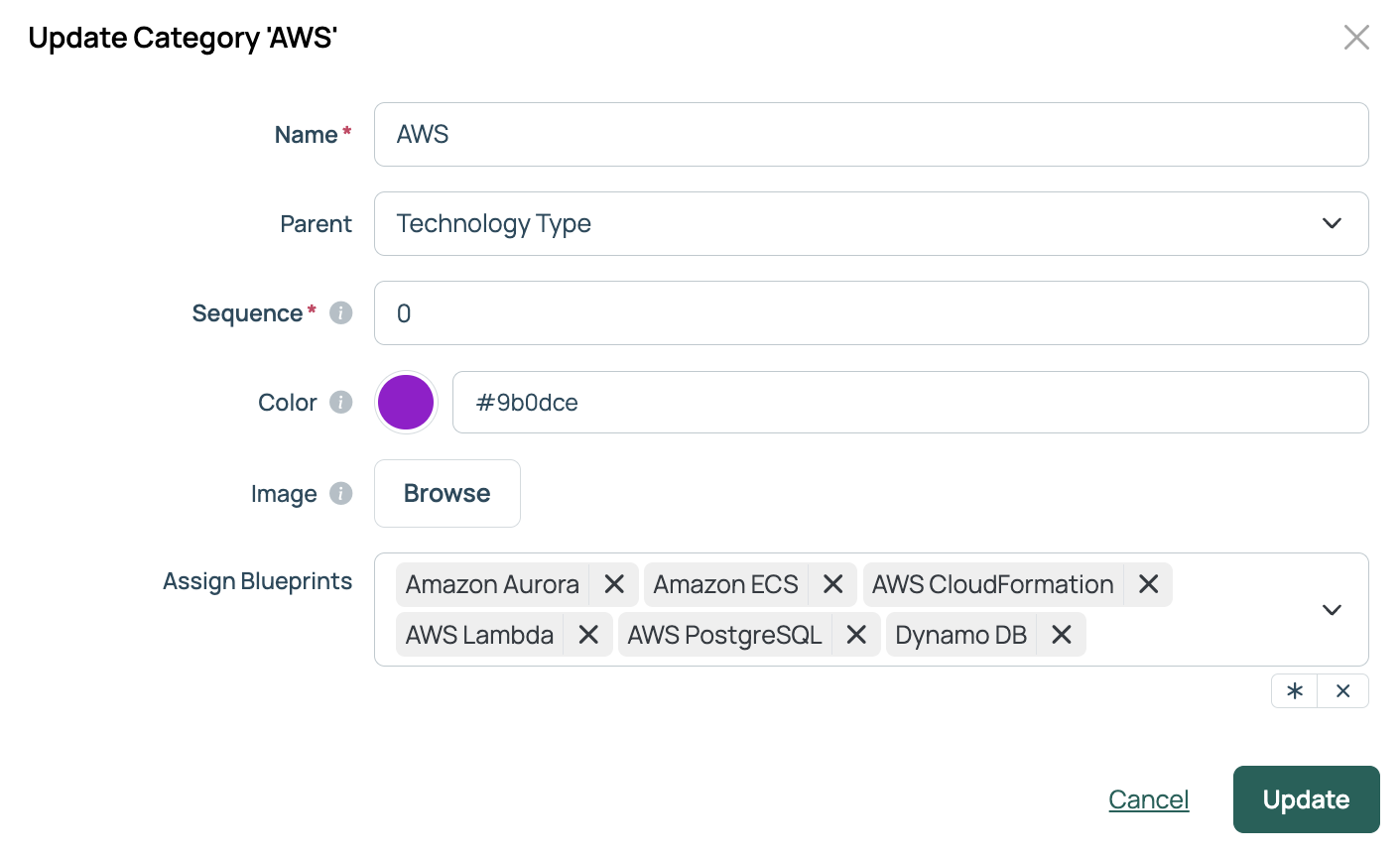 (opens full-size image in a new tab)
Sequence sets the order in which categories appear in the Catalog filters pane, and blueprint sequence feeds the default Featured sort order. See Search, sort, and filter the Catalog to see how both appear to end users and which filters are available.
Assign blueprints to categories
Add blueprints to a category, or add categories to a blueprint.
From Catalog Management
Place a batch of blueprints into the same category.
- Go to Admin > Catalog Management.
- In Manage Categories, create a category or select the edit icon on an existing one.
- Under Assign Blueprints, select every blueprint that belongs in this category. Blueprints already in the category are preselected, so clearing one removes it from the category.
- Select Add or Update.
From the blueprint
Assign categories to a blueprint.
- Open the blueprint and go to the Overview tab.
- Under Categories, select the edit icon.
- Select the categories that apply.
- Select Save.
The two routes are not interchangeable. Assigning from Catalog Management is restricted to administrators, so a user who manages a blueprint but is not an administrator can only categorize it from the blueprint itself. The blueprint route is unavailable for blueprints created from a source code repository.
Related
- Search, sort, and filter the Catalog: Visibility and filter management.
- Blueprints: Build and maintain the blueprints you are organizing.