Search, sort, and filter the Catalog
2 minute read
The Catalog toolbar
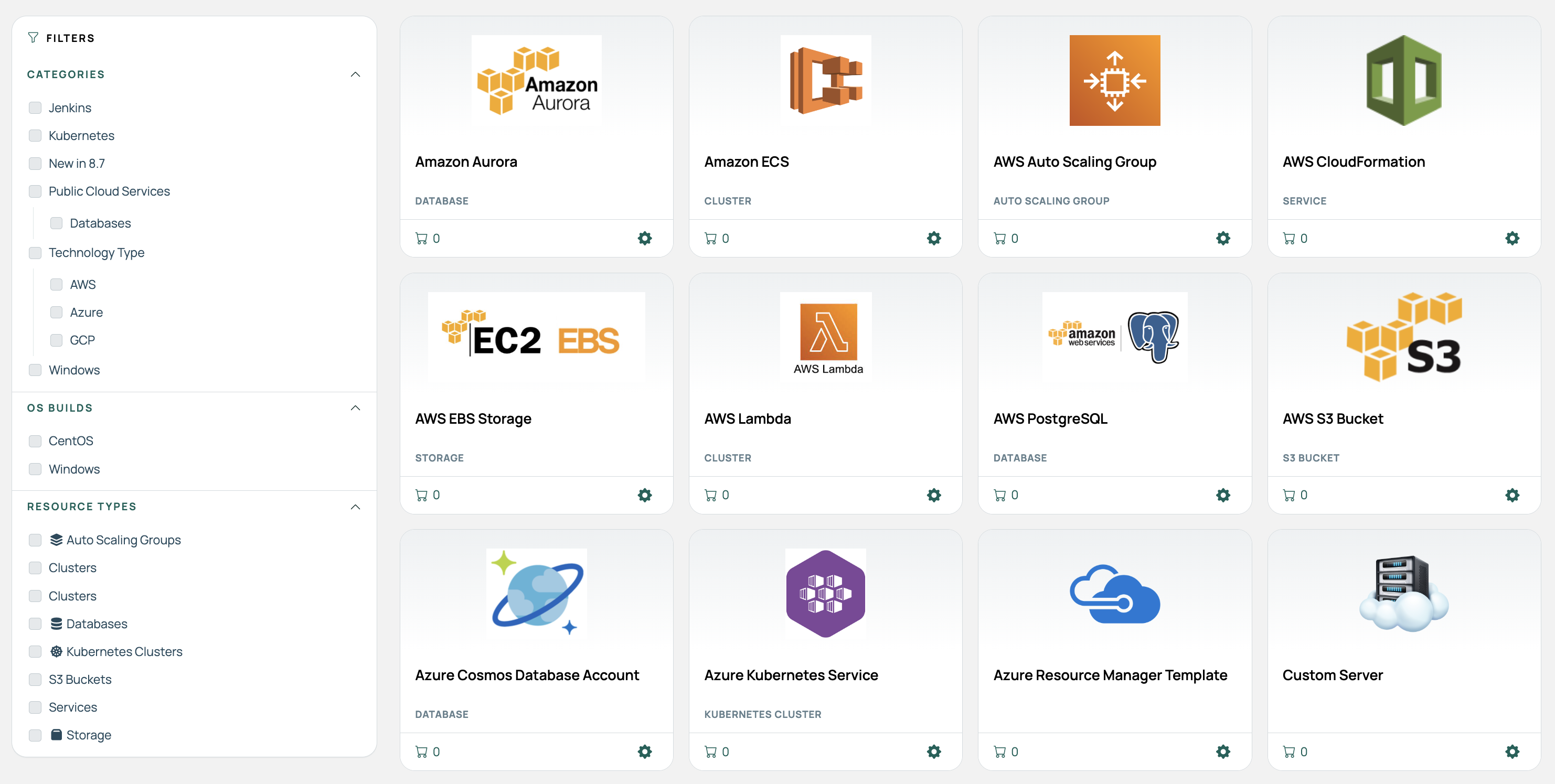
The controls sit in a strip above the blueprint cards:
- The search box matches blueprint names and descriptions.
- The Sort by list changes the order in which the cards appear.
- The Filters button shows and hides the filters pane beside the cards.
 (opens full-size image in a new tab)
Search
Enter a term in the search box to narrow the Catalog. Search matches only the blueprint name and description. It does not match categories, resource types, or parameter values — use the filters pane for those.
Searching does not clear active filters.
Sort
Choose an option from the Sort by list. The Catalog opens on Featured.
| Sort by | Order |
|---|---|
| Featured | Favorited blueprints first, then by the sequence set in Catalog Management, then by name. This is the default. |
| Name (A-Z) | Alphabetical by blueprint name. |
| Newest | Most recently added first. |
| Most Ordered | Most frequently ordered first, counted across all orders. |
| Resource Type | Grouped by resource type. Blueprints with no resource type appear last. |
Filter
Select Filters to show or hide the filters pane. The button appears only when at least one filter group has options to offer.
| Filter group | What it contains |
|---|---|
| Categories | The categories and subcategories defined in Catalog Management. See Manage and organize the Catalog. |
| OS Builds | Operating system families used by a server tier in at least one active blueprint. |
| Resource Types | Active resource types. See Resource types (XaaS). |
| Groups | The groups available to you. |
Each filter you apply appears as a chip above the blueprint cards. Select the x on a chip to remove that filter.
The Groups filter appears only for users in more than one group, or for Super Admins, DevOps Admins, and Global Viewers.
Choose which filters users see
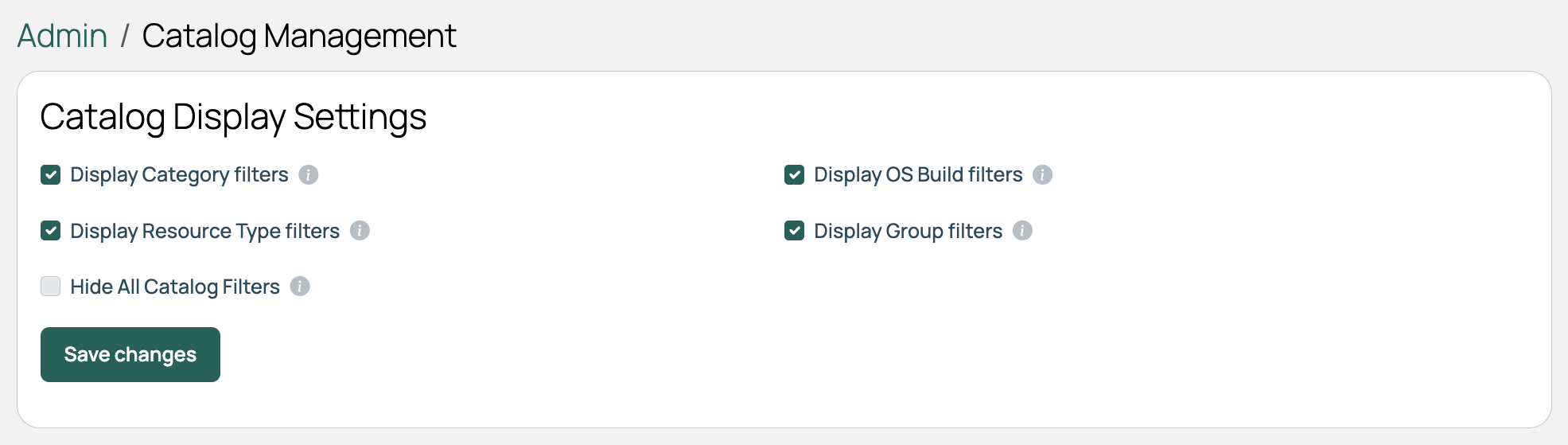
Administrators control the filters pane at Admin > Catalog Management.
 (opens full-size image in a new tab)
| Setting | Description |
|---|---|
| Display Category filters | Allow users to filter the Catalog by category. Enabled by default. |
| Display OS Build filters | Allow users to filter by operating system family. Enabled by default. |
| Display Resource Type filters | Allow users to filter by resource type. Enabled by default. |
| Display Group filters | Allow users to filter by group. Enabled by default. |
| Hide All Catalog Filters | Hide the filters pane completely. Disabled by default. |
Related
- Manage and organize the Catalog: Create the categories and sequence that drive filtering and Featured order.
- Blueprints: Build and maintain the blueprints users find here.
- Resource types (XaaS): Define the resource types that appear as filters.