UI elements that support extensions
Each kind of extension is a Django view with a decorator that specifies where it appears
4 minute read
Import a ready-made extension from the Content Library, or write your own. An extension has access to the same models and functions as a plugin and can use any third-party library installed on the Python path. Writing an extension calls for Python and a working knowledge of Django views, URLs, and templates.
Extensions may need testing and updates when you upgrade CMP. Contact CloudBolt Support if you require assistance.
The extension, along with all of its views and templates, is imported, replacing any extension with the same name. It appears in the UI Extensions list on the Extensions Management page.
Go to Admin > Manage UI Extensions.
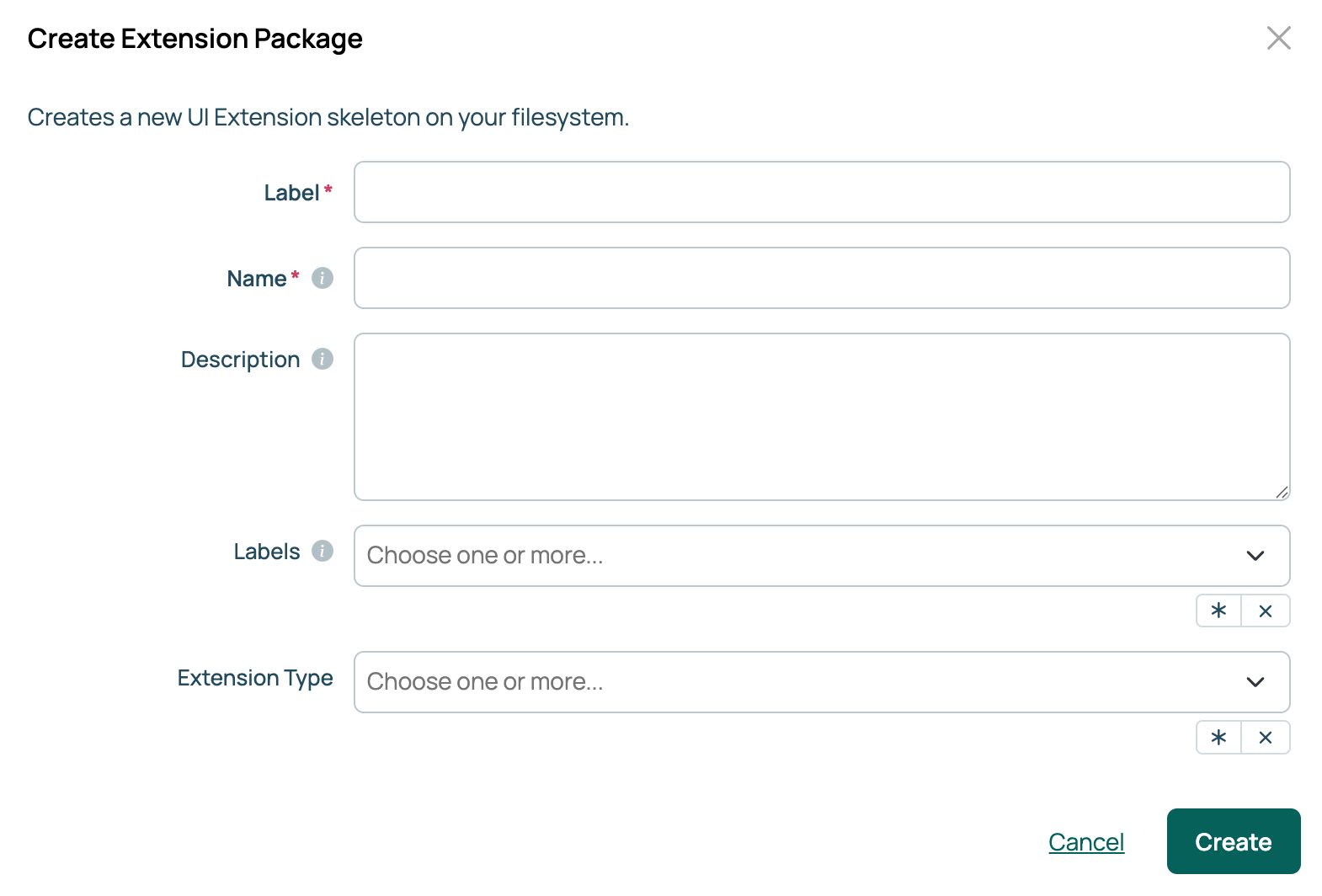
Select Add > Create a package.
Enter a Label, the name displayed in the UI, and a Name, the folder and database name. Use lowercase letters, with optional underscores.
Enter a Description, and add any Labels you want. Type to find a label or create a new one.
Select one or more entries under Extension Type: Admin Page, Dashboard, Detail View Tab, Microfrontend App, Microfrontend Module, or Report. Each one adds a stub function to the package.
Select Create. The package is created on the appliance at /var/opt/cloudbolt/proserv/xui/<name>/, containing __init__.py, views.py, and a templates folder if you selected Admin Page.
Write your extension by editing those files on the appliance, or work on a copy: select the download icon in the package’s row, edit the files, zip them with the same folder structure, and then Upload.
A zip with no JSON metadata file still installs. CMP warns you that the metadata is missing and asks you to confirm.
Restart the Apache HTTP Server to pick up Python changes. If your extension ships CSS, JavaScript, or images, select Sync Static Assets on the Extensions Management page to copy them to the web server.
systemctl restart httpd
Labels group extensions in the UI Extensions list. Select a label in the list to show only extensions with that label. To change an installed extension’s labels, open the extension and select the pencil icon next to Labels on its Overview tab.
Labels are saved in the package metadata, so they are kept when you download, upload, or import an extension, including from a repository or the Content Library.
A downloaded package includes a JSON file that describes the extension. CMP generates it from the extension’s record and reads it back when the package is uploaded or imported, so a value you change in the file becomes the value in CMP.
{
    "description": "Test for Documentation",
    "enabled": true,
    "icon": "doc_test.svg",
    "id": "XUI-zx4tm7f7",
    "label": "Documentation Test",
    "labels": [
        {
            "name": "Reporting"
        }
    ],
    "last_updated": "2023-02-15",
    "maximum_version_required": "",
    "minimum_version_required": "8.6",
    "name": "documentation_test",
    "package_contents": [
        "doc_test/__init__.py",
        "doc_test/templates/admin_page.html",
        "doc_test/views.py"
    ],
    "version": "1.0"
}
| Field | Description |
|---|---|
description |
Shown with the extension’s details in the Library, and beside its name on the Extensions Management page. |
enabled |
Whether the extension’s components appear in the UI. false hides all of them without removing the package. |
icon |
The image file used for the extension in the Library listing, contained in the package. |
id |
The extension’s global ID, which starts with XUI-. |
label |
The name shown for the extension in the Content Library and on the Extensions Management page. |
labels |
The extension’s labels, each with a name. On upload or import, they replace the extension’s labels. A package without this field leaves the labels unchanged. |
last_updated |
The date the package was exported. |
maximum_version_required |
The highest CMP version supported by the extension. Empty means no upper limit. |
minimum_version_required |
The lowest CMP version supported by the extension. |
name |
The package folder name and the name stored in the database. May differ from the label. |
package_contents |
Every file in the package. Upon import, these files are copied onto the appliance. |
version |
The extension’s version. |
Watch the application log while you work, then reload the page and look for Python errors in the live stream.
tail -f /var/log/cloudbolt/application.log
A traceback from a failing extension is also shown in place of the extension, so a CloudBolt admin can read it without leaving the page.
Each kind of extension is a Django view with a decorator that specifies where it appears
A UI extension is a Python package on the appliance
Extension templates can use the preloaded JavaScript and CSS libraries, and can ship their own files within the package
Use a delegate class to decide whether an extension is visible to the viewer
Use the replaces parameter in a UI extension’s @tab_extension decorator to replace or hide a built-in tab