Minimum required permissions in vCenter/VMware
The vCenter account a resource handler authenticates as needs a role with the privileges below
6 minute read
Cloud Management Platform (CMP) supports vCenter versions 6.5 through 9.x. A CMP environment is created for each imported cluster. The VMware Cloud on AWS resource handler is deprecated — use this handler for VMware Cloud on AWS virtual machines.
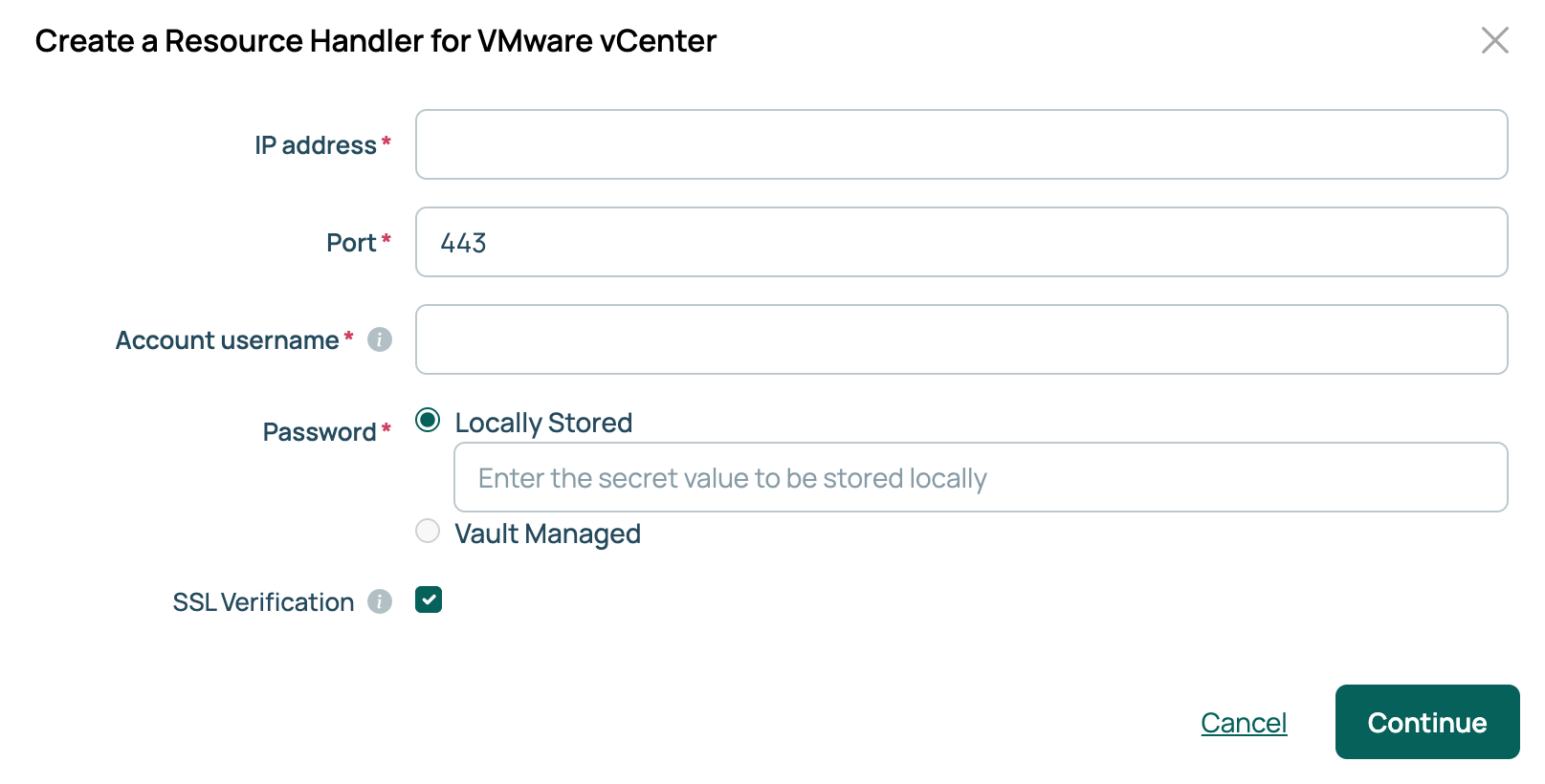
Go to Admin > Resource Handlers, select Add, then select VMware vCenter under Private Cloud.
Fill in the credentials dialog and select Continue.
Enter a name and an optional description, choose clusters under Import VMware Clusters, set any remaining options, then select Done.
You must select at least one cluster. CMP creates an environment per cluster and runs a Sync Resource Handler metadata job to import the clusters, datastores, datastore tiers, networks, and templates.
| Field | Description |
|---|---|
| IP address | The host name or IP address of the vCenter server. |
| Port | The API port. Defaults to 443. |
| Account username | The vCenter account CMP authenticates as. CMP uses it for every management action, including creating servers, power operations, and syncing. |
| Password | The password for that account. If the password vault feature is enabled, this field offers Locally Stored or Vault Managed. Select Vault Managed to read the secret from a configured vault provider. See Use password vaults. |
| SSL Verification | Whether CMP verifies the vCenter server’s SSL certificate. |
The settings dialog also includes Virtual folder path, remote console options, and Split by cluster, which splits sync jobs so each one covers a single cluster. To change them later, open the handler’s Overview tab and select Edit Settings.
An environment cannot be used until a template is imported and attached to it; the Templates tab shows a warning icon until this is done.
Select Sync templates to pick up templates added in vCenter since the last import.
Import networks from the handler’s Networks tab, and datastores from its Storage tab with Import datastores.
The network adapter type set on a template in CMP overrides the adapter type of the virtual machines provisioned from it in vCenter. It may also override the adapter type on the template in vCenter.
If your vCenter supports advanced network configurations such as VXLANs and edge appliances, configure them on the handler’s NSX tab.
Defines the NSX Manager connection used to create VXLANs and edge appliances. See Network virtualization.
Sets the defaults used when creating an NSX Edge Services Gateway appliance, such as Provider Network, Cluster, Datastore, and CLI Credentials.
The provider network specified in the NSX Edge Configuration must be associated with an IP Pool; otherwise, CMP cannot determine the IP address for the gateway’s uplink interface. That network also needs a gateway and netmask configured in CMP.
The following parameters are imported, with options populated by CMP from what it discovers in vCenter.
| Parameter | Description |
|---|---|
| VMware Datastore | Required. The datastore where a server’s disks are placed. |
| VMware Disk Provisioning Type | Required. How the disk is provisioned. |
| VMware Resource Pool | The resource pool a server is created in. |
| NSX Transport Zone | The NSX transport zone to use. Applies only when the handler has an NSX endpoint. |
| NSX Edge | The NSX edge appliance to use. Applies only when the handler has an NSX endpoint. |
VMware Cluster is not a parameter you set: CMP records it in the environment on import. VMware Adapter Type is set per network interface rather than per server. You can add VMware Datastore Free Space to an environment as described below.
Give this parameter a single option on the environment. It matters most when adding a disk to an existing server.
If the server has no value for it, because it was discovered or built before the parameter was configured, CMP falls back to the environment and takes the first option it finds, so a single option is the safer configuration. If neither the server nor the environment has a value, CMP uses the global default. Global options and options set on a group are not consulted when adding a disk.
vCenter needs a datastore and a disk provisioning type whenever a disk is added. The modification API accepts these parameters:
disk_size: the new size for the original disk.new_disk_size: the size of a disk being added.vmware_datastore: the datastore to provision the disk to.vmware_disk_type: the provisioning type for the disk.By default, CMP uses the guest customization tools in a vCenter template to set the host name, IP address, DNS servers, WINS servers, domain membership, and similar values on a new virtual machine.
For finer control over Windows, add the Sysprep Answer File parameter to a vCenter-backed environment and set its value to the contents of an unattend.xml file. CMP treats the file as a template, so values such as {{ server.hostname }} resolve at build time. See Using Windows Sysprep with resource handlers.
When a Sysprep answer file is supplied, CMP ignores every other customization parameter. The answer file must specify all of them.
CMP treats every VMware tag as having single cardinality: one tag value per category per virtual machine. If a VMware category allows several tags, only one of their values appears in CMP. Changing the value of a parameter linked to a tag in CMP removes the other values from the virtual machine.
Tags are synchronized only with vCenter 6.5 or later.
vCenter tags do not sync both ways. Tags added in vCenter are synced to CMP, but tags removed in vCenter remain in CMP.
vCenter servers support snapshots. See Snapshots.
CMP places provisioned virtual machines in a folder on the vSphere client, and gives each group a subfolder of the same name. The default path is CloudBoltVMs/{{ group }}.
Change it with the same template syntax used for hostname templates.
CloudBoltVMs/{{ group }}
CloudBoltVMs/ is the root directory for virtual machines, and {{ group }} is the current group’s name. It produces paths such as CloudBoltVMs/Development and CloudBoltVMs/Production.
{% if group.parent %}/{{ group.parent }}/{{ group }}{% else %}/{% endif %}
This builds the path from the group hierarchy: a group with a parent gets both names, so “Subfolder” under “Parent” becomes /Parent/Subfolder, while a group with no parent becomes /Group.
The vCenter account a resource handler authenticates as needs a role with the privileges below
Reach vCenter directly from plugin code through its vSphere Web Services API or its vSphere Automation API