Parameter options
How Cloud Management Platform (CMP) decides which values a parameter offers, and the defaults, constraints, and dependencies that shape them
3 minute read
A parameter passes additional data along with an order, such as text, numbers, and dates. In Cloud Management Platform, the same parameter can behave differently depending on the group ordering it, the environment building it, and the blueprint it belongs to. A parameter may be:
Parameters are added to specific groups and environments and blueprints, where their options and constraints are configured.
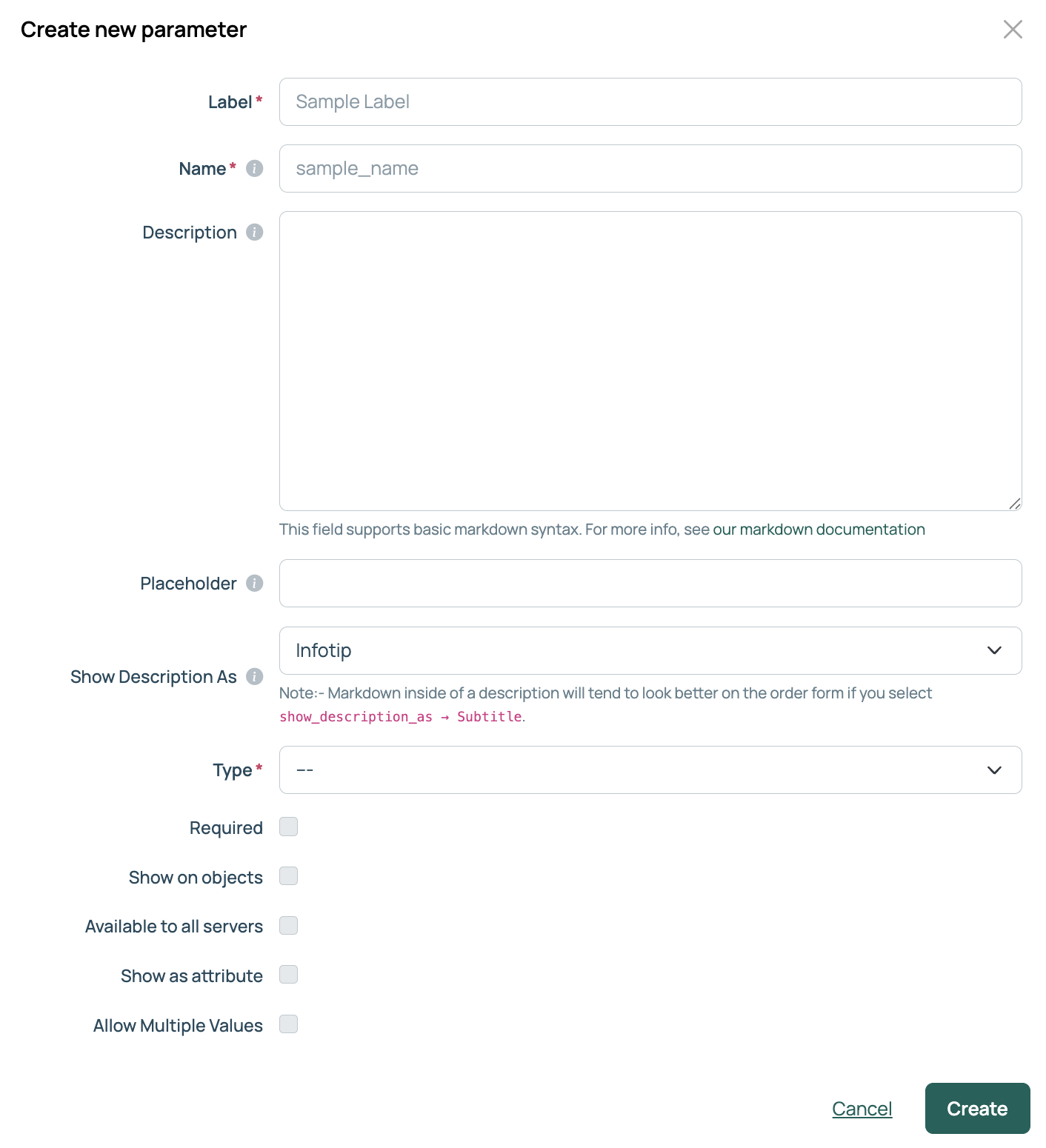 (opens full-size image in a new tab)
Customize the sequence in which parameters appear on forms when managing and ordering blueprints.
Parameters that are not on this list appear in alphabetical order below those that are.
Groups are hierarchical, and a subgroup inherits its parent group’s parameters and preconfigurations, including any options and constraints set on the parent. This makes it easier to manage orders across many groups. Inheritance is enabled by default. To disable it, go to Admin > Miscellaneous Settings, select the Ordering tab, and clear Inherit Group Parameters.
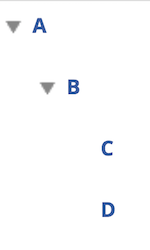
For example, given the following group structure:
 (opens full-size image in a new tab)
If you set the CPUs parameter on group A, then groups B, C, and D inherit it. The CPUs parameter, with any options and constraints set on A, appears on orders for group A and all of its subgroups.
If you also set the CPUs parameter on group B with its own options, orders for group B use those options instead, even though the parameter already exists on its parent.
Once CPUs is overridden on group B, orders from groups C and D show the options and constraints from group B. You can view inherited parameters from a subgroup’s Parameters tab.
How Cloud Management Platform (CMP) decides which values a parameter offers, and the defaults, constraints, and dependencies that shape them
Define a fixed list of values for a parameter on a group, an environment, or a blueprint
Build a parameter’s option list at runtime from a plugin
Some parameters accept a template instead of a fixed value