Create a user
2 minute read
Administrators, and users with the Manage Group Memberships permission in at least one group, can create users. You can create users directly in CMP, as described below, or sync users from an external directory via LDAP or SSO. For how users, groups, and roles fit together, see Users.
Create a user manually
-
Go to Admin > Users.
-
Select Create a new User.
-
Complete the Create a User form.
-
Select Create.
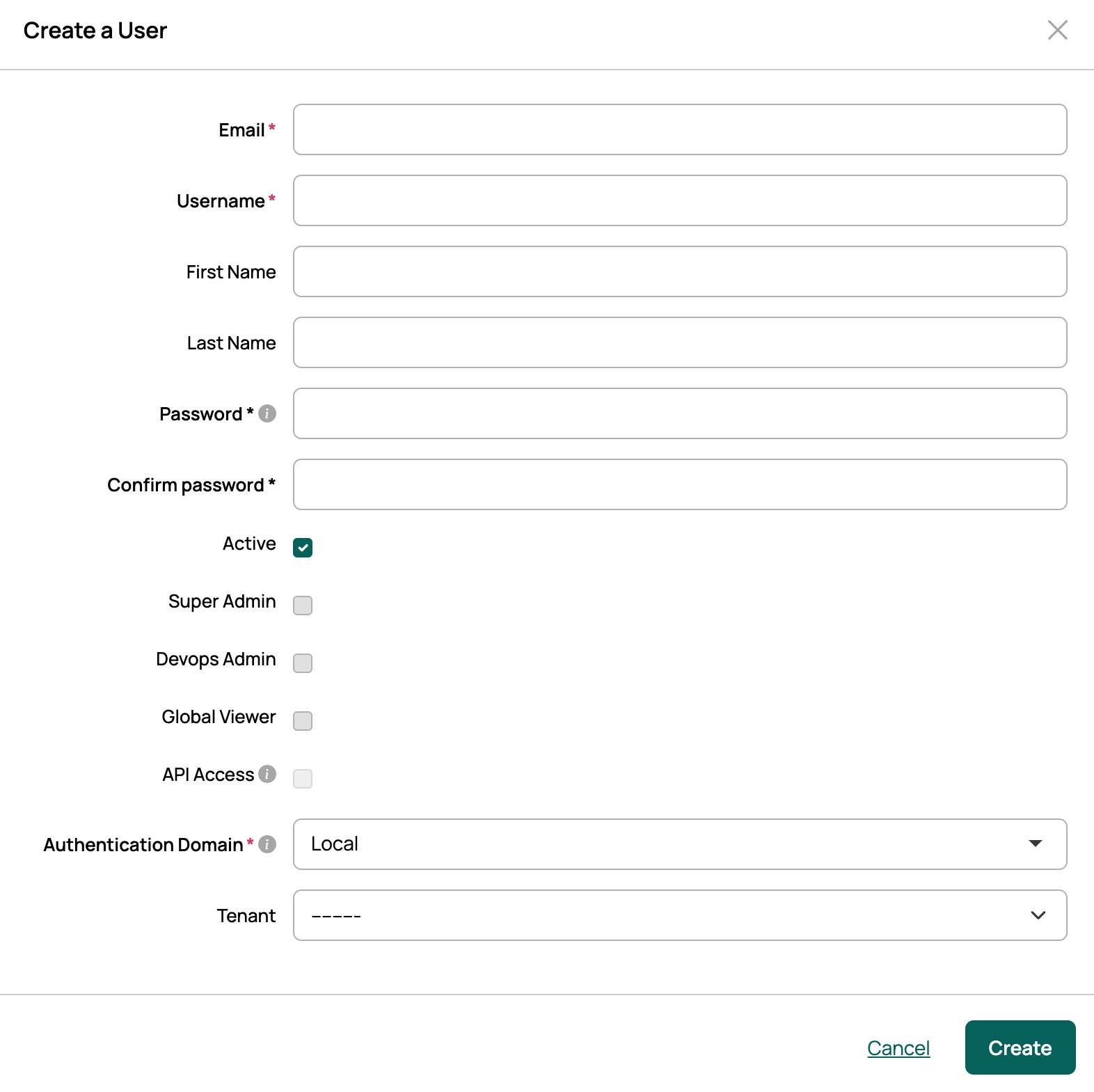
Email verification
When a user’s email address is changed, a verification email with a link is sent to the new address. When the user selects the link, the address is marked as verified and active. Email verification is enabled by default.
To enable or disable email verification:
- Go to Admin > Miscellaneous Settings.
- Toggle Require User Email Verification on or off.
Passwords
When a user is created, they can receive a password in one of two ways:
- The administrator assigns a temporary password. This is the default.
- CMP emails the user a password reset link, and the user sets their own password. To use this method, enable Require New Users to Self-Assign Passwords in Admin > Miscellaneous Settings.
Change a password
After a user is created, they can change their temporary password to one of their choosing. An administrator can also change another user’s password.
- Open your own profile, or go to Admin > Users and select a user.
- Select Manage profile.
- In the Change password and Confirm password fields, enter the new password.
- Select Save changes.
Changing a password requires the user’s current password in the Original Password field. Administrators need it too when changing another user’s password.
Password reset
- On the login screen, select Forgot password?
- Enter your email address and select Email Password Reset. An email with a recovery link is sent to that address.
- Select the link in the email.
- Enter a new password, then confirm it.
- Select Reset Password.
If the Default From Address is not configured in Email settings, the email may be marked as spam.