Preconfigurations
Preconfigurations are predefined sets of order options to simplify the ordering process
2 minute read
A user selects a single named option that applies a combination of settings.
Create a preconfiguration
- Go to Admin > Preconfigurations.
- Select New preconfiguration.
- Enter a Label and Name for the preconfiguration.
- Select Include OS build, Include applications, or both, to offer those options as part of the preconfiguration.
- From the Custom fields list, select the parameters to include, such as CPUs, Mem Size, and Disk Size. You can select more than one.
- Select Create.
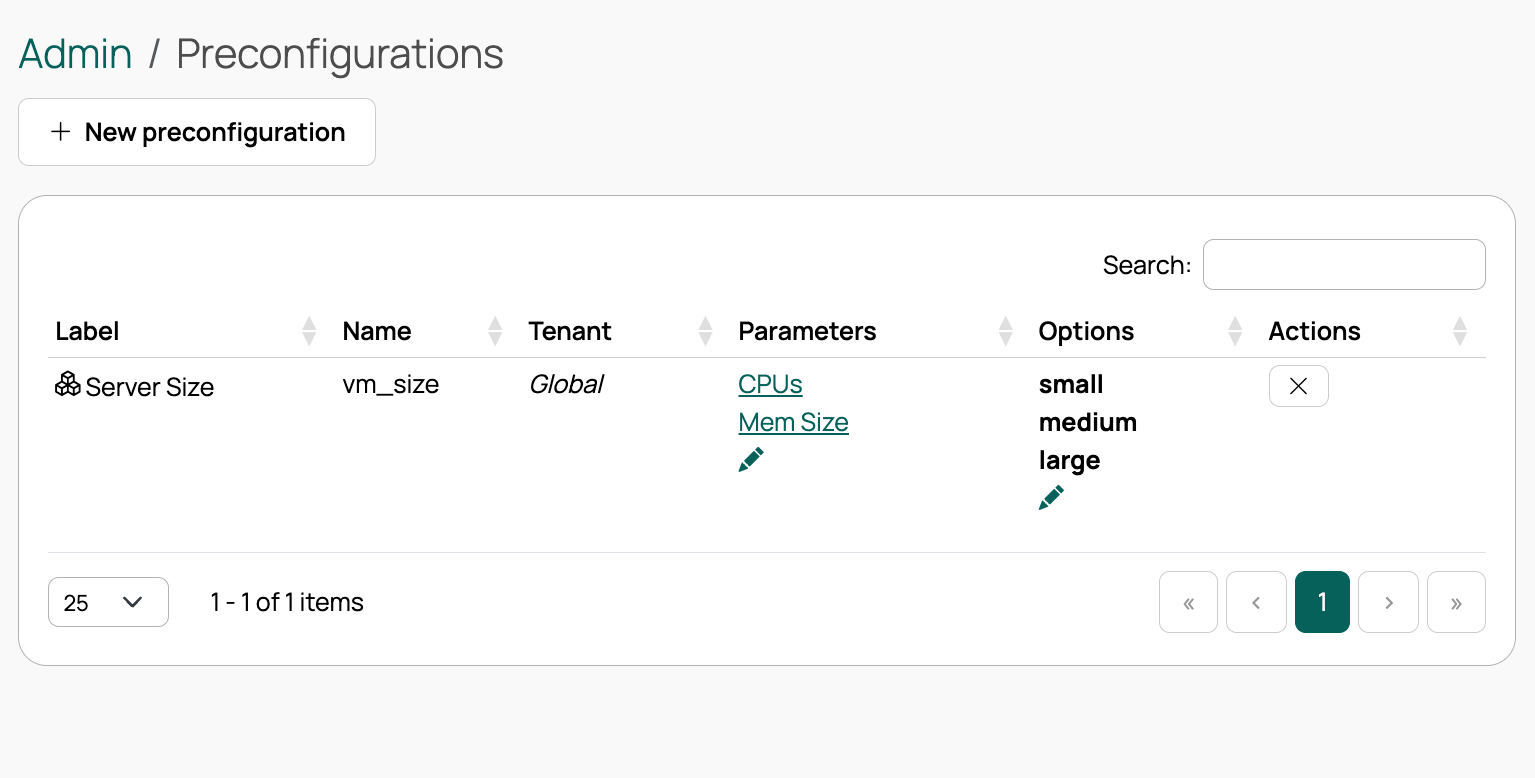 (opens full-size image in a new tab)
Add options to a preconfiguration
After you create a preconfiguration, add the options that users can choose from.
- In the Options column, select the Edit icon.
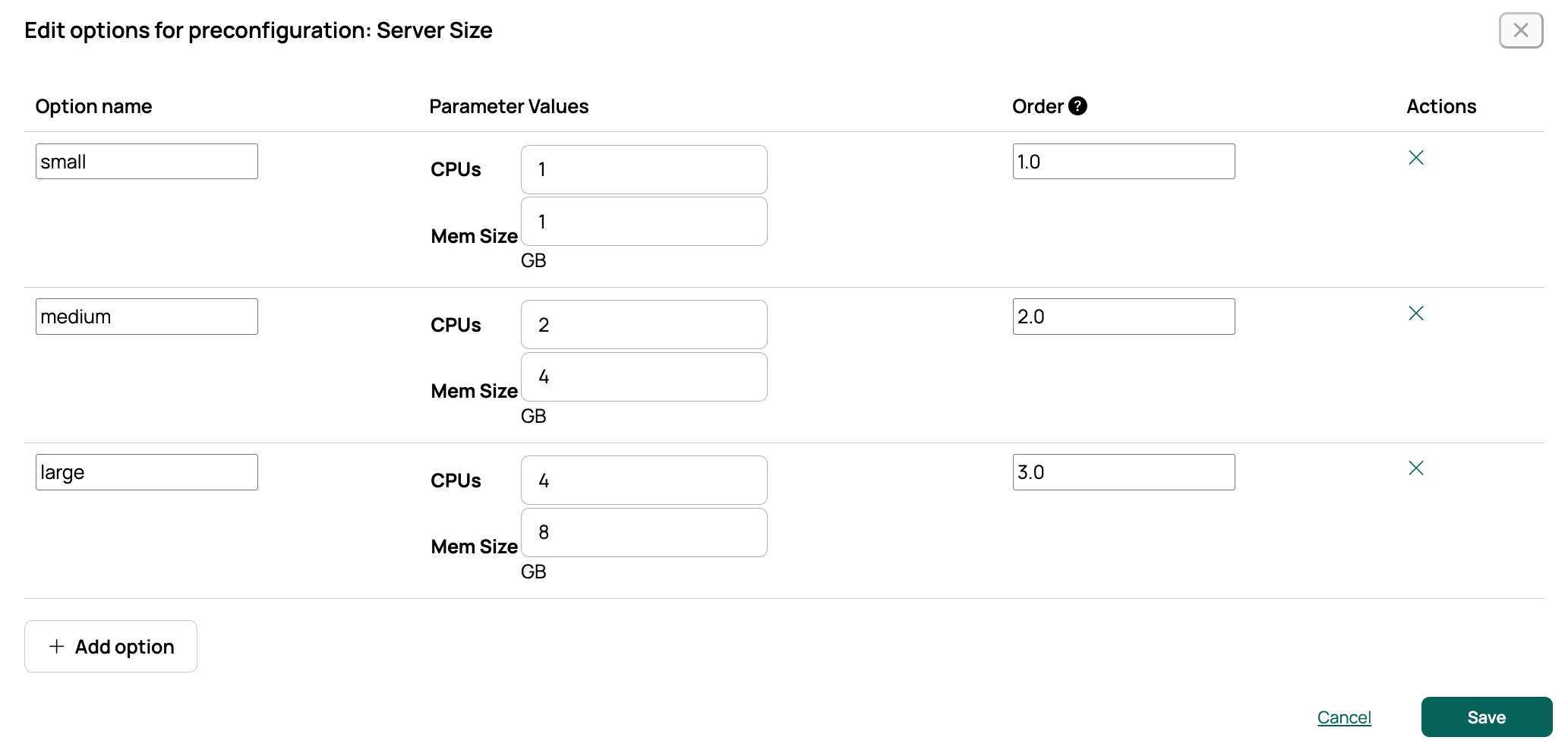
- Add a value for each parameter in the preconfiguration.
- Select Save.
 (opens full-size image in a new tab)
Examples
Server size
Offer users a choice of server profile sizes.
- Create a preconfiguration named Server Size. Leave Include OS build and Include applications cleared.
- From the Custom fields list, select CPUs, Mem Size, and Disk Size.
- Add an option for each profile you want to offer, such as Small, Medium, and Large, each with its own CPU, memory, and disk values.
Server type
Bundle an operating system with a set of applications so users can provision a service, such as a database, web, or mail server, in a single selection.
- Create a preconfiguration named Server Type. Select both Include OS build and Include applications, and leave the Custom fields parameters cleared.
- Add an option named Database that pairs an OS build with an application.