Server actions
4 minute read
A server action appears as a button on a server’s detail view and runs an action of any of the six action types. When a user runs one, Cloud Management Platform (CMP) prompts for any inputs the action needs and then creates a job to run it asynchronously. The job also serves as the audit trail of who ran what, against which server, and when. The equivalent for deployed resources is a resource action.
Create or upload a server action
- Go to Admin > Server Actions.
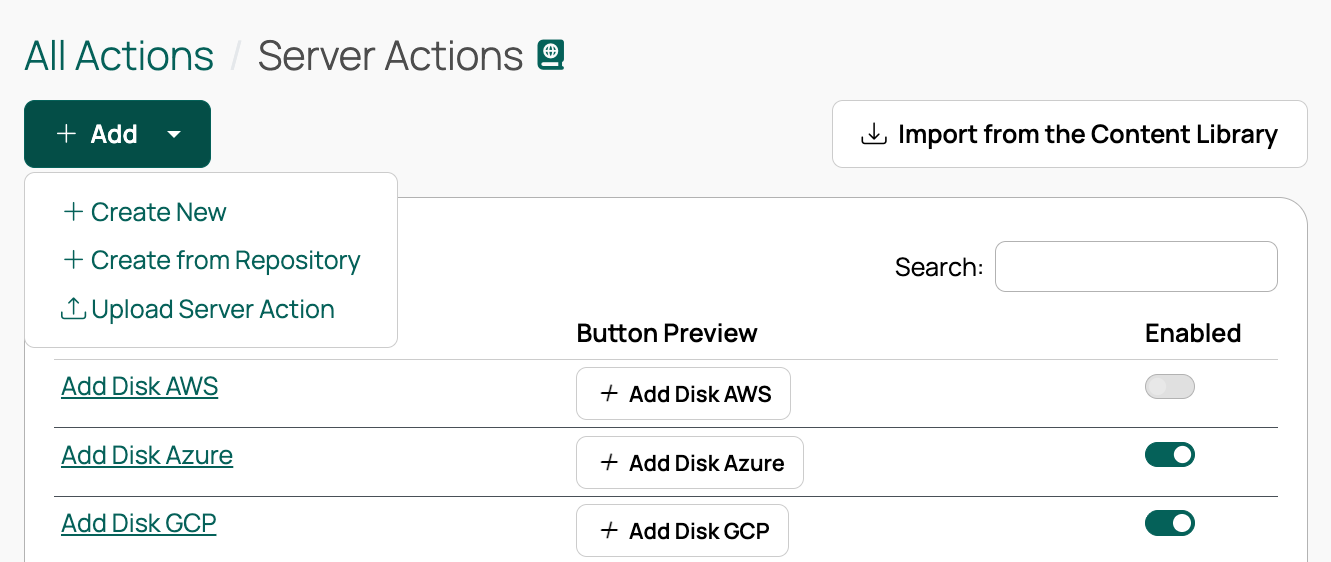
- Select Add, then choose Create New, Create from Repository, or Upload Server Action. You can also select Import from the Content Library to bring in a published sample.
 (opens full-size image in a new tab)
When creating an action, you can either write a new one or point at an existing shared action, giving it the label users will see.
If you use a plugin, the job parameters include a servers attribute listing every server the action is running on. For a resource action, that list covers all servers in the resource, and a resources attribute is available as well.
If an action does not appear on a server’s detail page, check that the server has an OS build. If it does not, use the Change Attributes button to assign one.
Control who can run an action
A server action’s edit form has a Roles field listing the roles with permission to run that specific action. A role that holds the server.all_actions permission can run every server action, which overrides this list. Only roles that can be assigned to users are offered, along with the special Server Owner role.
-
Go to Admin > Server Actions.
-
Select Edit for an action.
-
Under Roles, select the roles that should be able to run it.
-
Select Save.

Configure the confirmation dialog
Selecting an action button opens a confirmation dialog before anything runs. Set its Dialog title template, message, and Submit button label to tell users what they are about to do. For an action with consequences, select dangerous, which outlines the dialog in red and colors the submit button red.
Set the order buttons appear in
Give each action a Display sequence number to control where its button appears on a server’s detail page, how the bulk server action list is sorted, and the order on the Server Actions list page.
Actions with a sequence of 0 appear first, followed by increasing sequence numbers, followed by any action with no sequence set. Actions that share a sequence number, including those without one, are sorted by label. The list updates as soon as you save.
Show or hide an action with a display condition plugin
Beyond the roles that determine who can run an action, a server action can include logic that determines when it should be visible at all. Write that logic as a Display Condition Plug-in. The action then appears on a server’s detail page, in the bulk server action list, and in the API’s list of actions for that server only when the plugin returns True. For bulk actions, it must return True for every selected server.
A display condition plugin uses a different method signature from a standard plugin. It receives the server object for which the decision is being made, plus the request, which you can use to retrieve the user profile. Do not assume the request always has a value. It returns True or False, where True means show the action.
This example shows the action only when the server is powered on and the user is an administrator:
def should_display(server, request=None):
    if not request:
        return False
    profile = request.get_user_profile()
    if not profile.is_cbadmin:
        return False
    if server.power_status != "POWERON":
        return False
    return True
Display condition plugins decide what appears in the interface, so a slow one delays page loads.
Open a URL instead of running code
A server action can point at a URL, either a relative path or an absolute address, instead of running code. When a URL is set, the action’s plugin does not run; selecting the button opens that URL in a new tab. Leave the URL empty for an action that should run on the server’s detail page as normal.
Run an action against several servers
Allow Bulk Operation determines whether the action is offered when running bulk server actions from the server list. It is on by default.
Expose an action to LLM agents
Server actions can be published as tools that LLM agents discover and invoke. Select Hide from MCP to keep an action private, or set the MCP tool name, MCP tool title, and MCP tool description to control how it is presented. The read-only, destructive, idempotent, and open-world hints tell an agent what kind of operation it is about to perform. See MCP custom tools.
Schedule a server action
Server actions can be scheduled for a later date and time. The steps are shared with resource actions; see Scheduling actions.