Remote server access
4 minute read
CMP offers three ways to reach a server remotely, without leaving the browser:
- Console: direct hypervisor console access, available on console-capable resource handlers.
- Remote Desktop (RDP): graphical access to Windows servers.
- SSH: terminal access to servers that support SSH.
When the requirements for a method are met, a Console, Remote Desktop, or SSH button appears on the server’s details page. Select a button to open the connection in a new browser tab.
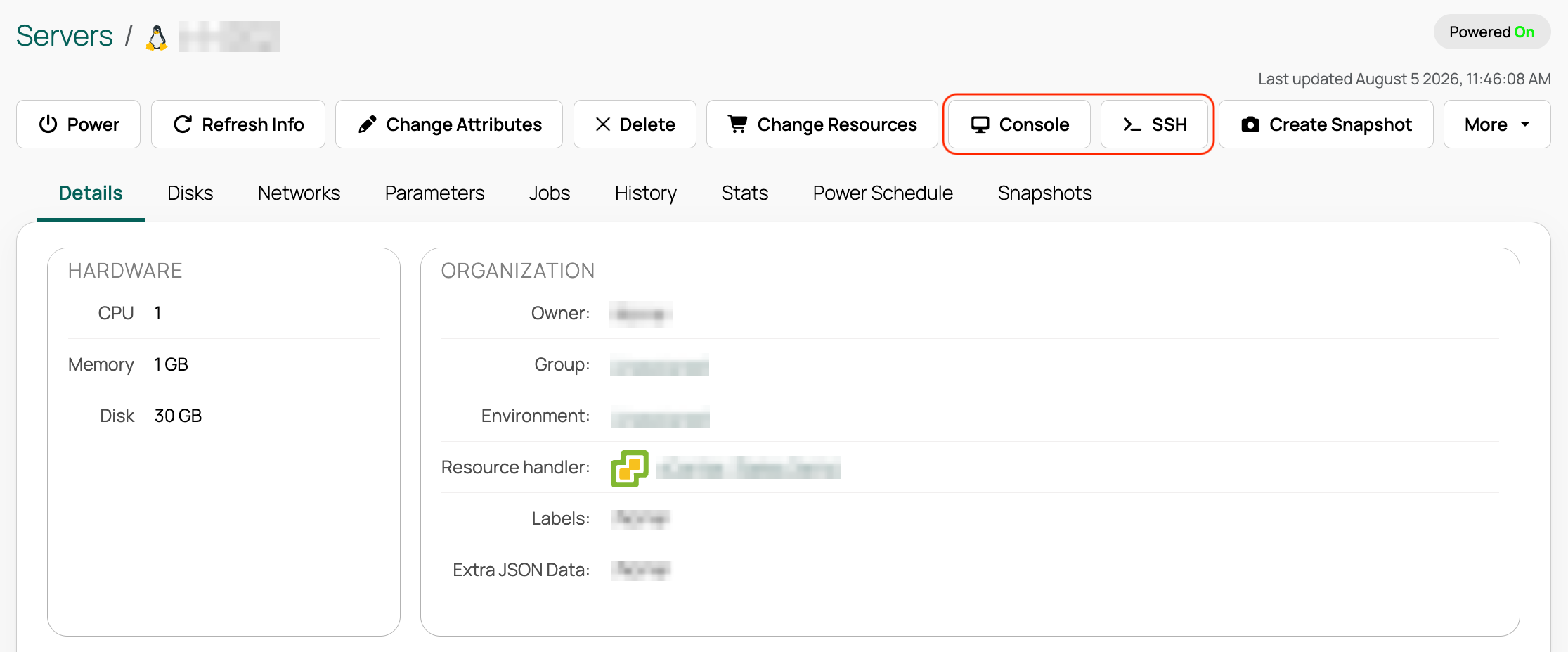 (opens full-size image in a new tab)
The session window is sized to your current browser window or tab, and cannot be resized after the session starts.
Console access
Console gives users direct access to a server’s hypervisor console. It is available only on resource handlers that support it and have the Console Feature enabled.
The following resource handlers support Console:
- VMware vSphere
- OpenStack
- Nutanix Acropolis (AHV), with API v3
- VMware Cloud Director
- Oracle Linux Virtualization Manager (OLVM)
- Orka
- H3C CAS
Requirements
- The server’s resource handler supports Console, and the Console Feature is enabled on the resource handler’s Overview tab.
- The server is powered on.
- The user’s browser can reach the CMP server on the ports used for console traffic (see below).
Console ports
VMware: CMP proxies console traffic to the ESXi host. vCenter 6.5 and later use the HTML5 console, which requires only TCP 443 between CMP and the ESXi host. CMP listens for console connections on a configurable port range, by default 5900–6900. To change the range, set LOW_CONSOLE_PORT and HIGH_CONSOLE_PORT in /var/opt/cloudbolt/proserv/customer_settings.py so the values survive upgrades.
OpenStack: CMP delegates console access to the nova-novncproxy service on the resource handler. The user’s browser must be able to reach that proxy, typically on TCP 6080.
Use the console
Select Console on the server’s details page. If the console blanks out, move the mouse or press a key to refresh it. To close a session, close the browser tab; to restart a disconnected session, reload the tab.
RDP and SSH access
RDP and SSH open an integrated terminal from the server’s details page. The following requirements apply to both.
Requirements
- The RDP/SSH Terminal feature is enabled on the server’s resource handler, on its Overview tab.
- The user has the server.remote_terminal permission, or is a CMP super admin.
- The server is powered on and shows an IP Address on its details page.
- That IP address is routable from the CMP server, and TCP ports 22 (SSH) or 3389 (RDP) are open between CMP and the server.
- For SSH, the server accepts password-based or key-based connections.
- For RDP, if the server uses Network Level Authentication (NLA, common on modern Windows Server), set the Use NLA for RDP parameter on the server in CMP.
- The user has a current version of a supported browser (Chrome, Firefox, Safari, or Edge) with JavaScript enabled.
Connect with a username and password
- On the server’s details page, select Remote Desktop or SSH.
- At the prompt, enter the server credentials.
If you enter valid credentials but get only a black screen and a disconnection message, the requirements above may not be fully met. Confirm network reachability and that the terminal feature is enabled on the resource handler.
Connect with an SSH key
You can authenticate an SSH session with a private key instead of a password.
- On the server’s Parameters tab, add the Use private key for SSH sessions parameter and set it to True.
- On the server’s details page, select SSH.
- Enter the username and private key for the server, including a passphrase if one is required.
Set Use private key for SSH sessions at the environment level to apply it to all servers provisioned in that environment.
Keyboard limitations
The following keyboard shortcuts are known not to work in Console or RDP/SSH sessions. If you rely on one of these, or find others that do not work, contact Support to file a feature request.
| Shortcut | Notes |
|---|---|
Win+M |
Opens the Start menu on Windows instead of minimizing all windows. |
Shift+Left |
|
Shift+Right |
|
Cmd+` |
Switches same-app windows on macOS, but is passed through to the remote server. |
RightCtrl |
Remapped to LeftCtrl. |
Ctrl+a Left |
|
Ctrl+a Right |