Oracle Linux Virtualization Manager
4 minute read
Each imported OLVM cluster becomes a CMP environment, and CMP imports the cluster’s networks into it.
Before you begin
- Oracle Linux Virtualization Manager is disabled by default. If its tile is missing from the technology picker, enable the resource handler.
- An OLVM account CMP can authenticate as, and HTTPS access from CMP to the OLVM engine.
- CMP verifies the engine’s certificate when SSL verification is enabled under Admin > SSL Root Certificates. If the engine’s certificate is issued by a private certificate authority, add the OLVM engine CA certificate on that page before you create the handler.
Add an OLVM resource handler
-
Go to Admin > Resource Handlers, select Add, then select Oracle Linux Virtualization Manager under Private Cloud.
-
Enter the IP address, Port, Account username, and Password, then select Continue. CMP checks the connection at this point.
-
Enter a Name, and optionally a Description and VM Names to Ignore, then select Done.
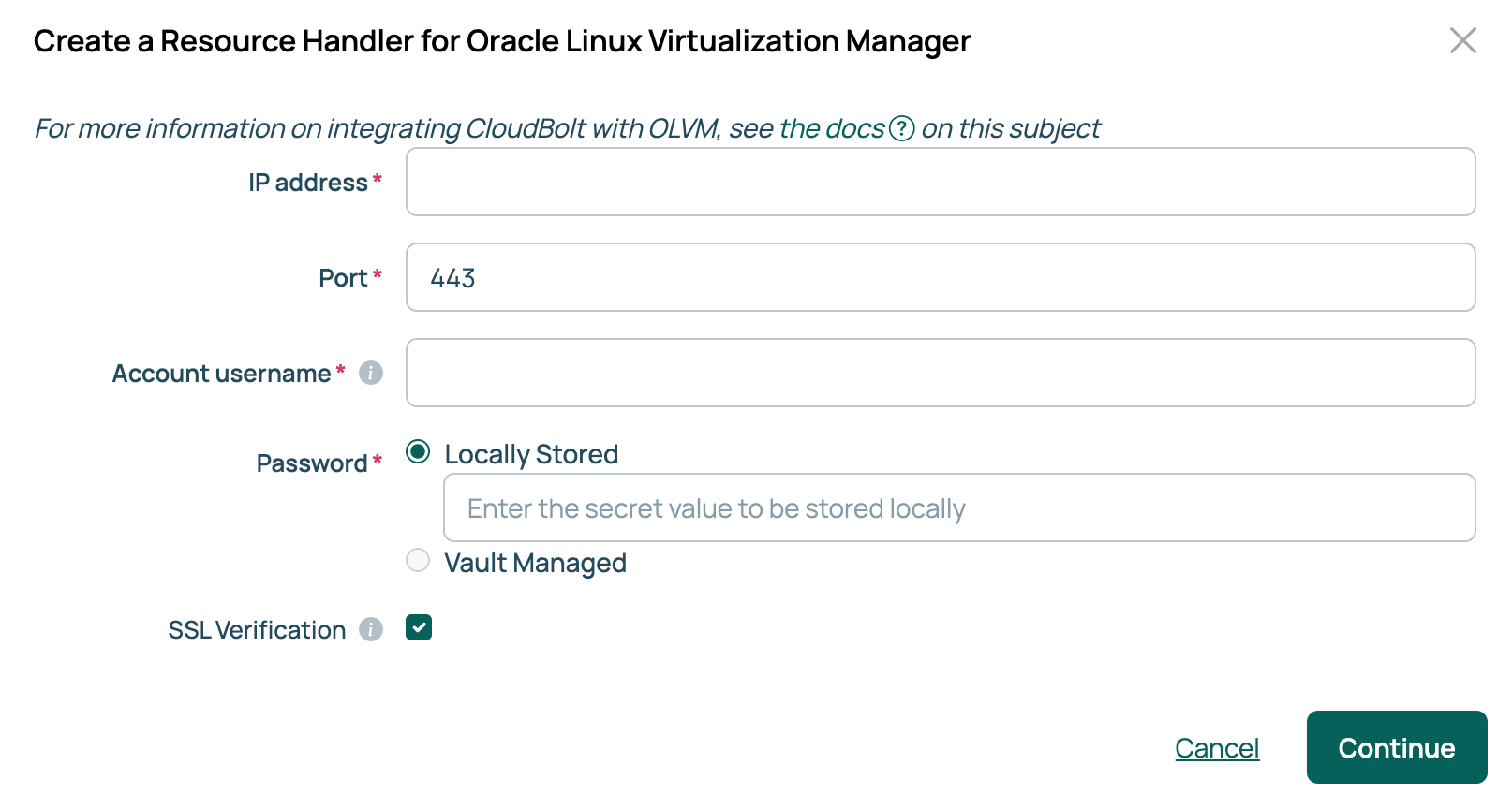
| Field | Description |
|---|---|
| IP address | The host name or IP address of the OLVM engine. |
| Port | The engine’s HTTPS port. Defaults to 443. |
| Account username | The OLVM account CMP authenticates as. |
| Password | The password for that account. If the password vault feature is enabled, this field offers Locally Stored or Vault Managed. Select Vault Managed to read the secret from a configured vault provider. See Use password vaults. |
Import clusters
A new handler has no environments until you import a cluster.
- On the handler, open the Clusters tab and select Import Clusters.
- Select one or more clusters, then select Import selected clusters.
CMP creates one environment for each cluster, named after the handler and the cluster, and imports the cluster’s networks into it.
Import images
The Images tab lists templates by cluster. Select Import Images for a cluster, select the templates, then select Import selected Images. Use the OS Build Environments column to choose which environments can use each image.
Sync VMs
CMP syncs virtual machines only from clusters you have imported.
- On the handler, open the Servers tab.
- Select Sync VMs from followed by the handler’s name. The Dry-run Sync VMs from button beside it previews the sync without making any changes.
Manage servers
From a server’s page in CMP, you can:
- Power it off and on, and reboot it.
- Change its CPUs and memory with Change Resources.
- Add, extend, and delete disks, and add, change, and remove network interfaces.
- Create, revert to, and delete snapshots. See Snapshots.
- Run scripts with Ad Hoc Script.
Open a server console
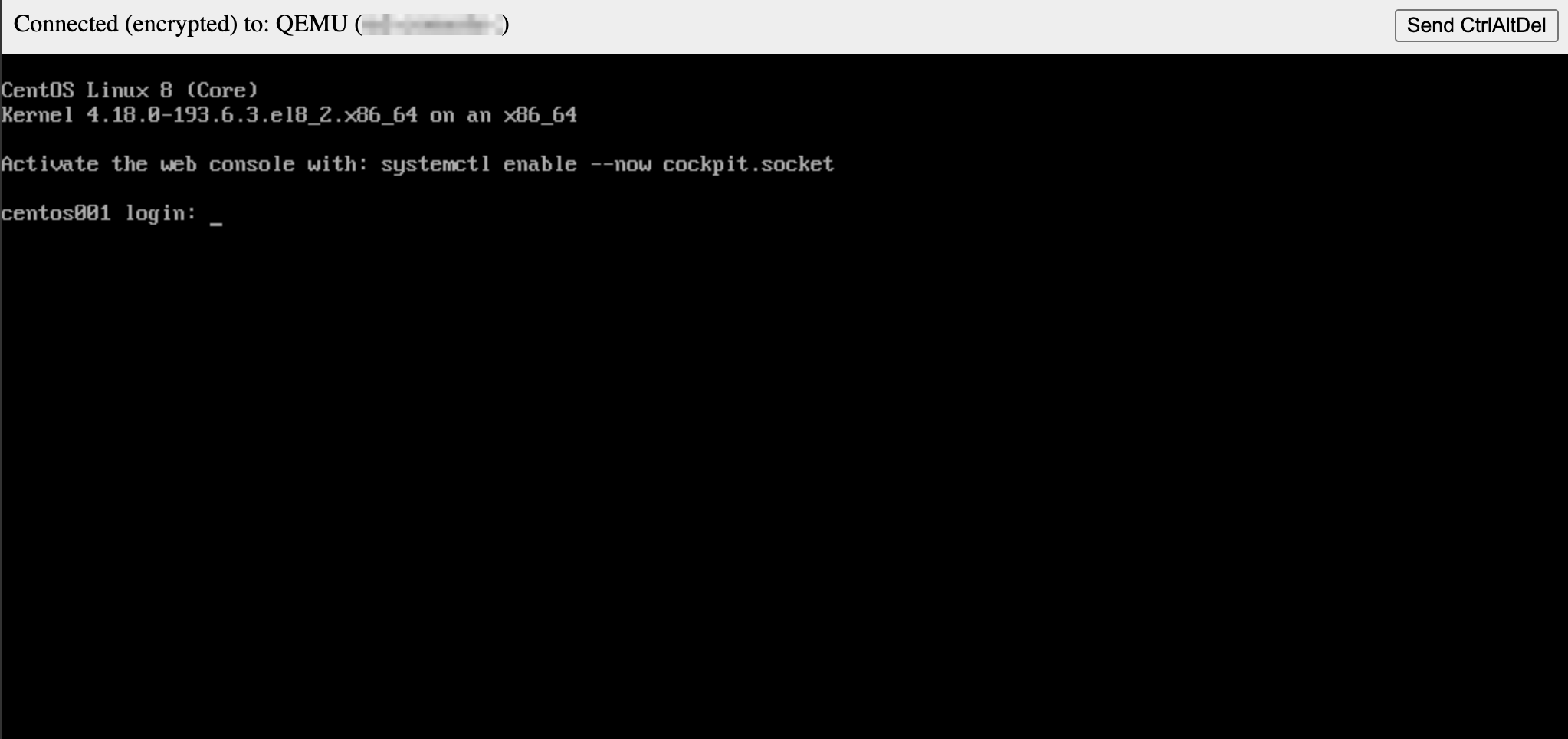
A browser-based console connects you to a running OLVM virtual machine. CMP relays the session, so the browser connects only to CMP. The console is available when:
- The server is powered on.
- Console feature is enabled on the handler. It is enabled by default; to change it, select Edit Settings on the handler’s Overview tab.
- You have the Console permission on the server.
- CMP can reach the OLVM engine on port
6100.
-
Open the server, then select Console.
-
The console opens in a new window.
Customize VMs during provisioning
CMP customizes a new server from one of two parameters, depending on the template’s operating system:
- OLVM Sysprep File: a Sysprep answer file for Windows templates. See Using Windows Sysprep with resource handlers.
- OLVM User Data: cloud-init user data for other templates.
Both are treated as templates, so values such as {{ server.hostname }} are filled in at build time.
OLVM parameters
CMP creates these parameters when the first OLVM handler is saved. Storage Domain options are imported from the cluster’s data center when you import the cluster.
| Parameter | Description |
|---|---|
| CPU Implementation | Required. How CPUs are specified: vCPUs shows the CPUs field, and Topology shows Sockets, Cores, and Threads. |
| CPUs | The number of virtual CPUs, when CPU Implementation is vCPUs. |
| Sockets, Cores, Threads | The CPU topology, when CPU Implementation is Topology. Each is at least 1, and the server’s CPU count is sockets × cores × threads. |
| Storage Domain | Required. The OLVM storage domain the server’s disks are placed on. |
| Disk Type | Required. Thin Provision or Preallocated. |
| OLVM Sysprep File | A Sysprep answer file for Windows templates. |
| OLVM User Data | Cloud-init user data for other templates. |
CMP sets the cluster and data center for each environment when you import the cluster.
Related
- Resource handlers: the technologies CMP connects to, and how to enable a disabled one.
- SSL root certificates: add the certificate authority CMP needs to trust the OLVM engine.
- Use password vaults: store passwords in HashiCorp Vault, CyberArk, Keeper, AWS Secrets Manager, or Azure Key Vault.