Schedule power on/off
4 minute read
Cloud Management Platform (CMP) can power servers off for set periods of the day, which saves cost and consumption on servers that, for example, do not need to run overnight. Set a schedule on a single server, or on a resource so that its servers are scheduled together.
Before you start
Power schedules are handled by two built-in recurring jobs: Auto-power control servers and Auto-power control resources. Both are disabled by default, so setting a schedule has no effect until you enable the corresponding job. See Built-in recurring jobs.
A schedule is set in 15-minute slots, and both jobs ship running every 15 minutes. A power change occurs only when the job runs in the slot it’s scheduled for, so a job set to run less often than the slots you use will miss them.
Each schedule carries its own time zone, set alongside the times, and CMP evaluates it in that zone. A new schedule starts in the appliance’s time zone, which is UTC unless it has been changed.
Permissions
Four permissions govern power schedules:
server.view_power_scheduleandserver.manage_power_scheduleresource.view_power_scheduleandresource.manage_power_schedule
The Power Schedule tab appears only to users with the matching view permission, and setting a schedule requires the manage permission. Each kind of object adds one more condition: a server’s tab requires a resource handler that can power servers, and a resource’s tab requires that the resource has servers. A resource whose servers have all been decommissioned has no Power Schedule tab.
See Permissions for how these attach to roles.
Schedule a server
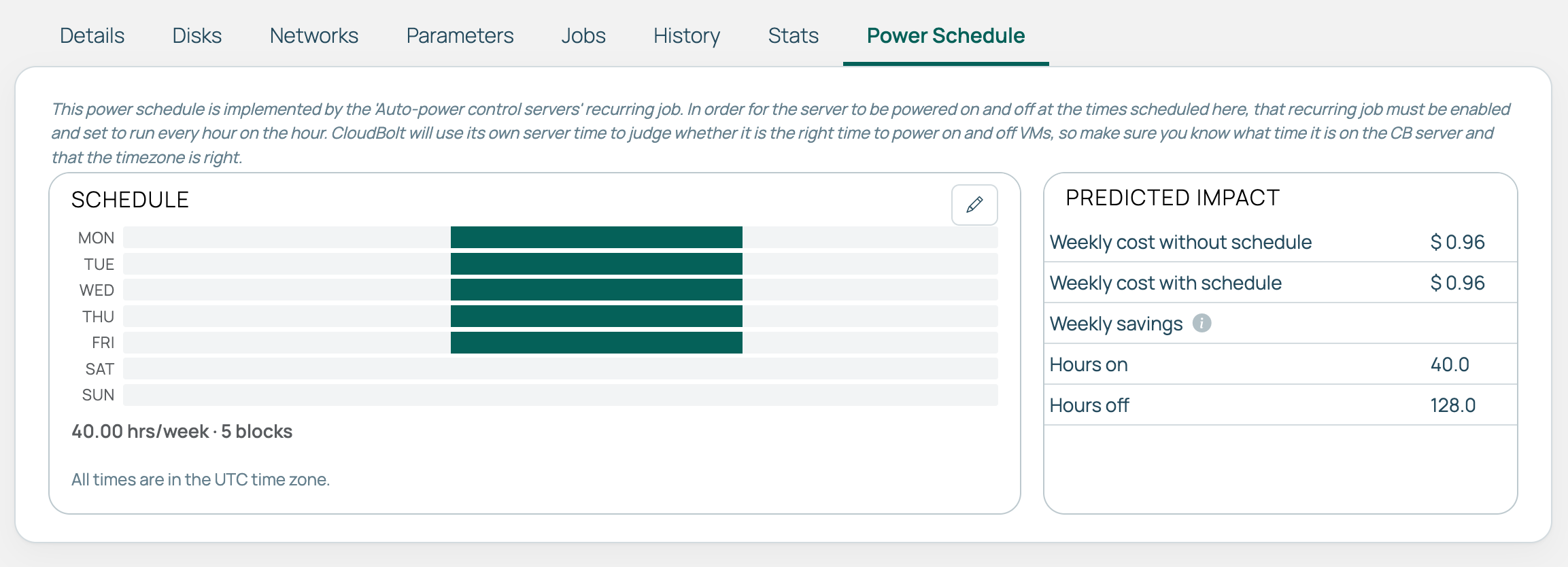
End users and administrators can set a schedule from a server’s Power Schedule tab. Once a schedule is set, the tab also predicts its effect on cost. Administrators can see actual savings by resource technology, period, and group in the Savings from Power Schedules report.
 (opens full-size image in a new tab)
-
Go to Admin > Recurring Jobs and enable Auto-power control servers.
-
Open a server and select its Power Schedule tab.
-
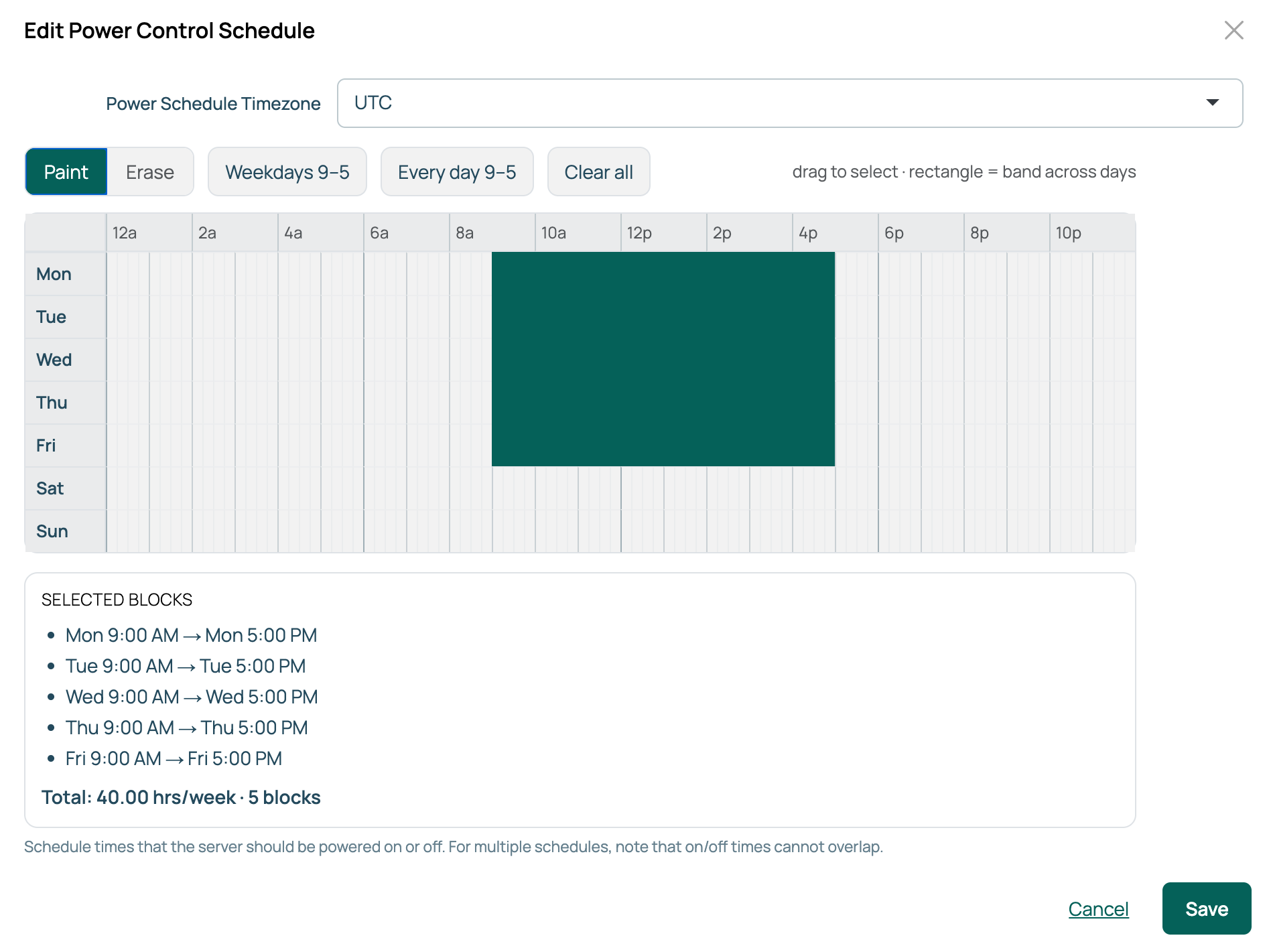
Select the pencil on the Schedule card to open the Edit Power Control Schedule dialog. Choose a time zone, then drag across the grid to paint the hours the server should be on and off.
-
Run the Auto-power control servers job to test. If the server is scheduled to change state in the current time slot, the job powers it on or off accordingly.
Schedule several servers at once
-
On the Servers list page, select the servers you want.
-
Select the calendar button.
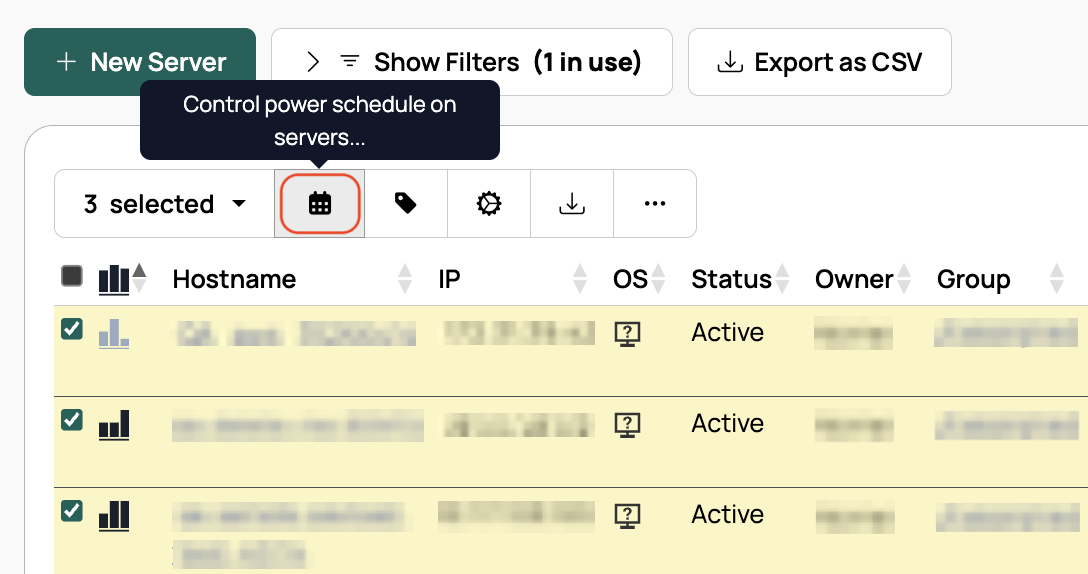
The Power Schedule column shows which servers have a schedule, and its calendar icon opens the schedule for viewing.
Set a schedule at order time
- Add the Power Schedule parameter to a group or environment to place the field on the order form.
- On the order form, pick a schedule using the widget, or choose from the options defined for the group or environment.
During provisioning, CMP converts the parameter value into a schedule.
Once configured, the Power Schedule is displayed in the server’s Power Schedule tab.
To give every server in an environment or group the same schedule, set the Power Schedule parameter’s value on that environment or group. CMP then applies it to every server provisioned there.
Schedule a resource
Scheduling a resource powers its servers in sequence, which is why you schedule a resource rather than its servers individually: an application whose database must be up before its web tier and down after it gets that ordering without extra configuration. Servers are powered on in the order they were built, taken from the server tiers on the blueprint’s Build tab, and powered off in reverse.
- Go to Admin > Recurring Jobs and enable Auto-power control resources.
- Open a resource and select its Power Schedule tab.
- Select the pencil on the Schedule card and set the schedule the same way.
- Run the Auto-power control resources job to test.
Any resource that contains servers can be scheduled this way.
Related
- Built-in recurring jobs: the two auto-power jobs and their schedules.
- Resources: the resources whose servers you are scheduling together.