Add a data protection plan
3 minute read
The connection tells CMP where your backup system is and how to authenticate to it. The imported plans are the subset you want CMP users to choose from.
Prerequisites
- At least one protection plan exists in your external backup system.
- You must be an administrator to access the Data Protection page.
- For Azure Backup, an Azure resource handler is already configured.
Configure your resource handler to identify servers by fully qualified domain name rather than by IP address, since most backup systems track machines by host name.
Connect to a data protection solution
- Go to Admin > Data Protection.
- Select Add.
- In the Choose a Data Protection technology dialog, select your backup system: Cohesity, Rubrik, Commvault, or Azure Backup.
- Complete the connection form for your chosen technology.
- Select Create.
CMP tests the connection before saving. If it cannot reach your backup system with the details you entered, the dialog reports that it was unable to connect and does not create the connection.
Connection fields
| Field | Description |
|---|---|
| Name | A descriptive name for this connection. It can contain letters, numbers, spaces, underscores, and hyphens. This name prefixes every plan imported through the connection when a plan is offered on an order form, so keep it short and recognizable. |
| IP address | The address of your backup system. A fully qualified domain name is also accepted. Do not include a protocol prefix such as https://. |
| Account username | An account authorized to run commands on your backup system. For Rubrik, this is an account with administrator access to the Rubrik cluster. |
| Password | The password for that account. CMP stores it encrypted. If the password vault feature is enabled, this field offers Locally Stored or Vault Managed. Select Vault Managed to read the secret from a configured vault provider. See Use password vaults. |
| Authentication Type | Rubrik only. See Rubrik authentication below. |
| Azure Resource Handler | Azure Backup only. See Azure Backup connections below. |
Rubrik authentication
A Rubrik connection has an Authentication Type field with two options:
- Username/Password: provide the Account username and Password.
- API Token: provide the API Token.
Rubrik 8.1 and later enforce multi-factor authentication, which username and password authentication cannot satisfy for a REST API integration. On those versions, use an API token.
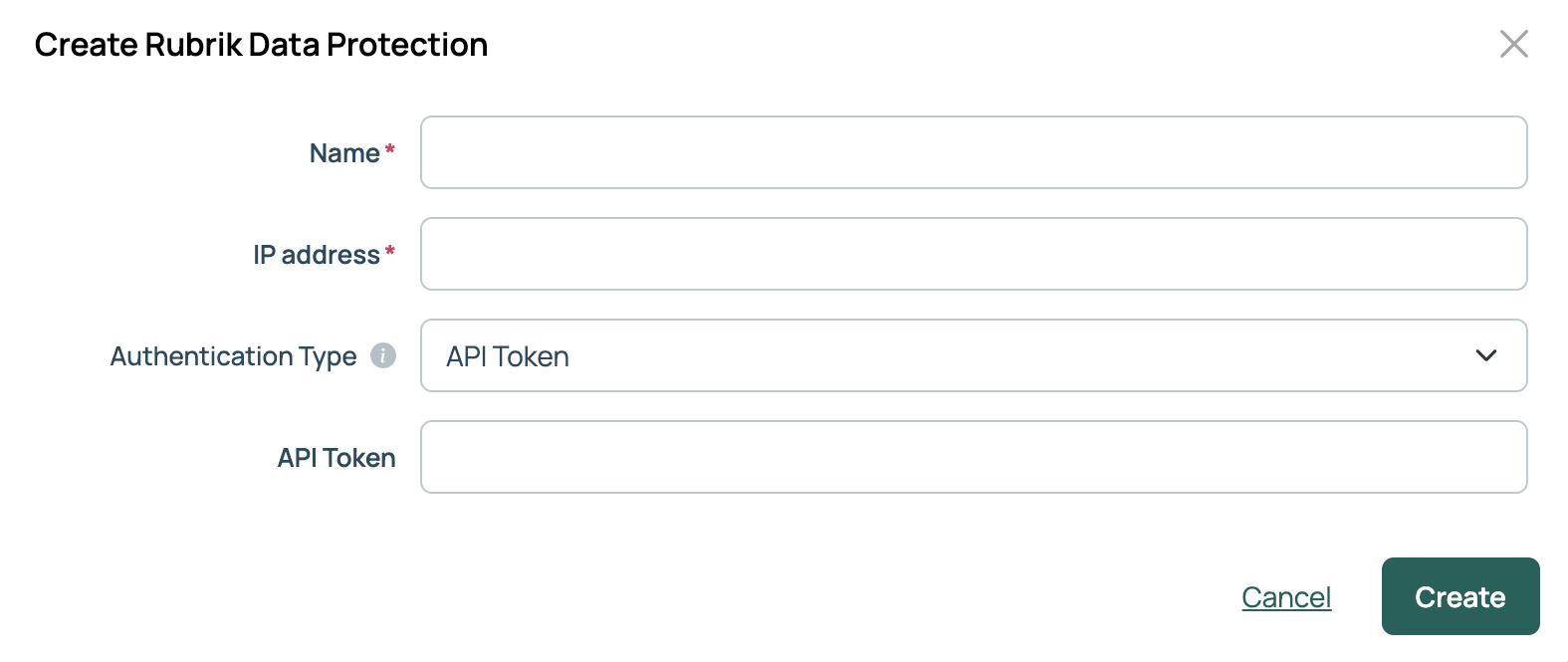 (opens full-size image in a new tab)
Azure Backup connections
The Azure Backup form asks for a Name and an Azure Resource Handler, and CMP uses that resource handler’s credentials to reach Azure Backup.
Import protection plans
The Protection Plans tab lists the plans you have imported from this connection. What your backup system calls a plan varies: a Protection Job in Cohesity, an SLA Domain in Rubrik, a VM Group in Commvault, and a backup policy in Azure Backup.
- On the connection’s Protection Plans tab, select Import Protection Plans.
- Select the plans you want to import.
- Submit the dialog. The imported plans appear in the table on the Protection Plans tab.
- To remove a plan, select the X in its Actions column.
When plans change in your backup system, run Import Protection Plans again to pick up new ones.
Manage a connection
Select a connection’s name on the Data Protection page to open it. The Overview tab shows the technology, IP address, and username, along with the following options:
- Edit Credentials: change the connection details. CMP tests before saving.
- Remove: delete the connection and imported plans.
- Verify Connection: check that the stored credentials still work.
Next steps
- Data protection plan parameters: Adding the Data Protection Plan parameter to an environment, group, or server.
- Azure Backup: Creating the vault and backup policy in Azure before you connect.
- Commvault backup and recovery: What Commvault needs beyond the steps above, and how its VM groups behave.