OneFuse UI
Overview of the OneFuse web user interface, workspace layout, dashboards, and forms
3 minute read
OneFuse UI is the primary mode for managing OneFuse Policies, managing Property Sets, viewing Managed Objects, Jobs and more.
Access the OneFuse UI
Access the OneFuse UI to easily manage OneFuse Policies, view Managed Objects and Jobs, and more.
- Open a web browser (for example, Google Chrome).
- Type in OneFuse VM’s IP address or Fully Qualified Domain Name (FQDN) in the URL
- For example,
https://my-onefuse-instance-name.domain.com
- For example,
- Log in with your credentials.
Workspace layout
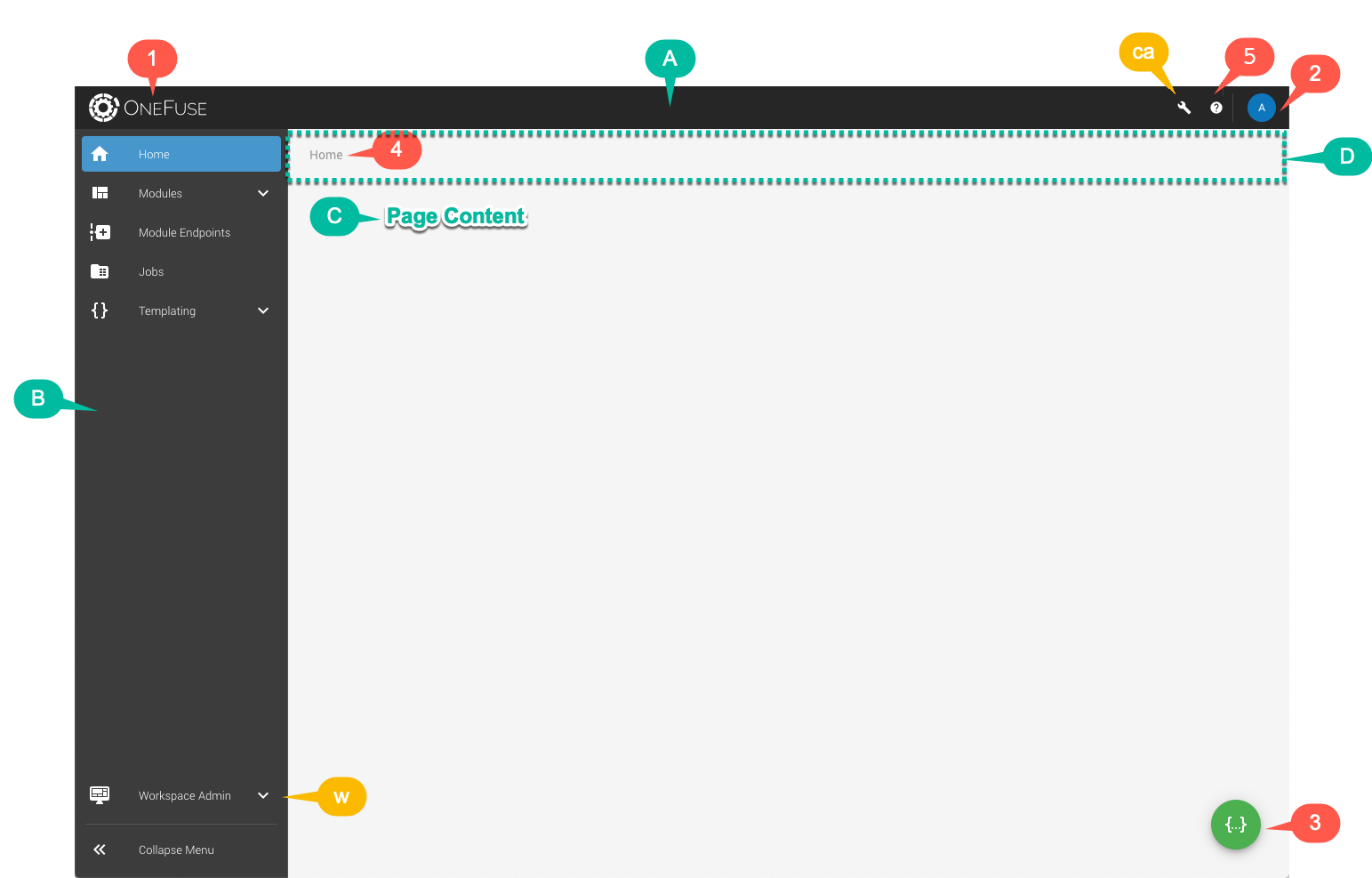
When a user logs in, the user will see the following layout for the Workspace.
 (opens full-size image in a new tab)
 (opens full-size image in a new tab)
Starting v9.4.7, the User will see two new icons on the Top App Bar. Review the table below for more details.
| Category | Identifier | Name | Description |
|---|---|---|---|
| Area | A | Top App Bar | Top menu bar |
| Area | B | Left Navigation Menu | Left Navigation Menu to access Module Policies, Jobs and Static Property Sets. |
| Area | C | Page Content | The content of the current page the user is on will appear in this section. |
| Area | D | Message bar | Area where message bar appears for success, errors and warnings. |
| Function | 1 | OneFuse Logo | OneFuse logo does not serve as a link back to Home. |
| Function | 2 | User menu | User menu has link options for Profile Settings and Log out. |
| Function | 3 | Active Static Property Set | User can select and view the Active Static Property Set. |
| Function | 4 | Breadcrumbs | Page breadcrumbs for navigation. The current page breadcrumb link is disabled by default. |
| Function | 5 | Resources | Select the Resources icon to view quick links to Docs, open a support ticket, and view the currently installed version. |
| Function | CMP | Cloud Management Platform | Access CloudBolt’s Cloud Management Platform UI after applying a license. |
| Function | Cloud Cost Security & Optimization | Cloud Cost Security & Optimization | Access CloudBolt’s Cloud Cost Security & Optimization UI. |
| Role-based | ca | Super Admin | A user with the Super Admin role will be able to go to the Super Admin UI and pages by selecting the wrench button. |
| Role-based | w | Workspace Admin | A user with the Workspace Admin role will be able to go to Workspace Admin UI and pages by expanding the menu option. |
Dashboards
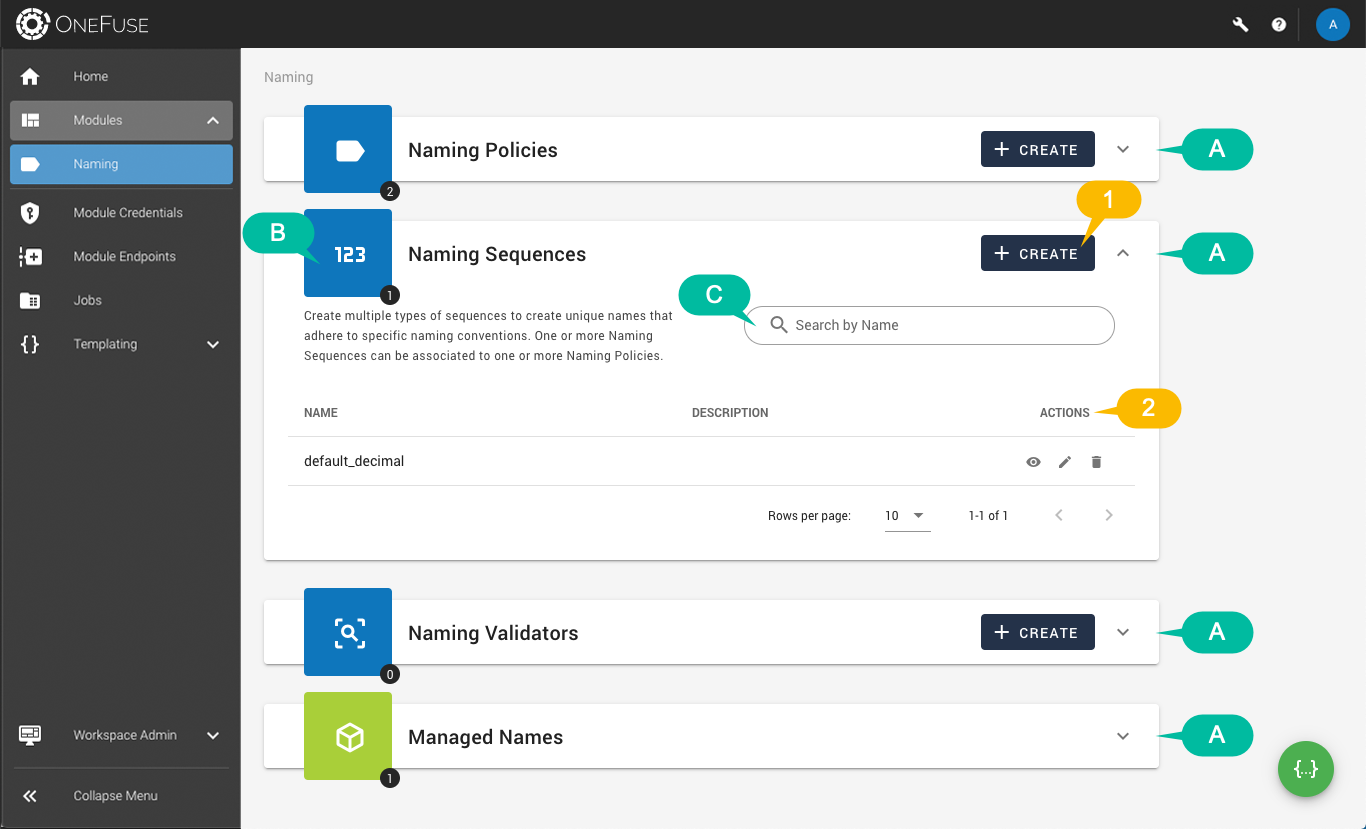
Most of the main pages acts as a dashboard/landing page with one or more datatables to list data.
 (opens full-size image in a new tab)
| Category | Identifier | Name | Description |
|---|---|---|---|
| Area | A | Datatable | Datatable with list of relevant data. User can expand and collapse the datatable. |
| Area | B | Icon and Total Count | Icon related to data and shows total count of data. |
| Area | C | Search | Search the content of the data by the specified field. |
| Role-based | 1 | Create | A user with the Workspace Admin or Member role can create the item. |
| Role-based | 2 | Actions | Depending on the user’s role, the user can view, update or delete the item. |
Forms
 (opens full-size image in a new tab)
| Category | Identifier | Name | Description |
|---|---|---|---|
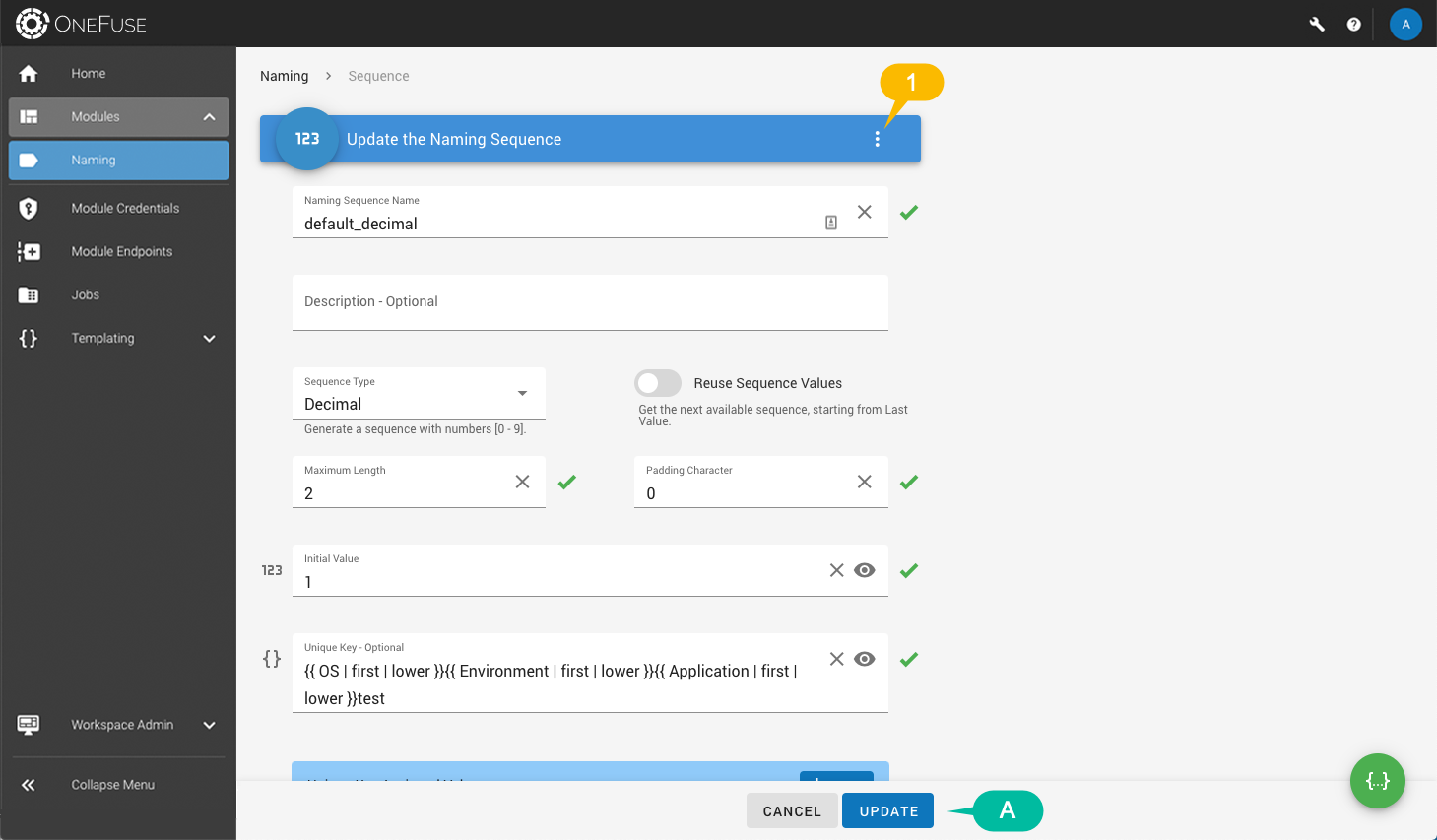
| Area | A | Form actions | Depending on the mode (create, update or view), the user will be presented with form actions. This area is fixed and the form contents scroll behind. |
| Role-based | 1 | Form menu | Depending on the mode (create, update or view) and the user’s role, the user can select be presented with additional actions. |