Templating and Property Toolkit
7 minute read
To learn more, refer to the Templating guide and Property Toolkit features.
Introduction
The OneFuse Property Toolkit (PTK) is the Swiss army knife of the OneFuse Platform.
PTK can be used to simplify configurations, define business logic as configuration, build simple logic or tackle the most complex problems. At face value, the PTK is meta-data that can be called upon offering simple name value pairs that can be used as a reference for decision making. In its most powerful form, it can contain logic, decision trees, platform abstractions, and much more.
Feature highlights
- Minimize automation inputs by presenting simple meaningful inputs, and leveraging policy-driven decisioning
- Reduce blueprint and configuration sprawl with dynamic blueprints and configurations
- Reduce custom code/technical debt in the areas of configurations and business logic
- Cross-platform/tool standardization
- Use OneFuse Property Sets to drive property assignment and rendering
- Supports nested Property Sets
- Supports OneFuse Template Engine for both
key:valuepair. - Supports ordering sets/groupings of properties by alphabetizing the after the Property Key prefix.
Resources
Prerequisites
- Configure OneFuse Property Set(s) and OneFuse Module Policies.
- Run OneFuse Configuration per Cloud Assembly Organization.
- Review an overview on OneFuse Modules with Aria Automation 8.1+/Cloud.
- Create a new Cloud Template (if none exist) or determine which existing Cloud Template(s) will utilize this OneFuse Module.
Steps
- Know the name of the OneFuse Endpoint created via OneFuse Configuration.
- Determine which OneFuse Property Sets are needed for this Cloud Template.
- Determine which custom vRA Properties are needed for this Cloud Template.
- Update the Cloud Template to add in necessary vRA Properties to influence other vRA Properties and OneFuse Policies.
- Deploy the Cloud Template to provision a vRA Deployment with dynamic configurations.
Update the Cloud Template
- Log in to vRA > Cloud Assembly
- Select the Design tab from the top menu bar
- Select the Cloud Templates tab from the left menu
- Edit the Cloud Template and perform the below:
Option 1: Add in necessary vRA properties
The following vRA Properties need to be added to the Cloud Template’s Code section under the Resource(s) of interest.
1. Trigger Property Toolkit and/or VM Tagging:
| Property Name Format | Property Value Format |
|---|---|
OneFuse_PropertyToolkit |
'<OneFuse Endpoint Name>:true' |
Example YAML:
# OneFuse Property Toolkit - Simple Example

# -- Property Name
# <CustomID> is replaced with App, Env and 001Backup

# -- Property Value
# <OneFuse Endpoint Name>  is onefuse
# <OneFuse Property Set Name> is linux and prod
# <Property Name>  is Backup-VM
# <Property Value> is the provisioned resource hostname

name: Simple Example
resources:
  Cloud_Machine_1:
    type: Cloud.Machine
    properties:
      image: CentOS7
      flavor: small
      count: 1
      OneFuse_PropertyToolkit: 'onefuse:true'
      OneFuse_SPS_App: 'linux'
      OneFuse_SPS_Env: 'prod'
      OneFuse_CreateProperties_001Backup: '{"key":"Backup-VM", "value":"{{ OneFuse_VmNic0.hostname }}"}'
2. Add in additional vRA Properties:
2a. Method to add in properties from a OneFuse Property Set:
| Property Name Format | Property Value Format |
|---|---|
OneFuse_SPS_<CustomID>: Replace <CustomID> with a unique, user-defined friendly label. |
'<OneFuse Property Set Name>' |
2b. Method to dynamically add in vRA Properties:
| Property Name Format | Property Value Format |
|---|---|
OneFuse_CreateProperties_<CustomID>: Replace <CustomID> with a unique, user-defined friendly label. |
'<JSON key:value pairs of Properties>' |
Example YAML:
# Method A Example - Add in properties from OneFuse Property Set(s)
# !!Note: Starting in OneFuse v1.4, Static Property Sets was renamed to Property Sets. Backwards compatibility exists.

# -- Property Name Format
# <CustomID> is App and Env

# -- Property Value Format
# <Property Set Names>: linux and prod
OneFuse_SPS_App: 'linux'
OneFuse_SPS_Env: 'prod'


# Method B Example - Create vRA Properties

# -- Property Name Format
# <CustomID> is 001Backup

# -- Property Value Format
# <Property Name>  is Backup-VM
# <Property Value> is the provisioned resource hostname
OneFuse_CreateProperties_001Backup: '{"key":"Backup-VM", "value":"{{ OneFuse_VmNic0.hostname }}"}'
CustomID
CustomID refers to a user specified text string to identify and can set an order of precedence for execution when calling multiple Policies for the OneFuse Module in the same vRA EBS State.
Replace <CustomID> variable with a unique custom identifier:
- Format is alphanumeric characters only
A-Z, a-z, 0-9. No spaces, underscores, hyphens nor special characters. - Must be unique across all EBS Execution Strings for the OneFuse Module on the specific VM for the Blueprint/Cloud Template.
- Is reusable either between different VM components of the Blueprint/Cloud Template canvas or between different Blueprints/Cloud Templates.
# OneFuse Property Toolkit - Simple Example

# -- Property Name
# <CustomID> is replaced with App, Env and 001Backup

# -- Property Value
# <OneFuse Endpoint Name>  is onefuse
# <OneFuse Property Set Name> is linux and prod
# <Property Name>  is Backup-VM
# <Property Value> is the provisioned resource hostname

name: Simple Example
resources:
  Cloud_Machine_1:
    type: Cloud.Machine
    properties:
      image: CentOS7
      flavor: small
      count: 1
      OneFuse_PropertyToolkit: 'onefuse:true'
      OneFuse_SPS_App: 'linux'
      OneFuse_SPS_Env: 'prod'
      OneFuse_CreateProperties_001Backup: '{"key":"Backup-VM", "value":"{{ OneFuse_VmNic0.hostname }}"}'
Specify sorting with CustomID:
When executing multiple different OneFuse Module’s Policies in the same EBS State, prefix the <CustomID> with a numeric value (for example, 001, 002, etc).
The <CustomID> is sorted prior to executing the OneFuse module’s policies.
Additional helpful vRA properties
Purpose: Relate OneFuse Policy executions from different OneFuse Modules together with a Tracking ID.
| Property | Value Format |
|---|---|
OneFuse_Tracking_Id |
A GUID (globally unique identifier) that links OneFuse Policy Executions and the resulting Managed Objects together for a given resource on a deployment. The first OneFuse Module Policy execution will populate this vRA property and it will be passed into other OneFuse Modules automatically. Learn more about OneFuse Tracking ID. |
When a Tracking ID is not provided, a Tracking ID gets generated for the Policy execution.
Purpose: Reference a specific NIC’s values to get hostname, IP Address, etc.
| Property Format | Example |
|---|---|
OneFuse_VmNic<#>.<value>: Replace <#> with a number from 0 to 9, one for each NIC. Replace <value> with an appropriate key: dnsSuffix, fqdn, gateway, hostname, ipAddress, macAddress, netmask, network, subnet, target |
OneFuse_VmNic0.dnsSuffix, OneFuse_VmNic0.fqdn, OneFuse_VmNic0.hostname, OneFuse_VmNic0.ipAddress, OneFuse_VmNic0.target (when DNS Suffix is provided, will be the FQDN; otherwise, will be the hostname without domain) |
For most use cases, NIC 0 is the primary network interface and the target hostname is a Fully Qualified Domain Name (FQDN).
Example Cloud Template YAML code
# OneFuse Property Toolkit - Simple Example

# -- Property Name
# <CustomID> is replaced with App, Env and 001Backup

# -- Property Value
# <OneFuse Endpoint Name>  is onefuse
# <OneFuse Property Set Name> is linux and prod
# <Property Name>  is Backup-VM
# <Property Value> is the provisioned resource hostname

name: Simple Example
resources:
  Cloud_Machine_1:
    type: Cloud.Machine
    properties:
      image: CentOS7
      flavor: small
      count: 1
      OneFuse_PropertyToolkit: 'onefuse:true'
      OneFuse_SPS_App: 'linux'
      OneFuse_SPS_Env: 'prod'
      OneFuse_CreateProperties_001Backup: '{"key":"Backup-VM", "value":"{{ OneFuse_VmNic0.hostname }}"}'
Using Property Toolkit with Custom Resources
Review OneFuse custom resources before using this method.
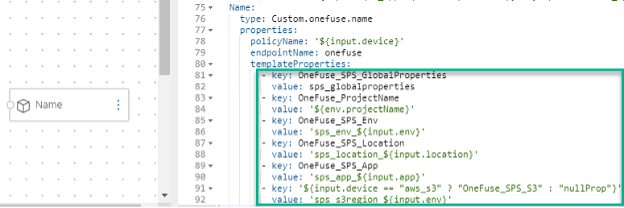
Both of the OneFuse_SPS_<CustomID> and OneFuse_CreateProperties_<CustomID> methods of invoking the Property Toolkit are available to OneFuse Custom Resources.
Business logic and configuration information surrounding how a particular Custom Resource should be deployed should be contained in Property Sets and invoked when creating a Custom Resource.
 (opens full-size image in a new tab)
Add a Custom Resource to get an existing OneFuse Property Set:
- From the Resource Types navigation, expand Custom Resources
- Drag-and-drop
OneFuse:ExistingSPS_v1to the Cloud Template canvas - In the Code tab, provide values for the following properties:
| Parameter Name | Required? | Notes |
|---|---|---|
endpointName |
Required | OneFuse Endpoint Name in vRA. Refer to Managing endpoints. |
name |
Required | OneFuse Property Set name |
Add a Custom Resource to create a new OneFuse Property Set:
Once the vRA Deployment is destroyed, the correlated OneFuse Property Set will also get deleted.
- From the Resource Types navigation, expand Custom Resources
- Drag-and-drop
OneFuse:SPS_v1to the Cloud Template canvas - In the Code tab, provide values for the following properties:
| Parameter Name | Required? | Notes |
|---|---|---|
endpointName |
Required | OneFuse Endpoint Name in vRA. Refer to Managing endpoints. |
workspaceName |
Optional | OneFuse Workspace Name. Will use Default if not specified. |
name |
Required | OneFuse Property Set name. |
description |
Optional | OneFuse Property Set description. |
templateProperties |
Optional | Property Set Properties. JSON format. |
Provision
Deploy a Cloud Template with OneFuse Property Sets configured and/or Create Properties dynamically. The resource will be dynamically created.
Outputs
The user specified vRA Properties will exist on the deployment.
vRA EBS
| EBS Execution | Subscription State | EBS Priority | EBS Name |
|---|---|---|---|
| Provision | |||
| ComputeAllocationPre | Early | 1000 | OneFuse_PropertyToolkit_ComputeAllocate |
| NetworkConfigure | Early | 1000 | OneFuse_PropertyToolkit_NetworkConfigure |
| ComputeProvisionPre | Early | 15 | OneFuse_PropertyToolkit_ComputeProvision |
| ComputeProvisionPost | Early | 1000 | OneFuse_PropertyToolkit_ComputePostProvision |
Troubleshooting
Troubleshoot in vRealize Orchestrator.
- Log in to vRealize Orchestrator.
- Turn on Verbose Logging and try again to see additional log messages in vRO Workflows:
- Select Library > Workflows from the left menu
- Go to: OneFuse > Property Toolkit > vRA8 to find corresponding workflow runs and view logs
- Optionally, run the workflows in the Manual folder to manually test
- Optionally, configure timeouts for EBS and/or Configure timeouts for OneFuse modules.
Additional resources:
- Review Troubleshooting in OneFuse
- Review VMware troubleshooting resources