# OneFuse UI
> Overview of the OneFuse web user interface, workspace layout, dashboards, and forms
---
Site [llms.txt](/llms.txt)
---
OneFuse UI is the primary mode for managing OneFuse Policies, managing Property Sets, viewing Managed Objects, Jobs and more.
## Access the OneFuse UI
Access the OneFuse UI to easily manage OneFuse [Policies](/docs/onefuse/concepts/policy/), view [Managed Objects](/docs/onefuse/concepts/managed-object/) and [Jobs](/docs/onefuse/concepts/job/), and more.
1. Open a web browser (for example, Google Chrome).
1. Type in OneFuse VM's IP address or Fully Qualified Domain Name (FQDN) in the URL
- For example, `https://my-onefuse-instance-name.domain.com`
1. Log in with your credentials.
## Workspace layout
When a user logs in, the user will see the following layout for the [Workspace](/docs/onefuse/concepts/workspace/).
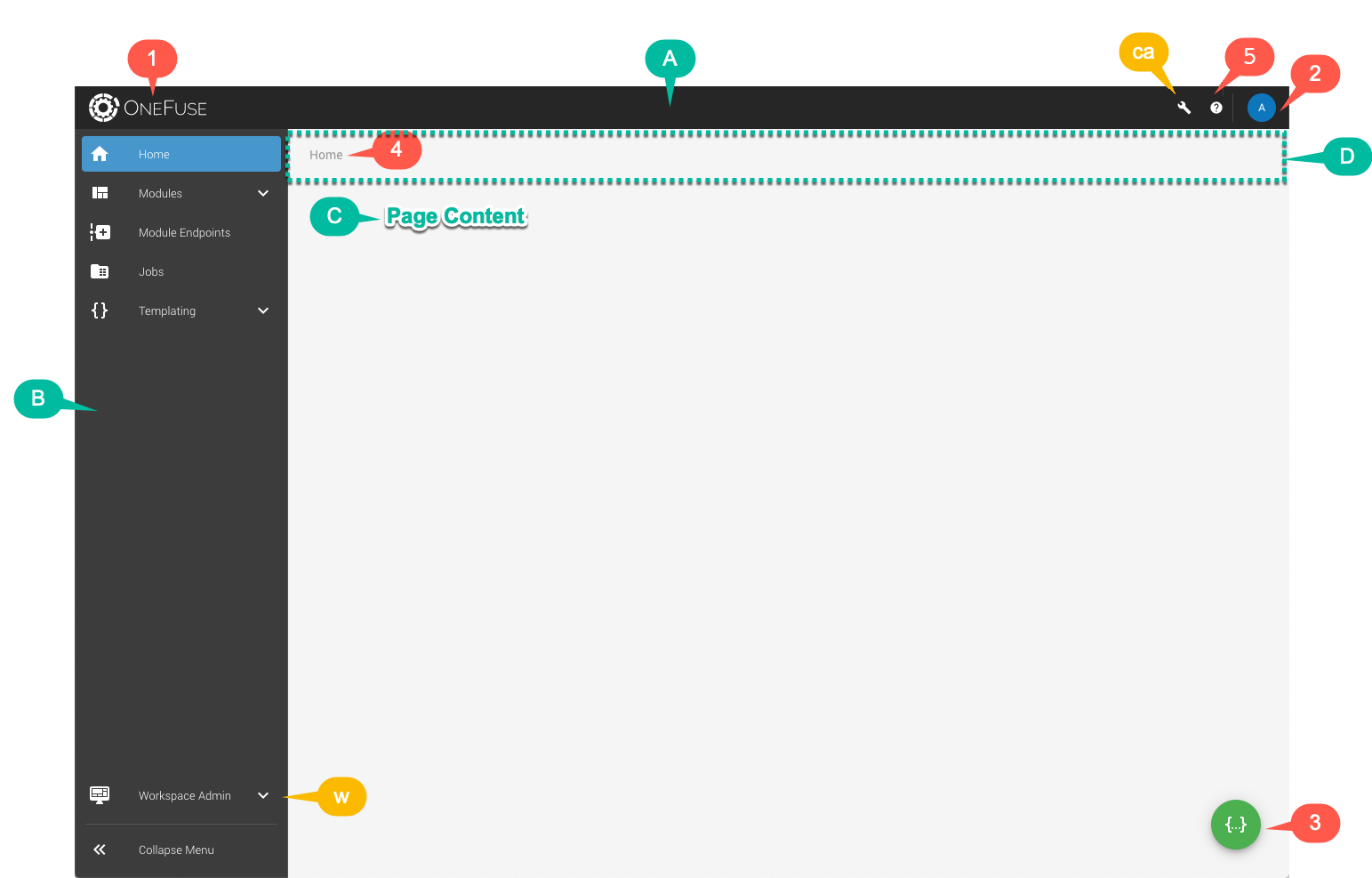

Starting v9.4.7, the User will see two new icons on the Top App Bar. Review the table below for more details.
| Category | Identifier | Name | Description |
| --- | --- | --- | --- |
| Area | A | Top App Bar | Top menu bar |
| Area | B | Left Navigation Menu | Left Navigation Menu to access Module Policies, Jobs and Static Property Sets. |
| Area | C | Page Content | The content of the current page the user is on will appear in this section. |
| Area | D | Message bar | Area where message bar appears for success, errors and warnings. |
| Function | 1 | OneFuse Logo | OneFuse logo does not serve as a link back to Home. |
| Function | 2 | User menu | User menu has link options for Profile Settings and Log out. |
| Function | 3 | Active Static Property Set | User can select and view the [Active Static Property Set](/docs/onefuse/templating/property-sets/#active-property-set). |
| Function | 4 | Breadcrumbs | Page breadcrumbs for navigation. The current page breadcrumb link is disabled by default. |
| Function | 5 | Resources | Select the Resources icon to view quick links to Docs, open a support ticket, and view the currently installed version. |
| Function | CMP | Cloud Management Platform | Access CloudBolt's Cloud Management Platform UI after [applying a license](/docs/onefuse/getting-started/manage-license/#add-a-new-cmp-license). |
| Function | Cloud Cost Security & Optimization | Cloud Cost Security & Optimization | Access CloudBolt's Cloud Cost Security & Optimization UI. |
| Role-based | ca | Super Admin | A user with the [Super Admin](/docs/onefuse/getting-started/roles-and-permissions/#global-role) role will be able to go to the [Super Admin UI](/docs/onefuse/getting-started/roles-and-permissions/super-admin-tasks/) and pages by selecting the wrench button. |
| Role-based | w | Workspace Admin | A user with the [Workspace Admin](/docs/onefuse/getting-started/roles-and-permissions/#workspace-roles) role will be able to go to [Workspace Admin UI](/docs/onefuse/getting-started/roles-and-permissions/workspace-admin-tasks/) and pages by expanding the menu option. |
## Dashboards
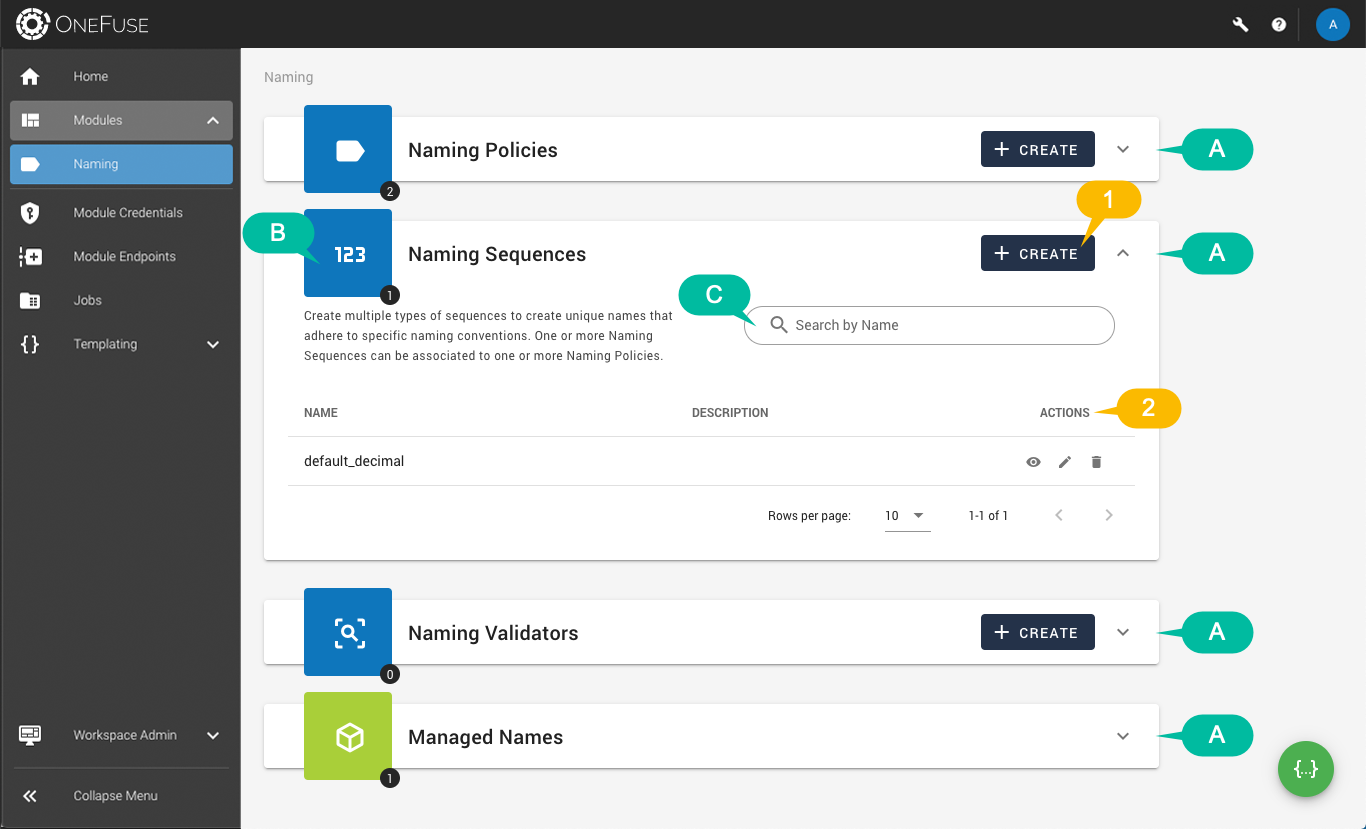
Most of the main pages acts as a dashboard/landing page with one or more datatables to list data.
| Category | Identifier | Name | Description |
| --- | --- | --- | --- |
| Area | A | Datatable | Datatable with list of relevant data. User can expand and collapse the datatable. |
| Area | B | Icon and Total Count | Icon related to data and shows total count of data. |
| Area | C | Search | Search the content of the data by the specified field. |
| Role-based | 1 | Create | A user with the Workspace Admin or Member role can create the item. |
| Role-based | 2 | Actions | Depending on the user's role, the user can view, update or delete the item. |
## Forms
| Category | Identifier | Name | Description |
| --- | --- | --- | --- |
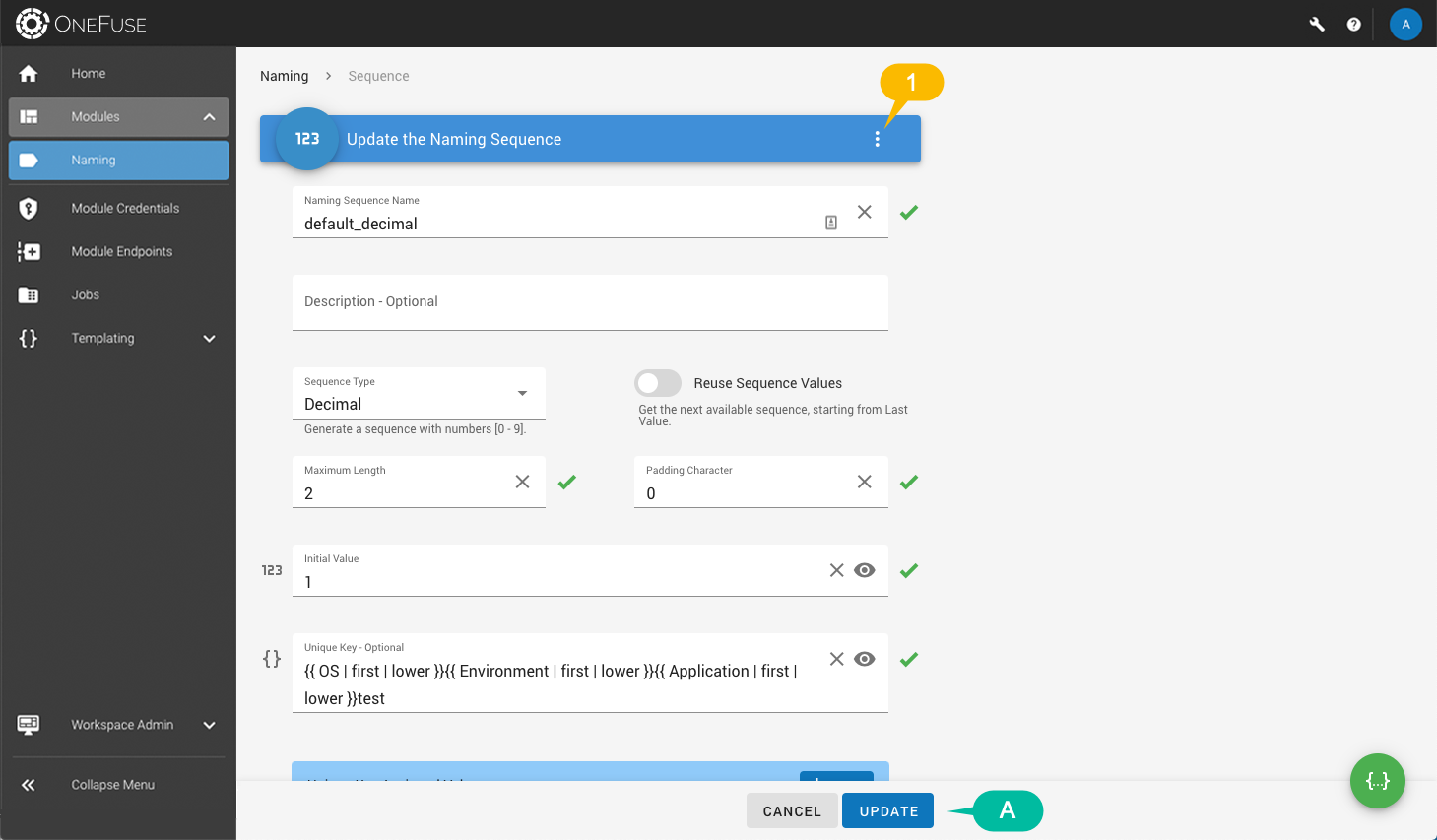
| Area | A | Form actions | Depending on the mode (create, update or view), the user will be presented with form actions.
This area is fixed and the form contents scroll behind. |
| Role-based | 1 | Form menu | Depending on the mode (create, update or view) and the user's role, the user can select be presented with additional actions. |