IPAM module best practices
Best practices for naming, subnet grouping, and DNS configuration in OneFuse IPAM policies
4 minute read
With the OneFuse IPAM module, organizations can manage IPAM policies and view generated IP addresses from IPAM policy executions.
Create a Module Credential and Endpoint for the selected technology.
To request a specific IP address through the OneFuse API, use ipaddress.
IPAM defaults can be set up at the Endpoint level. Network Views can be set up for different use cases and can include templated values. Every IPAM Policy execution for an Endpoint with defaults will use those defaults.
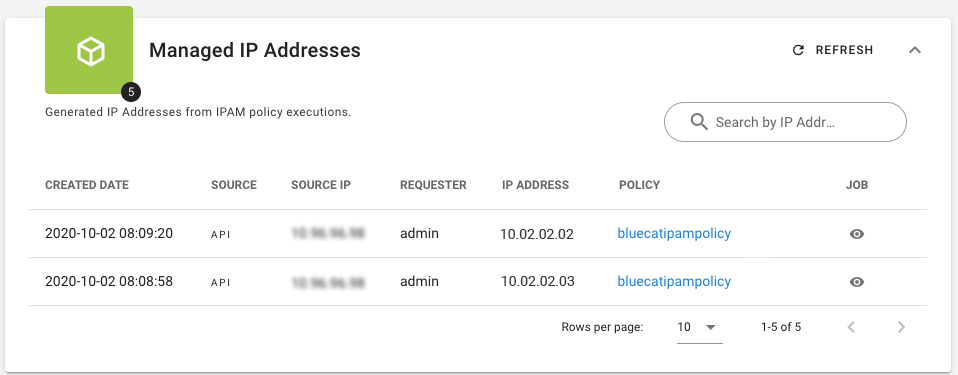
Use the Managed IP Addresses dashboard to review information about the IP addresses reserved by executing an IPAM Policy.
 (opens full-size image in a new tab)
OneFuse supports asynchronous calls to IPAM. For job status, see the API.
Use Aria Automation 8 to select a network based on the Network Selection ID taken from the network definition in Aria Automation 8 using Custom Properties.
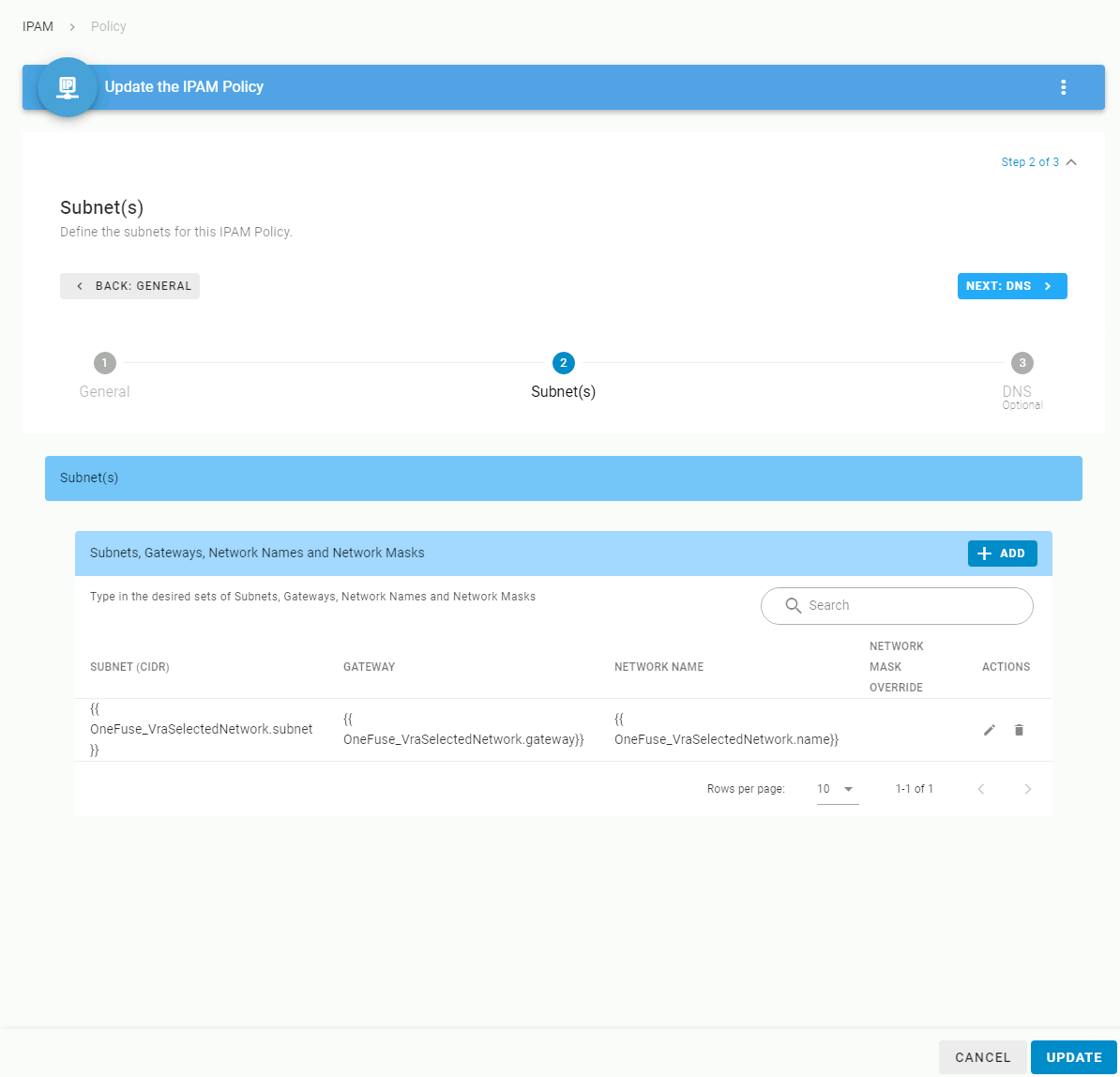
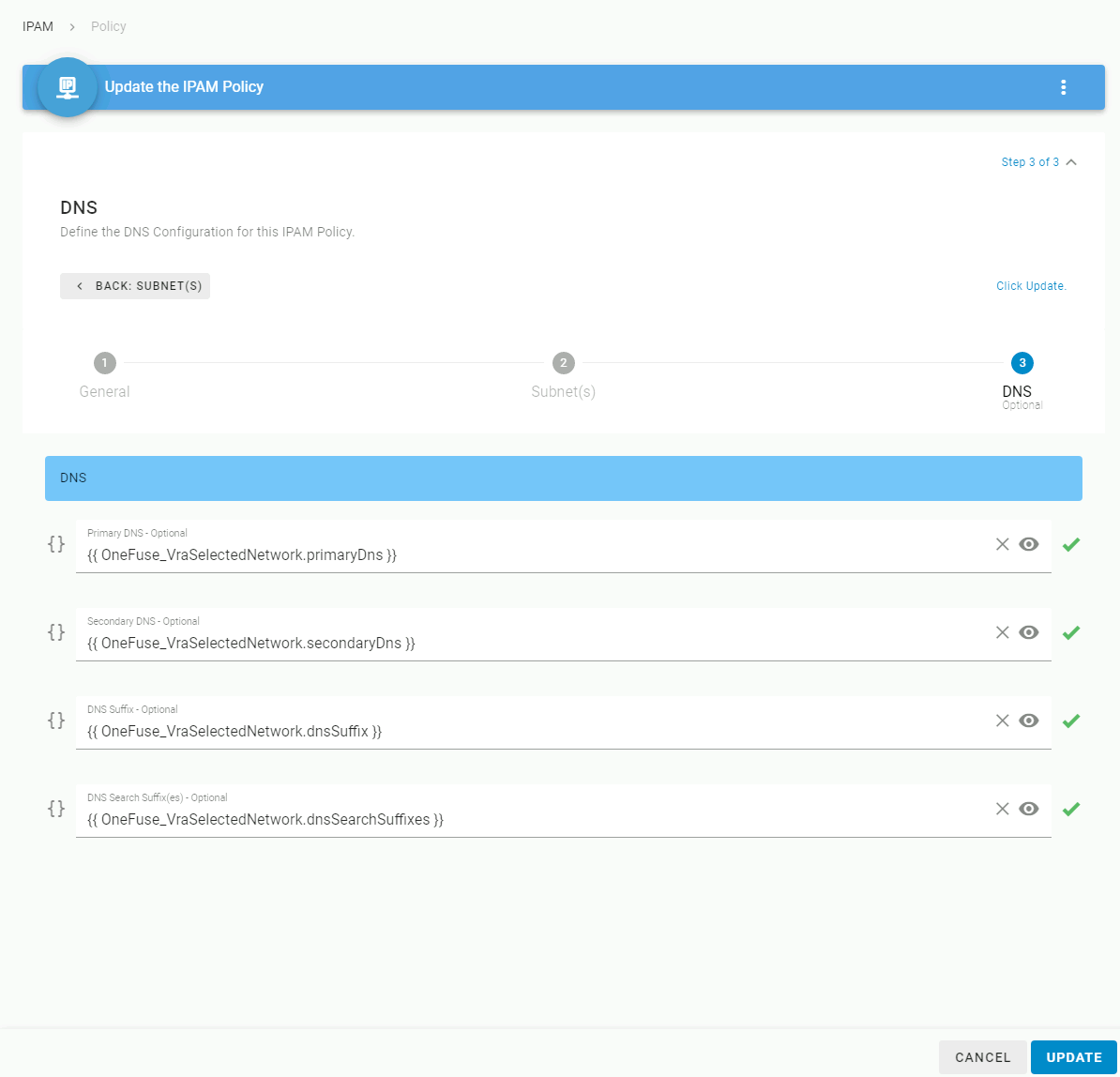
When operating in “vRA Selected Network mode”, the Aria Orchestrator Upstream Provider creates an object that gets injected in the templateProperties with the name OneFuse_VraSelectedNetwork. See IPAM network selection support in Upstream Providers for setup and use information.
 (opens full-size image in a new tab)
 (opens full-size image in a new tab)
Depending on how much information has been entered in Aria Automation 8 for a specific network, the object could contain all of the following information. The top three attributes should always be present.
{
  "id": "id-number",
  "name": "network name",
  "externalId": "externalIDname",
  "dnsSuffix": "dnssuffix.com",
  "subnet": "10.11.12.0/24",
  "gateway": "10.11.12.1",
  "primaryDns": "10.11.12.11",
  "secondaryDns": "10.11.12.12",
  "dnsSearchSuffixes": "dnssuffix.com,company.com"
}
| Field | Description |
|---|---|
| General | |
| IPAM Policy Name | Enter a name for this IPAM Policy. |
| Description | Optional description for this IPAM Policy. |
| Endpoint Type | Select the desired Endpoint Type for this IPAM Policy. |
| Endpoint | Select the desired Endpoint. |
| NIC Label | Optional. NIC Label is returned as part of the payload. Payload: IP Address, Name, Netmask, DNS Servers, etc. |
| Advanced | |
| Hostname Override | Optional. Enter a Hostname Override. The variable is {{request.hostname}}. If no hostname override is desired, use the default value. |
| Skip IPs in Use | Select whether to skip IP addresses that were marked free in IPAM but are actually pingable or resolving to DNS entries. |
| Conflicting Name Template | Shown when Skip IPs in Use is true. Enter the Conflicting Name Template to use when reserving a used IP address in the IPAM provider. |
| Update Conflicting IP Address with DNS Name | Shown when Skip IPs in Use is true. Select whether to update the conflicting IP address with the resolved DNS entry name, if found. Otherwise, uses the specified Conflicting Name Template. |
| Subnet(s) | |
| Subnet (CIDR) | Enter the subnet(s) in CIDR format (for example, 10.0.1.1/24). Determines the Gateway and Network Mask from the CIDR and is used to match in the IPAM Endpoint. Templatable field. If no free or available IP addresses are found, reserving an IP address will fail. |
| Gateway | Optional. Enter the Gateway address for the subnet in IPv4 format (for example, 10.0.1.1). |
| Network Name | Optional, except when provisioning to VMware vCenter. Enter the name of the network associated with the subnet. If provisioning to VMware vCenter, this is the Port group name. |
| Network Mask | Optional. Enter the Network Mask (for example, 255.255.255.0) in IPv4 format. Overrides the subnet default. |
| Include IP Ranges | Optional. Enter the IP ranges to allocate IP addresses from as a comma-separated list of CIDR ranges, dashed non-CIDR ranges, and single IP addresses. Currently only available for BlueCat. |
| Exclude IP Ranges | Optional. Enter the IP ranges to exclude when allocating IP addresses as a comma-separated list of CIDR ranges, dashed non-CIDR ranges, and single IP addresses. Currently only available for BlueCat. |
| DNS (optional) | |
| Primary DNS | Enter the Primary DNS server. |
| Secondary DNS | Enter the Secondary DNS server. |
| DNS Suffix | Enter the DNS Suffix. |
| DNS Search Suffix(es) | Enter the DNS Search Suffix(es) as a comma-separated list. |
Best practices for naming, subnet grouping, and DNS configuration in OneFuse IPAM policies
Configure OneFuse IPAM policies for BlueCat
Configure OneFuse IPAM policies for Infoblox
Configure OneFuse IPAM policies for Men&Mice Micetro
Configure OneFuse IPAM policies for Microsoft IPAM
Configure OneFuse IPAM policies for SolarWinds