IPAM network selection support
5 minute read
To learn more about this OneFuse Module, refer to IPAM.
Introduction
This feature allows you to derive the inputs for the OneFuse IPAM policy from a Network in vRA8. This simplifies implementation of IPAM in OneFuse, allowing you to defer to the Constraints in vRA8 to determine the network to be used for the IPAM reservation instead of mirroring that business logic within OneFuse templating or Static Property Sets.
Using this setup enables vRA Selected Network Mode for OneFuse IPAM.
- In “normal” mode, OneFuse IPAM looks only to the fixed and/or templated values supplied in the IPAM Policy fields to determine the destination for the IP reservation.
- In “vRA Selected Network” mode, OneFuse will query the network profile in vRA8 to obtain the information needed for the IP assignment instead of looking to internal OneFuse properties. A special property called
OneFuse_VraSelectedNetworkis stored with these values, which you consume from your IPAM Policy.
Prerequisites
- Configure OneFuse Property Set(s) and OneFuse Module Policies.
- Run OneFuse Configuration per Cloud Assembly Organization.
- Review an overview on OneFuse modules with Aria Automation 8.1+/Cloud.
- Create a new Cloud Template (if none exist) or determine which existing Cloud Template(s) will utilize this OneFuse Module.
Steps
- Configure a vRA Network Profile and associated network(s). You will also need to configure your Constraints appropriately.
- Create/Update the OneFuse IPAM Policy in OneFuse to use the vRA Selected Network Properties.
- Update the Cloud Template to add in the necessary vRA Properties to invoke a OneFuse IPAM Policy and enable vRA Selected Network mode.
- Deploy the vRA Cloud Template to provision resources with IPAM Network Selection support.
Configure a vRA network profile
- Configure Network Profiles in Aria Automation 8.1+/Cloud.
- Test Constraints prior to attempting this setup to ensure Aria Automation 8 can allocate a resource based on the configured Constraints.
Create/update the OneFuse IPAM Policy to use vRA Selected Network properties
- Log in to the OneFuse UI.
- Go to Modules > IPAM on the left navigation menu.
- Create or update an IPAM Policy:
-
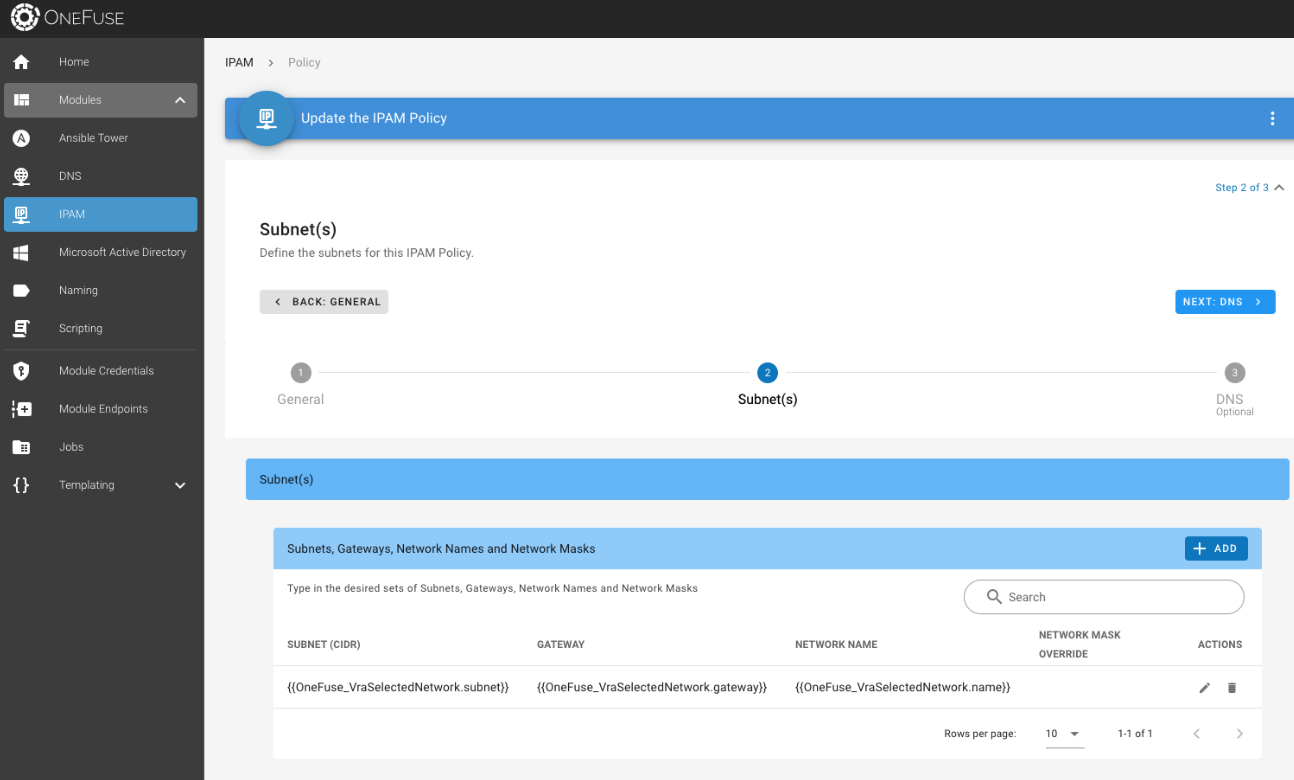
In the Subnet(s) tab, configure the following:
Field name Field value Subnet (CIDR) {{ OneFuse_VraSelectedNetwork.subnet }}Gateway {{ OneFuse_VraSelectedNetwork.gateway }}Network Name {{ OneFuse_VraSelectedNetwork.name }}Network Mask Override (Optional) -
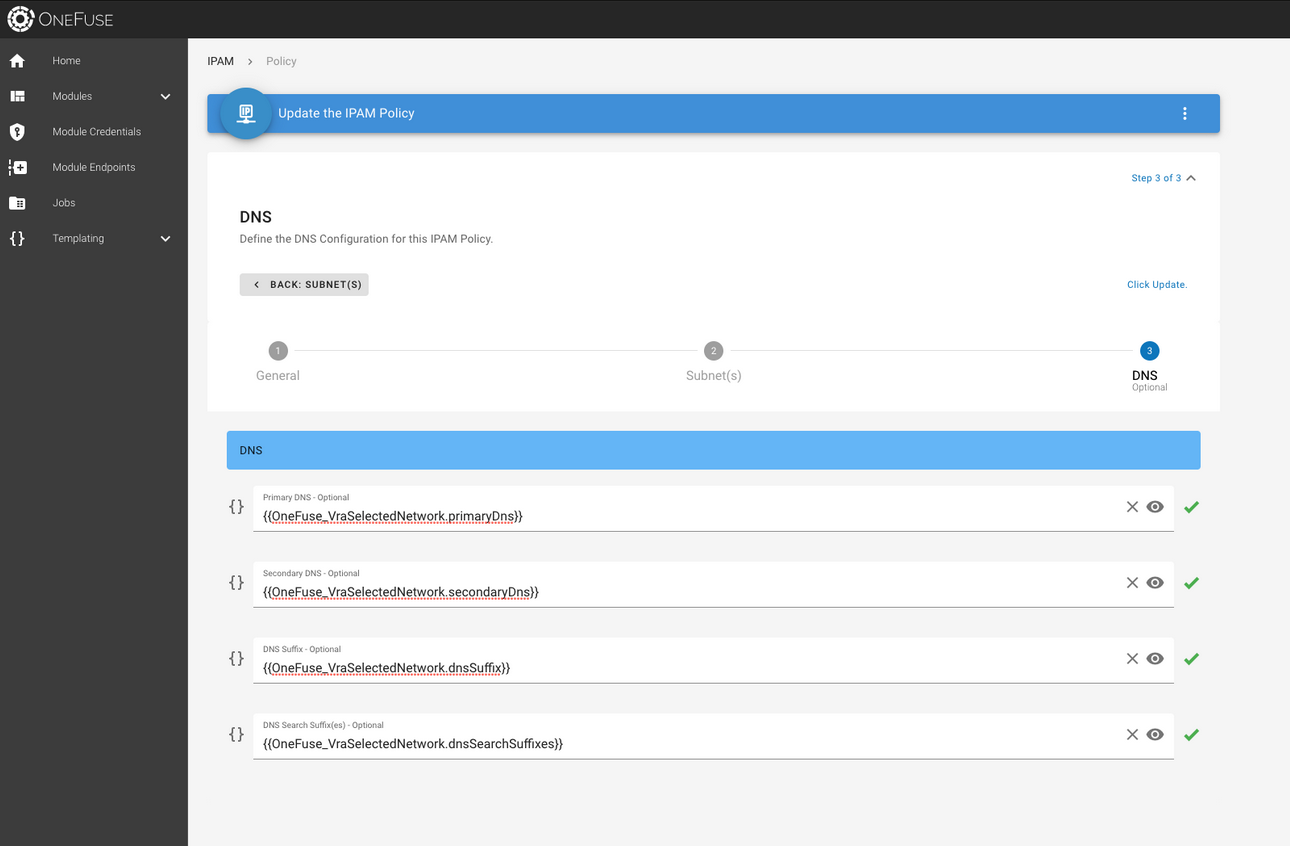
In the DNS tab, configure the following:
Field name Field value Primary DNS (optional) {{ OneFuse_VraSelectedNetwork.primaryDns }}Secondary DNS (optional) {{ OneFuse_VraSelectedNetwork.secondaryDns }}DNS Suffix (optional) {{ OneFuse_VraSelectedNetwork.dnsSuffix }}DNS Search Suffix(es) (optional) {{ OneFuse_VraSelectedNetwork.dnsSearchSuffixes }}
-
The OneFuse_VraSelectedNetwork vRA property contains the following sub-properties:
{# The OneFuse_VraSelectedNetwork vRA Property contains the following sub-properties #}
{{ OneFuse_VraSelectedNetwork.id }}
{{ OneFuse_VraSelectedNetwork.name }}
{{ OneFuse_VraSelectedNetwork.externalId }}
{{ OneFuse_VraSelectedNetwork.dnsSuffix }}
{{ OneFuse_VraSelectedNetwork.subnet }}
{{ OneFuse_VraSelectedNetwork.gateway }}
{{ OneFuse_VraSelectedNetwork.primaryDns }}
{{ OneFuse_VraSelectedNetwork.dnsSearchSuffix }}
 (opens full-size image in a new tab)
 (opens full-size image in a new tab)
Update blueprints
1. Add vRA Properties for OneFuse IPAM
- Refer to OneFuse + Aria Automation 8 IPAM to add in the necessary vRA Properties.
- Verify the OneFuse IPAM Policy name specified has the vRA Selected Network Properties.
2. Add vRA properties for vRA Network Selection Try Count
When the following Custom Property is added to the Cloud Template, vRA will look up the first NetworkSelectionID and create special vRA properties for Subnet CIDR, Gateway, Network Name, Network Mask, as well as Primary/Secondary DNS, DNS Suffix, and DNS Search Suffix(es).
Select how many NetworkSelectionID to try against per NIC with the following property.
| Property name format | Property value |
|---|---|
OneFuse_VraNetworkSelectionTryCountNic<#> |
# |
- Replace
<#>with a number from0to9, one for each NIC. Default is0. - Enter the numerical maximum number of retries. If a network fails, vRA requests the next network from NetworkSelectionIDs and continues until the retry count is reached.
- Required to enable vRA Selected Network Mode for a NIC; allows customization per individual network interface.
For best performance, the recommended max number of retries is 10. If the Try Count number is high enough, it will try all the networks in the network profile, which could lead to performance issues if your profile has many networks. We recommend limiting the number of networks in the network profile you are assigning that NIC in the Cloud Template.
3. Add vRA properties for vRA Network Selection Order By Name (optional)
When the following Custom Property is added to the Cloud Template, vRO will order the Network Selection IDs passed to OneFuse by Name instead of the default ordering which is done on the IDs.
| Property name format | Property value |
|---|---|
OneFuse_VraNetworkSelectionOrderByNameNic<#> |
true or "true" |
- Replace
<#>with a number from0to9, one for each NIC. Default is0. - Set the value to either
true(boolean format) or"true"(string format).
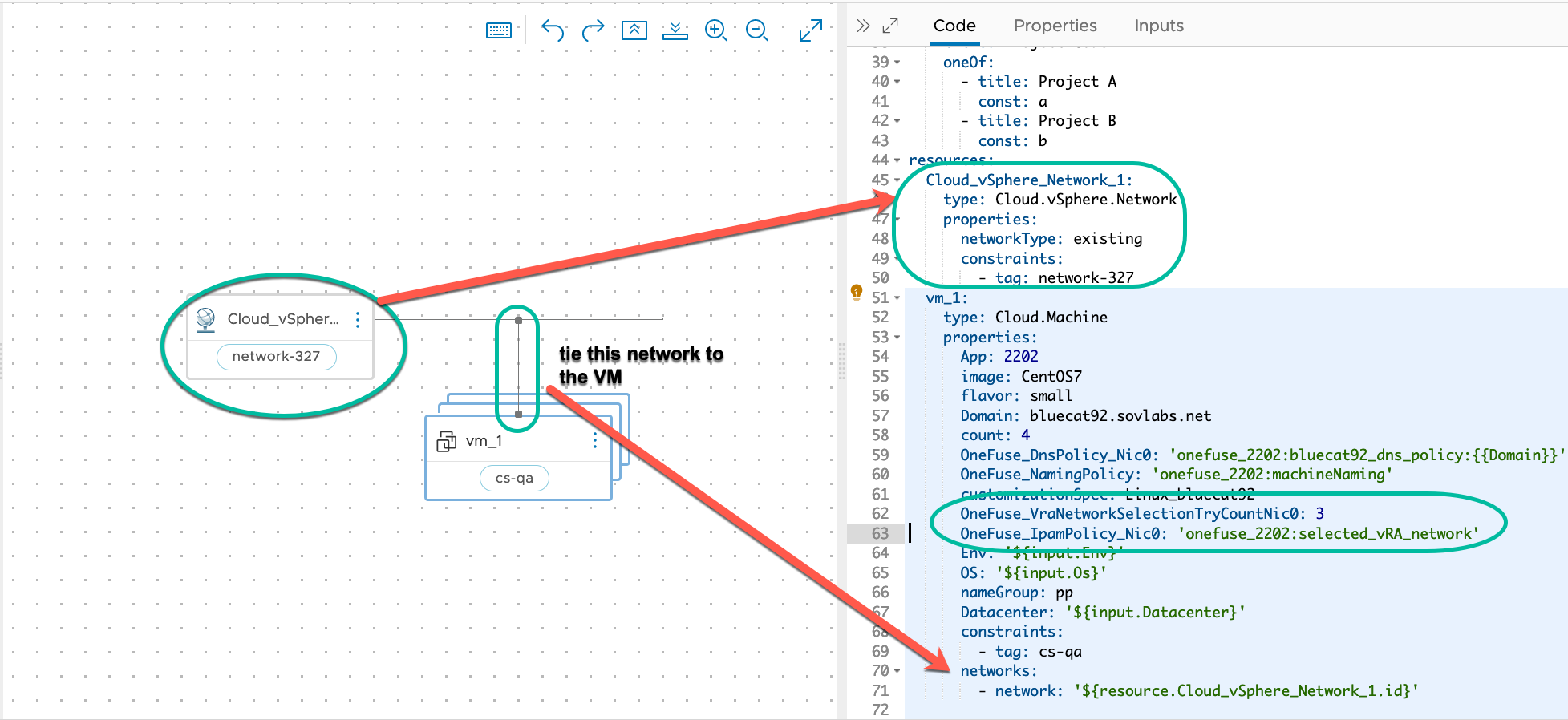
Example Cloud Template
 (opens full-size image in a new tab)
Example Cloud Template YAML:
# Execute OneFuse IPAM Policy with vRA Selected Network

# -- Property Value
# <OneFuse Endpoint Name>  is onefuse
# <IPAM Policy Name> is prod

name: Simple Example
resources:
  Cloud_Machine_1:
    type: Cloud.Machine
    properties:
      image: CentOS7
      flavor: small
      count: 1
      OneFuse_IpamPolicy_Nic0: 'onefuse:prod'
      OneFuse_VraNetworkSelectionTryCountNic0: 2
      OneFuse_VraNetworkSelectionOrderByNameNic0: true
      constraints:
        - tag: Cluster1
      networks:
        - network: '${resource.Cloud_Network_1.id}'
          deviceIndex: 0
  Cloud_Network_1:
    type: Cloud.Network
    properties:
      networkType: existing
      constraints:
        - tag: my-network
Provisioning
The next step is to deploy the Cloud Template, now that the OneFuse IPAM Policy is configured with the special vRA Network Selection properties and will select the correct Network based on vRA constraints.
-
In the OneFuse UI, you will see the Job for Reserve IP Address.
-
Select the eye icon under Actions to see the
VraSelectedNetworkproperties in the Resolved Properties tab.{ ... "OneFuse_VraSelectedNetwork": { "id": "<Network GUID>", "name": "<Network Name>", "externalId": "<Network External ID>", "dnsSuffix": "<DNS Suffix>", "subnet": "<Subnet CIDR>", "gateway": "<Gateway>", "primaryDns": "<Primary DNS>", "secondaryDns": "<Secondary DNS>", "dnsSearchSuffixes": "<DNS Search Suffix(es)>" } }