Super admin tasks
4 minute read
Users with the Super Admin role will be able to access the Super Admin menu option on the Top App Bar.
OneFuse UI for Super Admin
Quickly identify whether or not you are in the Super Admin UI by the color of the left navigation menu.
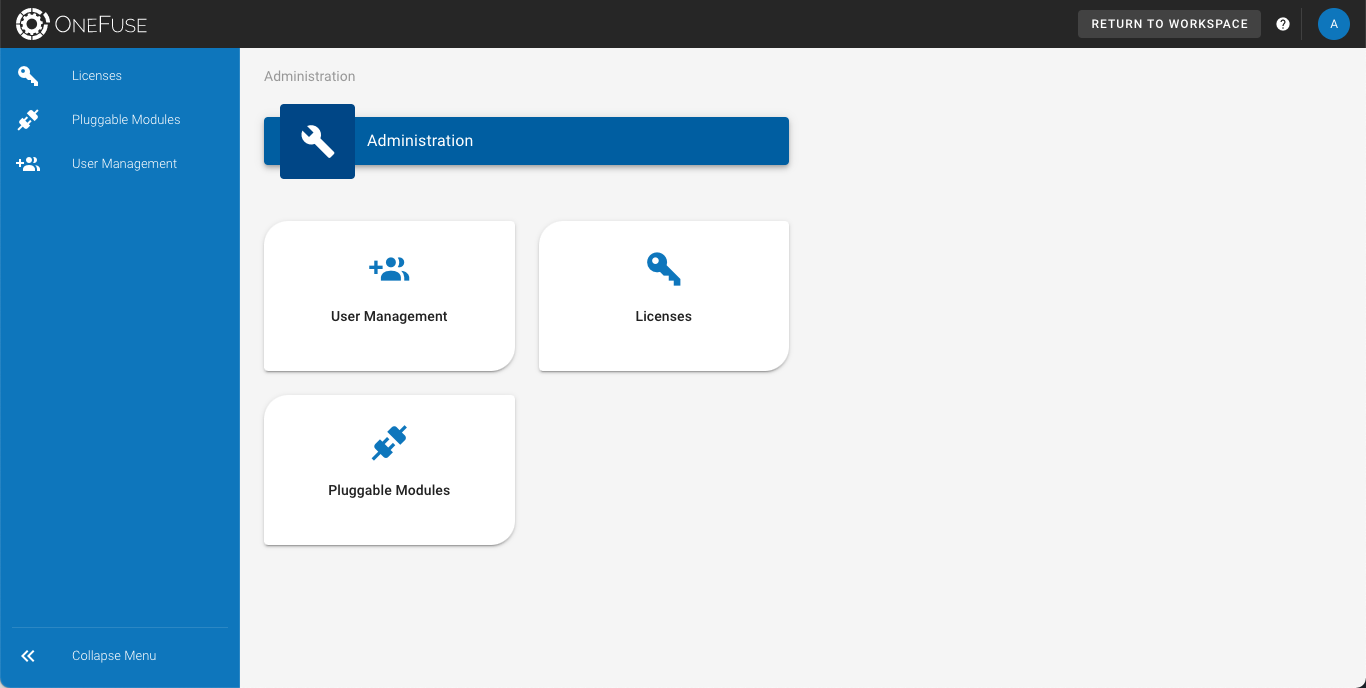 (opens full-size image in a new tab)
Access Super Admin UI from the Workspace
When the Super Admin user has a Workspace Role, the user can go to the Super Admin UI from the Workspace.
 (opens full-size image in a new tab)
- Select the wrench button on the Top App Bar.
Access the Workspace from the Super Admin UI
If the Super Admin user has a Workspace Role, the user can go back to the Workspace from the Super Admin UI.
 (opens full-size image in a new tab)
- Select the Return to Workspace button on the Top App Bar.
Access the CMP UI from the Super Admin UI
If the Super Admin user has added a CMP License, the user can access the CMP UI from the Super Admin UI.
- Select the button with the CloudBolt logo on the Top App Bar.
Access the Cloud Cost & Security Optimization UI from the Super Admin UI
- Select the button with the Cloud Cost & Security Optimization icon on the Top App Bar.
Manage local users
Access the User Management dashboard
- Log in to the OneFuse UI.
- If you are in the Workspace, select the wrench button on the Top App Bar.
- Select User Management from the left navigation menu.
Create a local user
Create a new user to access OneFuse.
- Access the User Management dashboard.
- Select + Create.
- Fill out the user form:
- Determine whether the user will be a Super Admin. See Roles, permissions, and access for more details.
- Enter a temporary password for the user’s initial login.
- Select Create.
- Inform the user of their username and temporary password so they can log in.
- Instruct the user to perform Change my password after initial login.
- A Workspace Admin can then add the user to a Workspace.
Delete a local user
Delete a user from OneFuse when they no longer need access.
- Access the User Management dashboard.
- Find the user of interest.
- Select the delete (trash can) button.
- Confirm by selecting Delete.
- The user is deleted from OneFuse and from the Workspace.
Update a local user
- Reset a user’s password.
- A user can perform Update profile settings and Change my password.
To update a user’s Global Role:
- Access the User Management dashboard.
- Find the user of interest.
- Select the edit (pencil) button.
- Update the information on the user form. Determine if the user will be a Super Admin or not. To learn more, refer to Roles, permissions, and access.
- Select Update.
Reset a user’s password
Use this procedure when a user has forgotten their password. In a future release, the user will be able to reset their own password.
- Log in to the OneFuse UI.
- Select the wrench button on the Top App Bar to access the Super Admin UI.
- Select User Management from the left navigation menu.
- Find the user of interest and select the edit (pencil) button.
- Under Security, select Update Password.
- Enter a temporary password.
- Select Update.
- Inform the user of the temporary password and instruct them to perform Change my password after logging in with it.
Grant users access to CMP
Enable existing OneFuse users to access CloudBolt’s Cloud Management Platform.
Prerequisites
- Add a CMP license.
- Configure and set up CMP: add a Resource Handler and create a Blueprint, add Groups, configure Admin Settings, and more.
- Identify the users who need CMP access.
Add users to CMP groups, roles, and permissions
-
Log in to the OneFuse UI with the Super Admin (formerly Configuration Admin) role.
-
Select the CloudBolt logo on the Top App Bar to access the CMP UI.
-
Log in to CMP with the Super Admin user.
-
Add the user to any additional CMP Group(s) and assign CMP Role(s) and Permissions.

OneFuse users automatically exist as users in CMP. If a user was added to the OneFuse Workspace with a Workspace Role, they will automatically be added to the CMP Group for OneFuse named Default.
Learn more about:
Access the CMP UI from OneFuse
After the user is added to the appropriate CMP Group(s), they can access the CMP UI in either of these ways:
- Navigate directly in the browser by removing
/uifrom the OneFuse instance URL. For example, if OneFuse is athttps://onefuse.example.com/ui, access CMP athttps://onefuse.example.com. - Select the CloudBolt logo on the Top App Bar when logged in to OneFuse.