OneFuse custom resources
4 minute read
To learn more, refer to VMware Docs: Custom Resources.
| VMware Aria Automation version | OneFuse version |
|---|---|
| 8.2+ | 1.2+ |
Introduction
Aria Automation 8.2+ allows you to create Custom Resources that can be treated as drag-and-drop elements directly onto a Cloud Template canvas.
For each of the OneFuse modules, you now have the capability to drag-and-drop any of the OneFuse modules directly onto the vRA Cloud Template canvas.
In addition, every OneFuse Custom Resource is capable of leveraging the Property Toolkit to consume integrations and drive dynamic outcomes in a standardized way.
Enable OneFuse Custom Resources
- Log in to vRealize Orchestrator web client.
- Select Workflows > Custom Resources > Configuration.
- Run the Configure OneFuse Custom Resources workflow to create the required elements for the Custom Resources feature in Cloud Assembly.
Available OneFuse Custom Resources
Each of the listed available OneFuse Custom Resource types is able to be consumed directly from the vRealize Automation Canvas.
- Log in to vRealize Automation Cloud Assembly
- Go to Design > Custom Resources to see a list of available OneFuse Custom Resources:
Adding OneFuse Custom Resources to a Cloud Template
You can use Custom Resources on a new or existing Cloud Template.
-
In Cloud Assembly, go to Design > Cloud Templates.
-
Create a new Template, or modify an existing Template.
-
In the component pane on the left, scroll to the bottom to see all the available OneFuse Custom Resources.
-
Drag and drop the desired
OneFuse:<Module/Feature>element onto the canvas. -
For each OneFuse component added to the canvas, fill out the values for the required Properties in the YAML code.
Parameter name Required? Notes endpointNameRequired OneFuse Endpoint Name in vRA. Refer to Managing endpoints. policyNameRequired OneFuse Module Policy Name (string). templatePropertiesOptional Additional properties that are referenced within the Policy. JSON format. trackingIdOptional Tracking ID (string) to link multiple OneFuse Policy Executions and resulting OneFuse Managed Objects together. If none is passed, one gets generated by OneFuse for that specific Policy Execution. A OneFuse Module may have other specific input parameters required.
Best practices
Learn about recommendations when using OneFuse Custom Resources in Aria Automation 8.2+
OneFuse Custom Resources with virtual machine elements
- OneFuse Custom Resources should not be used to influence outcomes (Naming, IPAM, etc.) for Virtual Machine types (Cloud Machine, vSphere Machine, etc.) on the Cloud Template canvas.
- Aria Automation 8 does not respect dependencies for machine elements, therefore you must use the property-driven method to invoke OneFuse for machine elements.
- Custom Resources can be included on the same canvas as a machine element if the output of the Custom Resource is not referenced in the machine element itself.
OneFuse Custom Resources with other Resource Types
- When leveraging any of the Resource Types in Aria Automation 8 (other than machines), OneFuse Custom Resources should be leveraged where possible.
For example:
-
A Kubernetes Namespace name standardized leveraging the Naming Module.
-
An S3 bucket named by the Naming Module, with configuration information pulled by leveraging the Property Toolkit.
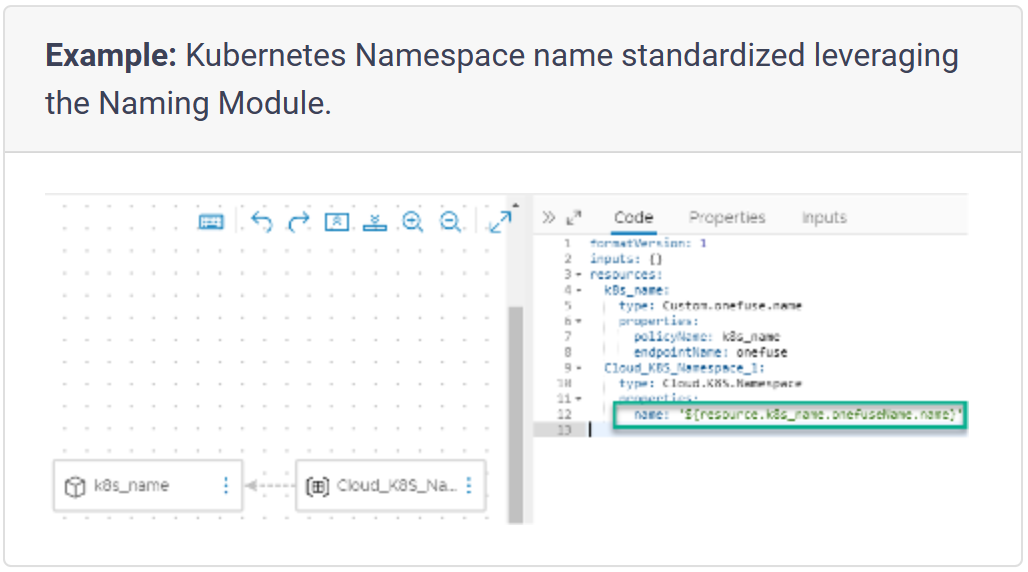
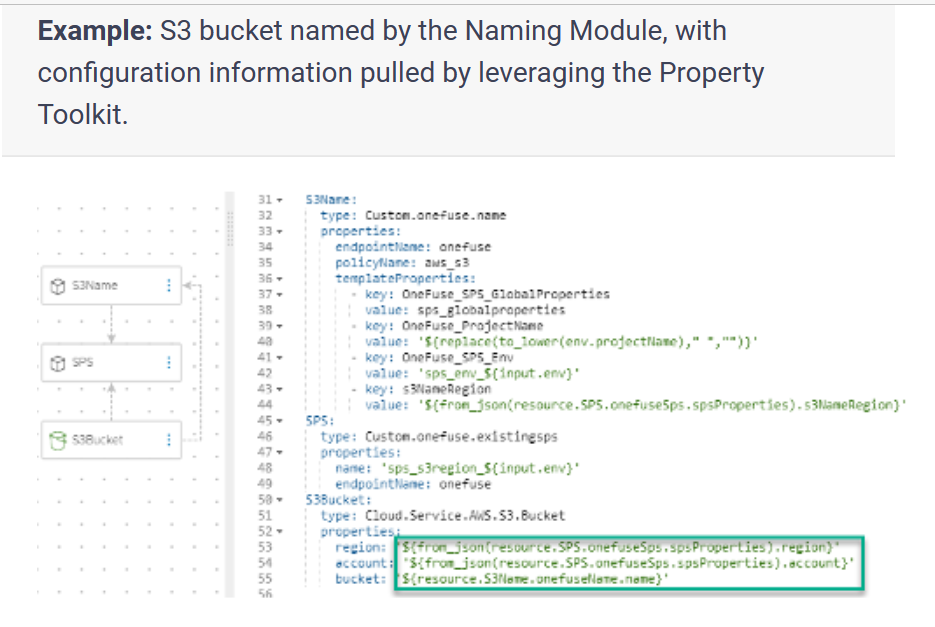
Name vRA Deployments
Every Cloud Template should include the OneFuse:DeploymentName_v1 Custom Resource to standardize vRA Deployment Names.
Out-of-the-box, Aria Automation 8x requires that every request that is submitted have a unique Deployment Name entered as part of the request form. This approach can be problematic, because allowing end users to specify names for Deployments can lead to resources that are not named in a standardized and meaningful fashion.
To add the Custom Resource for OneFuse vRA Deployment Name:
-
From the Resource Types navigation and expand Custom Resources
-
Drag-and-drop
OneFuse:DeploymentName_v1to the Cloud Template canvas -
In the Code tab, provide values for the following properties:
Parameter name Required? Notes endpointNameRequired OneFuse Endpoint Name in vRA. Refer to Managing endpoints. policyNameRequired OneFuse Module Policy Name (string). templatePropertiesOptional Additional properties that are referenced within the Policy. JSON format. trackingIdOptional Tracking ID (string) to link multiple OneFuse Policy Executions and resulting OneFuse Managed Objects together. If none is passed, one gets generated by OneFuse for that specific Policy Execution. -
Provide a OneFuse Naming Policy name for
policyName.