Execute PowerShell scripts using a bastion host
3 minute read
This method allows for connection over PowerShell/WinRM to a target server. This is to support execution of scripts on Provisioned nodes that do not have SSH running.
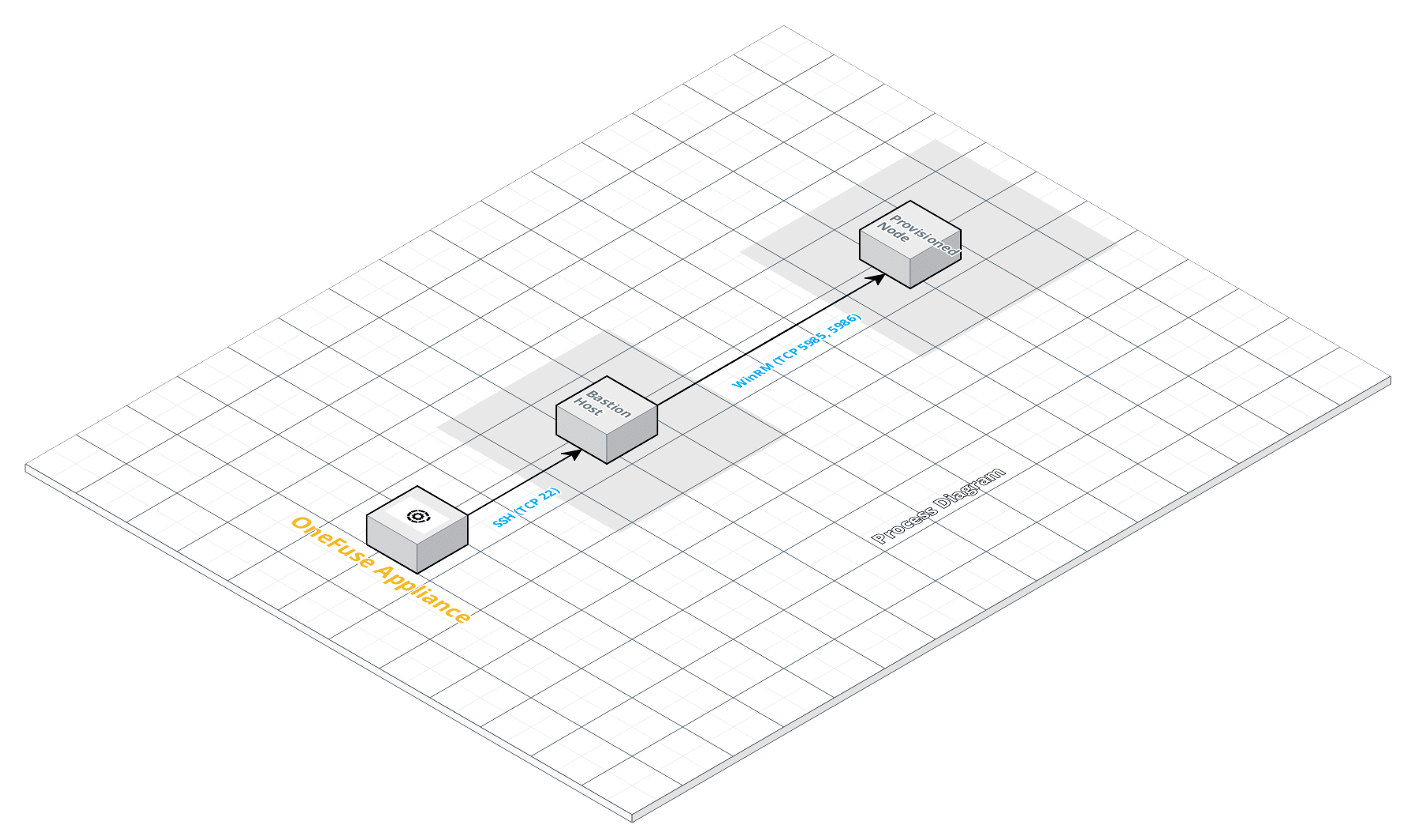
Currently, the Scripting module only supports the use of OpenSSH connection types on Windows servers. This will require WinSSH to the Bastion host from the OneFuse appliance (TCP 22) to copy and execute the desired PowerShell script. Then, utilize WinRM (TCP 5985, 5986) to the Provisioned Node.
See Resources below for Microsoft’s Documentation on Enable-PSRemoting on the Windows Guest.
The code provided in the walk-through is a sample only. It should be thoroughly reviewed and tested by those referencing it.
 (opens full-size image in a new tab)
Goal
Provide a sample framework that can be modified based on environmental requirements.
Set up bastion host
There are two options you can use to set up a proxy server to execute PowerShell scripts:
- Basic PowerShell remoting to target server.
- PowerShell remoting to allow different user authorization and/or authentication method.
PowerShell code should be tested locally on the Bastion Server to ensure functionality.
 (opens full-size image in a new tab)
Basic PowerShell remoting to target server
This method assumes passthrough authorization.
-
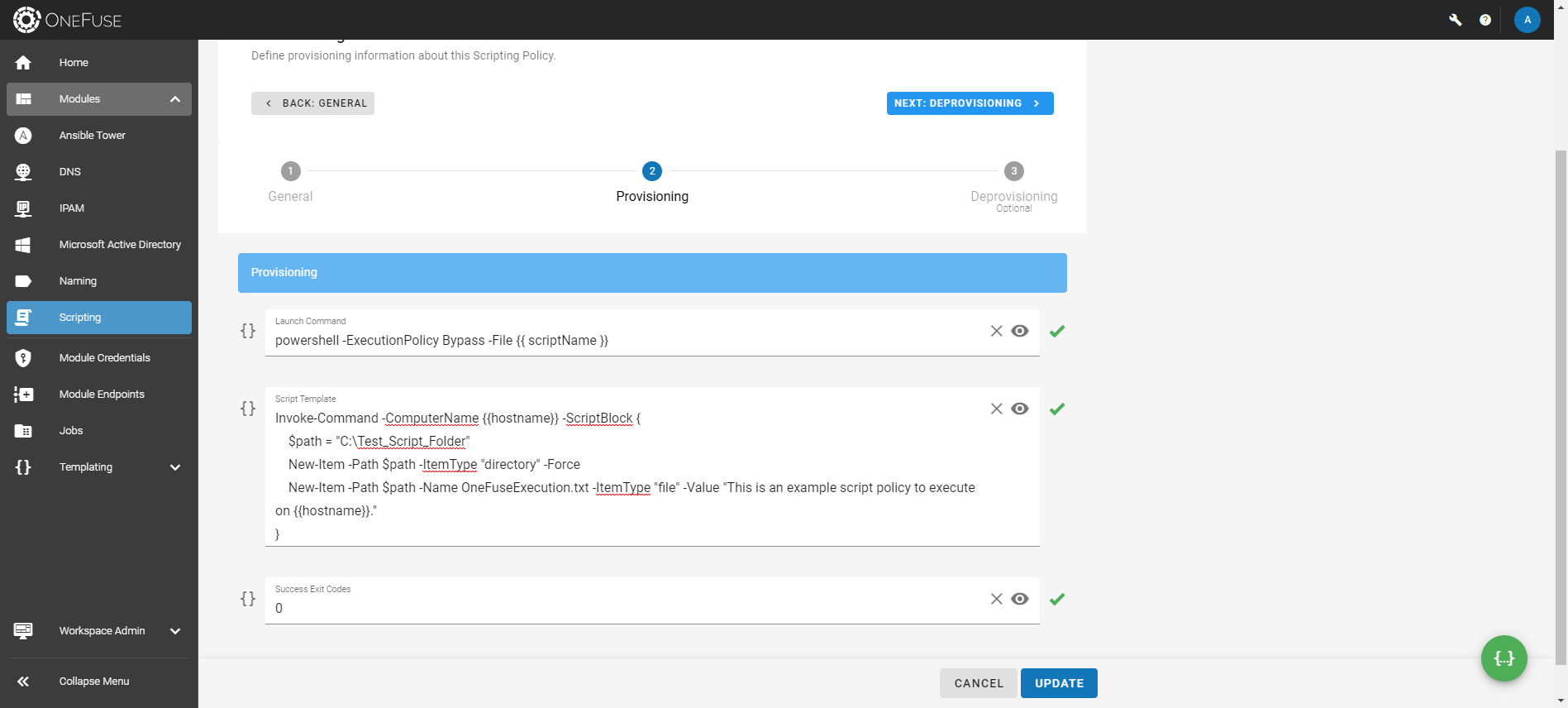
In the OneFuse Scripting Policy, copy and paste the following script into the Launch Command field:
powershell -ExecutionPolicy Bypass -File {{ scriptName }} -
In the OneFuse Scripting Policy, copy and paste the following script into the Script Template field:
Invoke-Command -ComputerName {{hostname}} -ScriptBlock { $path = "C:\Test_Script_Folder" New-Item -Path $path -ItemType "directory" -Force New-Item -Path $path -Name OneFuseExecution.txt -ItemType "file" -Value "This is an example script policy to execute on {{hostname}}." } -
Add functional PowerShell code within the Script Block {}.
PowerShell remoting for different user authorization and authentication
-
In the OneFuse Scripting Policy, copy and paste the following command into the Launch Command field:
powershell -ExecutionPolicy Bypass -File {{ scriptName }} -
In the OneFuse Scripting Policy, copy and paste the following script into the Script Template field:
param ( $ComputerName, $Username, $Password ) # Authentication can be changed to CredSSP (needs to be configured). Kerberos is the easier option $Authentication = "Kerberos" # Determing which Credentials to use based on what was passed in as a parameter if ($Username -and $Password) { $SecurePassword = ConvertTo-SecureString $Password -AsPlainText -Force $Credential = New-Object System.Management.Automation.PSCredential ($Username, $SecurePassword) Write-Host "Creating Credential Object" } else { $Username = "[username@domain]" $File = "C:\SovLabs\Password.txt" $Credential= New-Object -TypeName System.Management.Automation.PSCredential -ArgumentList $Username, (Get-Content $File | ConvertTo-SecureString) Write-Host "Generating Credential Object using hashed password from $File" } # Running commands on the target computer Invoke-Command -ComputerName $ComputerName -Authentication $Authentication -Credential $Credential -ScriptBlock { $path = "C:\Test_Script_Folder" New-Item -Path $path -ItemType "directory" -Force New-Item -Path $path -Name target_build_info2.txt -ItemType "file" -Value "This is a text string." } -
If desired, change the Authentication Method, or create a Password File in the code above. Add functional PowerShell code within the Script Block {}.