Generate names
3 minute read
Create Naming Sequences, Validators, and Policies in the OneFuse UI. Naming Policies can be used instantly after creation.
Generate a name in four steps:
- Gather and define the naming standard(s) that address your business needs.
- Create a Naming Sequence.
- Create a Naming Policy.
- Call the Naming Policy via an Upstream Provider.
Create flexible and dynamic names
Extend the flexibility of your Naming Policy by applying a Sequence, Templating, and Validators.
Use a Sequence
- A Naming Template without a sequence in a Naming Policy can result in a limited set of names.
- Use Sequence(s) in Naming Policies to automatically create names in sequential order.
- If consuming Naming Policies using Aria Automation 8, see how to use Custom Resources to influence deployment names.
Refer to Sequences to learn more.
Use templating with variables
The Naming Template field can include elements that make up the non-sequence part of the name and contain any combination of references to variables, static text (literal characters), and references to Sequences.
Words wrapped in double curly braces (for example, {{ Environment }}) are Variables that will result in the final value based on the input properties.
For our use case, the name generated will contain:
- The first lowercase letter from the variable OS
- The first lowercase letter from the variable Environment
- The first lowercase letter from the variable Application
- The word “test”
Create a Naming Policy
-
Log in to the OneFuse UI.
-
Select Modules > Naming from the left navigation menu.
-
Find the Naming Policies datatable and select Create.
-
Fill out the form:
-
Name:
templated -
Sequence: Select the sequence(s) desired.
-
Template:
{{ OS | first | lower}}{{ Environment | first | lower }}{{ Application | first | lower }}test{{ sequence.REPLACE_WITH_SEQUENCE_NAME }}
Sequence reference in Naming TemplateIf the Sequence name is
decimal_threedigit,{{ sequence.REPLACE_WITH_SEQUENCE_NAME }}becomes{{ sequence.decimal_threedigit }}.If you have more than one sequence, include a reference to each sequence in the Naming Template:
mytemplate{{ sequence.mysequence1 }}-{{ sequence.mysequence2 }} -
-
Select Create.
When the templated Naming Policy is executed, names will be generated similar to the following:
Request 1: { "Environment": "production", "OS": "Linux", "Application": "Web Servers" }
=> lpwtest001

Request 2: { "Environment": "dev", "OS": "Windows", "Application": "Database" }
=> wddtest001
Refer to the Templating guide to learn more.
Use Validators
Associate Validator(s) to Naming Policies to validate that the name is unique in external system(s) in addition to the OneFuse database.
Refer to Validators to learn more.
Track generated names
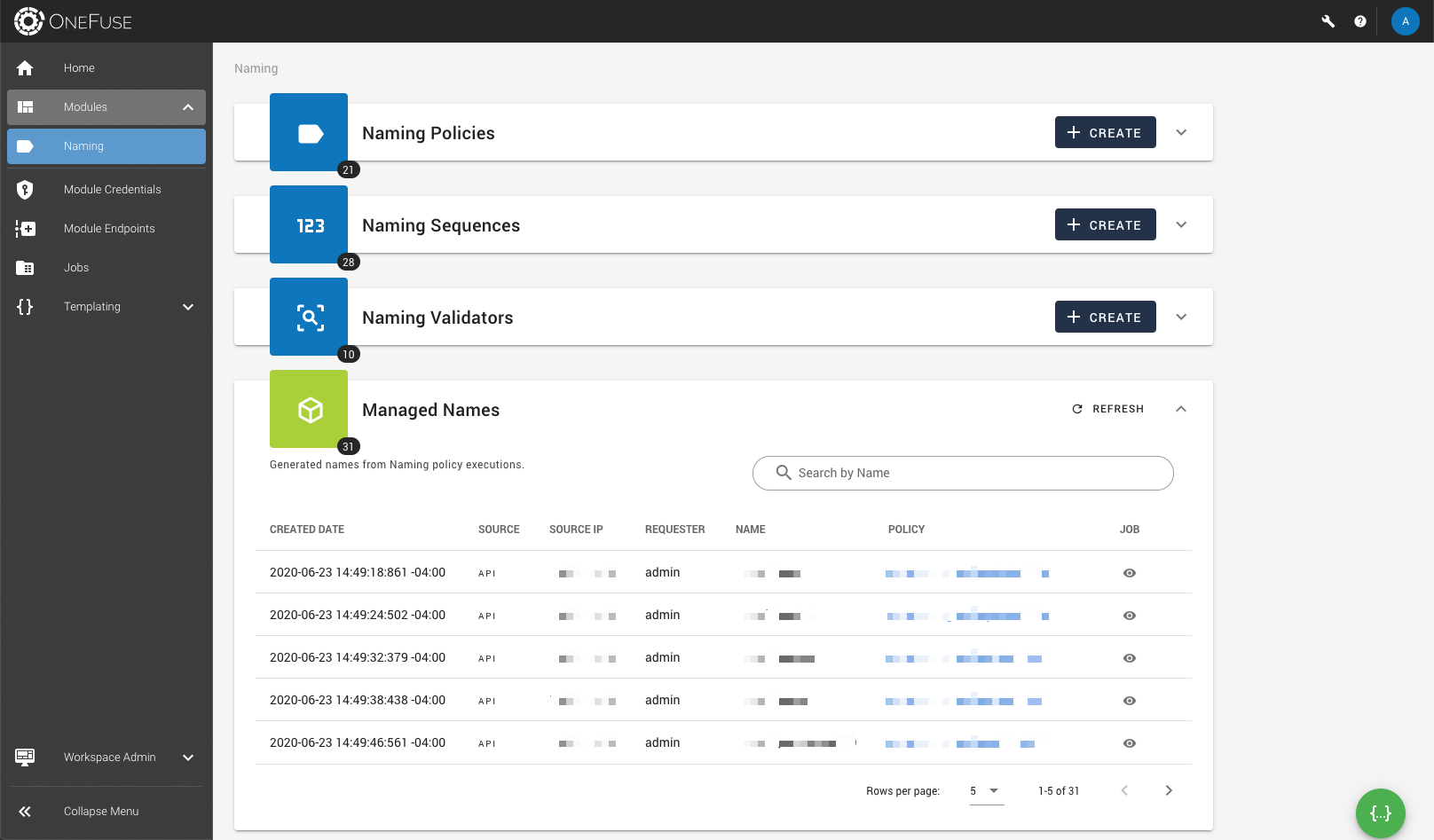
Track deployments for generated names until the name is released. View a list of names generated by OneFuse Naming Policies.
-
Log in to the OneFuse UI.
-
Select Modules > Naming from the left navigation menu.
-
Scroll down to the bottom of the page to see Managed Names.