Manage users
2 minute read
To view the user list, change a user’s role, or remove a user, see User Management.
Prerequisites
- Adding a user requires access to a CloudBolt Platform user account with the Owner permission.
- Accepting an invitation requires access to the user’s email account.
Select an organization
To select a CloudBolt Platform organization:
- Log in to the CloudBolt Platform as a user with the Owner permission. The address depends on where your organization’s tenant is hosted; see Sign in.
- In the sidebar, select Switch Organization.
- Choose the organization to make active.
For details, see Switch Organization.
Add a user
To add a user to a CloudBolt Platform organization:
-
Log in to the CloudBolt Platform as a user with the Owner permission. The address depends on where your organization’s tenant is hosted; see Sign in.
-
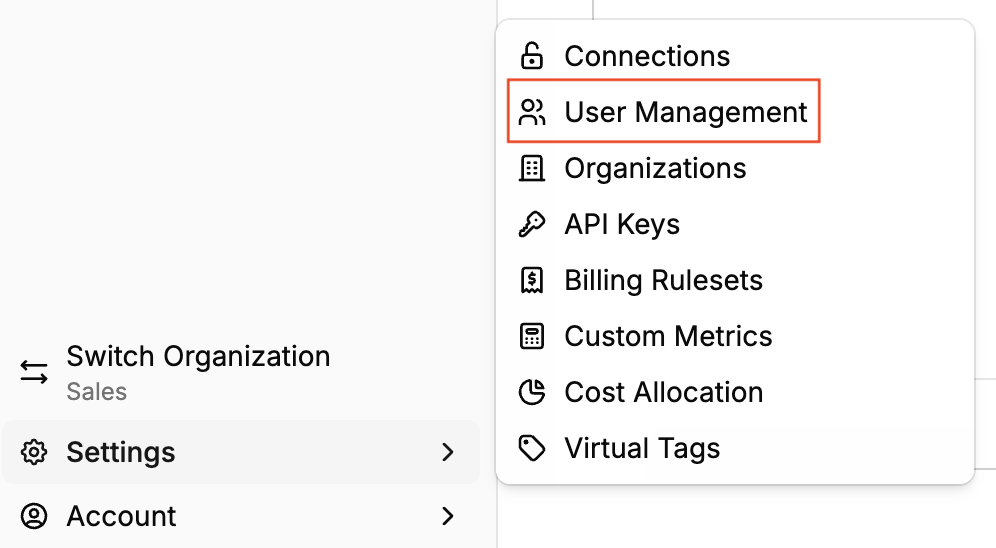
Select Settings in the lower-left corner.
-
In the Settings menu, select User Management.
-
Select Add User.
-
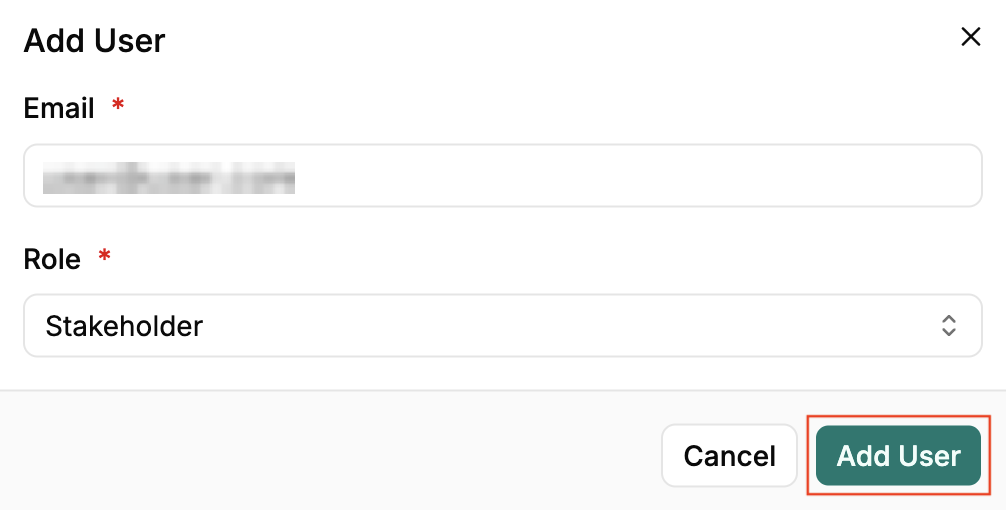
Enter the user’s email address and choose a role. If you don’t choose one, the role defaults to Stakeholder.
-
Select Add User. If the person doesn’t have a CloudBolt account yet, CloudBolt sends them an email invitation.
-
A pop-up confirms the user was added.

Until the person accepts the invitation and signs in, they show an Invited badge in the user list, and their role cannot be changed.
Accept the invitation
To accept the invitation to join a CloudBolt Platform organization:
- Open the email from
accounts@cloudbolt.iowith the subject ‘You’ve been invited to join {organization’s} CloudBolt account’ - Select the Accept Invitation button.
- Enter your email address and select Continue.
Next steps
Once a user has accepted their invitation, manage them from User Management: view the full user list, change a user’s role, or remove a user.