# Quick reference
> Quick reference examples for common OneFuse templating patterns
---
Site [llms.txt](/llms.txt)
---
## `_all_properties`
This is a Custom filter created for OneFuse to output all the Properties from the Deployment at Run Time.
The primary use-case for this is to access all the Properties when using the Scripting Module to utilize meta data within the OS scripts or to populate Ansible Host Variables which can be used for playbook executions.
Output rendered `templateProperties` with: `_all_properties` during Policy execution calls and/or Templating API.
### Example
```jinja2
{#
Example templateProperties stack:
{
"foo": "hello",
"bar": "world"
}
#}
{# Example 1 #}
{{ _all_properties }}
{# Example 2 #}
{% for key, value in _all_properties.items() %}
Key: {{key}}
Value: {{value}}
{% endfor %}
{# Example 3#}
{%for key in _all_properties %}
{{key}}
{%endfor%}
{# Example 4 #}
{{ _all_properties.foo }}
```
Will not account for variables set after invocation, for example setting new variables using `{%set foo = "bar" %}`.
### Result
```jinja2
{# Example 1 #}
=> {'foo': 'hello', 'bar': 'world'}
{# Example 2 #}
=> Key: foo
Value: hello
Key: bar
Value: world
{# Example 3 #}
=> foo
bar
{# Example 4 #}
=> hello
```
### Sample use cases
#### Scripting use case
A sample use case would be to output the `templateProperties` into a file during the Scripting Policy execution for troubleshooting purposes.
```bash
#!/bin/bash
echo "template_properties = {% for key, value in _all_properties.items() %}{{key}} = {{value}}{% endfor %}" > /root/properties.txt
```
**Example properties.txt file:**
```bash
nameEnv = p
folderEnv = PROD
ipamEnv = prod
ouEnv = PRD
sgEnv = prod
dnsPolicy = prod
adPolicy = prod
location = atl
dnsSuffix = company.com
deployNameEnv = Prod
s3NameEnv = production
```
#### Ansible Tower use case
Configure the **Extra Vars** on the Ansible Tower Policy in OneFuse using the `{{ _all_properties }}` filter.
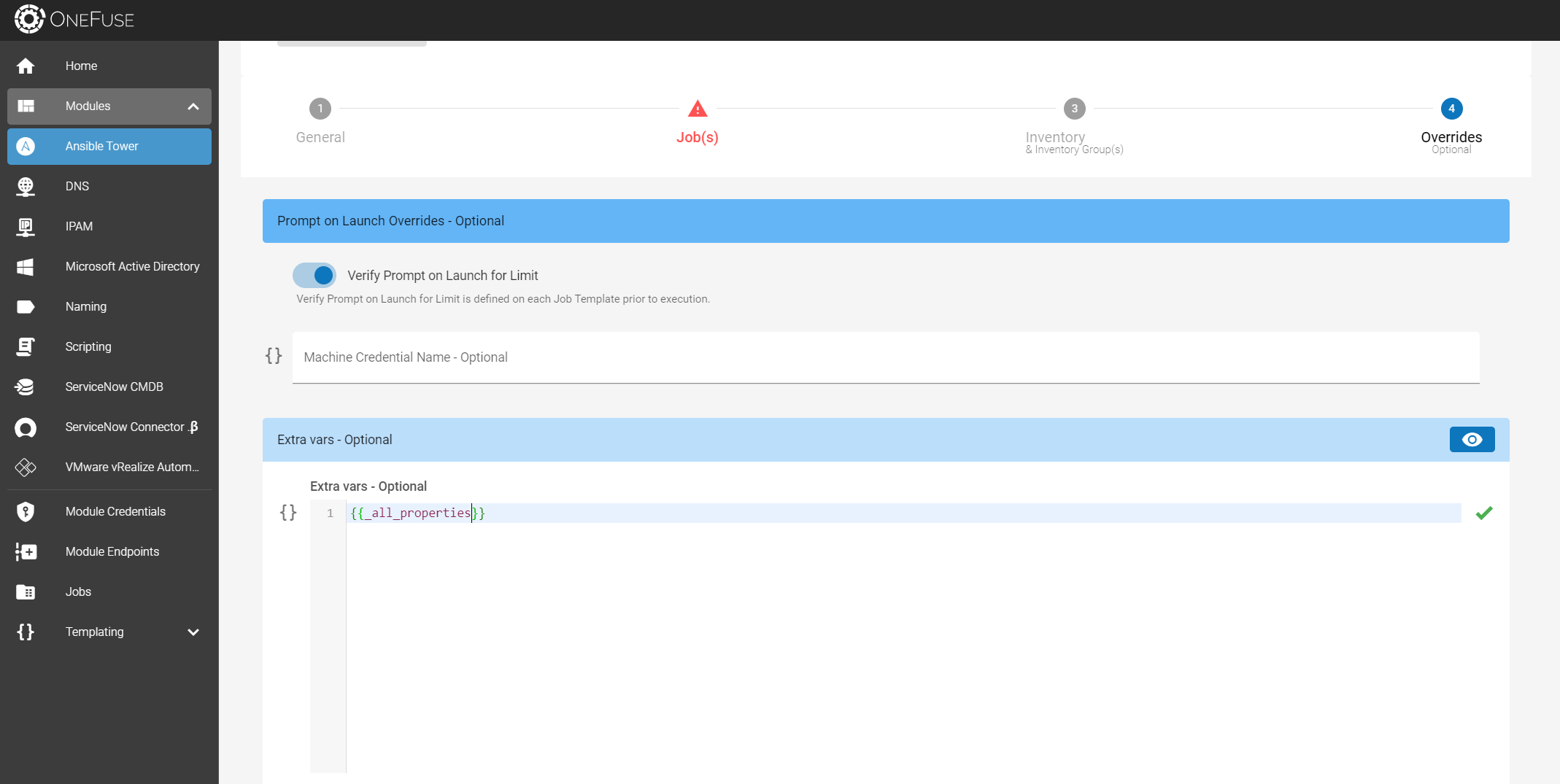
The properties will be added to Ansible Playbooks as variables for execution.
---
## Getting a substring
Use the template below to create a substring, essentially a string that exists within another string. It is often referred to as "slicing".
```jinja2
{# Template #}
string[start:end:step]
{# Get all characters from index start to end-1 #}
string[start:end]
{# Get all characters from index start to the end of the string #}
string[start:]
{# Get all characters from the beginning of the string to end-1 #}
string[:end]
{# Get all characters from start to end-1 discounting every step character #}
string[start:end:step]
```
- `start` is the first index number where the slice starts (inclusive)
- `end` is the second index number where the slice ends (exclusive)
- `step` is every 'step' character after the current character to be included. The default value is 1.
If the variable name does not exist in a Property Set and you are attempting a Template Preview the variable with substring/slice, the render will fail.
### Get the first 5 characters of a string
```jinja2
{% set foo = "Hello World" %}
{{ foo[0:5] }}
=> Hello
```
### Get the last character of the string
```jinja2
{% set foo = "Hello World" %}
{{ foo[-1] }}
=> d
```
### Get all the characters except the last 4 character and the 1st character
```jinja2
{% set foo = "Hello World" %}
{{ foo[1:-4] }}
=> ello W
```
### Get every other character
```jinja2
{% set foo = "Hello World" %}
{{ foo[::2] }}
=> HloWrd
```
---
## Import custom filters
### Add custom filters
1. Log in to the target OneFuse appliance using a SCP utility (such as WinSCP, FileZilla, Cyberduck, etc).
2. Create a new `.py` file named **jinja2_custom_filters.py** in the directory: `/var/opt/proserve`
- ***Example*** `/var/opt/proserve/jinja2_custom_filters.py`
The filename has to be **jinja2_custom_filters.py** with the Class: `Jinja2CustomFilters`
3. Modify the starter file below to create your custom filter(s).
```python
# Filename: jinja2_custom_filters.py
# This example adds a new custom filter called "test_customer_filter"
# The "test_customer_filter" prefixes a variable with "Test-"
# If the variable is undefined/null, the variable returns as "Test"
from jinja2 import evalcontextfilter
from jinja2.exceptions import FilterArgumentError
from jinja2 import Undefined
import random
from utilities.logger import ThreadLogger
import json
logger = ThreadLogger(__name__)
class Jinja2CustomFilters:
def register(self, environment):
logger.info("Registering Customer Custom Filters")
environment.filters["test_customer_filter"] = self.test_customer_filter
@evalcontextfilter
def test_customer_filter(self, context, value):
if isinstance(value, Undefined) or not value or value is None:
return f"Test"
return f"Test-{value}"
```
4. Restart the OneFuse appliance:
1. SSH to the target OneFuse appliance:
- `ssh` as the `root` user and switch to root user with `sudo su -` and then run required commands.
2. Run command:
```bash
service httpd restart
```
5. Use and test the new filter via UI or API:
```jinja2
{# Example uses "test_customer_filter" #}
{{ "ABC" | test_customer_filter }}
=> Test-ABC
```
### Add additional custom filters
Additional filters are added to **jinja2_custom_filters.py**. See the sample file below:
```python
# Filename: jinja2_custom_filters.py
# This example adds a new custom filter called "test_customer_filter"
# The "test_customer_filter" prefixes a variable with "Test-"
# If the variable is undefined/null, the variable returns as "Test"
from jinja2 import evalcontextfilter
from jinja2.exceptions import FilterArgumentError
from jinja2 import Undefined
import random
from utilities.logger import ThreadLogger
import json
logger = ThreadLogger(__name__)
class Jinja2CustomFilters:
def register(self, environment):
logger.info("Registering Customer Custom Filters")
environment.filters["test_customer_filter"] = self.test_customer_filter
#New Filter
environment.filters["test_customer_filter2"] = self.test_customer_filter2
@evalcontextfilter
def test_customer_filter(self, context, value):
if isinstance(value, Undefined) or not value or value is None:
return f"Test"
return f"Test-{value}"
#New Filter
@evalcontextfilter
def test_customer_filter2(self, context, value):
if isinstance(value, Undefined) or not value or value is None:
return f"Test2"
return f"Test2-{value}"
```
Remember to restart the OneFuse appliance.
### Add Jinja2 extensions
1. Find a `jinja2` extension from [pypi.org](https://pypi.org).
2. Follow `pip install` instructions from the extension on the OneFuse appliance.
3. Call the extension into the **jinja2_custom_filters.py** file.
See the sample file below that uses the [jinja2-time](https://pypi.org/project/jinja2-time/) extension as an example:
```python
# Filename: jinja2_custom_filters.py
# This example calls the jinja2-time extension
from jinja2 import evalcontextfilter
from jinja2.exceptions import FilterArgumentError
from jinja2 import Undefined
import random
from utilities.logger import ThreadLogger
import json
logger = ThreadLogger(__name__)
class Jinja2CustomFilters:
def register(self, environment):
logger.info("Registering Customer Custom Filters")
environment.filters["test_customer_filter"] = self.test_customer_filter
# New Extension - Jinja2 Time
environment.add_extension('jinja2_time.TimeExtension')
@evalcontextfilter
def test_customer_filter(self, context, value):
if isinstance(value, Undefined) or not value or value is None:
return f"Test"
return f"Test-{value}"
```
Remember to restart the OneFuse appliance to use the new filters.
```jinja2
{# Example from jinja2-time #}
{% now 'local' %}
```
---
## Template Tester
Template Tester API: [OneFuse Templating](https://app.swaggerhub.com/apis-docs/cloudbolt/OneFuse/)
User needs to have one of the following Workspace Roles to use Template Tester: Admin, Member, or Viewer.
### Access Template Tester via OneFuse UI
1. Log in to the OneFuse UI
2. Select **Templating** > **Template Tester** from the left navigation menu
#### Template Tester: Template tab
The **Template** tab allows Template Previews for the **Template** defined using the **Active Property Set**. This assumes at least one Property Set exists on this OneFuse Instance.
1. Provide a template in the **Template** field.
2. Select the eye icon button on the **Template** field to view the rendered result with the Active Property Set.
**Example Template:**
```jinja2
{{ OS | first | lower }}{{ Environment | first | lower }}{{ Application | first | lower }}
```
**Example Template Render:**
```jinja2
{# Active Property Set: prod #}
{#
{
"Environment": "production",
"OS": "Linux",
"Application": "Web Servers"
}
#}
=> lew
```
#### Template Tester: Override tab
The **Override** tab allows you to provide custom properties that will render for the **Template** provided in the **Template** tab.
1. Provide a template in the **Template** field.
2. Provide custom properties in JSON format in the **Custom Properties** field.
3. Select the eye icon button on the **Custom Properties** field to view the rendered result.
**Example Template:**
```jinja2
{{ OS | first | lower }}{{ Environment | first | lower }}{{ Application | first | lower }}
```
**Example Template Render:**
```jinja2
{# Custom Properties #}
{#
{
"Environment": "dev",
"OS": "Windows",
"Application": "Database"
}
#}
=> dwd
```
### Get undeclared template variables
Get a return array of all templated variables that were not renderable (for example, a property did not have a value) within the Template.
Refer to the following OneFuse API: [Templating: templateVariables POST](https://app.swaggerhub.com/apis-docs/cloudbolt/OneFuse/)
```jinja2
{# Example POST BODY #}
{
"template": "template {{ Environment }} {{ Application.nameApp }}"
}
{# Example POST RESPONSE #}
[
"Environment",
"Application.nameApp"
]
```