# Property Sets
> OneFuse Property Sets overview
---
Site [llms.txt](/llms.txt)
---
Property Sets are typically grouped in one of two main functional areas:
- Property Sets for [modeling OneFuse Policies](#property-sets-for-modeling-onefuse-policies)
- Used for [Template Previews](#template-preview-results) in the OneFuse platform while building Policies with the [Active Property Set](#active-property-set).
- Ability to validate the result of a [Policy](/docs/onefuse/concepts/policy/) while building it, giving the user real-time feedback on exactly how the Policy will behave with a certain set of inputs.
- Property Sets for [Property Toolkit features](#property-sets-for-property-toolkit-features)
- Properties get applied to the resource being provisioned as configuration. Each property in these Property Sets is used to drive the outcomes of the resource that we are building.
- Some properties may be used to name the resource, determine the number of CPUs, or place a virtual machine in a particular cluster. Almost any aspect of the provisioned resource is capable of being influenced by these Property Sets.
- Template both `key:value` of the property
- Call other Property Sets within the parent Property Set
## Managing Property Sets
[Workspace Role](/docs/onefuse/getting-started/roles-and-permissions/#workspace-roles) needed to manage Property Sets: **Admin** or **Member**.
### Create a Property Set
1. Select **Templating** > **Property Set** from the left navigation menu.
1. Select the [**+ Create**] button from the Property Sets datatable.
1. Fill out the [Property Set form](#property-set-form).
- Use a Property Set to preview templating when set as an [Active Property Set](#active-property-set) and more:
- [Property Sets for Property Toolkit features](#property-sets-for-property-toolkit-features)
- [Property Sets for modeling OneFuse Policies](#property-sets-for-modeling-onefuse-policies)
- [Property Sets for Upstream Providers](#property-sets-for-upstream-providers)
1. Select **Create**.
#### Recommendations for Property Set names
We recommend establishing a naming standard for how you want to name your Property Sets. The standardized naming of Property Sets will facilitate easier organization and search of existing Property Sets, as well as, make it straightforward when calling Property Sets from an Upstream Provider.
Considerations:
- Type of Property Set: Consider prefixing Property Sets with an identifier for template Property Sets or Property Toolkit (ptk) Property Sets. These are two very different use cases and can help differentiate Property Sets in the UI.
- `template_east_dev_apache`
- `ptk_app_apache`
- Purpose of Property Set: This helps to further organize Property Sets based on the overarching purpose for the Property Set. For example, the Property Set could define how to deploy an application, or an OS.
- `ptk_app_apache`, `ptk_app_sql`
- `ptk_os_windows2016`, `ptk_os_centos7`
- Property Set name typographical convention:
- `camelCase`
- `all_lower_underscores`
### Update a Property Set
Update the Property Set to change the name or properties.
1. Select **Templating** > **Property Set** from the left navigation menu.
1. Find the Property Set to update and select the pencil icon button.
1. Edit the information on the [Property Set form](#property-set-form).
1. Select **Update**.
### Delete a Property Set
1. Select **Templating** > **Property Set** from the left navigation menu.
1. Find the Property Set and select the trash can icon button.
1. Confirm by selecting the [**Delete**] button.
### Property Set form
| Field | Description |
| --- | --- |
| **Property Set Name** | Enter a name for this Property Set. |
| **Description** | Optional description for this Property Set. |
| **Property Set** | Valid `JSON` format of a property stack. |
## Active Property Set
The Active Property Set enables users to select a specific Property Set to render the template preview results of templatable fields before executing a OneFuse [Policy](/docs/onefuse/concepts/policy/).
Initially, the Workspace will not have any Property Sets defined.
### Get started
1. [Create a Property Set](#create-a-property-set) if none exist or when desired.
The first Property Set (alphabetical order ascending by name) will be selected by default.
In a future release, we will retain the user's selection of the Active Property Set to persist during their session.
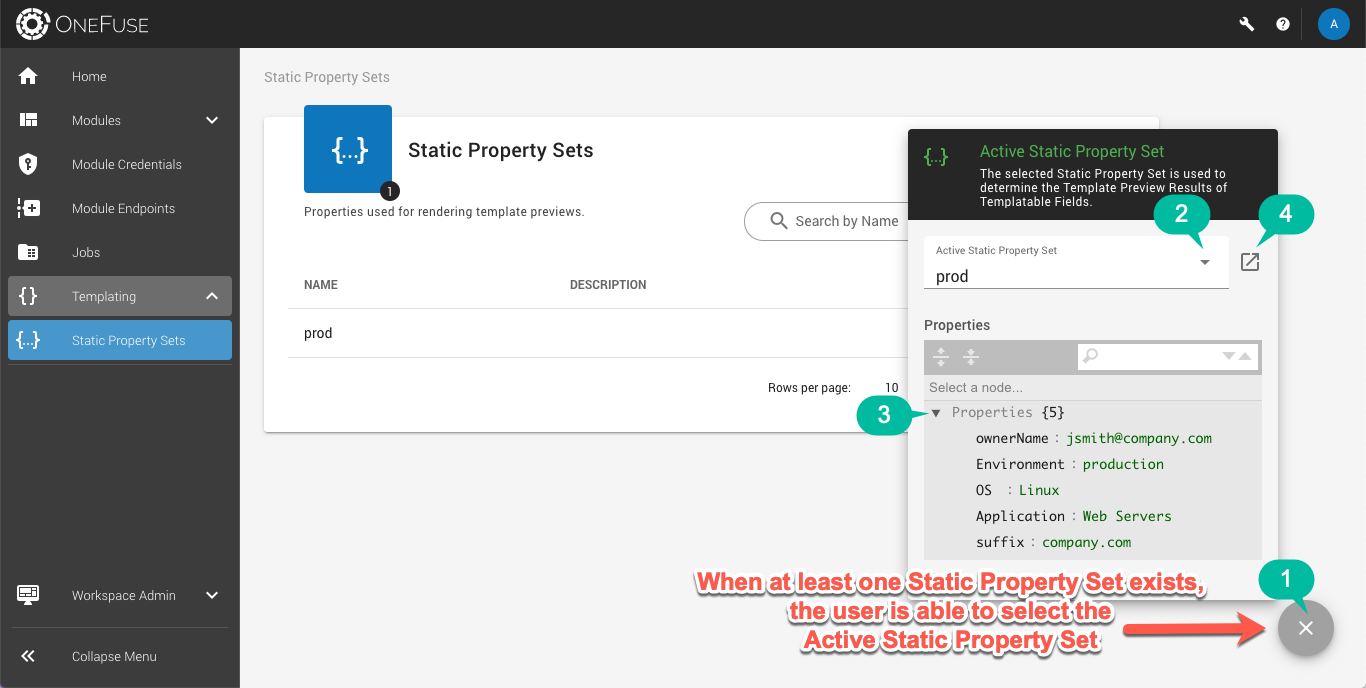
| Number | Description |
| --- | --- |
| 1 | Select the icon to open and close the Active Property Set |
| 2 | Select the desired Active Property Set from a list of existing Property Sets |
| 3 | View the Property Set properties |
| 4 | Select the button to open the Property Set in a new browser window tab |
### Templatable fields
All Templatable fields on forms, meaning the user can apply optional Templating to dynamically set the value of the field, is denoted by the code braces icon.
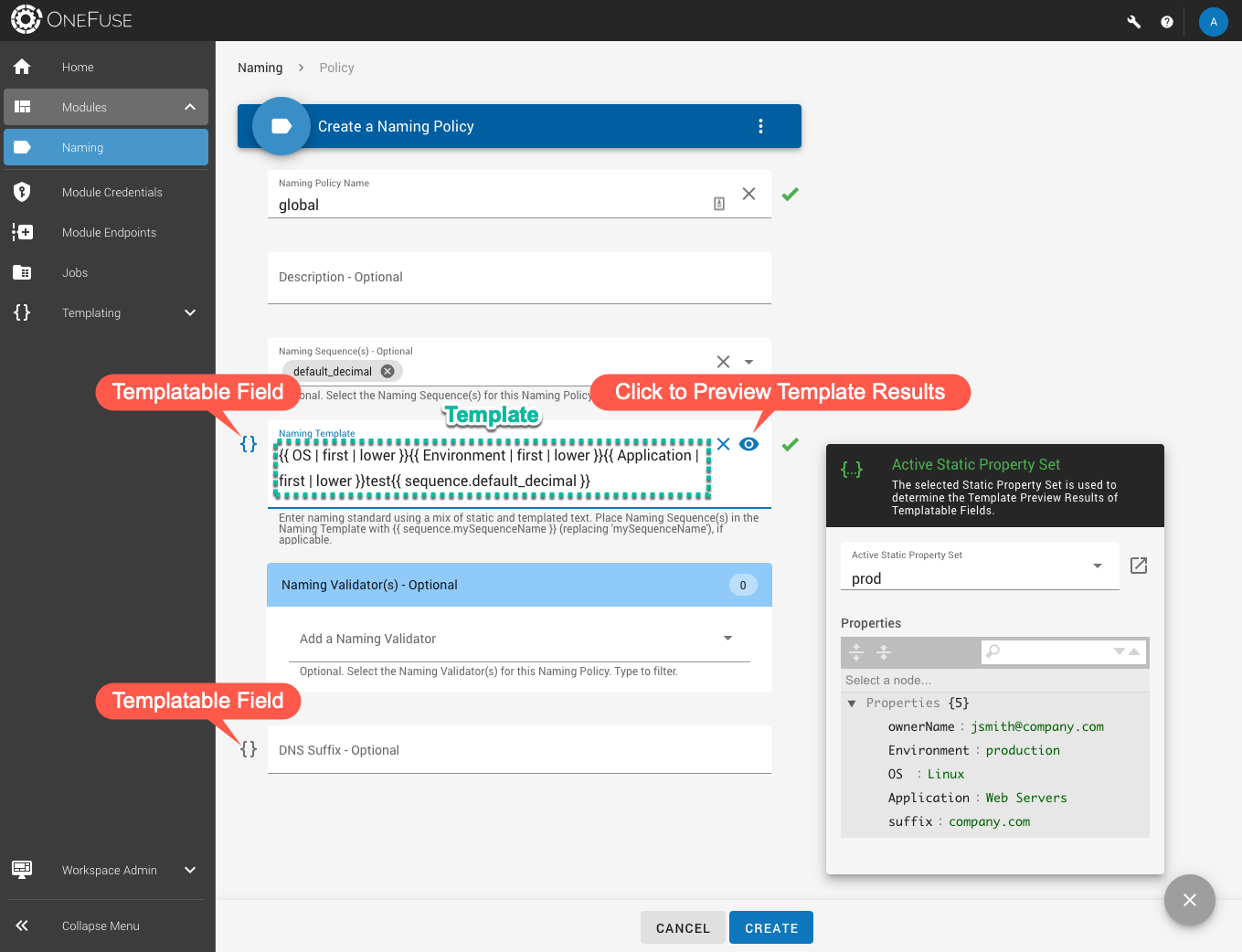
Refer to our [Templating guide](/docs/onefuse/templating/) to learn more.
### Template preview results
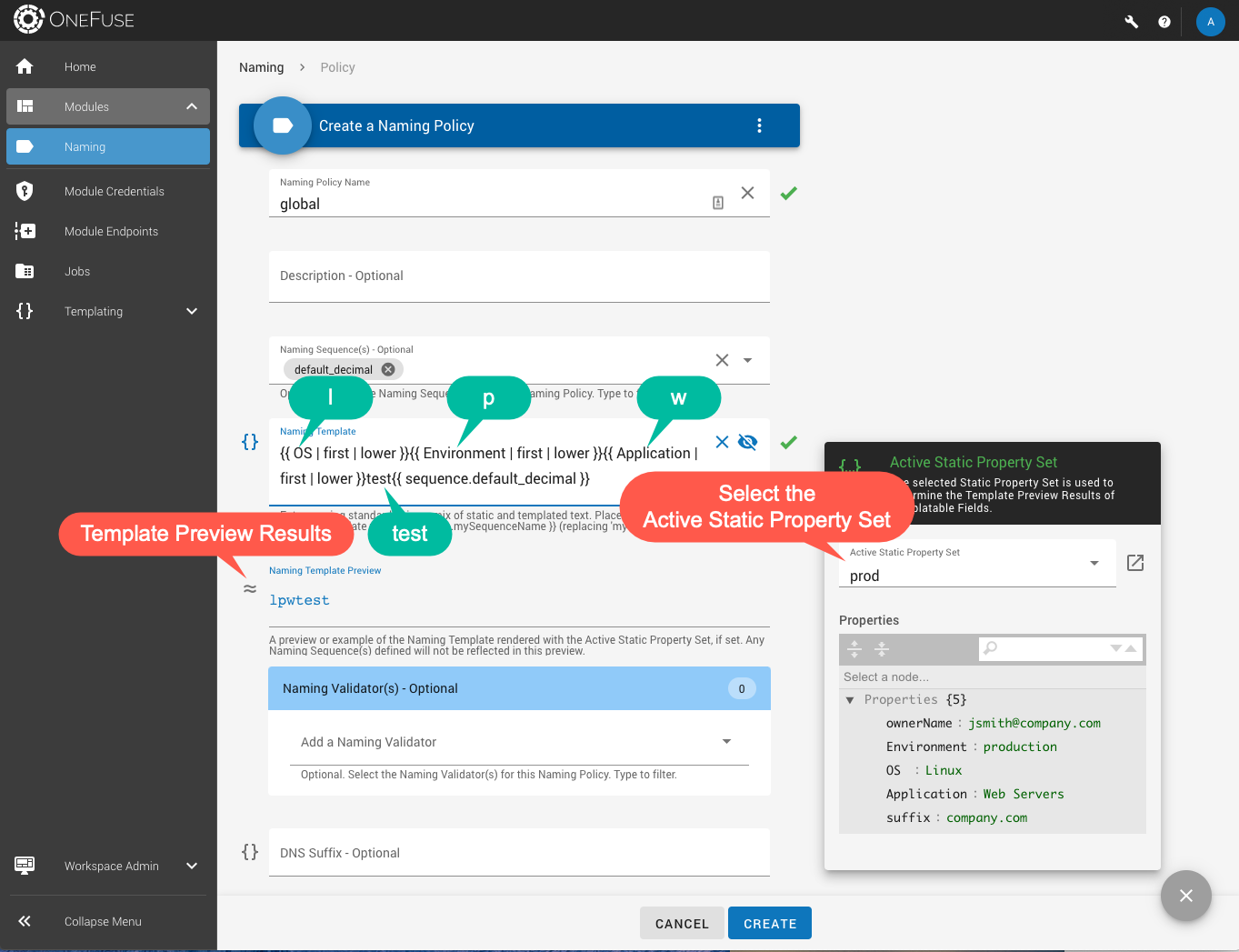
The Active Property Set will be used to render the template preview results for the particular field.
The user can select the eye icon to show the rendered template.
## Property Sets for Property Toolkit features
### `key:value` of properties are templatable
Prior to OneFuse v1.4, Property Sets used to be called Static Property Sets since its properties could not be templated. It mainly served to model OneFuse Policies by enabling easy Template Previews and to pass static properties to Upstream Providers to use for resources.
Starting in OneFuse v1.4, both the `key` and `value` of a property is templatable and can be utilized to dynamically render properties and call other Property Sets.
#### Recursion
Templatable `key:value` within a Property Set can result in nested recursive renderings of other dynamic properties. By default, the max limit of recursive rendering is set to 3.
#### Duplicate key behavior
In the event of a rendered property key that already exists, it will overwrite the previous value with the latest rendered value.
```jinja2
{# Notice that the property key 'foo' exists in all but one Property Sets below #}
{# Child Property Set Properties for app_apache #}
{
"foo": "Hello",
"application": "apache",
"nameApp": "apa"
}
{# Child Property Set Properties for loc_atl #}
{
"foo": "Hello World",
"location": "atlanta",
"nameLoc": "atl"
}
{# Child Property Set Properties for env_prod #}
{
"environment": "prod",
"nameEnv": "prod"
}
{# Parent Property Set Properties #}
{
"foo": "bar",
"{{ Environment }}": "1FPS_Environment|env_{{Environment}}",
"1FPS_001Application": "app_{{ Application }}",
"1FPS_002Location": "loc_{{ Location }}"
}
{# Example templateProperties combined with parent Property Set #}
{
"application": "apache",
"location": "atl",
"environment": "prod"
}
{# Resolved parent Property Set with templateProperties above #}
{
"foo": "Hello World",
"Environment": "prod",
"Application": "apache",
"Location": "atl",
"prod": {
"environment": "prod",
"nameEnv": "p"
},
"application": "apache",
"nameApp": "apa",
"location": "atlanta",
"nameLoc": "atl"
}
{# 'foo' is now 'Hello World' #}
```
### Call Property Set(s) within a parent Property Set
The example below assumes at least one Property Set exists and the following properties are added to the "parent" Property Set.
**Call a child Property Set and merge it into the parent Property Set:**
| Property Name Format | Property Value Format |
| --- | --- |
| `1FPS_` | Templatable. Name of the Property Set. |
Replace `` with a unique, user-defined friendly label.
For example:
```jinja2
{# is 001Environment #}
{# Property Set name starts with 'propertyset_' #}
{# Property Set name will render 'Environment' variable that is passed in #}
"1FPS_001Environment": "propertyset_{{ Environment }}"
{# When Environment property is passed with a value (e.g. dev or test) it will call the Property Set: propertyset_dev #}
```
**Call a child Property Set and merge its properties within a specific key of the parent Property Set:**
| Property Name Format | Property Value Format |
| --- | --- |
| `` | `1FPS_\|` |
- Replace `` with a unique, user-defined friendly label.
- Replace `` with the name of the desired Property Set.
For example:
```jinja2
{# is EnvironmentProps #}
{# is 001Environment #}
{# Property Set name starts with 'propertyset_' #}
{# Property Set name will render 'Environment' variable that is passed in #}
"EnvironmentProps": "1FPS_Environment|propertyset_{{ Environment }}"
{# When Environment property is passed with a value (e.g. dev or test) it will call the Property Set: propertyset_dev #}
```
#### CustomID
**CustomID** refers to a user specified text string to identify and can set an order of precedence for execution when calling multiple Property Sets for the "parent" OneFuse Property Set.
Replace `` with a unique custom identifier:
- Format is alphanumeric characters only `A-Z, a-z, 0-9`. No spaces, underscores, hyphens, nor special characters.
- Must be unique across the entire Property Set properties stack.
```yaml
Application
Environment
Location
```
**Specify sorting with CustomID:**
When executing multiple different OneFuse Module's Policies in the same EBS State, prefix the `` with a numeric value (for example, 001, 002, etc).
The `` is sorted prior to executing the OneFuse module's policies.
```yaml
001Location
002Environment
003Application
```
#### Example parent Property Set
Example parent Property Set's properties that call 2 child Policy Sets.
```json
{
"foo": "bar",
"1FPS_001Environment": "propertyset_{{ Environment }}",
"ApplicationProps": "1FPS_App|propertyset_{{ Application }}"
}
```
### Override default settings via `customer_settings.py`
The following can be modified via the `customer_settings.py` file on the OneFuse appliance.
1. SSH to the target OneFuse appliance
- `ssh` as the `root` user and switch to root user with `sudo su -` and then run required commands.
1. Go to the following directory
```bash
cd /var/opt/cloudbolt/proserve/
```
1. Add the following line to the `customer_settings.py` file
```python
# Override default prefix for calling Property Sets
#Replace "1FPS_" with the desired prefix
ONEFUSE_DYNAMIC_PROPERTY_SET_PREFIX = "1FPS_"
# Override default max nested loop renders within Property Sets
#Replace 3 with the desired max recursion limit
ONEFUSE_DYNAMIC_PROPERTY_SET_RECURSION_LIMIT = 3
```
1. Save the file
---
## Property Sets for modeling OneFuse Policies
Create and use Property Sets for previewing [Templates](/docs/onefuse/concepts/templating/) in OneFuse Policies.
### Best practices
When creating Property Sets for Template Preview purposes on a OneFuse Policy, the easiest way to get started is to start with the properties required for each Policy that you are building. As you add additional OneFuse Policies and use cases to your environment, you can continue to build these Property Sets out to address the new use cases.
### Examples
#### Property Sets for Naming Policy
I want to create a Naming Policy that asks for **Location**, **Environment**, and **Application** for my generated name. Several different combinations are shown in the table below. While you could create a Property Set for each of the possible combinations for the properties listed below, usually 2 to 3 Property Sets are suitable to test your OneFuse Policies.
| Location | Environment | Application |
| --- | --- | --- |
| east | dev | apache |
| west | test | sql |
The result of two the combinations from above could look like the following:
##### Property Set: east_dev_apache
Property Set with name **east_dev_apache** and the following Properties:
```json
{
"nameLocation": "east",
"nameEnv": "dev",
"nameApp": "apache"
}
```
##### Property Set: west_test_sql
Property Set with name **west_test_sql** and the following Properties:
```json
{
"nameLocation": "west",
"nameEnv": "test",
"nameApp": "sql"
}
```
##### Template Preview Naming Policy
Switch between the **east_dev_apache** and **west_test_sql** as the Active Property Set when previewing template render for the **Naming Template** field on a OneFuse Naming Policy.
```jinja2
{{ nameLocation[0:1] | required('nameLocation is required') }}{{ nameEnv | required('nameEnv is required') }}{{ nameApp[0:2] | required('nameApp is required') }}{{ sequence.mySequenceName }}
{# Property Set: east_dev_apache Template Preview Result #}
edevap
{# Property Set: west_test_sql Template Preview Result #}
wtestsq
```
#### Create Property Sets from a Job
The easiest way to capture the exact state of a particular request would be to create a Property Set from a recently requested OneFuse Policy execution job for a resource.
1. In the OneFuse UI, go to **Jobs.**
1. Select the view button for the Job of interest.
1. From the **Resolved Properties** tab, copy the entire *templateProperties* section to include the leading and trailing curly brackets.
1. Go to **Templating** > **Property Sets** > **[+ Create].**
1. Give the Property Set a name that describes what the data applies to.
1. Paste the copied data from the Job in the **Property Set** field.
---
## Property Sets for Upstream Providers
Create and use Property Sets for [Upstream providers](/docs/onefuse/concepts/upstream-providers/).
### Recommended Property Set format for Upstream Providers
The following structure is recommended to house properties for multiple Upstream Providers in one Property Set. When referencing properties that are specific to a particular Upstream Provider, place those properties inside of Upstream Provider-specific sub-objects.
```json
{
// Properties defined at a Global Level
"ansible":{ // Properties will be used for Ansible Module only (ignored by other Providers)
// Properties
},
"cloudbolt_cmp":{ // Properties will be used for CloudBolt CMP only (ignored by other Providers)
// Properties
},
"python":{ // Properties will be used for Python Module only (ignored by other Providers)
// Properties
},
"vra8":{ // Properties will be used for vRA8 only (ignored by other Providers)
// Properties
},
"vra7":{ // Properties will be used for vRA7 only (ignored by other Providers)
// Properties
},
"terraform":{ // Properties will be used for Terraform only (ignored by other Providers)
// Properties
}
}
```