# Module credentials
> Create and manage encrypted, reusable credentials for OneFuse module endpoints
---
Site [llms.txt](/llms.txt)
---
Module Credentials are encrypted and reusable across OneFuse Module Endpoints of the same Endpoint Type.
A Module Credential is a prerequisite to creating [Module endpoints](/docs/onefuse/configure/module-endpoints/) and OneFuse Policies.
| Workspace role | Function(s) |
| --- | --- |
| Admin or Member | Create, update, view and delete Module Credentials |
| Viewer | View Module Credentials |
## Modules list
The following modules utilize Module Credentials:
- [Ansible Tower](/docs/onefuse/configure/modules/ansible-tower/)
- [DNS](/docs/onefuse/configure/modules/dns/)
- [IPAM](/docs/onefuse/configure/modules/ipam/)
- [Microsoft AD](/docs/onefuse/configure/modules/microsoft-active-directory/)
- [Naming](/docs/onefuse/configure/modules/naming/) (when using Validators)
- [Scripting](/docs/onefuse/configure/modules/scripting/)
- [ServiceNow CMDB](/docs/onefuse/configure/modules/servicenow-cmdb/)
- [ServiceNow Connector](/docs/onefuse/configure/modules/servicenow-connector/)
- [VMware Aria Automation](/docs/onefuse/configure/modules/vmware-aria-automation/)
## Access Module Credentials
1. Log in to the OneFuse UI.
2. In the Workspace, select **Module Credentials** from the left navigation menu.
This area will display all active Module Credentials by Endpoint Type.
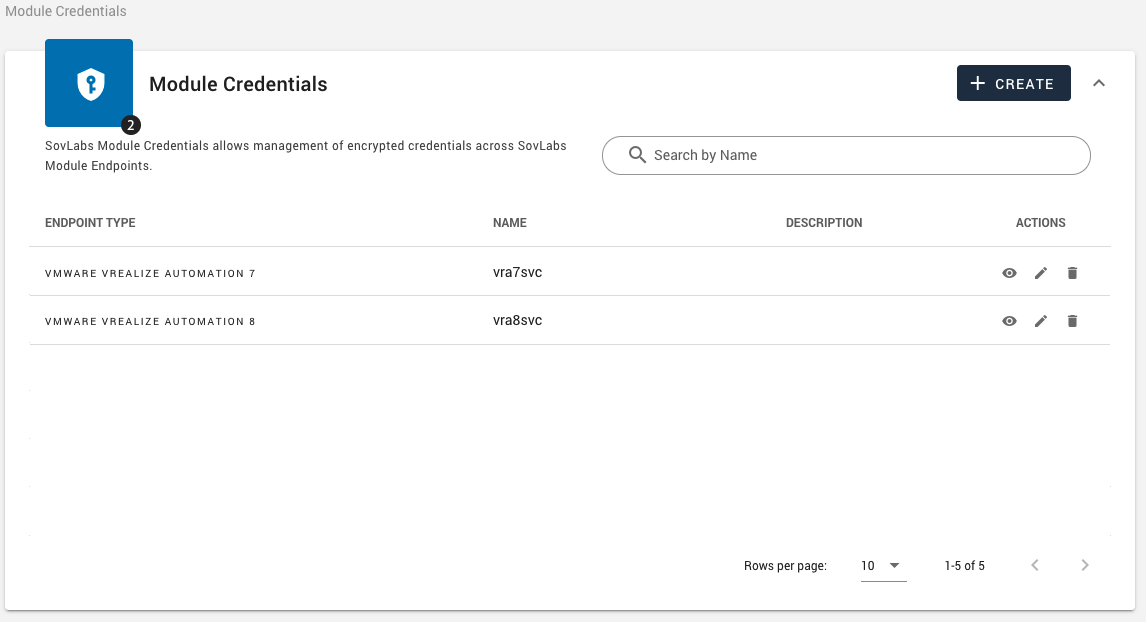
Perform the following from the **Actions** column:
| Action | Workspace role(s) |
| --- | --- |
| View | Admins, Members, or Viewers |
| Edit | Admins or Members |
| Delete | Admins or Members |
## Manage Module Credentials
### Module Credential form
| Field | Description |
| --- | --- |
| **Module Credential Name** | This must be at least three (3) alphanumeric characters/underscores and cannot include spaces nor dashes. |
| **Description** | Optional description for this credential. Shows on the Module Credential dashboard. |
| **Endpoint Type** | Select an Endpoint Type from the dropdown. The Endpoint Types listed here require Credentials in order to connect. |
| **Username/Password** | Enter the username and password associated to the Endpoint Type account (for example, the VMware Aria Automation 8 account). |
| **Refresh Token** | Enter the Refresh Token associated to the Endpoint Type account (for example, the VMware Aria Automation Cloud 8 account). |
### Create a credential
1. Access Module Credentials.
2. From the Module Credentials datatable, select [**+ Create**].
3. Enter the field values on the Module Credential form and select **Create**.
4. Use this Credential for Module Endpoint(s).
| Endpoint type | Username format |
| --- | --- |
| Ansible Tower | Username only (for example, admin) |
| BlueCat | UPN (user@domain) or LDAP depending on configuration |
| Infoblox | UPN (user@domain) |
| Men&Mice Micetro | UPN (user@domain) or AD credentials if connected to AD |
| Microsoft | UPN (user@domain) |
| ServiceNow | UPN (user@domain) |
| SolarWinds | Username only (for example, admin) |
| Target Host (for Scripting Module) | Admin determined credentials, not subject to specific format |
| VMware vRealize Automation 7 | Username only (for example, admin) |
| VMware Aria Automation 8 | Username only (for example, admin) |
### Update a credential
Update a Module Credential to change the Credential Name, Description, Username, and either Update the Password or Keep the existing password.
1. Access Module Credentials.
2. Find the Module Credential to update and select the edit icon.
3. Edit the information on the Module Credential form.
4. Select **Update**.
- To change the password, first select the Update Password toggle. Enter a new password.
### Delete a credential
Module Credentials cannot be deleted if they are tied to a Module Endpoint.
1. Access Module Credentials.
2. Find the Module Credential and select the delete icon.
3. Select [**Delete**] to confirm.