# Server expiration
> Cloud Management Platform (CMP) supports expiring servers and resources, and configuring what happens upon expiration
---
Site [llms.txt](/llms.txt)
---
A server or resource is marked for expiration using the **Expiration Date** parameter.
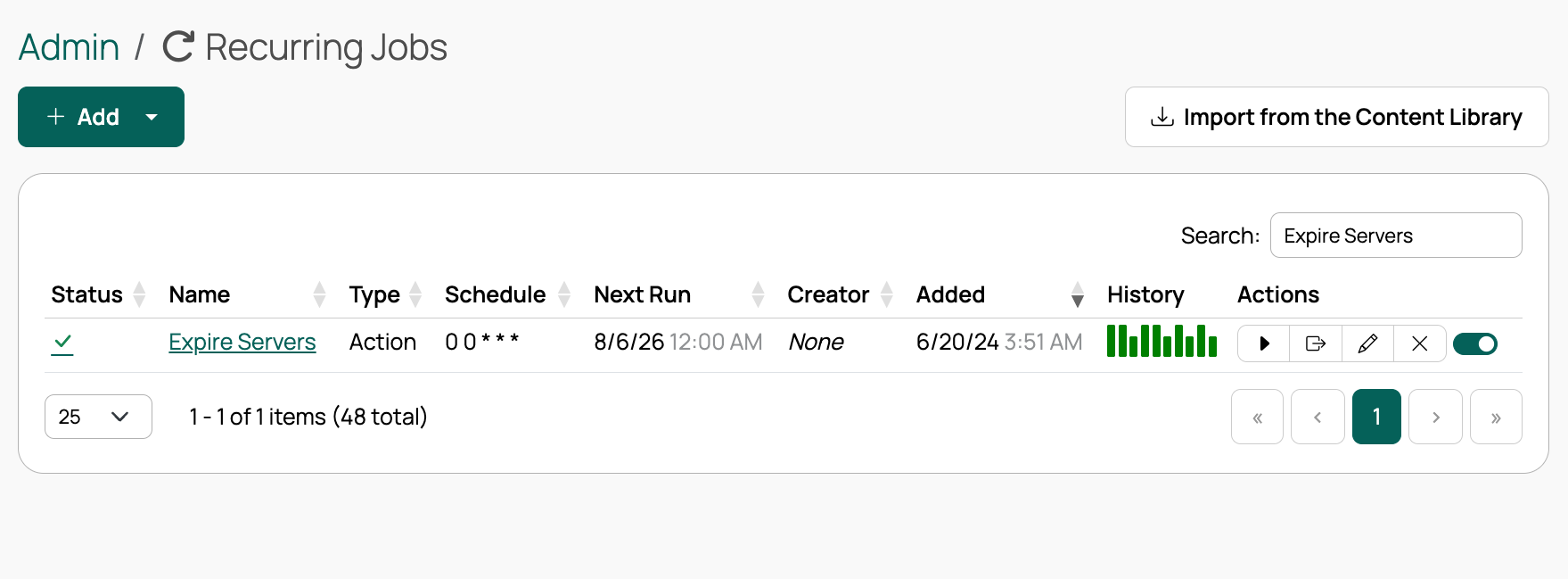
Server expiration is a recurring job (**Admin** > **Recurring Jobs** > **Expire Servers**). By default, the job runs each day at midnight.
The job runs the **Expire Servers** action, which spawns a job and executes any enabled Expire actions.
## How expiration works
To indicate that a server should expire on a particular date, it must have an **Expiration Date** value. This can be provided during provisioning, as described in [Order Form Customization](/docs/cmp/use/blueprints/customize-order-form/order-form-customization/), or added to a server via the **Parameters** tab.
CMP administrators can check for expired servers manually or on a schedule.
## Create expiration actions
Each expiration behavior is a CloudBolt plugin that you add as an orchestration action. Create the actions you need, then enable them in the sections that follow.
To create an expiration action:
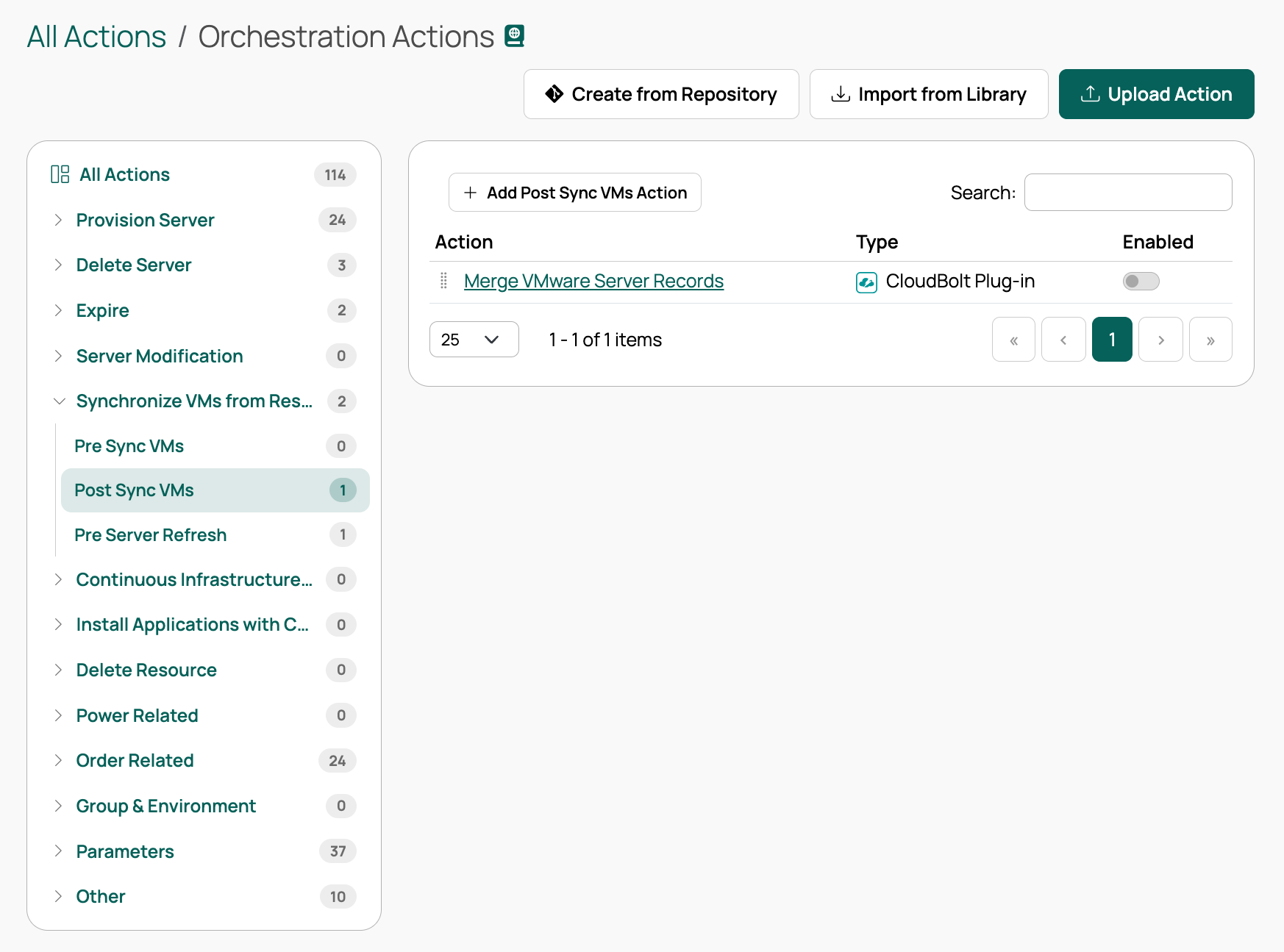
1. Go to **Admin** > **Orchestration Actions**.
1. In the left panel, expand the **Section** and select the **Subsection** listed for the action in the table below.
1. In the right panel, select the subsection's add button, **Add Post Sync VMs Action** or **Add Post-Expire Server Action**, then select **CloudBolt Plug-in** > **Add a new CloudBolt plug-in**.
1. In the form, set **Name** to the action name from the table.
1. Under **File location**, select **Fetch from URL**, then copy the link to the plugin file from the table and paste it.
1. Select **Create**.
| Section | Subsection | Action name | Plugin file |
| --- | --- | --- | --- |
| Synchronize VMs from Resource Handlers | Post Sync VMs | Set Server Expiration Date | [`set_server_expiration.py`](https://raw.githubusercontent.com/CloudBoltSoftware/cloudbolt-forge/refs/heads/master/actions/cloudbolt_plugins/set_server_expiration_date/set_server_expiration.py) |
| Expire | Post-Expire Server | Power Off Expired Servers | [`power_off_expired_servers.py`](https://raw.githubusercontent.com/CloudBoltSoftware/cloudbolt-forge/refs/heads/master/actions/cloudbolt_plugins/power_off_expired_servers/power_off_expired_servers.py) |
| Expire | Post-Expire Server | Power Off Then Delete Expired Servers | [`power_off_then_delete_expired_servers.py`](https://raw.githubusercontent.com/CloudBoltSoftware/cloudbolt-forge/refs/heads/master/actions/cloudbolt_plugins/power_off_then_delete_expired_servers/power_off_then_delete_expired_servers.py) |
## Set a server expiration date
Ensure you have created the [Set Server Expiration Date](#create-expiration-actions) action.
1. Go to **Admin** > **Orchestration Actions**.
1. In the left panel, expand **Synchronize VMs from Resource Handlers** and select **Post Sync VMs**.
1. In the right panel, set **Set Server Expiration Date** to **Enabled**.
1. Select the **Edit** icon.
1. Under **Default value for Days Before Expire**, provide a positive integer.
This is the number of days after today that servers are set to expire.
1. Select **Save**.
## Power off expired servers
Ensure you have created the [Power Off Expired Servers](#create-expiration-actions) action.
1. Go to **Admin** > **Orchestration Actions**.
1. In the left panel, expand **Expire** and select **Post-Expire Server**.
1. In the right panel, set **Power Off Expired Servers** to **Enabled**.
## Delete expired servers
Ensure you have created the [Power Off Then Delete Expired Servers](#create-expiration-actions) action.
1. Go to **Admin** > **Orchestration Actions**.
1. In the left panel, expand **Expire** and select **Post-Expire Server**.
1. In the right panel, set **Power Off Then Delete Expired Servers** to **Enabled**.
1. Select the **Edit** icon.
1. Set **Default value for Cb Hostname** to an appropriate value.
1. Set **Default value for Days Before Delete** to a positive integer.
1. Set **Default value for Days Before Poweroff** to a positive integer.
1. Select **Save**.
## Inform owners about expired servers
1. Go to **Admin** > **Orchestration Actions**.
1. In the left panel, expand **Expire** and select **Pre-Expire Server**.
1. In the right panel, set **Email Owners of Expired Servers** to **Enabled**.
## Check for expired servers
1. Go to **Admin** > **Recurring Jobs** and search for **Expire Servers**.
1. Set to **Enabled** to run automatically on schedule, or select **Run** to run the job immediately.