# T-shirt sizing for VMs
> Provide friendly compute sizing options when ordering servers
---
Site [llms.txt](/llms.txt)
---
Use [preconfigurations](/docs/cmp/use/servers/preconfigurations/) to bundle a group of options into a single choice on the order form. This lets you offer a friendly, technology-agnostic set of sizes (such as small, medium, and large) that align with your corporate standards for server ordering.
Different resource handlers use different size parameter names: AWS uses `instance_type`, Azure uses `node_size`, GCP uses `gcp_node_size`, and vCenter uses `cpu_cnt`, `mem_size`, and `disk_size`. The vCenter parameters are built in. The AWS, Azure, and GCP parameters are created when the matching resource handler is configured, so they appear in a preconfiguration's **Custom fields** list only after that handler exists.
## AWS instance types
Suppose you want to offer Small, Medium, and Large sizes across all environments, but AWS exposes dozens of instance types. The goal is consistent naming sizes across AWS, vCenter, and other clouds, so that a "small" in vCenter is as close as possible to a "small" in AWS. For example, your standards might map to AWS instance types as follows:
| Option | AWS instance type |
| --- | --- |
| Small (2 CPU, 4 GB) | `t3.medium` |
| Medium (2 CPU, 8 GB) | `t3.large` |
| Large (4 CPU, 16 GB) | `t3.xlarge` |
### Create the preconfiguration {#create-the-preconfiguration-aws}
1. Go to **Admin** > **Preconfigurations** and select **New preconfiguration**.
1. In the dialog, enter the label **Server Size** and the name `aws_server_size`.
1. Use the **Custom fields** field to select the Instance type (`instance_type`) parameter, then select **Create**.
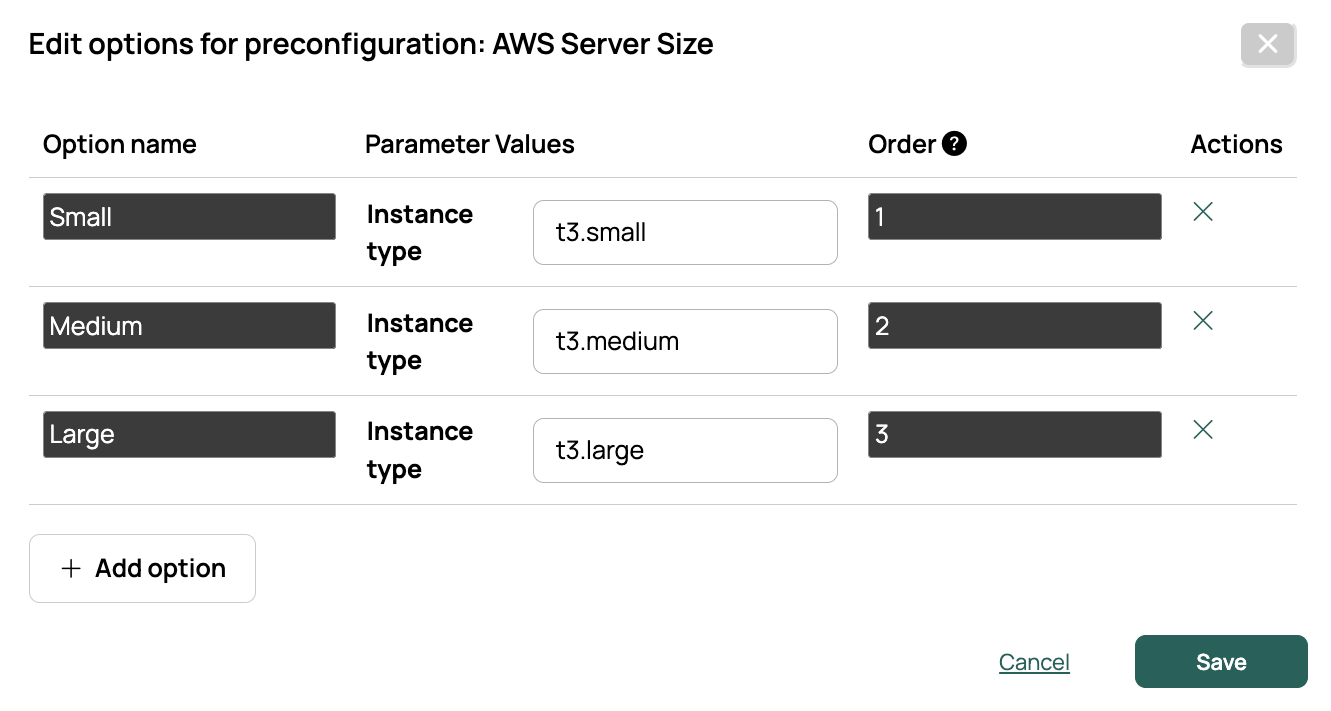
1. Select the Edit icon in the **Options** column for your new preconfiguration, and add options for **Small**, **Medium**, and **Large**.
1. For each option, enter the corresponding instance type and an **Order** value that increases with size (for example, 1, 2, 3), then **Save**.
### Configure the environment {#configure-the-environment-aws}
1. In the AWS environment, open the **Parameters** tab and select **Add**.
1. Find the parameter labeled **Server Size** (name `aws_server_size`) and add it to the environment.
1. Order an ad hoc server to test. You should see a **Server Size** field with Small, Medium, and Large options.
## VMware vCenter
For vCenter, you might standardize on the following t-shirt sizes:
| Small | Medium | Large |
| --- | --- | --- |
| 2 CPUs
4 GB RAM
25 GB disk | 2 CPUs
8 GB RAM
50 GB disk | 4 CPUs
16 GB RAM
100 GB disk |
### Create the preconfiguration {#create-the-preconfiguration-vcenter}
1. Go to **Admin** > **Preconfigurations** and select **New preconfiguration**.
1. In the dialog, enter the label **Server Size** and the name `vcenter_server_size`.
1. Use the **Custom fields** field to select the CPUs (`cpu_cnt`), Mem Size (`mem_size`), and Disk Size (`disk_size`) parameters, then select **Create**.
1. Select the Edit icon in the **Options** column for your new preconfiguration, and add options for **Small**, **Medium**, and **Large**.
1. For each option, enter the corresponding CPU count, memory (GiB), and disk (GiB), and an **Order** value that increases with size (for example, 1, 2, 3), then **Save**.
### Configure the environment {#configure-the-environment-vcenter}
1. In the vCenter environment, open the **Parameters** tab and select **Add**.
1. Find the parameter labeled **Server Size** (name `vcenter_server_size`) and add it to the environment.
1. Order an ad hoc server to test. You should see a **Server Size** field with Small, Medium, and Large options.
## Azure node sizes
Azure is similar to the [AWS example](#aws-instance-types), with one difference: on the standard order form, Azure node sizes are generated parameters determined by the selected storage type. Determine your standard sizes, verify the storage type required for each node size, then create the preconfiguration.
### Disable the generated parameter options
1. Go to **Admin** > **Orchestration Actions** and find the **[Generated Parameter Options](/docs/cmp/configure/order-forms-and-pricing/parameters/generated-options/)** hook point under the **Parameters** category.
1. Disable the two actions that regenerate these parameters:
- **List available azure node sizes based on storage type** (controls Node Size, `node_size`)
- **List Azure Storage Type options** (controls Storage type, `storage_account_type_arm`)
### Create the preconfiguration {#create-the-preconfiguration-azure}
1. Go to **Admin** > **Preconfigurations** and select **New preconfiguration**.
1. In the dialog, enter the label **Server Size** and the name `azure_server_size`.
1. Use the **Custom fields** field to select the Node Size (`node_size`) and Storage type (`storage_account_type_arm`) parameters, then select **Create**.
1. Select the Edit icon in the **Options** column for your new preconfiguration, and add options for **Small**, **Medium**, and **Large**.
1. For each option, enter the corresponding node size and storage type, and an **Order** value that increases with size (for example, 1, 2, 3), then **Save**.
### Configure the environment {#configure-the-environment-azure}
1. In the Azure environment, open the **Parameters** tab and select **Add**.
1. Find the parameter labeled **Server Size** (name `azure_server_size`) and add it to the environment.
1. Order an ad hoc server to test. You should see a **Server Size** field with Small, Medium, and Large options.
### Re-enable the generated parameter options
1. Go to **Admin** > **Orchestration Actions** and find the **Generated Parameter Options** hook point under the **Parameters** category.
1. Enable both actions again: **List available azure node sizes based on storage type** and **List Azure Storage Type options**.
## Related
- [Preconfigurations](/docs/cmp/use/servers/preconfigurations/): Define the sizes users choose from.