# AI-built resource handlers
> Use an AI client connected to the Cloud Management Platform (CMP) MCP server to build, test, and install a resource handler for a platform without a built-in CMP handler
---
Site [llms.txt](/llms.txt)
---
The AI client writes code for the platform's REST API and a definition of what the platform supports, and tests both. The result is a custom resource technology that you can add resource handlers for, like any other technology.
An AI-built handler manages virtual machines only. It doesn't support containers or other kinds of workload.
## Before you begin
You need:
- The `resourcehandler::dynamic` feature flag enabled. See [Enable a feature-flagged resource handler](/docs/cmp/configure/infrastructure/resource-handlers/#enable-a-feature-flagged-resource-handler).
- A CMP admin account.
- An AI client [connected to the CMP MCP server](/docs/cmp/developer-resources/mcp/server/) with the `write` scope.
- A platform with a REST API that authenticates with one identity and one secret, such as a user and password, an API token ID and secret, or a single bearer token or API key. Platforms that need client certificates or a second secret can't be added.
- Network access from CMP to the platform's API.
- A VM template on the platform for the test VM.
## Build a resource handler
The AI client sees your platform's API URL and version, the names of its templates, locations, and networks, the test results, and the code it writes. It never sees credentials.
1. Ask the AI client to build a CMP resource handler for your platform. For example, "Add a CMP resource handler for Acme Cloud."
1. Answer the client's questions:
- The platform's version and API URL.
- How the API authenticates, and whether user names include a realm or domain.
- Whether the API uses a self-signed certificate.
- Which level of the platform becomes a CMP environment, such as a cluster or a region. The client lists the choices and recommends one.
- Which capabilities to exclude. By default, the client builds every supported capability.
- How the platform sets a static IP address on a new VM, such as cloud-init or a guest agent.
- Permission for the tests to create and delete VMs named `cbtest-*`.
1. Review the design. It lists each choice you'll see in CMP and any excluded capabilities, with a reason for each. Confirm or change each one. Optional extras are listed separately, and each is added only if you approve it.
1. When the client creates a test resource handler, enter the platform's connection details in CMP.
Never give passwords, tokens, or keys to the AI client.
1. Go to **Admin** > **Resource Handlers** and open the test handler the client created, such as **Acme Cloud test**.
1. On the **Overview** tab, select **Edit Credentials**.
1. Enter the endpoint and credentials, then save.
1. Choose which test groups to run, such as lifecycle, disks, or snapshots. The client runs connection and discovery first, then asks which template, location, and network the test VM uses. To test static IP addresses, give it a free IP address on that network with its netmask and gateway.
The tests run as a CMP job. They create one VM named `cbtest--`, and always delete it. No other VMs are changed. When a check fails, the client fixes the code and runs the tests again from the failed check.
1. Read the client's final report. It repeats the design, explains what changed during testing, and lists any features the tests didn't exercise, and why. The client also removes the test resource handler.
To change a custom technology later, ask the AI client. It reads the stored code and definition, changes them, and runs the checks again. Existing resource handlers use the new code from their next call.
## Add a resource handler for the new technology
1. Go to **Admin** > **Resource Handlers**, select **Add**, then select the new technology. By default, it's under **Private Cloud**.
1. Enter the platform's connection details, then select **Continue**.
1. Enter a **Name** and import the locations you need. CMP creates one environment for each location. You can also import them later from the handler's locations tab, such as **Clusters**.
1. Select **Done**.
Test new environments before making them available to users.
## Manage custom technologies
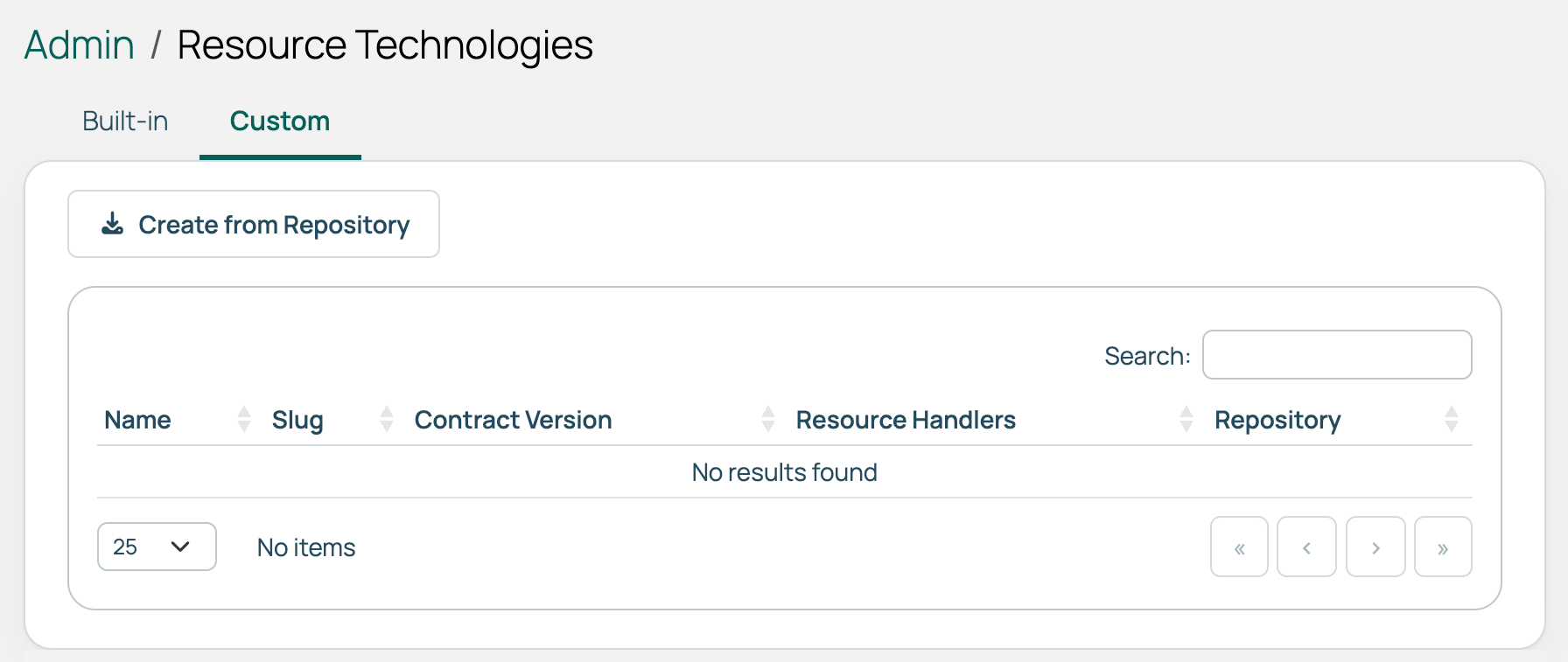
Go to **Admin** > **Resource Technologies**. The page has two tabs:
- **Built-in:** technologies that ship with CMP, including [Proxmox VE](/docs/cmp/configure/infrastructure/resource-handlers/proxmox-ve/). These can't be edited.
- **Custom:** technologies built with an AI client or created from a repository.
Open a technology to see its tabs:
| Tab | Description |
| --- | --- |
| **Overview** | Name, slug, contract version, global ID, and the resource handlers that use it. A **Needs regeneration** badge means CMP no longer supports the contract version the code was written for. CMP doesn't load the technology until an AI client rebuilds it. |
| **Code** | The technology's Python code. Select **Save Code** to save changes. CMP runs the same checks as the AI client's tools, and doesn't save the code if any check finds an error. |
| **Repository** | Push the technology to a source code repository and refresh it from there. Custom technologies only. See [Resource technologies as code](/docs/cmp/configure/integrations/source-code-repository/resource-technologies-as-code/). |
### Add an icon
Until you upload an icon, CMP shows a generic icon for the technology. To upload one, open the technology and select the pencil icon next to **Icon** on the **Overview** tab. The icon must be a PNG or SVG file of 256 KB or less.
### Remove a custom technology
Ask the AI client to remove the technology. CMP doesn't remove it while any of its resource handlers still has environments or servers. Decommission the servers and delete the environments first. Removing the technology also deletes its resource handlers. The technology's parameters are kept.
## Troubleshooting
### "the resourcehandler::dynamic feature is off"
The `resourcehandler::dynamic` feature flag is disabled. [Enable it](/docs/cmp/configure/infrastructure/resource-handlers/#enable-a-feature-flagged-resource-handler), then reconnect the AI client to the MCP server.
### "requires a CloudBolt admin"
The AI client is signed in to CMP with an account that isn't a CMP admin. Reconnect it with an admin account.
### "has no endpoint or credentials yet"
The test resource handler has no connection details. On the handler's **Overview** tab, select **Edit Credentials**, enter them, then ask the AI client to run the tests again.
### "This is read-only because it comes from a Repository"
The technology is linked to a repository, and **Remote Content Mode** prevents editing. Change the technology in the repository, then refresh it in CMP. Alternatively, set **Remote Content Mode** in [Miscellaneous Settings](/docs/cmp/configure/administration/system/miscellaneous-settings/) to allow editing. This setting applies to all content from repositories, not only resource technologies. See [Resource technologies as code](/docs/cmp/configure/integrations/source-code-repository/resource-technologies-as-code/).
## Related
- [MCP server tools](/docs/cmp/developer-resources/mcp/server/tools/#resource-technologies): The tools the AI client calls to build, test, and install a technology.
- [Resource technologies as code](/docs/cmp/configure/integrations/source-code-repository/resource-technologies-as-code/): Keeping custom technologies in a GitHub or GitLab repository.