# Okta identity provider
> Set up single sign-on (SSO) for Cloud Management Platform (CMP) using Okta
---
Site [llms.txt](/llms.txt)
---
## Before you begin
- Complete [Set up SSO and SAML](/docs/cmp/configure/access-and-security/users/sso-saml/set-up/) and [Configure the identity provider](/docs/cmp/configure/access-and-security/users/sso-saml/configure-identity-provider/).
- Capture the [IdP XML metadata](/docs/cmp/configure/access-and-security/users/sso-saml/configure-identity-provider/#upload-and-download-metadata).
- Create at least one [branded portal](/docs/cmp/configure/administration/system/branded-portals/) for this SSO provider.
- Have an Okta administrator account that can create an application and add users.
- Have an Okta organization.
## Add the Okta SSO provider in CMP
1. Log in to CMP as an administrator.
1. Select **Admin** > **Single Sign-On (SSO)**.
1. Select **Add** > **Okta**.
1. Complete the [SAML settings](/docs/cmp/configure/access-and-security/users/sso-saml/set-up/#saml-settings) form.
You need the **Single Sign-On URL** and **Metadata URL / Entity ID** for the Okta application.
## Create the Okta application
In Okta, make sure you are in the **Admin** menu (`https://.okta.com/admin`).
You must be in the **Classic UI** view in Okta for the following to work. Check your view from the dropdown above the Okta logo.
1. Select the **Applications** tab.
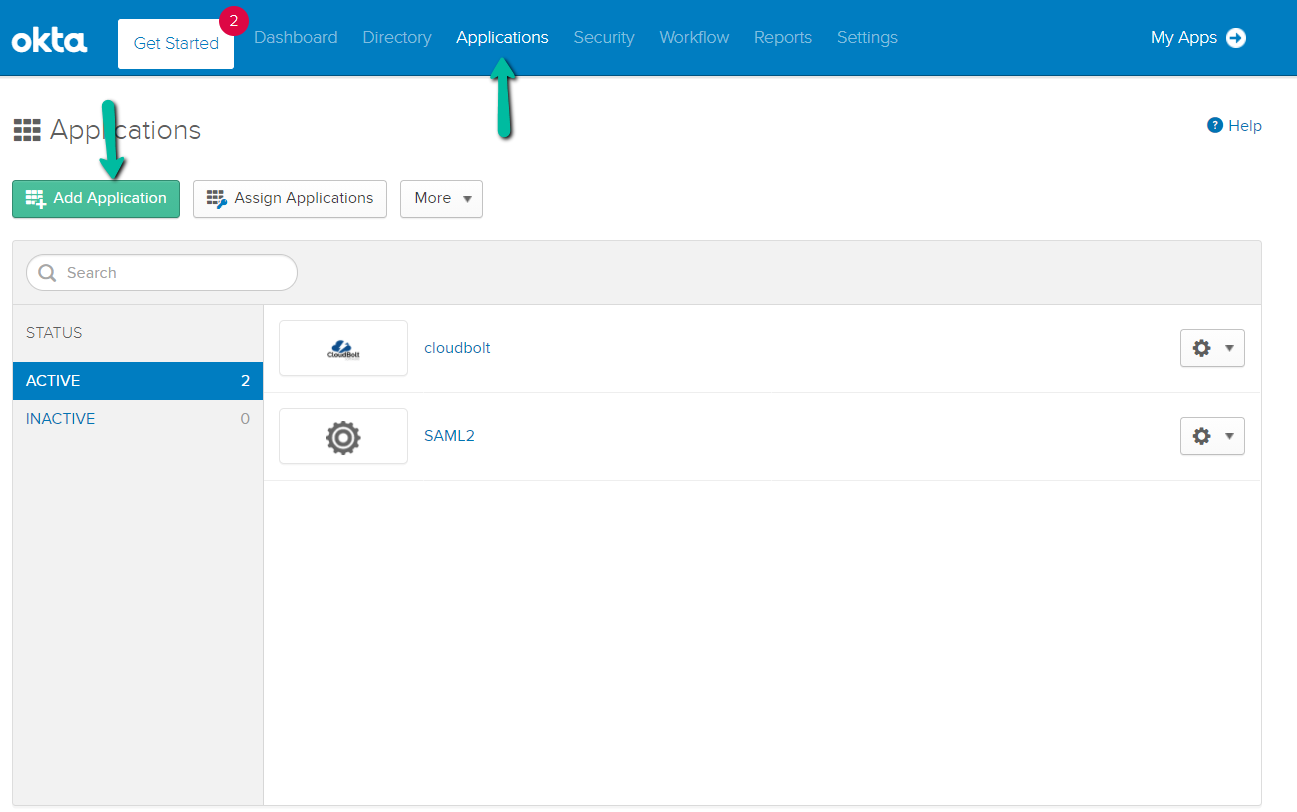
1. Select **Add Application** > **Create New App**. Leave **Web** selected and choose **SAML 2.0**.
1. In **General Settings**, enter the **App name**.
1. Select **Next** to continue to Configure SAML.
### Configure SAML
Enter the following values, then select **Next**:
In **General Settings**:
| Field | Description |
| --- | --- |
| **App name** | Enter a name for this app. |
In **Configure SAML**:
| Field | Description |
| --- | --- |
| **Single sign-on URL** | In CMP, open your Okta SSO provider. On the **Overview** tab, copy the Single Sign-On URL and paste it here. |
| **Use this for Recipient URL and Destination URL** | Enabled |
| **Allow this app to request other SSO URLs** | Disabled |
| **Audience URI (SP Entity ID)** | In CMP, open your Okta SSO provider. On the **Overview** tab, copy the Metadata URL / Entity ID and paste it here. |
| **Default RelayState** | Identifies a specific application resource in an IdP-initiated SSO scenario. Usually blank. |
| **Name ID format** | Unspecified |
| **Application username** | Okta username |
| **Update application username on** | Create and Update |
In **Attribute Statements**:
| Name | Value |
| --- | --- |
| email | user.email |
| username | user.login |
| firstName | user.firstName |
| lastName | user.lastName |
### Configure feedback
1. Select **I'm an Okta customer adding an internal app**.
1. For App Type, select **This is an internal app that we have created**.
1. Select **Finish**.
### Download the IdP metadata
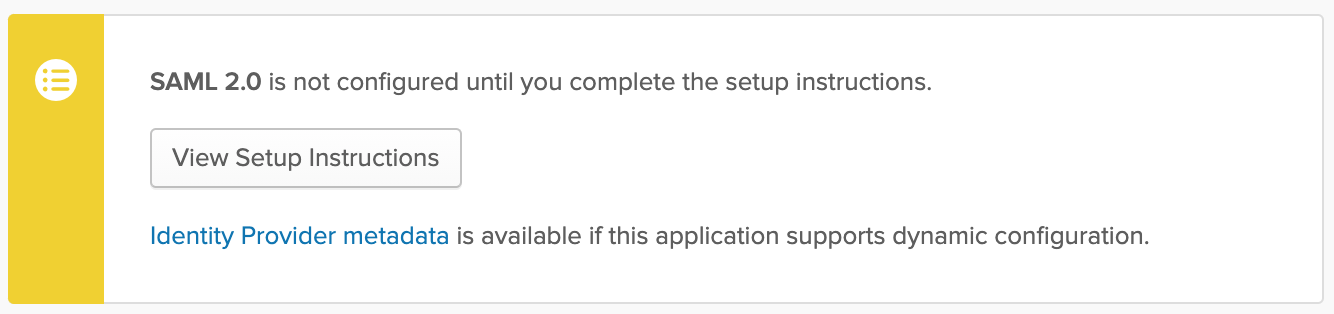
1. In the new Okta application, select the **Sign On** tab.
1. In the Settings area, find the SAML 2.0 box.
1. Right-click the **Identity Provider metadata** link and select **Save Link As** to save it to your machine.
### Assign user access
1. In the new Okta application, select the **Assignments** tab.
1. Select **Assign** > **Assign to People**.
1. Search for people or select from the list, then select **Assign**.
1. Select **Done**.
## Finish SSO setup in CMP
1. Log in to CMP as a Super Admin.
1. Go to **Admin** > **Single Sign-On (SSO)**.
1. Select **Okta**.
1. Import the XML metadata file you saved in [Download the IdP metadata](#download-the-idp-metadata).
1. Select **Edit**.
1. If you did not choose one at setup, scroll to the **Branded Portal** dropdown and select a portal for Okta.
1. (Optional) Enable auto-login:
1. Go to **Admin** > **Miscellaneous Settings**.
1. Set **Automatically Login to SSO** to **On**.
1. Log out of CMP, then sign back in. You are redirected to Okta to log in.
If configured successfully, CMP creates a new user account.