# Use password vaults
> To strengthen the security and lifecycle management of sensitive credentials, Cloud Management Platform (CMP) provides integrations with leading enterprise vault solutions, enabling you to securely store, manage, and access secrets such as API keys, passwords, and tokens within your workflows
---
Site [llms.txt](/llms.txt)
---
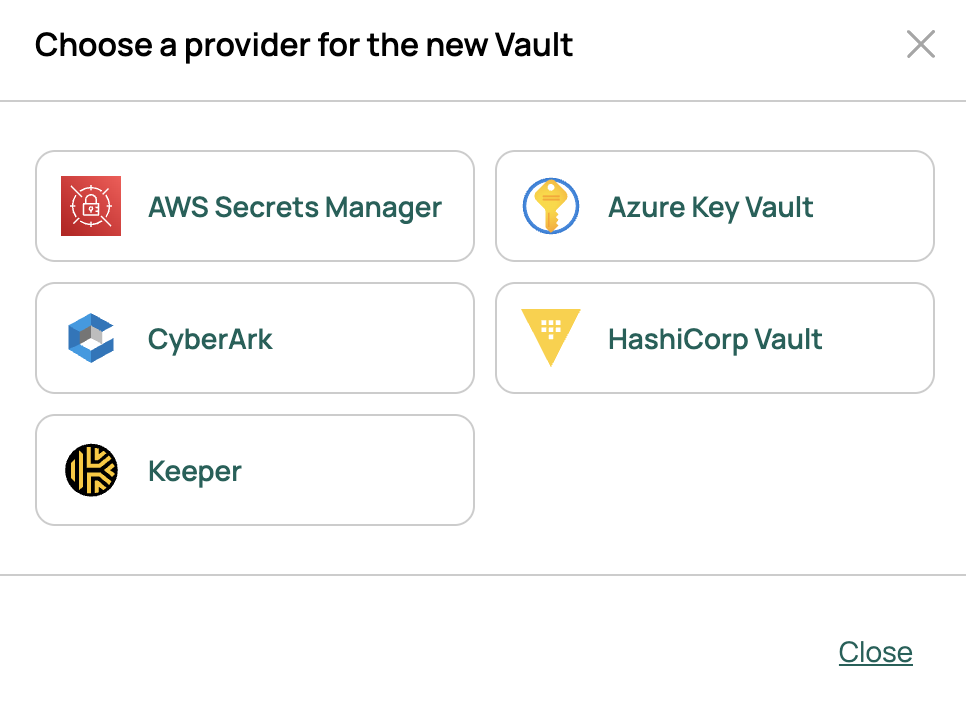
The following solutions are supported:
- **🔐 AWS Secrets Manager**
- **🔐 Azure Key Vault**
- **🔐 CyberArk**
- **🔐 HashiCorp Vault**
- **🔐 Keeper**
This guide details the HashiCorp Vault integration. AWS Secrets Manager, Azure Key Vault, CyberArk, and Keeper follow a similar workflow: enable the feature flag, add the provider under **Admin** > **Password Vaults**, then reference stored secrets from a supported password field.
When the vault feature is enabled, password and secret fields offer **Locally Stored** or **Vault Managed**. These fields appear on [resource handlers](/docs/cmp/configure/infrastructure/resource-handlers/), [connection info](/docs/cmp/configure/integrations/connection-info/), [IPAM](/docs/cmp/configure/infrastructure/networks/ipam/), [ITSM](/docs/cmp/configure/integrations/it-service-management/), [data protection](/docs/cmp/configure/integrations/data-backup-and-recovery/add-protection-plan/), [network virtualization](/docs/cmp/configure/infrastructure/networks/network-virtualization/), [LDAP](/docs/cmp/configure/access-and-security/users/ldap-authentication/), and [source code repositories](/docs/cmp/configure/integrations/source-code-repository/).
[Enable the **vault feature flag**](#enable-the-vault-feature-flag) to make these integrations available.
Once secrets resolve from a provider, you can optionally cache resolved values to reduce provider API traffic. See [Cache vault secrets](/docs/cmp/configure/access-and-security/security/cache-vault-secrets/).
## Prerequisites
Before integrating a vault provider, ensure the following requirements are met:
1. **Vault configured**
- [**HashiCorp Vault**](https://developer.hashicorp.com/vault):
- HashiCorp Vault configured
- **[Token](https://developer.hashicorp.com/vault/docs/auth/token)** or **[AppRole](https://developer.hashicorp.com/vault/docs/auth/approle)** authentication method enabled and configured
- Policy configuration for secret paths
- For Vault Enterprise with namespaces: the namespace path and credentials valid within that namespace. Configure a CMP vault connection for each namespace.
- **[Keeper](https://docs.keeper.io/en/keeperpam/secrets-manager/overview)**:
- Keeper Secrets Manager account
- API access enabled
- Client ID / API key
- **[CyberArk](https://docs.cyberark.com/secrets-manager-saas/latest/en/content/conjurcloud/cl_conjurcloudoverview.htm)**:
- Users, groups, and roles configured in your Conjur environment
- Privileges and permissions assigned for secret access
- Policies defining `id`, `user`, and assigned `privileges`. See more at [CyberArk Developer Guide](https://developer.cyberark.com/blog/understanding-conjur-policy/)
1. **Vault details**
Access to the following information:
- Vault endpoint URL or hostname
- Port number
- Authentication tokens or credentials
- Vault Token or AppRole
- Keeper API key / Client ID
- CyberArk identity & access configuration
## Enable the vault feature flag
1. As a root user, `SSH` to the CMP appliance:
```bash
sudo su -
vi /var/opt/cloudbolt/proserv/customer_settings.py
```
1. Add the following lines to the `customer_settings.py` file:
```python
from settings import FEATURE_REGISTRY
FEATURE_REGISTRY['vaults'] = True
```
1. Run the following commands:
```bash
/opt/cloudbolt/manage.py features --reset
systemctl restart httpd
systemctl restart memcached
```
## Add vault credentials
1. Log in to the CMP appliance as an administrator.
1. Go to **Admin** **>** **Password Vaults**.
1. Select **Add** and configure a vault provider.
### Add token credentials for a HashiCorp Vault
1. Select **HashiCorp Vault**.
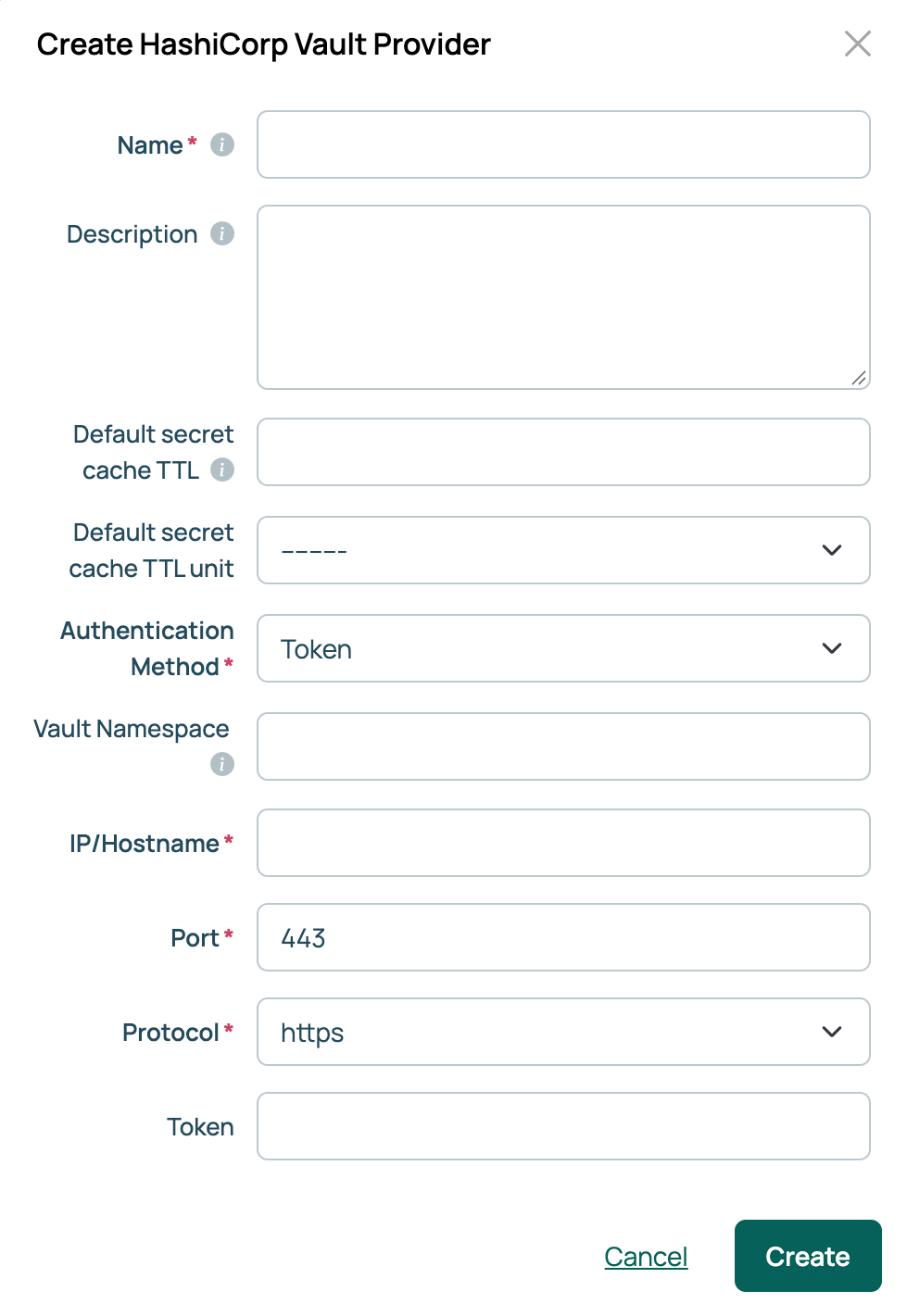
1. Provide a **Name** for the vault configuration.
1. For **Authentication Method**, select **Token**.
1. Enter the **IP/Hostname**, **Port**, **Protocol**, and **Token** for your vault.
1. For **Vault Namespace**, optionally enter the Vault Enterprise namespace to use for this connection, for example, `admin/team-a`. Leave blank to use the root namespace.
1. Select **Create**.
### Add AppRole credentials for a HashiCorp Vault
Add AppRole credentials to allow CMP to authenticate to your HashiCorp Vault and retrieve stored secrets.
1. Go to **Admin** **>** **Password Vaults**.
1. Select **Add**.
1. Select **HashiCorp Vault**.
1. Provide a **Name** for the vault configuration.
1. For **Authentication Method**, select **AppRole**.
1. Enter the **Approle Mount Path**, **IP/Hostname**, **Port**, **Protocol**, **AppRole Role ID**, and **AppRole Secret ID** for your vault and AppRole.
To locate the mount path, open HashiCorp Vault and go to **Access** **>** **Authentication Methods**. Use the path listed for AppRole (for example, `approle`) as the mount path.
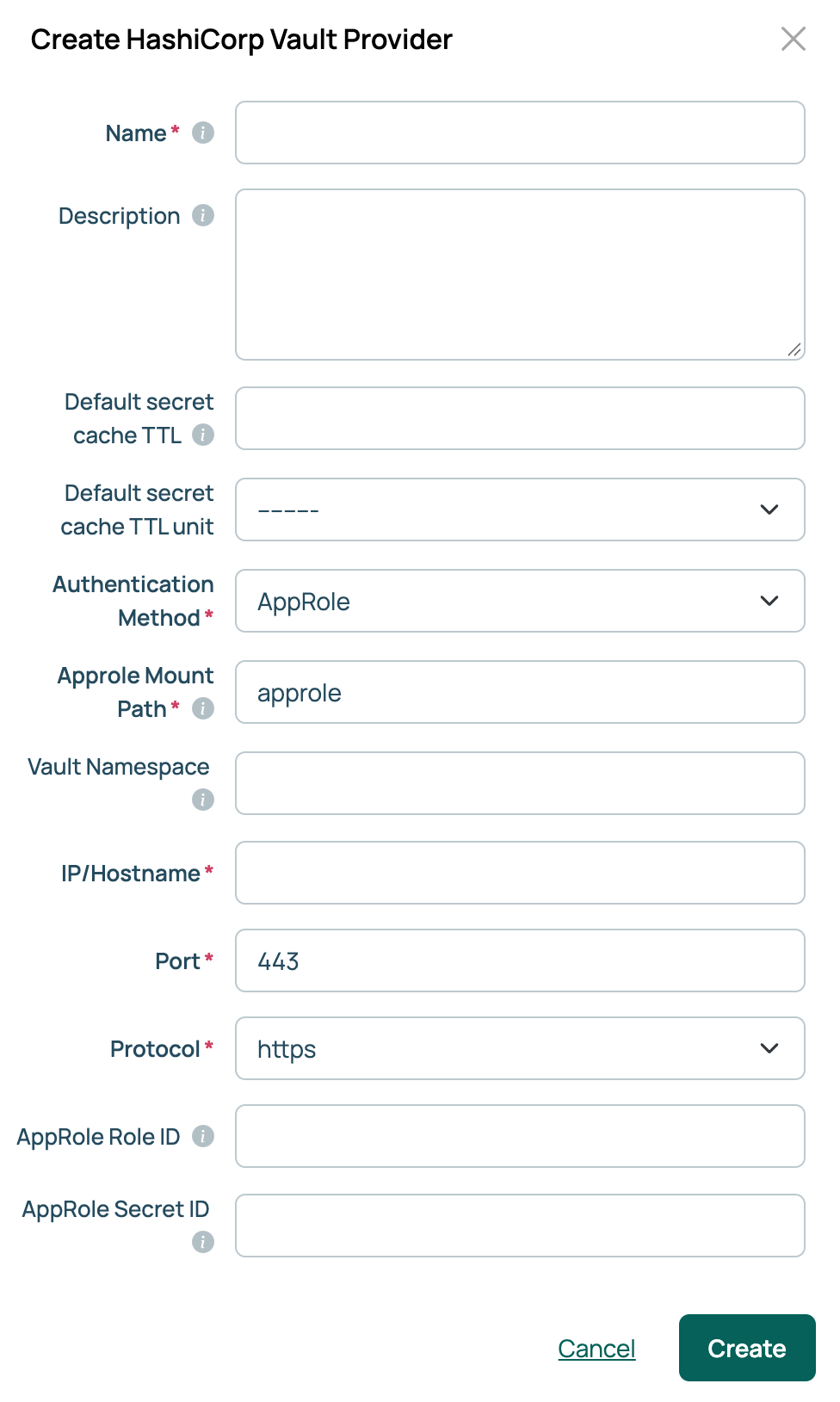
1. For **Vault Namespace**, optionally enter the Vault Enterprise namespace to use for this connection, for example, `admin/team-a`. Leave blank to use the root namespace.
1. Select **Create**.
After you select **Create**, CMP automatically attempts to verify the connection to the vault. If verification fails, an error message appears. You can also select **Verify Connection** to test the connection manually.
### Edit credentials for a HashiCorp Vault
Update the Token or AppRole credentials that CMP uses to authenticate to your HashiCorp Vault and retrieve stored secrets.
1. Go to **Admin** **>** **Password Vaults**.
1. Select the vault entry to update.
1. Select **Edit**.
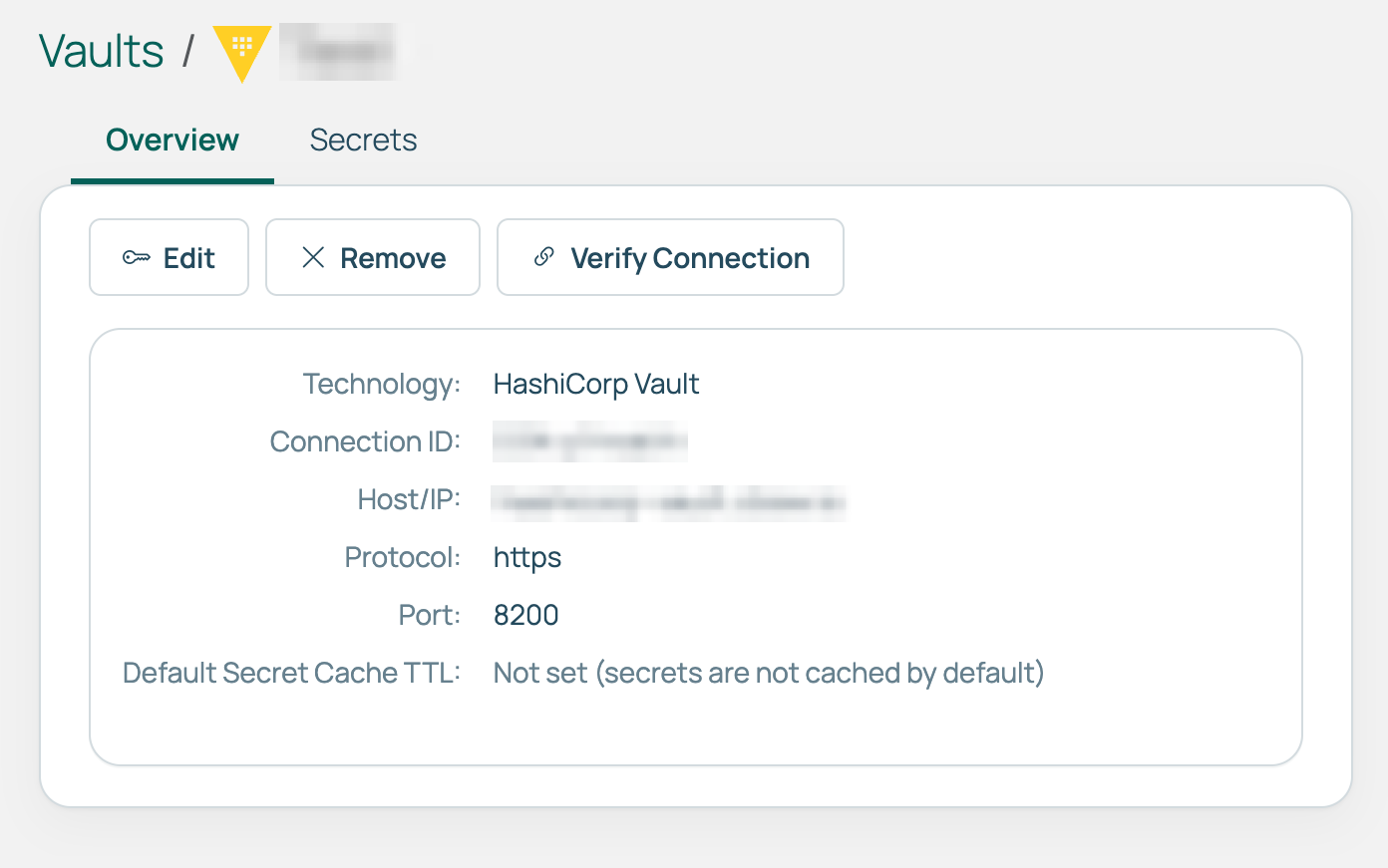
1. Update any required fields.
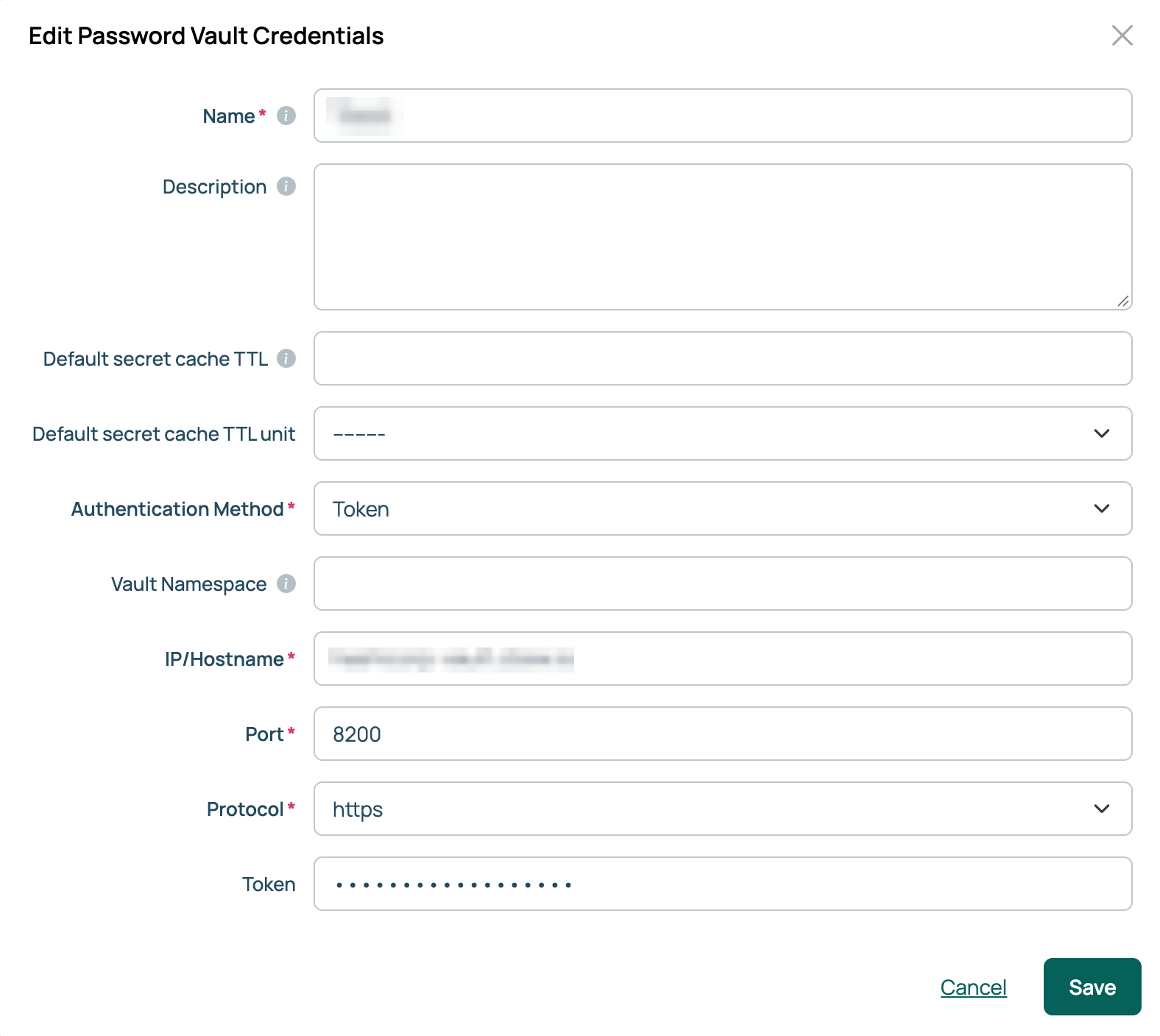
**Default secret cache TTL** and **Default secret cache TTL unit** set the cache duration inherited by new secret mappings created under this vault. Changing them does not affect existing mappings. Leave them unset to resolve secrets on every access. See [Cache vault secrets](/docs/cmp/configure/access-and-security/security/cache-vault-secrets/).
1. Select **Save**.
After you select **Save**, CMP attempts to verify the connection to the vault. If verification fails, CMP displays an error message and does **not** save changes. You can also select **Verify Connection** to manually test the connection.
## Configure resource handler to use vault credentials
### Use HashiCorp Vault credentials in a resource handler
#### Access HashiCorp Vault secret information
1. Go to the secrets engine in your HashiCorp Vault and locate the secret.
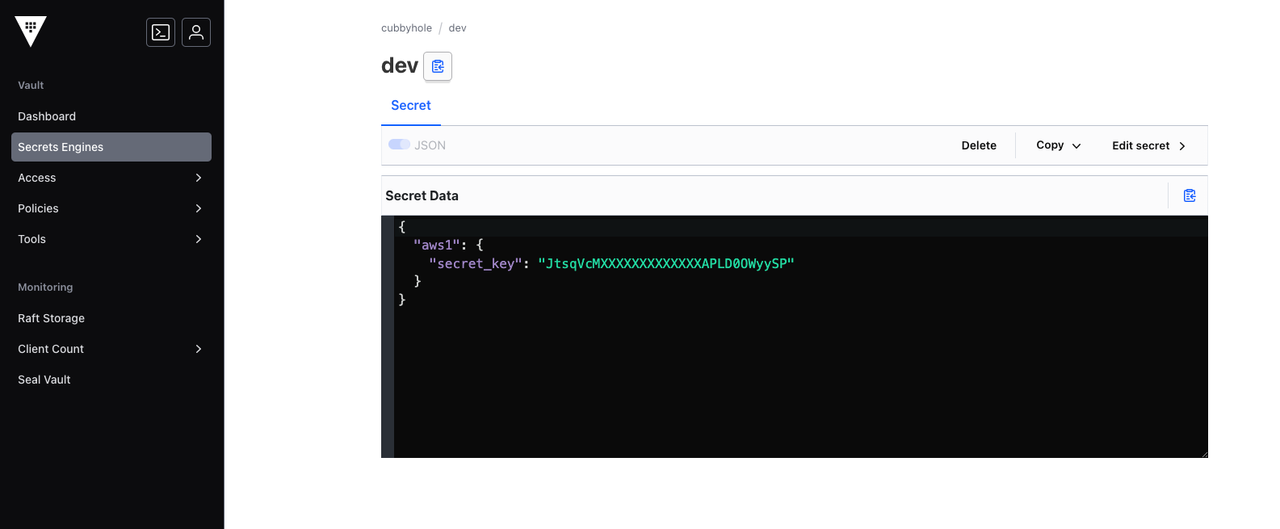
1. Take note of the secret path and key name.
In this example, the path is `/cubbyhole/dev`, and the name is `secret_key`.
#### Use HashiCorp Vault Token credentials in a resource handler
1. Go to **Admin** **>** **Resource Handlers**.
1. Select the target resource handler.
1. Select **Edit Credentials**.
1. For **Password**, select **Vault Managed**.
1. Select the Token credential.
1. Provide the path and secret key name.
1. Select **Save**.
#### Use HashiCorp AppRole credentials in a resource handler
Configure a resource handler to authenticate to a vault using AppRole and retrieve a secret.
1. Go to **Admin** **>** **Resource Handlers**.
1. Select the target resource handler.
1. Select **Edit Credentials**.
1. Next to **Password**, select **Vault Managed**.
1. Select the AppRole credential.
Continue for details on retrieving secrets stored in the **[Cubbyhole](https://developer.hashicorp.com/vault/docs/secrets/cubbyhole)** or **[Key/Value (KV)](https://developer.hashicorp.com/vault/docs/secrets/kv)** secrets engines.
To configure a resource handler to access a secret in a Cubbyhole secrets engine:
1. Provide the secret path in the **path** field.
Cubbyhole does not offer a "copy path" button, but you can use the breadcrumb path shown in the vault (for example, `/cubbyhole/aws`).
1. Copy the key name and enter it in the **key name** field.
Cubbyhole secrets can only be accessed using the creating token. To retrieve a Cubbyhole secret with an AppRole credential, the secret must have been created with that same credential.
1. Select **Save**.
To configure a resource handler to access a secret in a KV secrets engine:
1. Copy the secret's API path and provide it in the **path** field.
If the path begins with `/v1` (the Vault API version prefix), remove `/v1`
**Example:** `/v1/kv/data/aws/credentials` becomes `/kv/data/aws/credentials`
1. Copy the key name and enter it in the **key name** field.
For KV v2, prepend the key name with `data.`
**Example:** `AWS_SECRET_ACCESS_KEY` becomes `data.AWS_SECRET_ACCESS_KEY`
Refer to [HashiCorp's KV version comparison page](https://developer.hashicorp.com/vault/docs/secrets/kv#version-comparison) for details on the differences between version 1 and version 2.
1. Select **Save**.
If multiple versions of a secret exist in a vault and the path does not include a version number, CMP retrieves the latest version.
**Example of a versioned path:** `/kv/data/aws/credentials?version=3`
After you select **Save**, CMP attempts to retrieve the vault secret and authenticate to the provider (for example, AWS). If authentication fails, CMP displays an error message. You can also select **Verify Connection** to manually test the connection.
### Use CyberArk credentials in a resource handler
Use the `/` format to reference a value, for example `aws/secret_access_key`.
## Use vault credentials in a connection info
Store a connection info password in a vault instead of locally in CMP.
1. Go to **Admin** **>** **Connection Info**.
1. Select the connection info to update, then select **Edit**.
1. For **Password**, select **Vault Managed**.
1. Select the vault credential, then provide the path and secret key name.
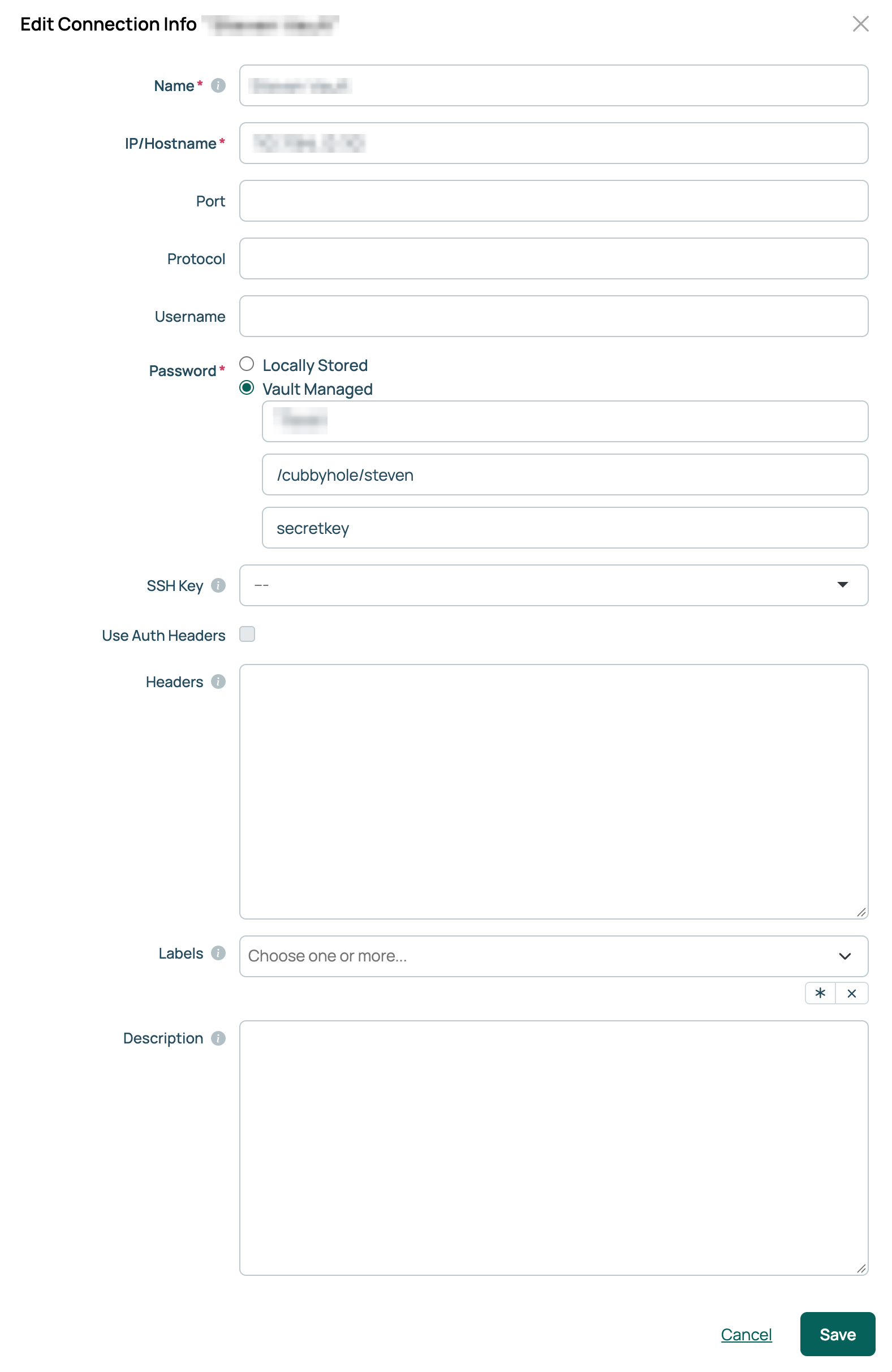
The path and key name formats are the same as for a resource handler. For Cubbyhole and KV examples, see [Use HashiCorp AppRole credentials in a resource handler](#use-hashicorp-approle-credentials-in-a-resource-handler).
1. Select **Save**.
## View where a vault is used
The **Secrets** tab on a vault lists every CMP field that reads a secret from that vault. Check this tab before you change or remove a secret in the vault provider, or before you delete the vault from CMP.
1. Go to **Admin** > **Password Vaults**.
1. Select the vault.
1. Select the **Secrets** tab.
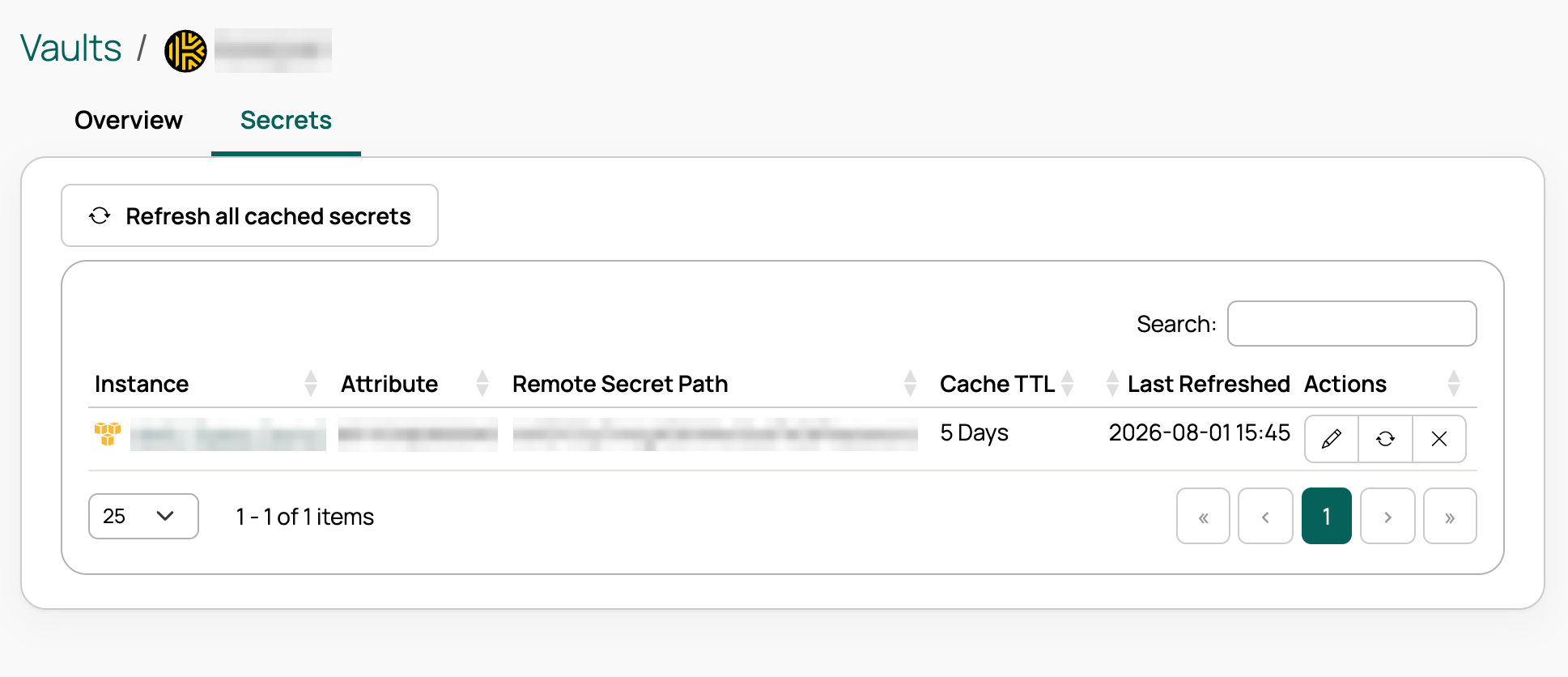
Each row is one vault-managed field:
| Column | Description |
| --- | --- |
| **Instance** | The object that uses the secret, such as a resource handler, connection info, IPAM, ITSM, data protection, network virtualization, LDAP, or source code repository. Select the name to open the object. |
| **Attribute** | The field on that object that reads the secret, for example, `password` or `secret`. |
| **Remote Secret Path** | The path and key name in the vault provider. |
| **Cache TTL**, **Last Refreshed**, **Actions** | Secret caching settings and controls. See [Cache vault secrets](/docs/cmp/configure/access-and-security/security/cache-vault-secrets/). |
Use the search box to filter by object name, attribute, or secret path.
## Manage vaults with the API
You can also manage vault providers and vault-managed fields through the CMP v3 API.
| Task | Endpoint |
| --- | --- |
| List, create, view, update, or delete a vault provider | `/api/v3/cmp/vaults/{technology}/`, where `{technology}` is `hashicorp`, `keepervault`, `cyberark`, `azurekeyvault`, or `awssecretsmanager` |
| List, create, view, update, or delete a vault-managed field | `/api/v3/cmp/vaultSecretMappings/` |
For request and response details, open the API console on your CMP appliance and go to the **Password Vaults** section. See [REST API](/docs/cmp/developer-resources/rest-api/).